> ## Documentation Index
> Fetch the complete documentation index at: https://docs.dentolize.com/llms.txt
> Use this file to discover all available pages before exploring further.
# Analytics and reports on leads
> Measure your leads: where they come from, where they are in the journey, how long they stay in each stage, and why they're lost.
## 🧮 Journey analytics
Open **Settings → Leads → Journey**, open a journey and click the **Analytics** tab. It shows where the leads that **started** in this journey are now, stage by stage, with their number and total deal size, even if they moved to another journey. Filter by dates, assigned user, tags and referral.
## ⏱️ Stage timeline
**Settings → Leads → Stage Timeline** lists every move between stages and how long the lead stayed. **Show Analytics** gives the average, longest and shortest time, and **Group By** gives totals per user or stage.
## 📋 Group the leads table
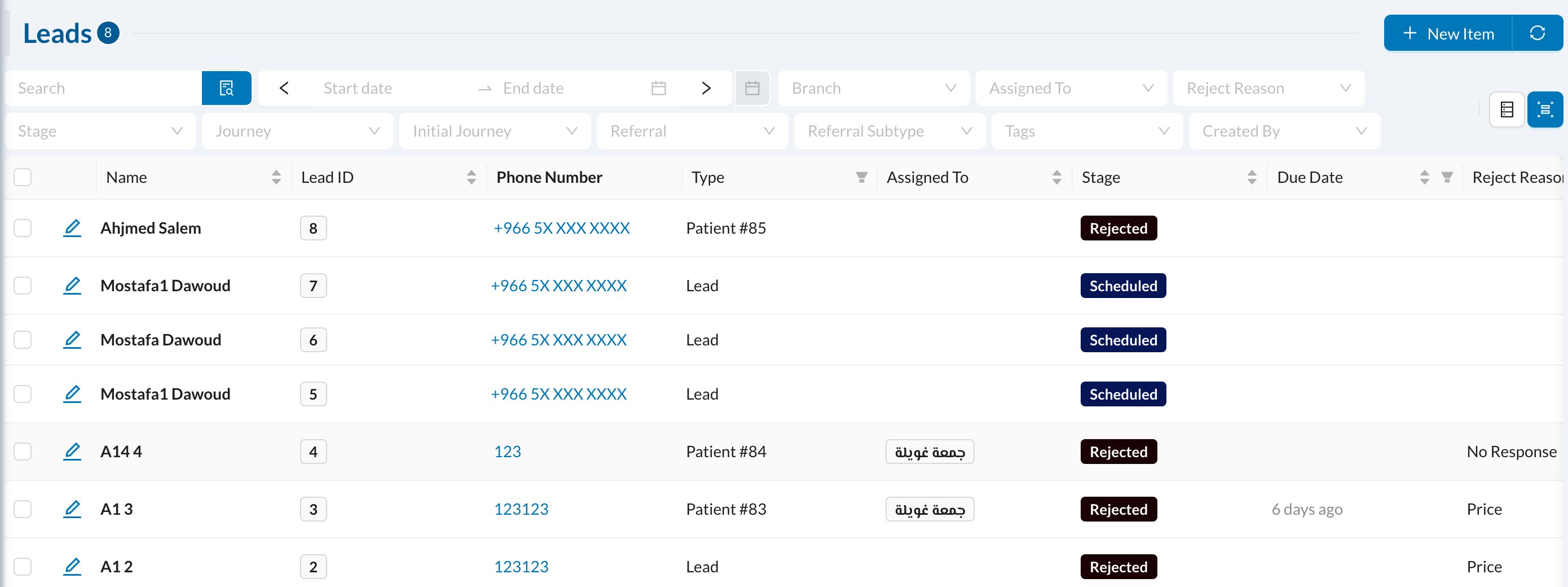
In **CRM → Leads → All Leads**, use **Group By** to count leads (with deal size and average score) by assigned user, stage, journey, reject reason, referral source or QR link.
 ## ⚡ Quick reports
In **Analytics → Quick Reports**: **Leads by Referral Source**, **Leads by Assigned To** and **Rejected Leads by Reason**.
Viewing lead analytics needs the **Leads** analytics permission. Users who can only see their own leads see only the leads assigned to them.
## ⚡ Quick reports
In **Analytics → Quick Reports**: **Leads by Referral Source**, **Leads by Assigned To** and **Rejected Leads by Reason**.
Viewing lead analytics needs the **Leads** analytics permission. Users who can only see their own leads see only the leads assigned to them.