> ## Documentation Index
> Fetch the complete documentation index at: https://docs.dentolize.com/llms.txt
> Use this file to discover all available pages before exploring further.
# Creating Patient's Lab order
> Send a lab order for the patient from the chart, with the teeth, shade and due date.
In the patient's **Chart**, select the teeth or treatment, then click **+** → **Lab Order**.
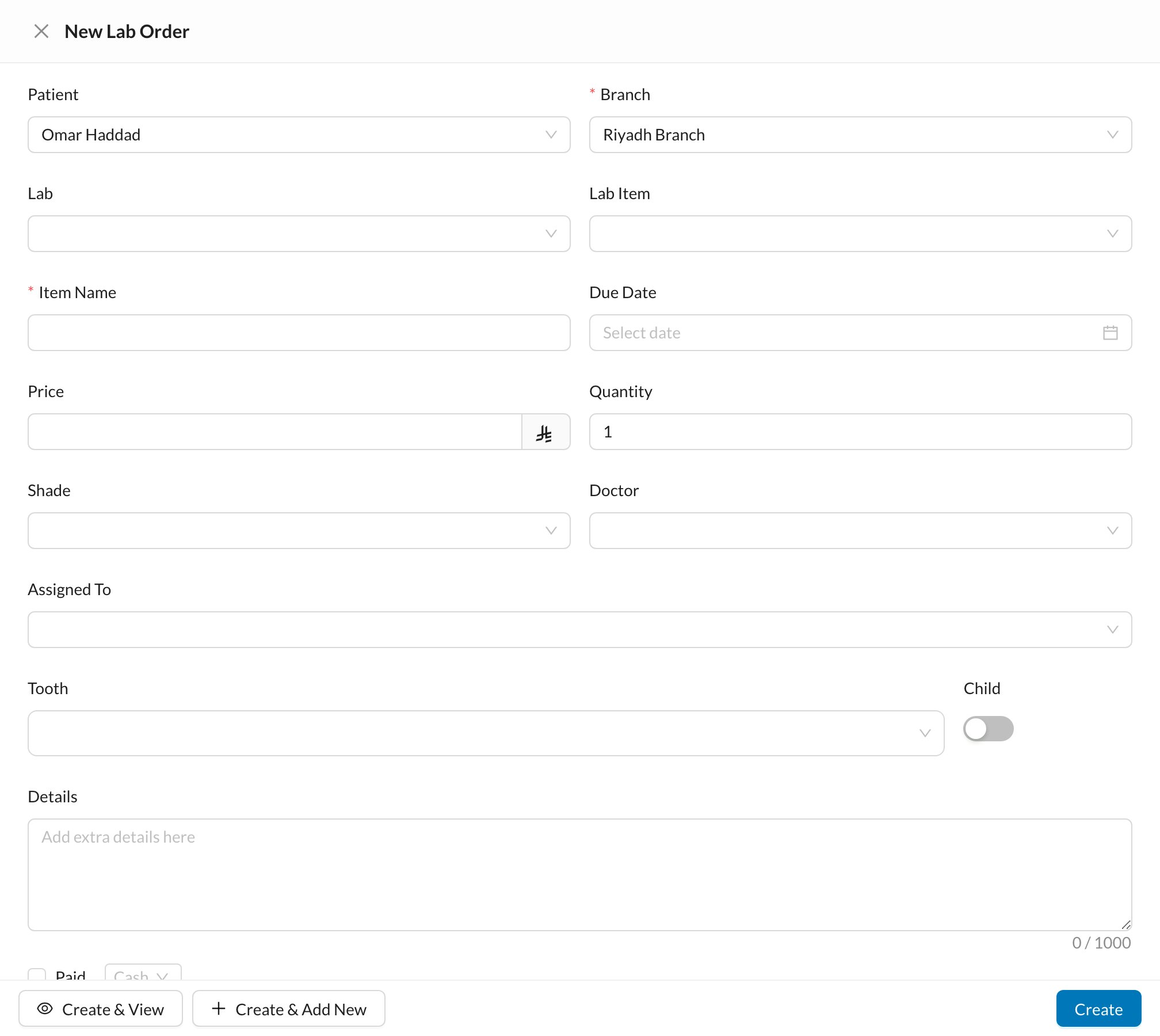 Choose the **Lab** and **Lab Item** (this fills in the name and price), then check the **Tooth**, **Shade**, **Due Date**, **Doctor** and **Details**. Keep **Add to Expenses** ticked to record the cost, then click **Create**.
See [Dental Lab Orders](/en/reception/lab-order) to follow the order until it's received and delivered.
A procedure can open a lab order automatically when it's started or completed (**Settings → Procedures and Prices**).
Choose the **Lab** and **Lab Item** (this fills in the name and price), then check the **Tooth**, **Shade**, **Due Date**, **Doctor** and **Details**. Keep **Add to Expenses** ticked to record the cost, then click **Create**.
See [Dental Lab Orders](/en/reception/lab-order) to follow the order until it's received and delivered.
A procedure can open a lab order automatically when it's started or completed (**Settings → Procedures and Prices**).