> ## Documentation Index
> Fetch the complete documentation index at: https://docs.dentolize.com/llms.txt
> Use this file to discover all available pages before exploring further.
# Invoices
> Create an invoice from the patient chart, apply discounts, tax and insurance, and follow up unpaid invoices.
An invoice lists the procedures done for a patient and what the patient and the insurance company have to pay. Payments are then added to the invoice (see [Payments and patient balance](/en/finances/payments)).
## 🧾 Create an invoice
Invoices are created from the patient's **Chart**. Select the procedures to invoice, then click **Invoice** at the bottom of the chart:
 If you changed a price in the chart, the button shows **Save and Invoice**. When an insurance approval is still pending, the button shows **Waiting Approval for Insurance** and can't be clicked yet.
The **Create Invoice** drawer opens:
If you changed a price in the chart, the button shows **Save and Invoice**. When an insurance approval is still pending, the button shows **Waiting Approval for Insurance** and can't be clicked yet.
The **Create Invoice** drawer opens:
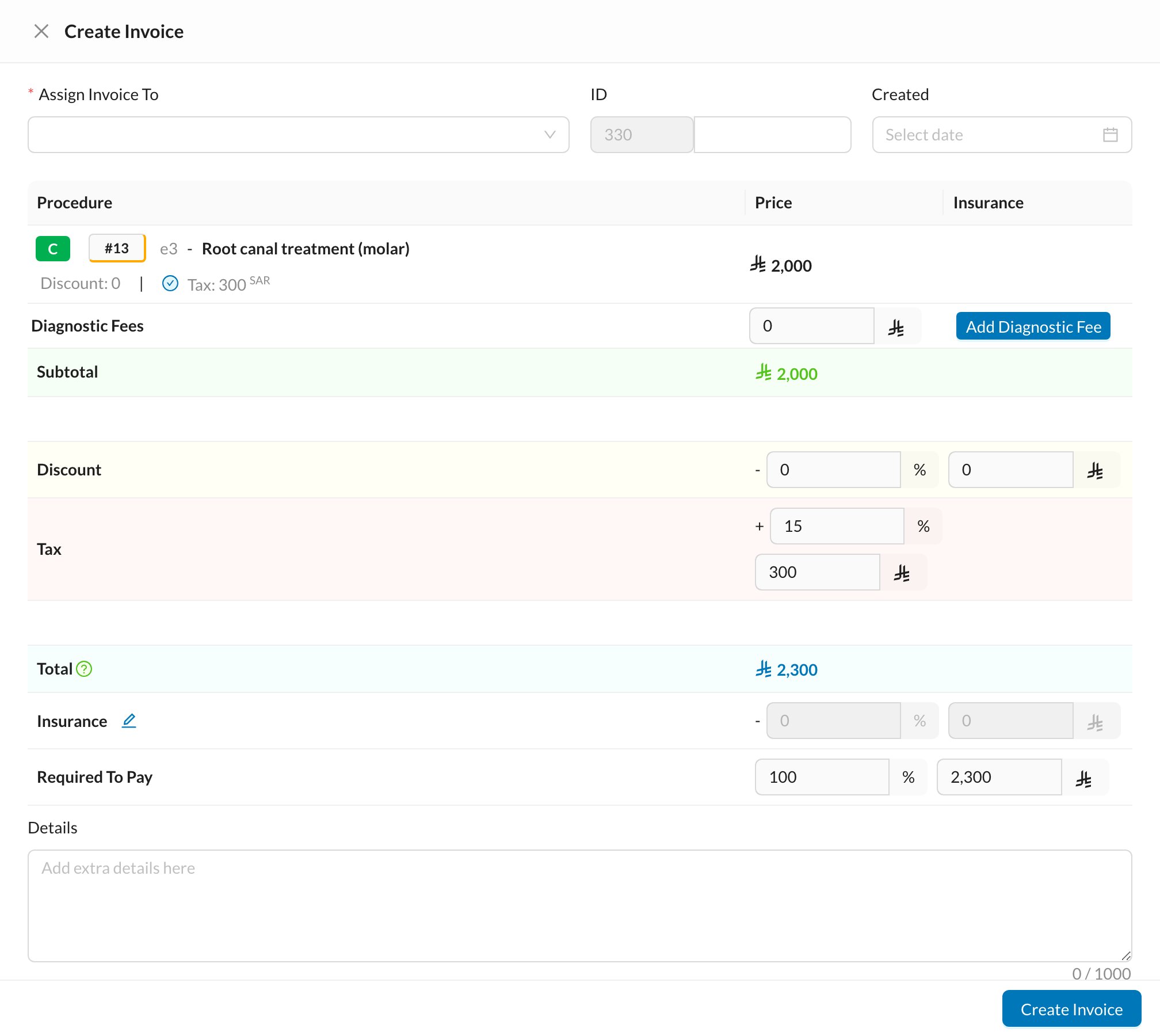 **Assign Invoice To** is required. Check the **Branch** and **Doctor** too.
Each procedure shows its price and, for insured patients, whether insurance covers it. Click **Add Diagnostic Fee** to add a diagnostic fee.
Enter the **Discount** as a percentage or an amount. The **Tax** comes from your VAT settings. Each user can only give up to their maximum discount.
**Insurance** shows the insurance share. **Required To Pay** is what the patient must pay now; lower it to let the patient pay part now and the rest later.
Click **Create Invoice**. If the patient is in an appointment, **Invoice And End Session** creates the invoice and marks the appointment completed.
When the invoice has an insurance share, an **Insurance** payment is added automatically for that share. Mark it as claimed when the insurance company pays (see [Payments](/en/finances/payments)).
## 📋 The invoices list
Go to **Finances → Invoices**:
**Assign Invoice To** is required. Check the **Branch** and **Doctor** too.
Each procedure shows its price and, for insured patients, whether insurance covers it. Click **Add Diagnostic Fee** to add a diagnostic fee.
Enter the **Discount** as a percentage or an amount. The **Tax** comes from your VAT settings. Each user can only give up to their maximum discount.
**Insurance** shows the insurance share. **Required To Pay** is what the patient must pay now; lower it to let the patient pay part now and the rest later.
Click **Create Invoice**. If the patient is in an appointment, **Invoice And End Session** creates the invoice and marks the appointment completed.
When the invoice has an insurance share, an **Insurance** payment is added automatically for that share. Mark it as claimed when the insurance company pays (see [Payments](/en/finances/payments)).
## 📋 The invoices list
Go to **Finances → Invoices**:
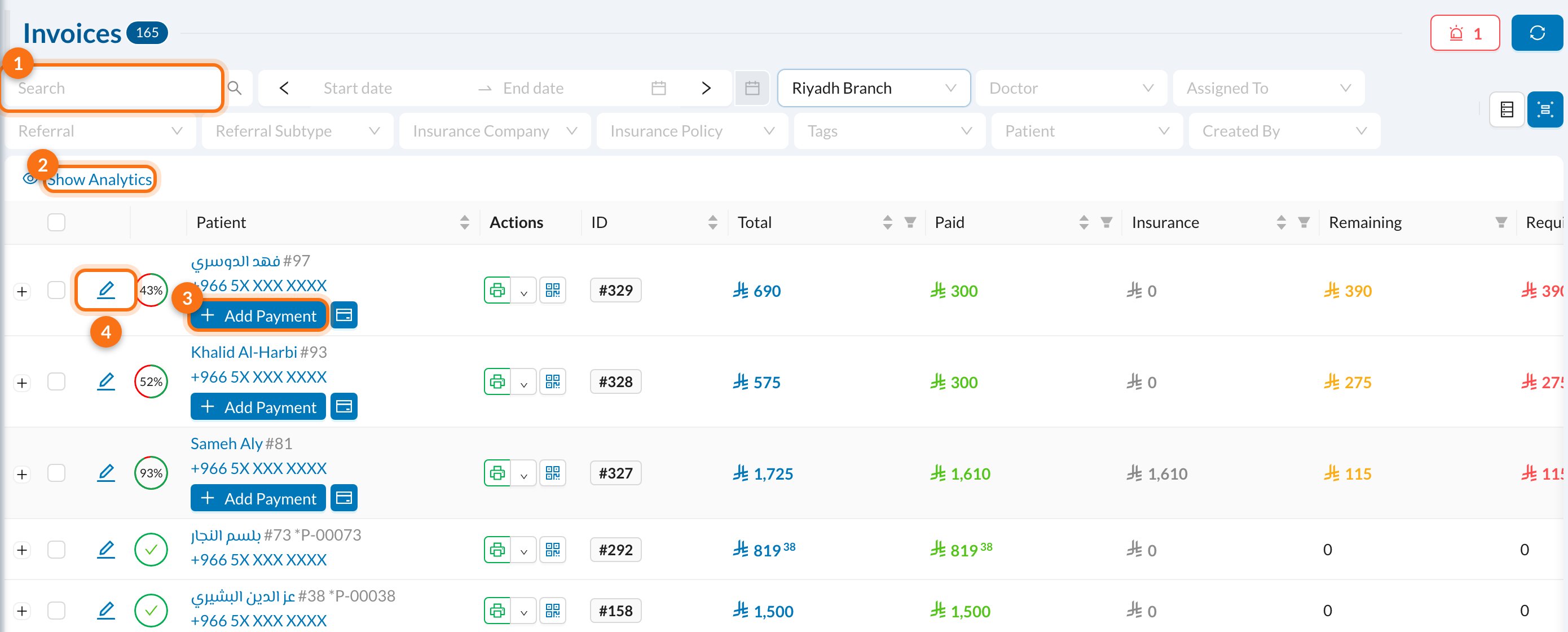 1. **Search and filters:** filter by date, branch, doctor, patient, insurance company, referral, tags and more.
2. **Show Analytics:** totals for the filtered invoices.
3. **Add Payment:** shown on invoices that aren't fully paid. The icon next to it generates a payment link.
4. **Edit** the invoice.
The ring next to each patient shows how much of the invoice is paid. Use the **Remaining** column filter (**Greater than 0**) to list unpaid invoices, and **Send Message To All** at the bottom to remind those patients.
1. **Search and filters:** filter by date, branch, doctor, patient, insurance company, referral, tags and more.
2. **Show Analytics:** totals for the filtered invoices.
3. **Add Payment:** shown on invoices that aren't fully paid. The icon next to it generates a payment link.
4. **Edit** the invoice.
The ring next to each patient shows how much of the invoice is paid. Use the **Remaining** column filter (**Greater than 0**) to list unpaid invoices, and **Send Message To All** at the bottom to remind those patients.
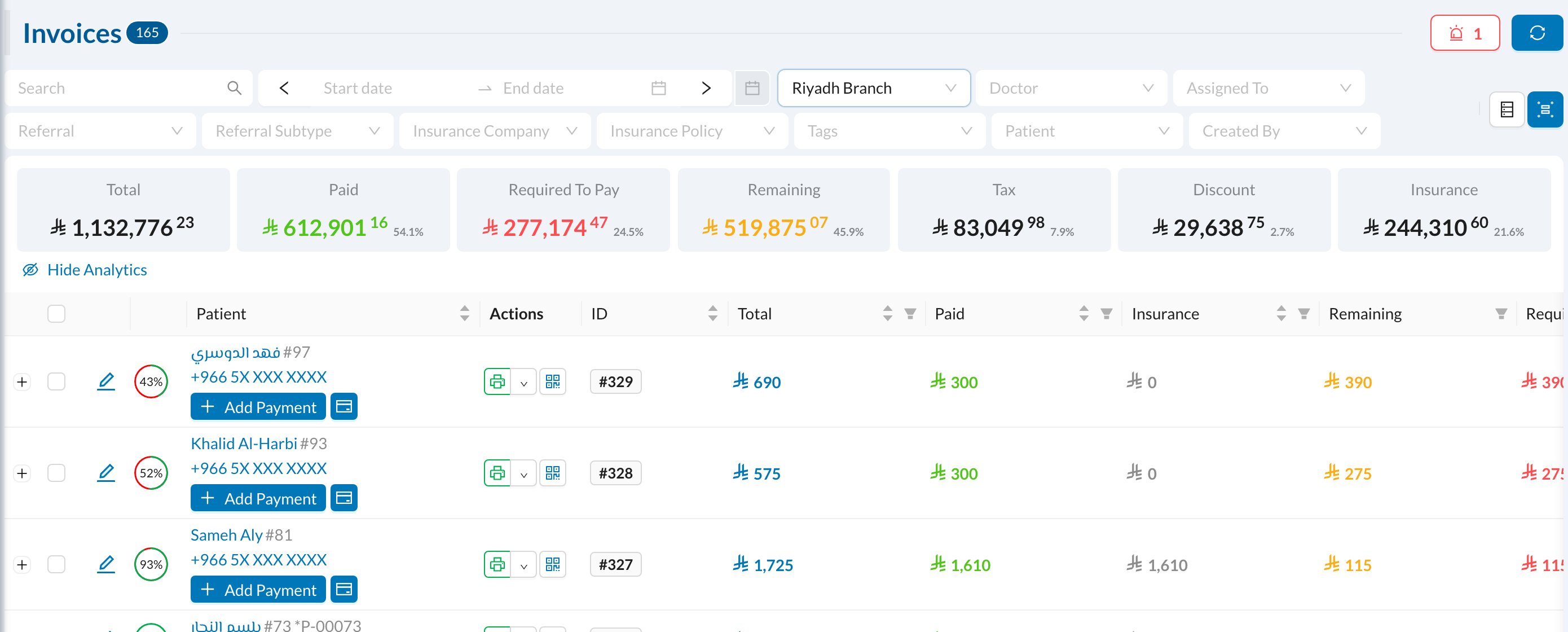 The analytics show the **Total**, **Paid**, **Required To Pay** and **Remaining**, and, when used, **Tax**, **Discount**, **Insurance**, **Diagnostic Fees** and **Released** amounts. Click a card to filter the list.
## 🔍 Invoice details
Click an invoice to open its page:
The analytics show the **Total**, **Paid**, **Required To Pay** and **Remaining**, and, when used, **Tax**, **Discount**, **Insurance**, **Diagnostic Fees** and **Released** amounts. Click a card to filter the list.
## 🔍 Invoice details
Click an invoice to open its page:
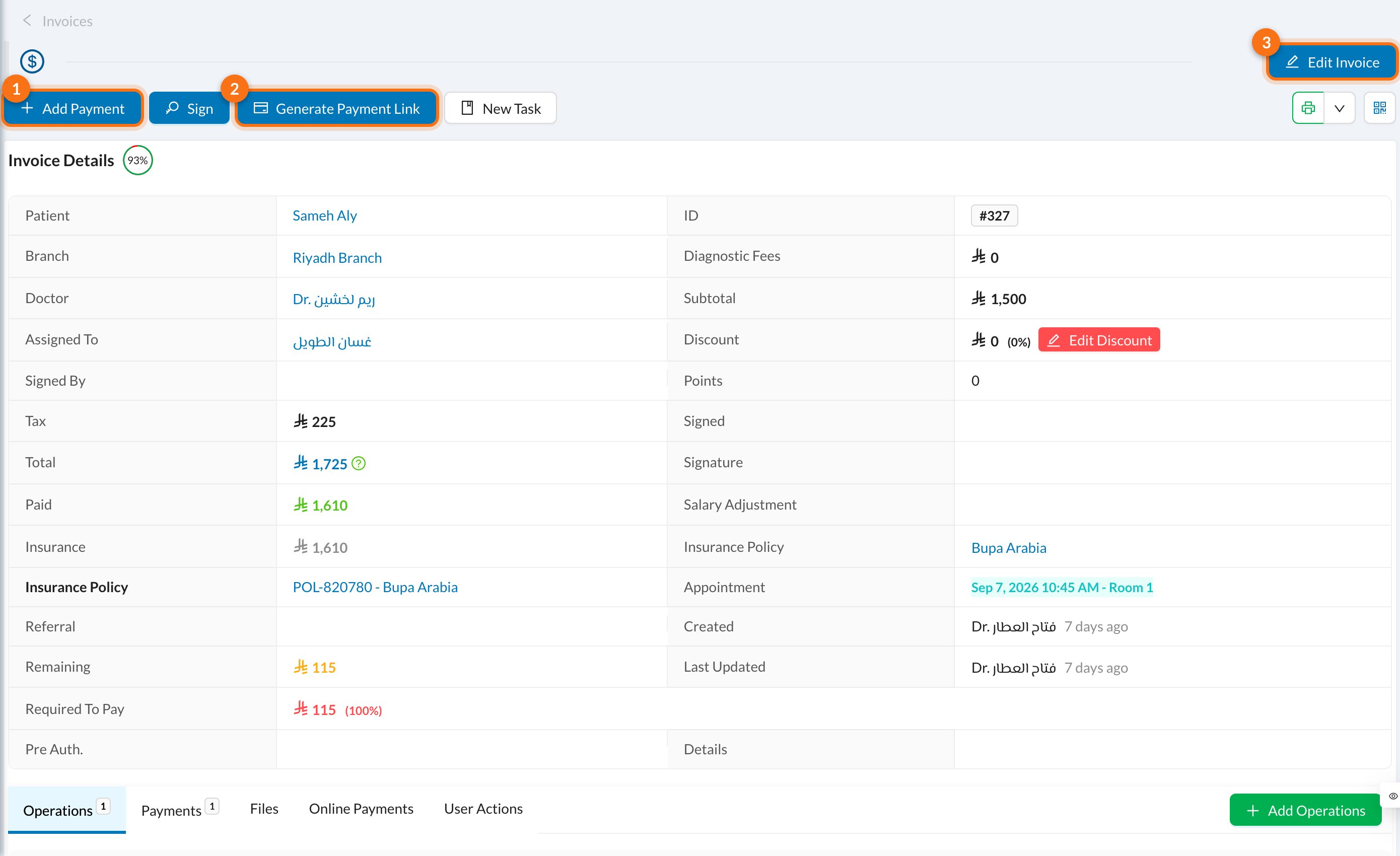 1. **Add Payment.**
2. **Generate Payment Link:** send the patient a link to pay online.
3. **Edit Invoice.**
The tabs at the bottom list the invoice's **Operations** and **Payments**, its files and online payments. From here you can also **Add Operations**, remove an operation from the invoice, or **Edit Discount** (the doctor's percentage is recalculated).
### Send a payment link
1. **Add Payment.**
2. **Generate Payment Link:** send the patient a link to pay online.
3. **Edit Invoice.**
The tabs at the bottom list the invoice's **Operations** and **Payments**, its files and online payments. From here you can also **Add Operations**, remove an operation from the invoice, or **Edit Discount** (the doctor's percentage is recalculated).
### Send a payment link
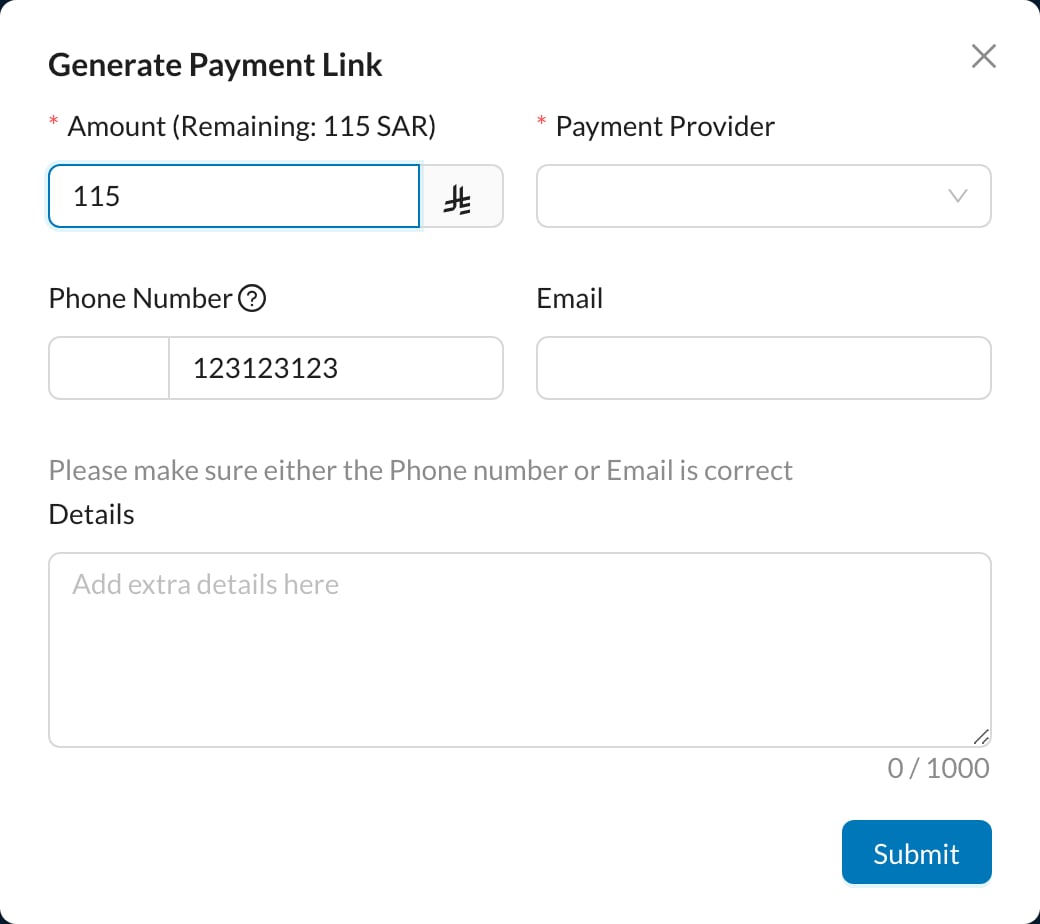 Enter the **Amount**, choose the **Payment Provider**, check the patient's phone number or email, and click **Submit**. When the patient pays, the payment is added to the invoice automatically. Payment providers are set up in [Online payments](/en/setup-settings/int/online-pay-settings).
## ✏️ Edit, release or delete an invoice
Open the invoice with the edit icon:
* **Update** saves your changes.
* **Release** writes off the remaining amount (for example, a debt you won't collect). Any remaining payments are removed, and the amount shows in the **Released** column.
* **Delete** removes the invoice.
Once an invoice has payments, you can only change its details (assigned users, date, branch, doctor, ID, notes). To change prices or delete it, delete its payments first. Invoices in an insurance claim or with a submitted e-invoice can't be changed or deleted.
At the front desk, see also [Collecting fees from patients](/en/reception/fees-collections) (diagnostic fees and Quick Invoice).
## ❓ FAQ
Invoices are always created from the patient's chart, so they are linked to the procedures done.
Yes. Set **Required To Pay** to what the patient pays now, and add each payment to the invoice when it's paid. The **Remaining** column shows what is still due.
Each user has a maximum discount, set in [Users](/en/setup-settings/users-settings).
Enter the **Amount**, choose the **Payment Provider**, check the patient's phone number or email, and click **Submit**. When the patient pays, the payment is added to the invoice automatically. Payment providers are set up in [Online payments](/en/setup-settings/int/online-pay-settings).
## ✏️ Edit, release or delete an invoice
Open the invoice with the edit icon:
* **Update** saves your changes.
* **Release** writes off the remaining amount (for example, a debt you won't collect). Any remaining payments are removed, and the amount shows in the **Released** column.
* **Delete** removes the invoice.
Once an invoice has payments, you can only change its details (assigned users, date, branch, doctor, ID, notes). To change prices or delete it, delete its payments first. Invoices in an insurance claim or with a submitted e-invoice can't be changed or deleted.
At the front desk, see also [Collecting fees from patients](/en/reception/fees-collections) (diagnostic fees and Quick Invoice).
## ❓ FAQ
Invoices are always created from the patient's chart, so they are linked to the procedures done.
Yes. Set **Required To Pay** to what the patient pays now, and add each payment to the invoice when it's paid. The **Remaining** column shows what is still due.
Each user has a maximum discount, set in [Users](/en/setup-settings/users-settings).