> ## Documentation Index
> Fetch the complete documentation index at: https://docs.dentolize.com/llms.txt
> Use this file to discover all available pages before exploring further.
# Payments and patient balance
> Add a payment to an invoice, use the patient's balance, follow up insurance payments, and refund a payment.
## 💵 Add a payment
Click **Add Payment** on the invoice, in the invoices list or on the invoice page:
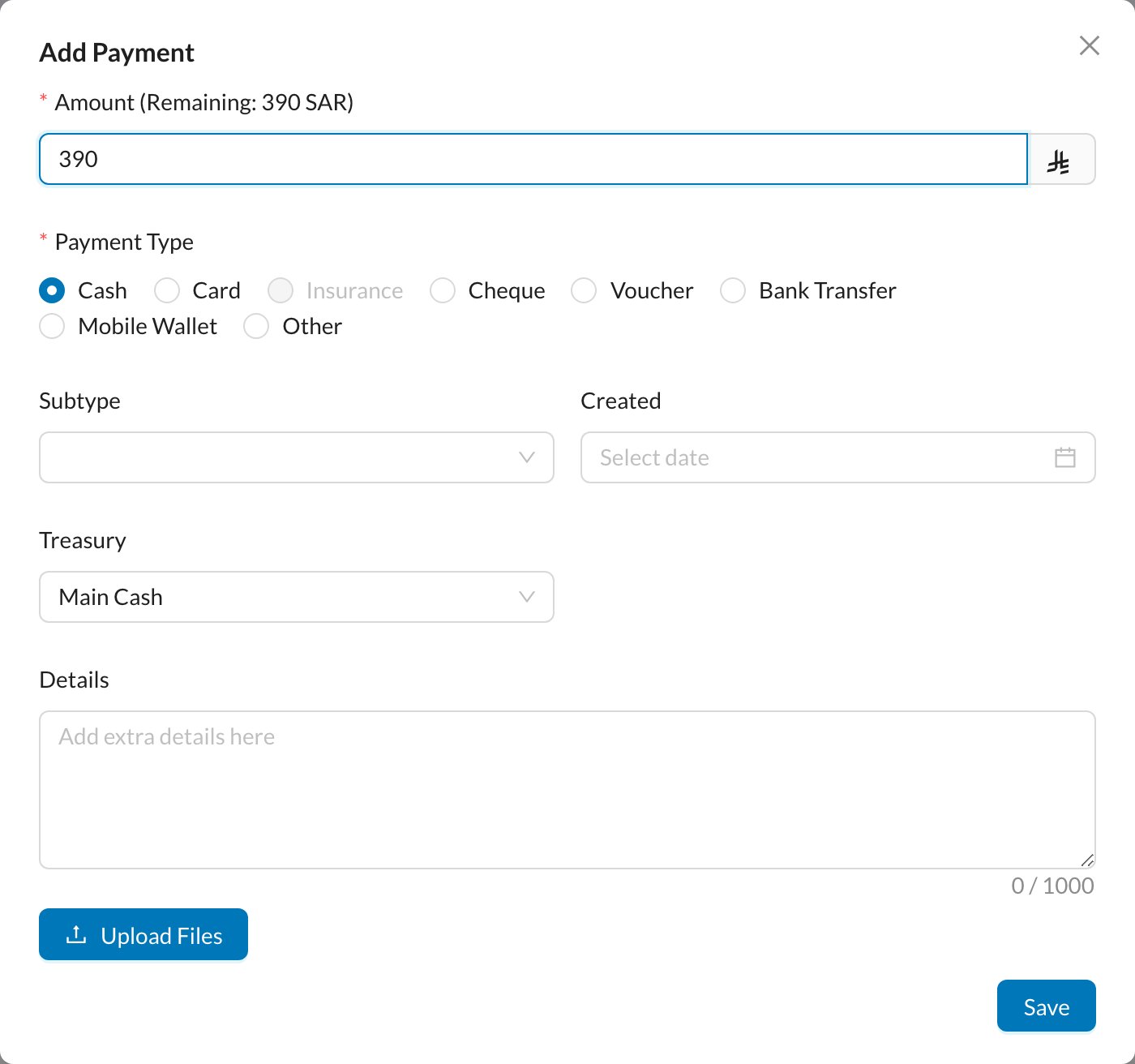 The **Amount** is filled in with what the patient has to pay now. The remaining amount of the invoice is shown next to it.
**Cash**, **Card**, **Insurance**, **Cheque**, **Voucher**, **Bank Transfer**, **Mobile Wallet** or **Other** (enter a **Subtype** for Other).
The **Treasury** the money goes into is chosen from the branch settings for that payment type. See [Treasury](/en/finances/treasury).
Add any **Details** or files (for example, a transfer receipt), then click **Save**.
If the patient pays more than the remaining amount, you're asked to add the extra to the patient's balance.
## 👛 Patient balance (advance payments)
When a patient pays in advance, click **Add Balance** on the patient's page (or on their appointment):
The **Amount** is filled in with what the patient has to pay now. The remaining amount of the invoice is shown next to it.
**Cash**, **Card**, **Insurance**, **Cheque**, **Voucher**, **Bank Transfer**, **Mobile Wallet** or **Other** (enter a **Subtype** for Other).
The **Treasury** the money goes into is chosen from the branch settings for that payment type. See [Treasury](/en/finances/treasury).
Add any **Details** or files (for example, a transfer receipt), then click **Save**.
If the patient pays more than the remaining amount, you're asked to add the extra to the patient's balance.
## 👛 Patient balance (advance payments)
When a patient pays in advance, click **Add Balance** on the patient's page (or on their appointment):
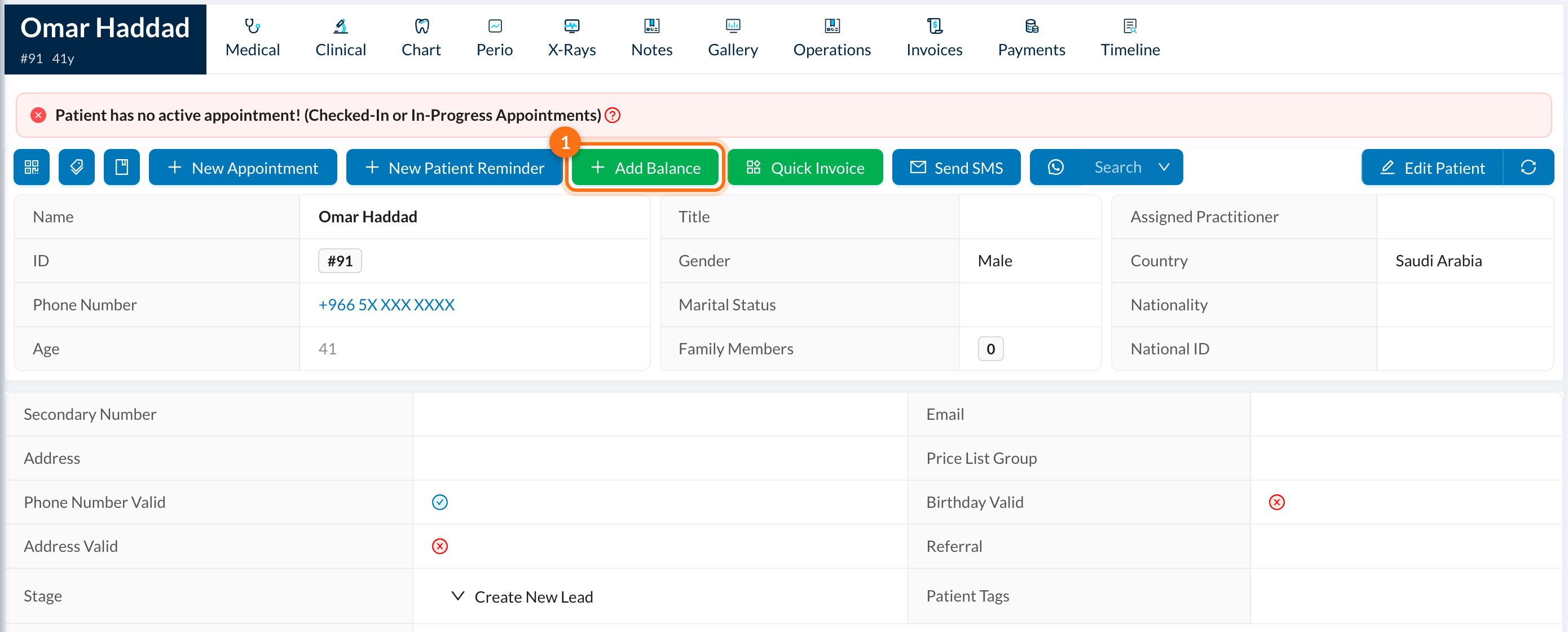
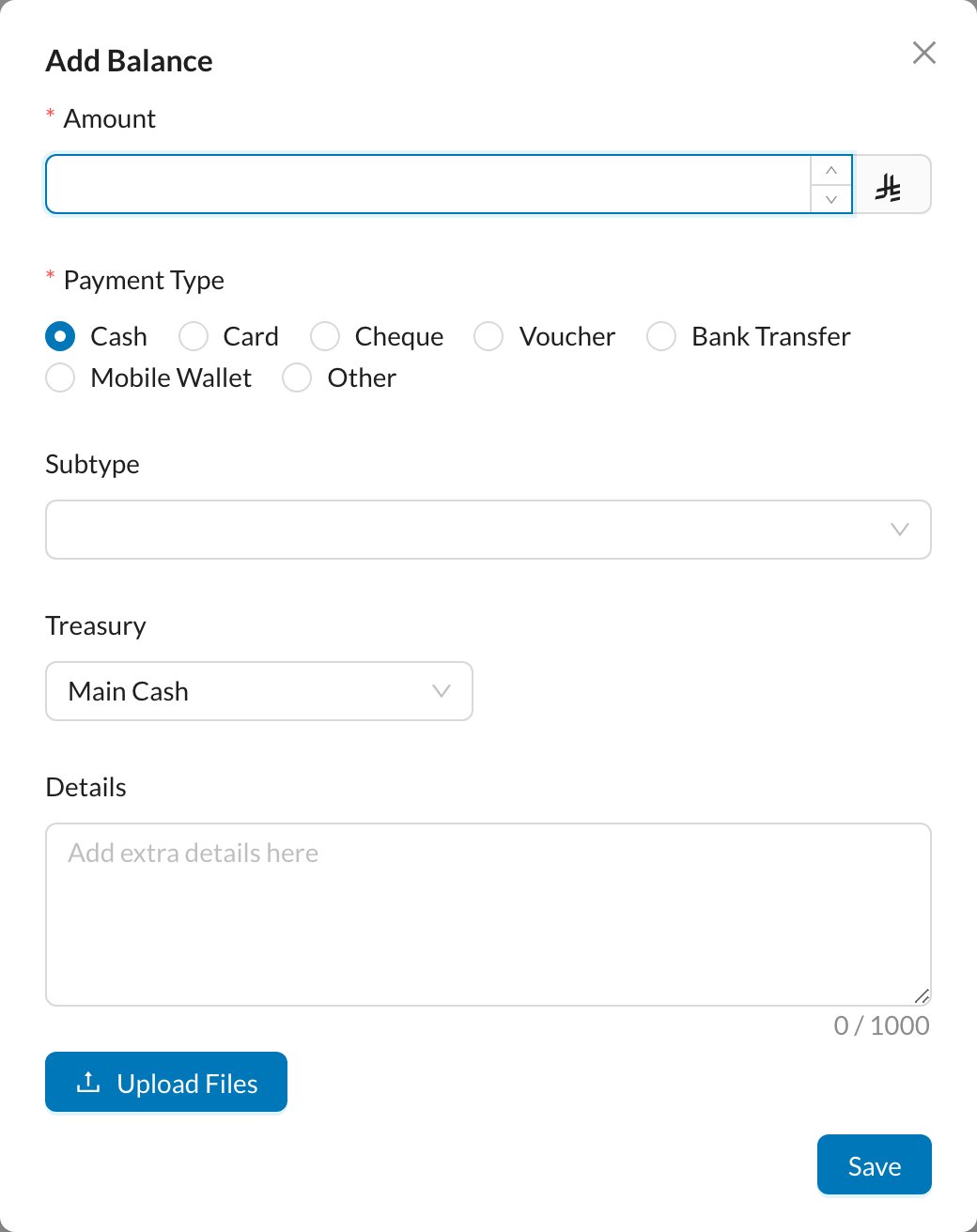 Enter the **Amount** and **Payment Type**, and click **Save**. The balance can then be used for the patient's invoices: when you add a payment, tick **Deduct paid amount from Patient Balance**.
Balance top-ups are kept separate, so they aren't counted twice in the invoice totals.
## 📋 The payments list
Go to **Finances → Payments**:
Enter the **Amount** and **Payment Type**, and click **Save**. The balance can then be used for the patient's invoices: when you add a payment, tick **Deduct paid amount from Patient Balance**.
Balance top-ups are kept separate, so they aren't counted twice in the invoice totals.
## 📋 The payments list
Go to **Finances → Payments**:
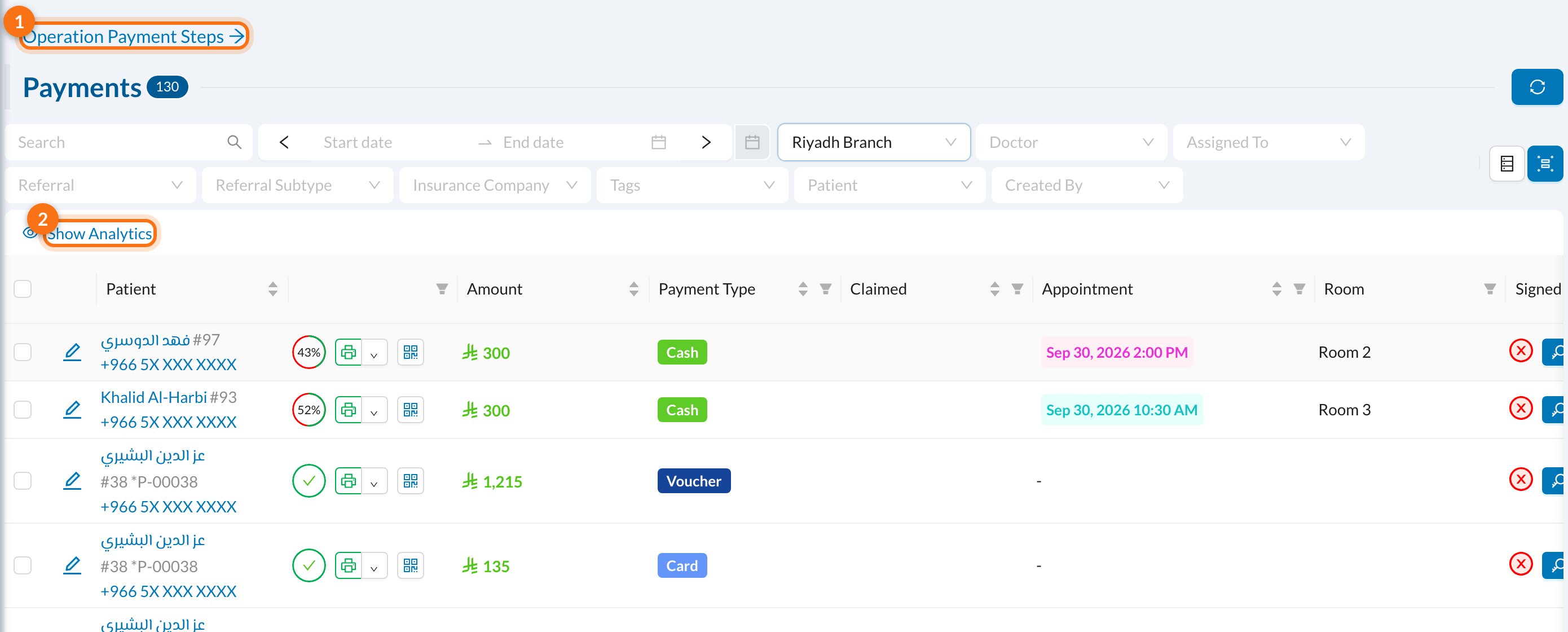 1. **Operation Payment Steps:** payments for procedures done in steps.
2. **Show Analytics:** totals by payment type.
3. **Mark Claimed:** for insurance payments, click it when the insurance company pays.
1. **Operation Payment Steps:** payments for procedures done in steps.
2. **Show Analytics:** totals by payment type.
3. **Mark Claimed:** for insurance payments, click it when the insurance company pays.
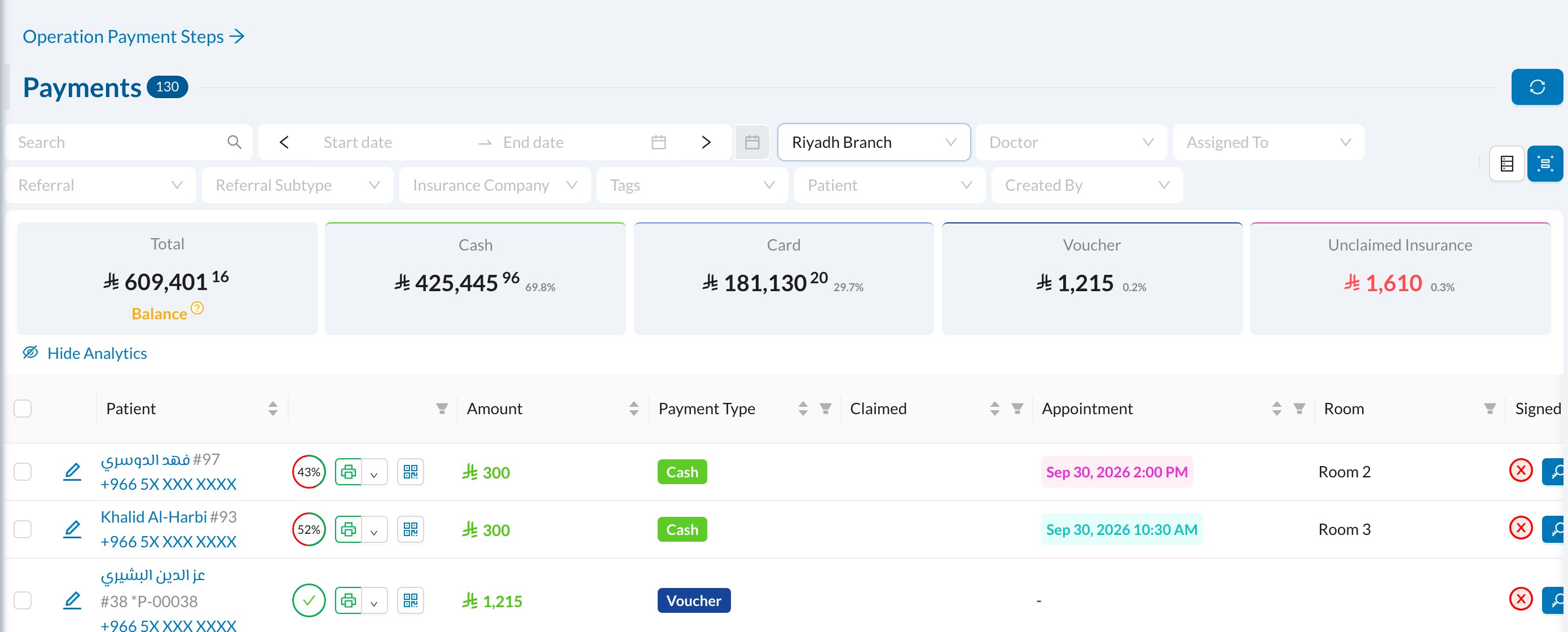 The analytics show the **Total** and each payment type. Insurance is split into **Unclaimed Insurance** (still owed by the insurance company) and **Claimed Insurance**. Refunded amounts aren't included in the total.
## ✏️ Edit, refund or move a payment
Click the edit icon on a payment:
The analytics show the **Total** and each payment type. Insurance is split into **Unclaimed Insurance** (still owed by the insurance company) and **Claimed Insurance**. Refunded amounts aren't included in the total.
## ✏️ Edit, refund or move a payment
Click the edit icon on a payment:
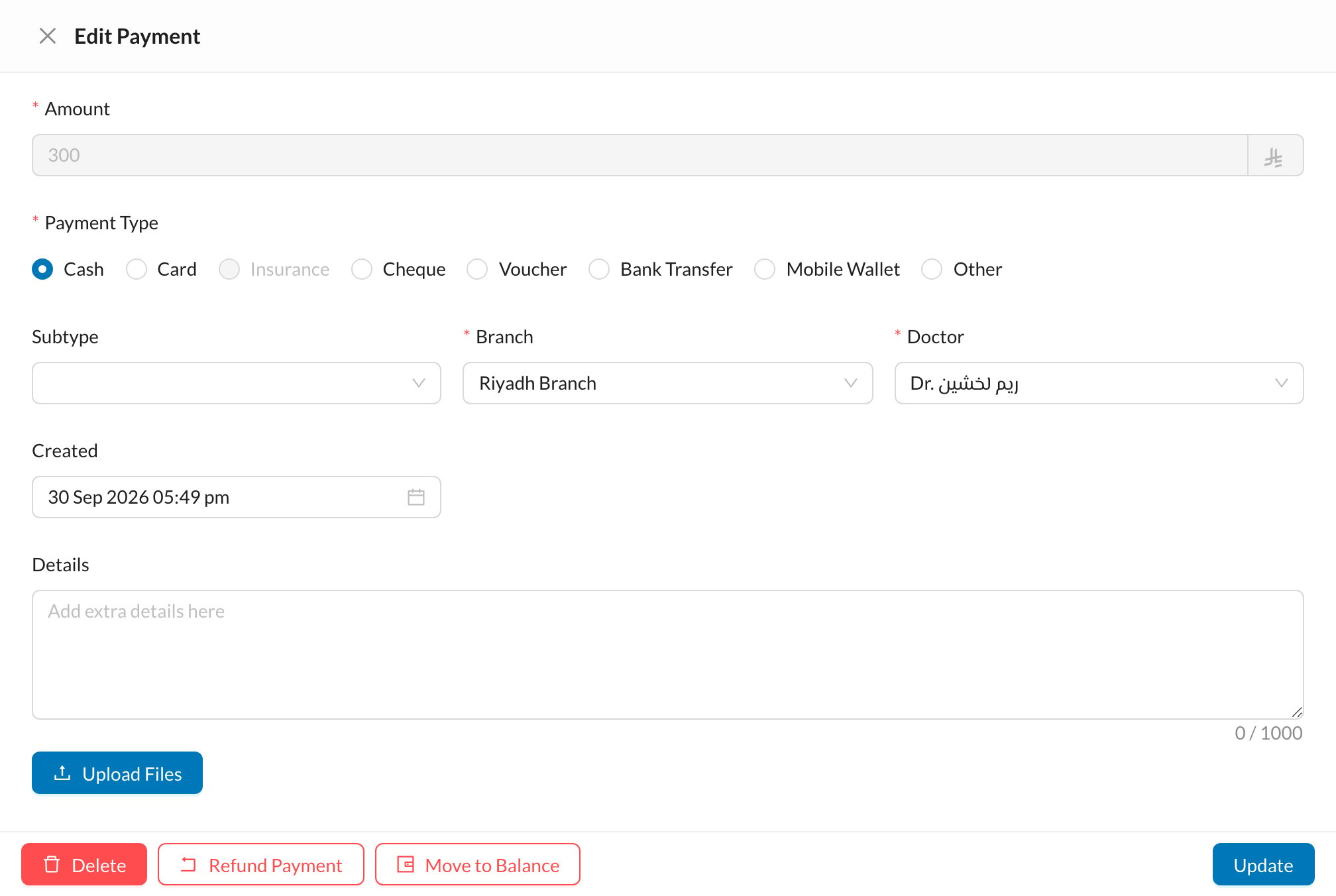 You can change the payment type, branch, doctor, date and details (not the amount). At the bottom:
* **Delete** removes the payment.
* **Refund Payment** returns money to the patient.
* **Move to Balance** moves the payment to the patient's balance, for example to use it on another invoice.
You can change the payment type, branch, doctor, date and details (not the amount). At the bottom:
* **Delete** removes the payment.
* **Refund Payment** returns money to the patient.
* **Move to Balance** moves the payment to the patient's balance, for example to use it on another invoice.
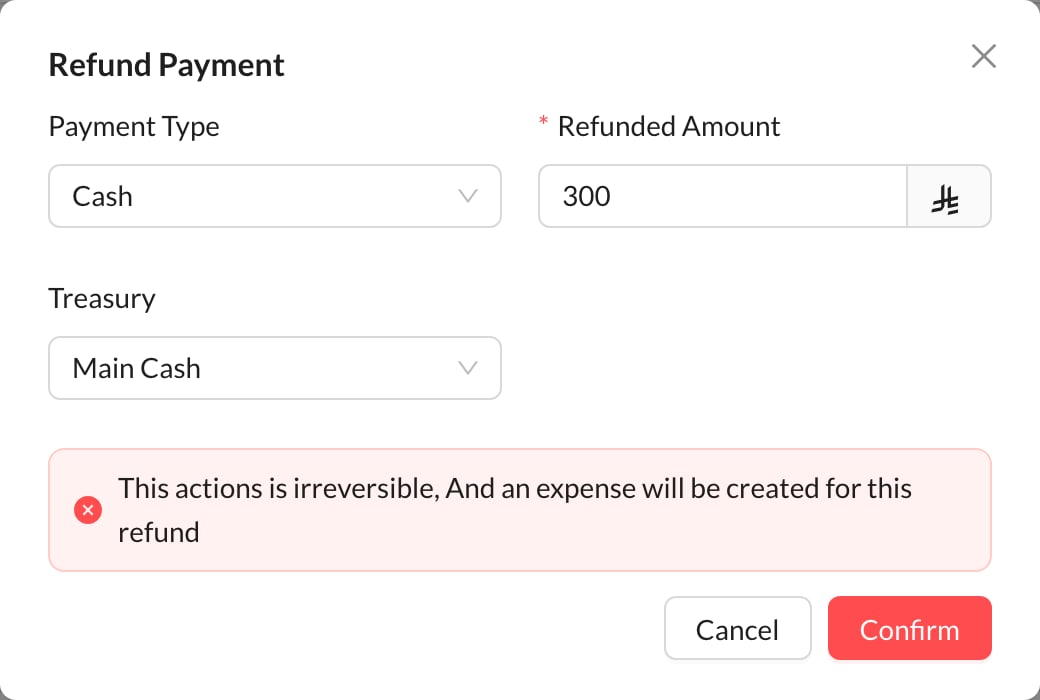 Choose the payment type, the **Refunded Amount** and the treasury the money comes out of, and click **Confirm**.
A refund can't be undone. An expense is created for the refunded amount.
At the front desk, see also [Collecting fees from patients](/en/reception/fees-collections), [Payment refund and invoice edit](/en/reception/invoice-edit) and [Adding and using patient balance](/en/reception/balance-usage).
## ❓ FAQ
The patient has no insurance company, their insurance card has expired, or the invoice is locked in a claim or e-invoice.
To change the amount, delete the payment and add it again.
Choose the payment type, the **Refunded Amount** and the treasury the money comes out of, and click **Confirm**.
A refund can't be undone. An expense is created for the refunded amount.
At the front desk, see also [Collecting fees from patients](/en/reception/fees-collections), [Payment refund and invoice edit](/en/reception/invoice-edit) and [Adding and using patient balance](/en/reception/balance-usage).
## ❓ FAQ
The patient has no insurance company, their insurance card has expired, or the invoice is locked in a claim or e-invoice.
To change the amount, delete the payment and add it again.