> ## Documentation Index
> Fetch the complete documentation index at: https://docs.dentolize.com/llms.txt
> Use this file to discover all available pages before exploring further.
# Insured patients
> Add a patient's insurance, get approvals for procedures, and see how insurance is split on the invoice.
## 🪪 Add insurance to a patient
Open the patient, click **Edit Patient**, and fill in **Insurance Details**:
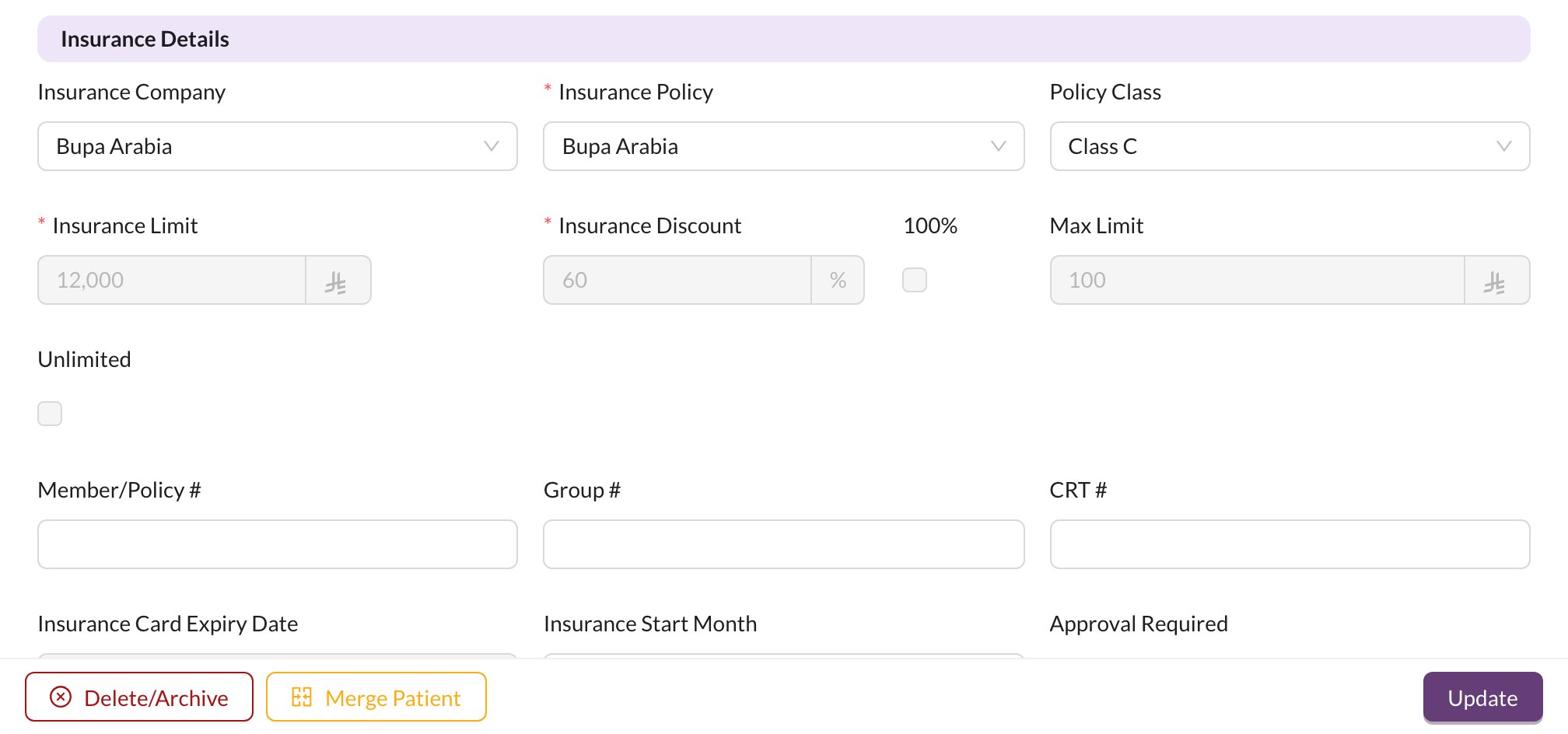 1. Choose the **Insurance Company**, then the **Insurance Policy** and **Policy Class**. The coverage and limits are filled in from them.
2. Enter the card details: **Member/Policy #**, **Group #** and **CRT #**.
3. Check the **Insurance Card Expiry Date**.
4. Click **Update**.
If the company or policy has its own price list, the patient's price list changes to it ("Price List Updated").
The patient's page then shows an **Insurance Details** card:
1. Choose the **Insurance Company**, then the **Insurance Policy** and **Policy Class**. The coverage and limits are filled in from them.
2. Enter the card details: **Member/Policy #**, **Group #** and **CRT #**.
3. Check the **Insurance Card Expiry Date**.
4. Click **Update**.
If the company or policy has its own price list, the patient's price list changes to it ("Price List Updated").
The patient's page then shows an **Insurance Details** card:
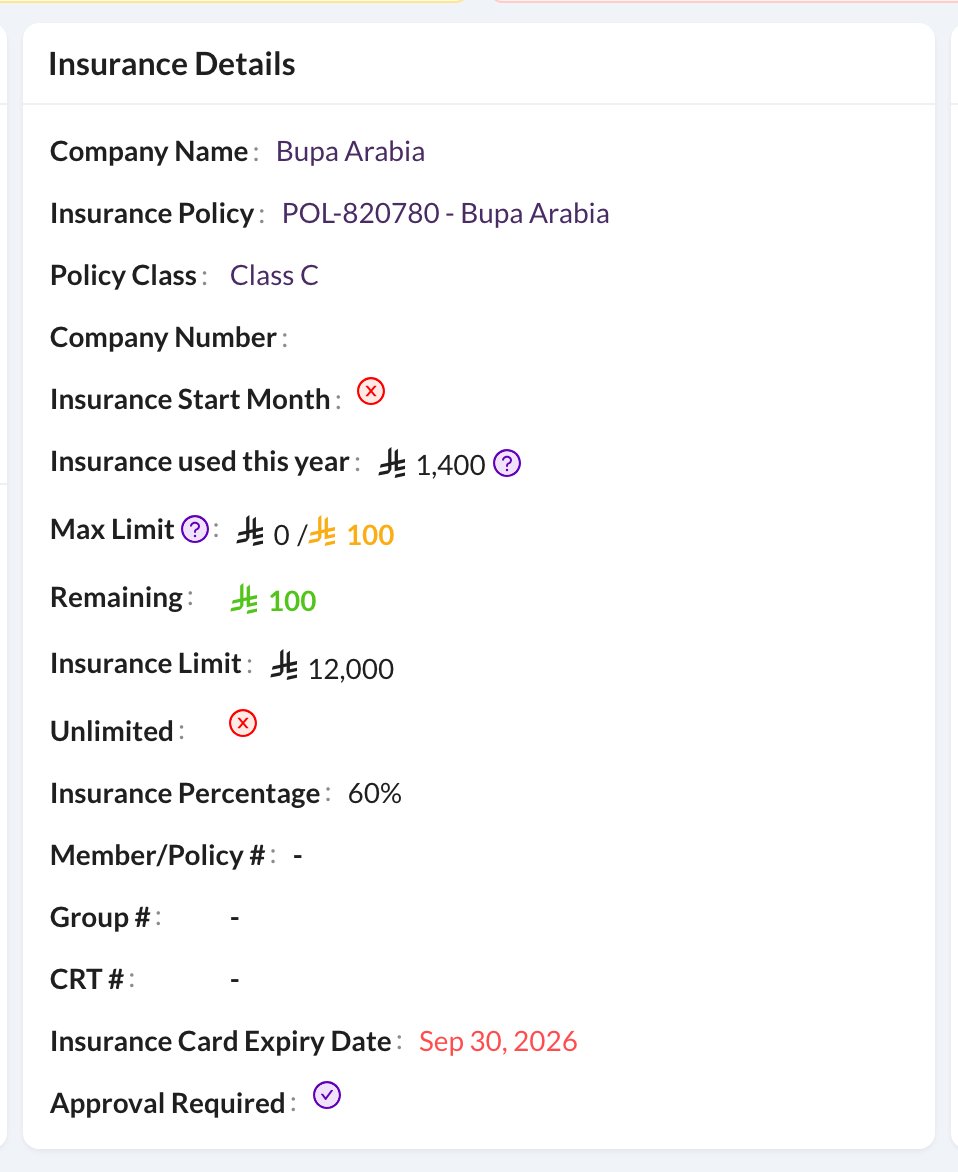 It shows the company, policy and class, **Insurance used this year**, the daily **Max Limit** with what's **Remaining** today, the yearly **Insurance Limit** and the card's expiry date.
## ✅ Approvals
When **Approval Required** is on, procedures added to the chart show a red warning icon until the insurance company approves them. Hover over the icon and click:
* **Mark Approved**, and enter the **Pre Auth.** number and the **Approved Amount**, or
* **Mark NOT Approved**.
To approve several procedures at once, select them in the chart and use the **…** menu at the bottom. A procedure is only covered by insurance once it's approved.
## 🧾 Insurance on the invoice
When you create the invoice, each covered procedure shows the insurance share. The invoice shows:
* **Insurance:** what the insurance company pays. An **Insurance** payment is added for it automatically, marked as not yet claimed.
* **Required To Pay:** what the patient pays.
* A warning with how much of the yearly limit is left, and **Card expired on…** if the card has expired.
* **Pre Auth.:** the approval number, required in some clinics.
To change the patient's insurance while invoicing, click the pencil next to **Insurance**. See [Invoices](/en/finances/invoices).
If the insurance card has expired, insurance can't be used as a payment type. Update the expiry date on the patient first.
It shows the company, policy and class, **Insurance used this year**, the daily **Max Limit** with what's **Remaining** today, the yearly **Insurance Limit** and the card's expiry date.
## ✅ Approvals
When **Approval Required** is on, procedures added to the chart show a red warning icon until the insurance company approves them. Hover over the icon and click:
* **Mark Approved**, and enter the **Pre Auth.** number and the **Approved Amount**, or
* **Mark NOT Approved**.
To approve several procedures at once, select them in the chart and use the **…** menu at the bottom. A procedure is only covered by insurance once it's approved.
## 🧾 Insurance on the invoice
When you create the invoice, each covered procedure shows the insurance share. The invoice shows:
* **Insurance:** what the insurance company pays. An **Insurance** payment is added for it automatically, marked as not yet claimed.
* **Required To Pay:** what the patient pays.
* A warning with how much of the yearly limit is left, and **Card expired on…** if the card has expired.
* **Pre Auth.:** the approval number, required in some clinics.
To change the patient's insurance while invoicing, click the pencil next to **Insurance**. See [Invoices](/en/finances/invoices).
If the insurance card has expired, insurance can't be used as a payment type. Update the expiry date on the patient first.