> ## Documentation Index
> Fetch the complete documentation index at: https://docs.dentolize.com/llms.txt
> Use this file to discover all available pages before exploring further.
# Tasks
> Assign tasks to staff with a due date and priority, and follow them until they're done.
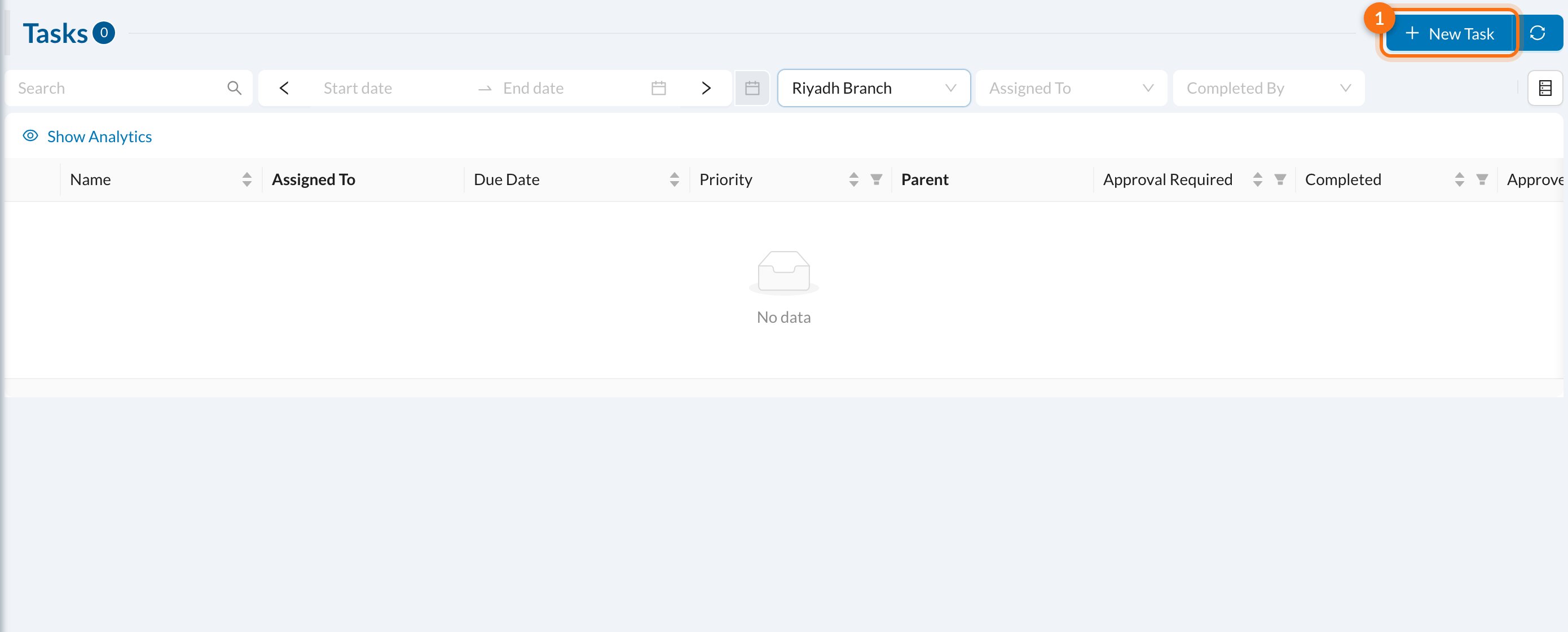
Use tasks to give a job to a colleague, like calling a patient back or ordering materials. Go to **Logs → Tasks**:
 ## ➕ Add a task
Click **New Task** (1):
## ➕ Add a task
Click **New Task** (1):
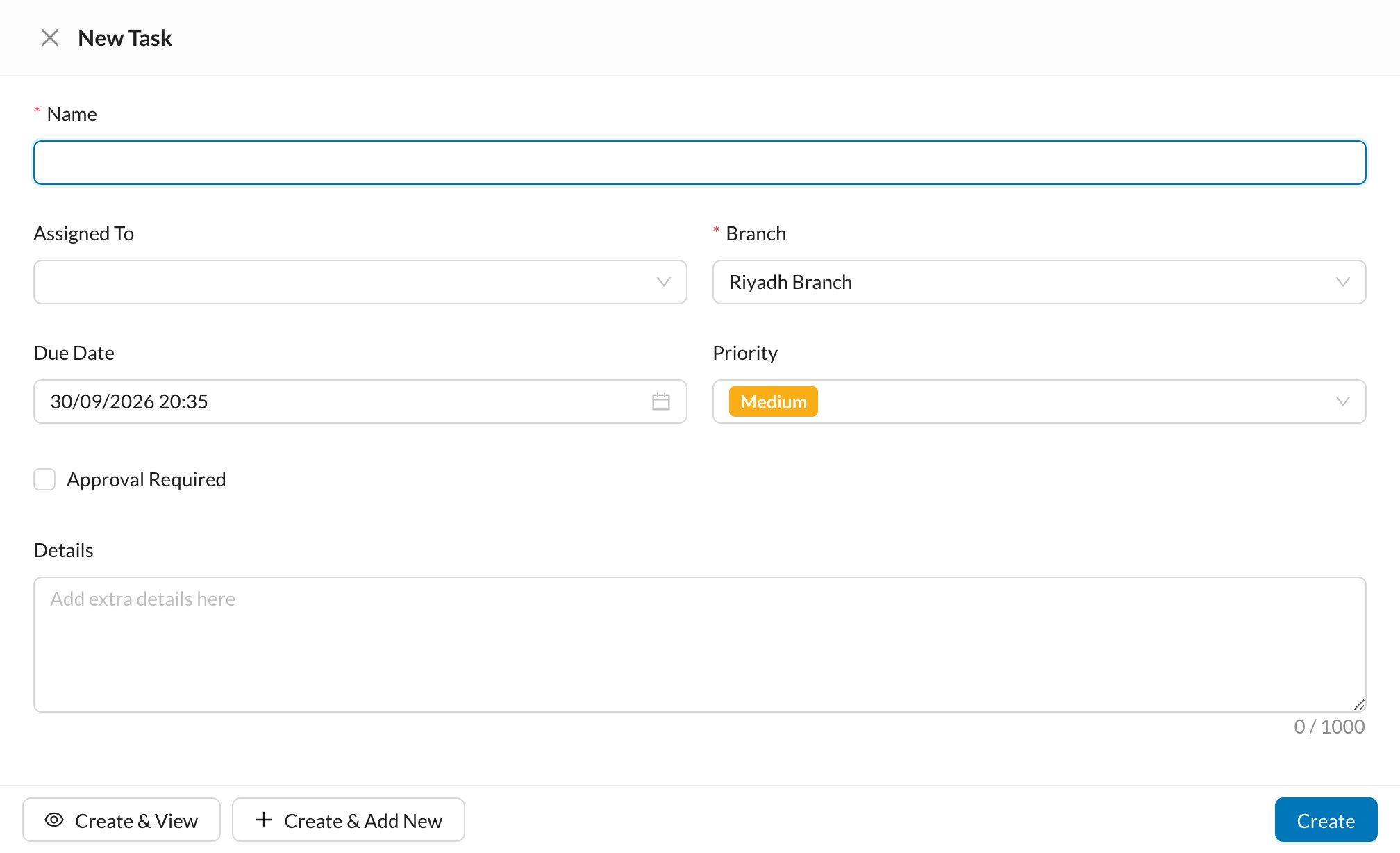 1. Enter the task **Name**.
2. Choose who it's **Assigned To** and the **Branch**.
3. Set the **Due Date** and **Priority**.
4. Tick **Approval Required** if someone must approve the task once it's done.
5. Add any **Details** and click **Create**.
## ✔️ Follow up tasks
The assigned user is notified. When the job is done, they mark the task **Completed**. If approval is required, the task then waits for someone to **Approve** it.
Tasks can also be created for you: see [Automatic tasks](/en/setup-settings/process/automatic-task-settings).
1. Enter the task **Name**.
2. Choose who it's **Assigned To** and the **Branch**.
3. Set the **Due Date** and **Priority**.
4. Tick **Approval Required** if someone must approve the task once it's done.
5. Add any **Details** and click **Create**.
## ✔️ Follow up tasks
The assigned user is notified. When the job is done, they mark the task **Completed**. If approval is required, the task then waits for someone to **Approve** it.
Tasks can also be created for you: see [Automatic tasks](/en/setup-settings/process/automatic-task-settings).