> ## Documentation Index
> Fetch the complete documentation index at: https://docs.dentolize.com/llms.txt
> Use this file to discover all available pages before exploring further.
# Clinic and branches main settings
> Set up your clinic's name, logo, currency and tax, the lists of types, and each branch's details, working hours, rooms and treasuries.
## 🏥 Clinic settings
Go to **Settings → Clinic → Main** (clinic owner only).
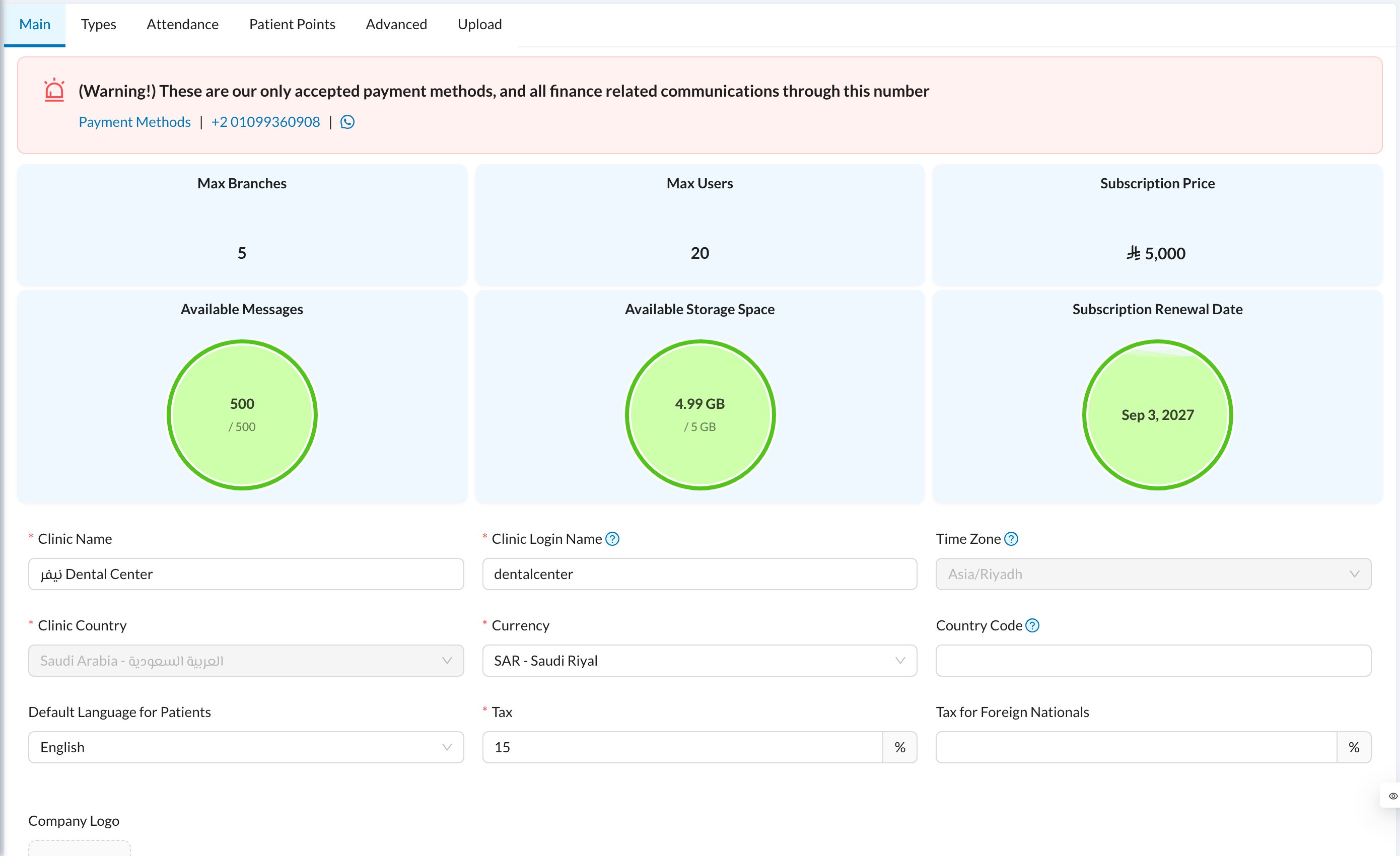 The top shows your subscription: **Max Branches**, **Max Users**, **Available Messages**, **Available Storage Space** and the renewal date. Below it:
* **Clinic Name** and **Company Logo** (the logo saves as soon as it's uploaded).
* **Clinic Login Name:** used by staff who log in with a username. See [Login](/en/start/login).
* **Currency**, **Country Code** (added to every phone number), **Default Language for Patients**, **Tax** and **Tax for Foreign Nationals**.
**Time Zone** and **Clinic Country** are set when the account is created; contact support to change them. Click **Update** to save.
## 🏷️ Types
**Settings → Clinic → Types** holds the lists used across the system: **Appointments** types (with colors and online booking), **Expenses**, **Income**, **Inventory**, **Payments** subtypes, **Patient Tags**, **Referral Source** ("How did you hear about us?") and **Salary Hub** types.
The top shows your subscription: **Max Branches**, **Max Users**, **Available Messages**, **Available Storage Space** and the renewal date. Below it:
* **Clinic Name** and **Company Logo** (the logo saves as soon as it's uploaded).
* **Clinic Login Name:** used by staff who log in with a username. See [Login](/en/start/login).
* **Currency**, **Country Code** (added to every phone number), **Default Language for Patients**, **Tax** and **Tax for Foreign Nationals**.
**Time Zone** and **Clinic Country** are set when the account is created; contact support to change them. Click **Update** to save.
## 🏷️ Types
**Settings → Clinic → Types** holds the lists used across the system: **Appointments** types (with colors and online booking), **Expenses**, **Income**, **Inventory**, **Payments** subtypes, **Patient Tags**, **Referral Source** ("How did you hear about us?") and **Salary Hub** types.
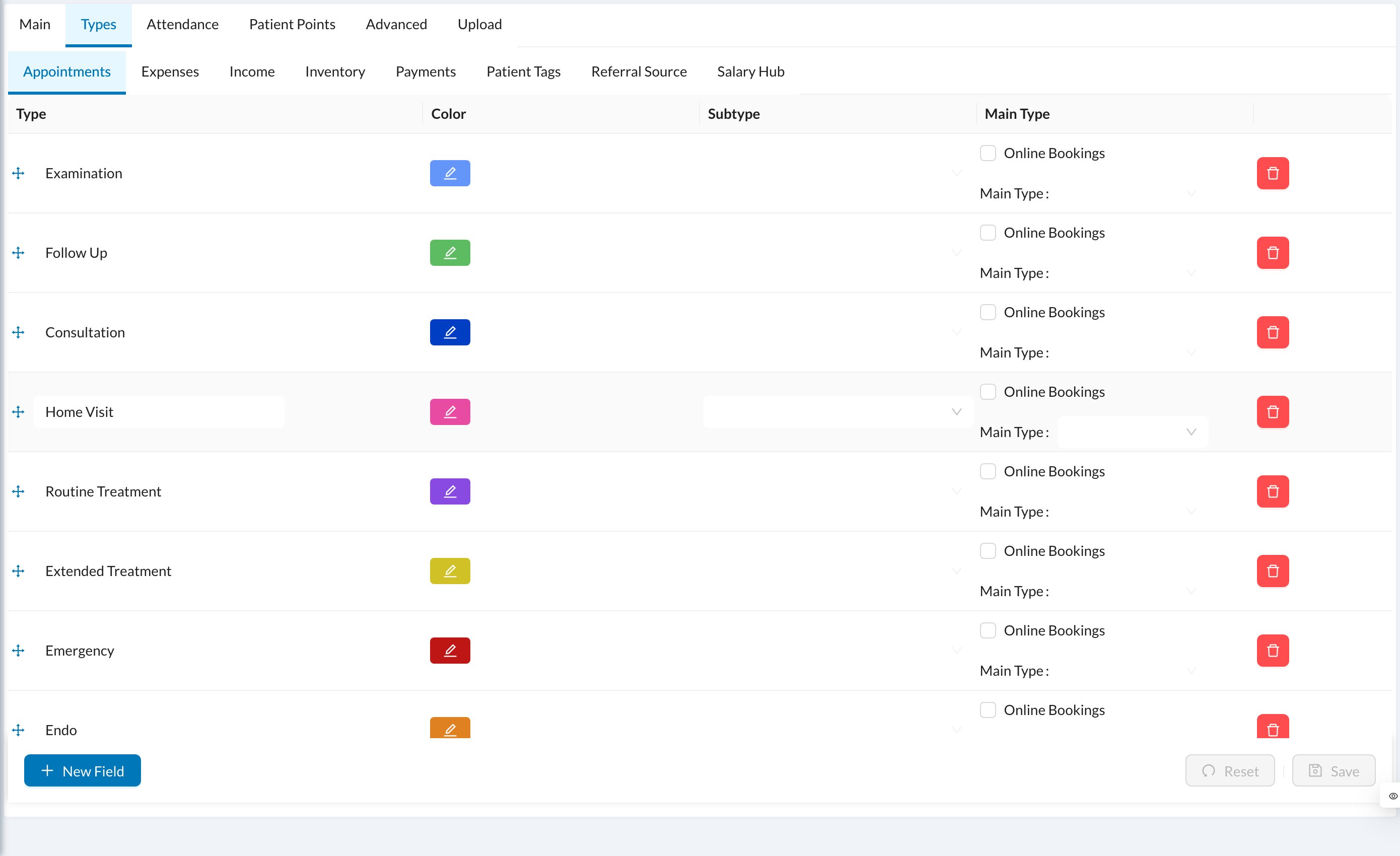 Click **New Field** to add a type, drag to reorder, and click **Save**. Deleting a type asks which type replaces it.
## 🏢 Branches
Go to **Settings → Branches** and click **New Branch**:
Click **New Field** to add a type, drag to reorder, and click **Save**. Deleting a type asks which type replaces it.
## 🏢 Branches
Go to **Settings → Branches** and click **New Branch**:
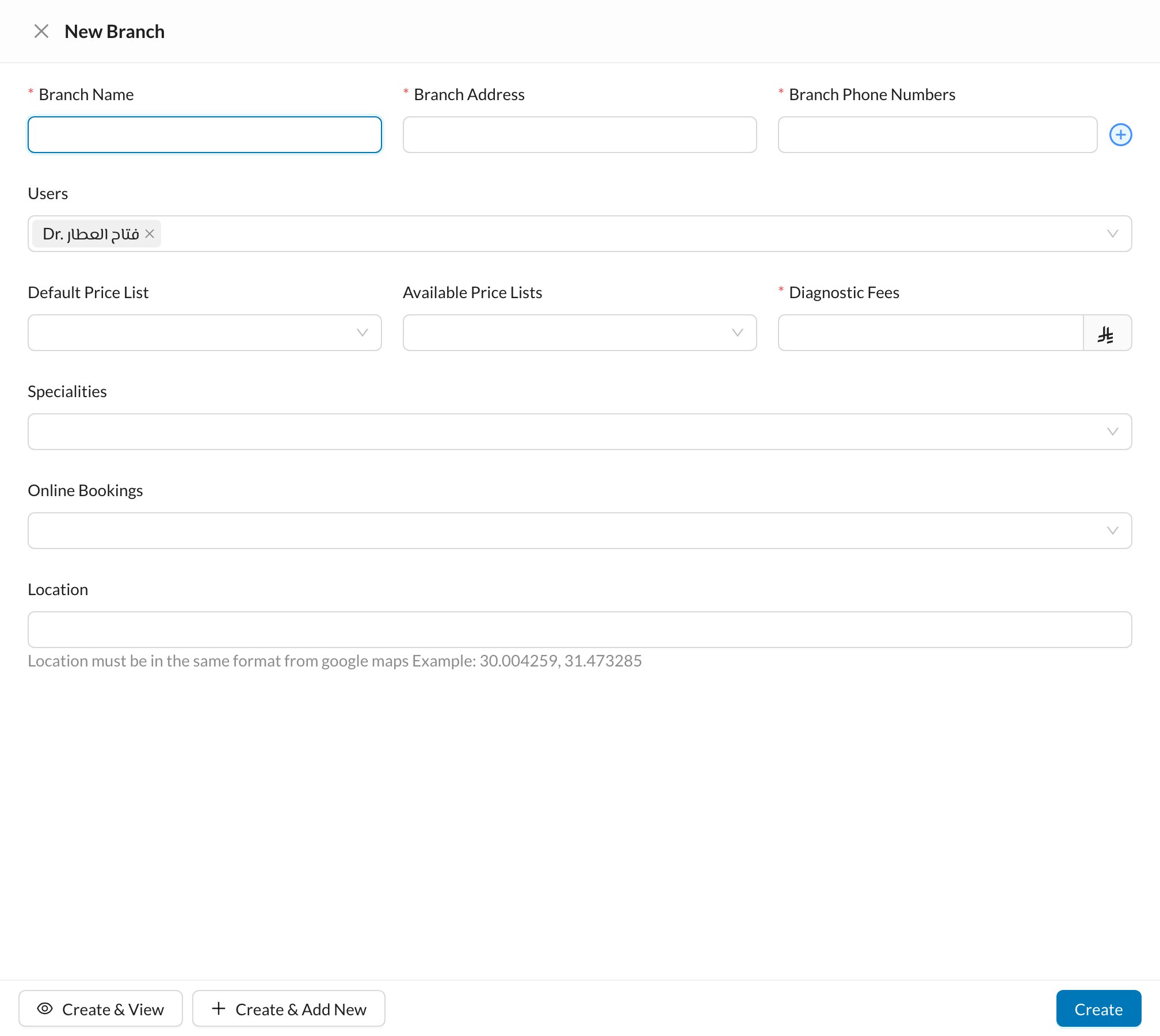 Enter the **Branch Name**, **Branch Address** and **Branch Phone Numbers**, the **Users** who work there, the **Default Price List** and **Diagnostic Fees**. Click **Create**.
Open a branch to set:
* **Branch Calendar Settings:** working days and hours, breaks, holidays and **rooms**. See [Calendar](/en/reception/calendar).
* **Branch Treasury Settings:** the default treasury for each payment method, for payments, expenses and income.
* **Assigned To Settings:** who's notified of invoices, prescriptions, forms and lab orders created in this branch.
The number of active branches is limited by your subscription. The main branch can't be disabled.
**Settings → Clinic → Upload** imports procedures, users, patients or leads from Excel, if enabled for your clinic.
Enter the **Branch Name**, **Branch Address** and **Branch Phone Numbers**, the **Users** who work there, the **Default Price List** and **Diagnostic Fees**. Click **Create**.
Open a branch to set:
* **Branch Calendar Settings:** working days and hours, breaks, holidays and **rooms**. See [Calendar](/en/reception/calendar).
* **Branch Treasury Settings:** the default treasury for each payment method, for payments, expenses and income.
* **Assigned To Settings:** who's notified of invoices, prescriptions, forms and lab orders created in this branch.
The number of active branches is limited by your subscription. The main branch can't be disabled.
**Settings → Clinic → Upload** imports procedures, users, patients or leads from Excel, if enabled for your clinic.