> ## Documentation Index
> Fetch the complete documentation index at: https://docs.dentolize.com/llms.txt
> Use this file to discover all available pages before exploring further.
# Diagnostic Conditions settings
> Set up the diagnostic conditions doctors record on the patient's chart.
Go to **Settings → Conditions**.
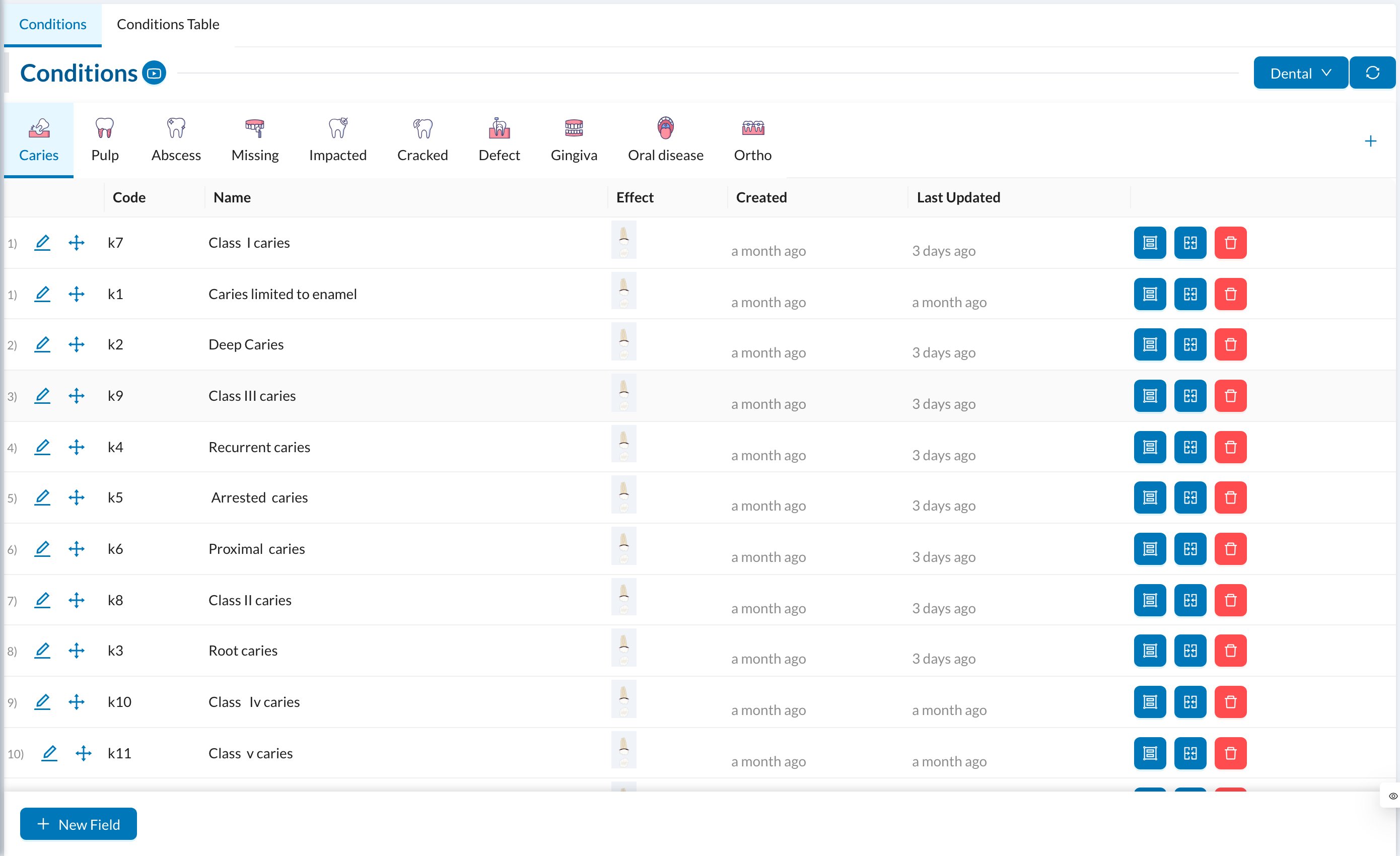 Conditions are diagnoses recorded on the chart without a price, such as caries, abscess or a missing tooth. They're organized in groups (Caries, Pulp, Abscess…).
* **Group:** **Group Name**, **Group Code**, an image, and **Active**.
* **Condition:** click **New Field** in a group: **Name**, **Code**, **Order**, **Effect** (how it appears on the tooth) and **Active**.
The **Conditions Table** tab lists them all for quick editing. If your clinic has several specialties, each has its own conditions.
In the patient's chart, switch to **Conditions** to record them. Doctors can also search the international **ICD** list there.
Conditions are diagnoses recorded on the chart without a price, such as caries, abscess or a missing tooth. They're organized in groups (Caries, Pulp, Abscess…).
* **Group:** **Group Name**, **Group Code**, an image, and **Active**.
* **Condition:** click **New Field** in a group: **Name**, **Code**, **Order**, **Effect** (how it appears on the tooth) and **Active**.
The **Conditions Table** tab lists them all for quick editing. If your clinic has several specialties, each has its own conditions.
In the patient's chart, switch to **Conditions** to record them. Doctors can also search the international **ICD** list there.