> ## Documentation Index
> Fetch the complete documentation index at: https://docs.dentolize.com/llms.txt
> Use this file to discover all available pages before exploring further.
# Integration with online payment gateways
> Let patients pay online with a payment link: set up Geidea, Paymob, MyFatoorah, Stripe or Fawry.
With online payments, you send the patient a link to pay an invoice or diagnostic fee by card. The payment is recorded in Dentolize automatically.
Online payments are enabled for your clinic by Dentolize. If the tab shows **Feature Disabled**, contact support. Only the owner or an admin can set it up.
## ⚙️ Set up
Go to **Settings → Integrations → Online Payments**, turn on **Active**, and click **New Item** to add a payment option:
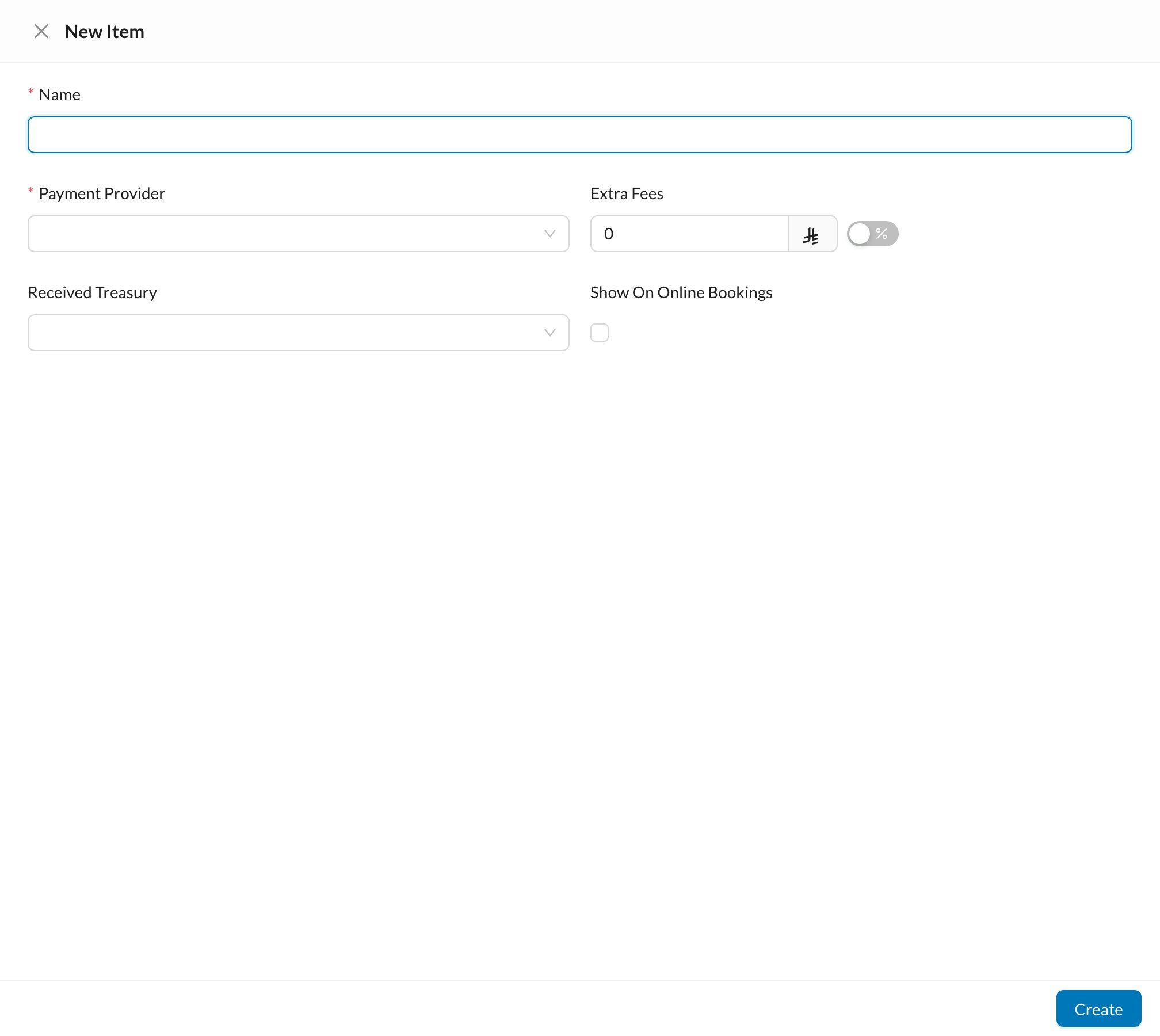 * **Name** and **Payment Provider.**
* The provider's credentials (see below).
* **Extra Fees:** a fixed amount or % added to what the patient pays.
* **Received Treasury:** where online payments are recorded.
* **Show On Online Bookings.**
Then choose the **Default Payment Provider** and click **Update**.
## 🔑 Credentials and callback URL for each provider
In the provider's dashboard, use your **live** account and set the **callback URL** so payments are updated automatically.
| Provider | In Dentolize | Callback URL |
| - | - | - |
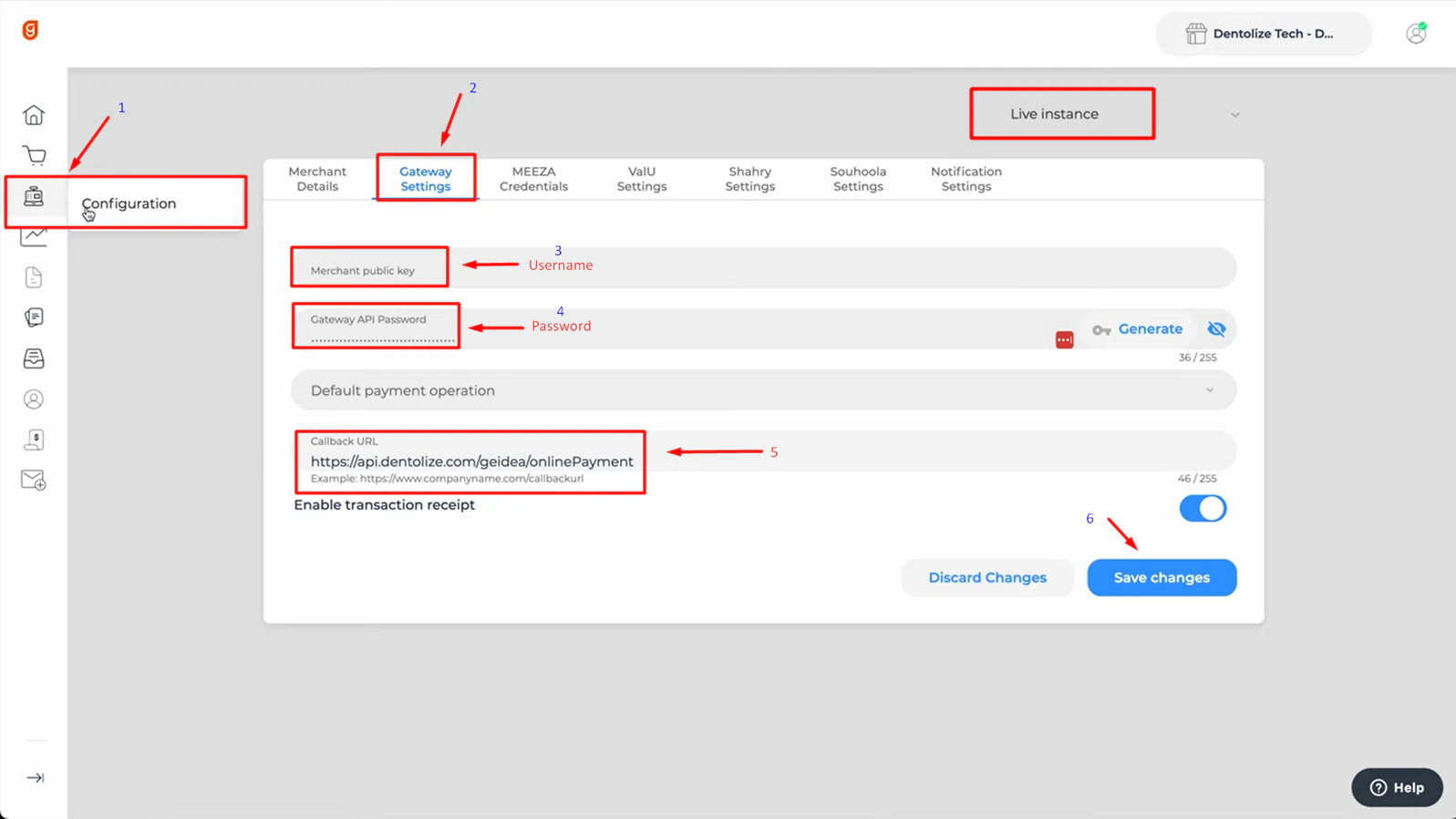
| **Geidea** | **Username** = Merchant Public Key, **Password** = API Password | `https://api.dentolize.com/geidea/onlinePayment` |
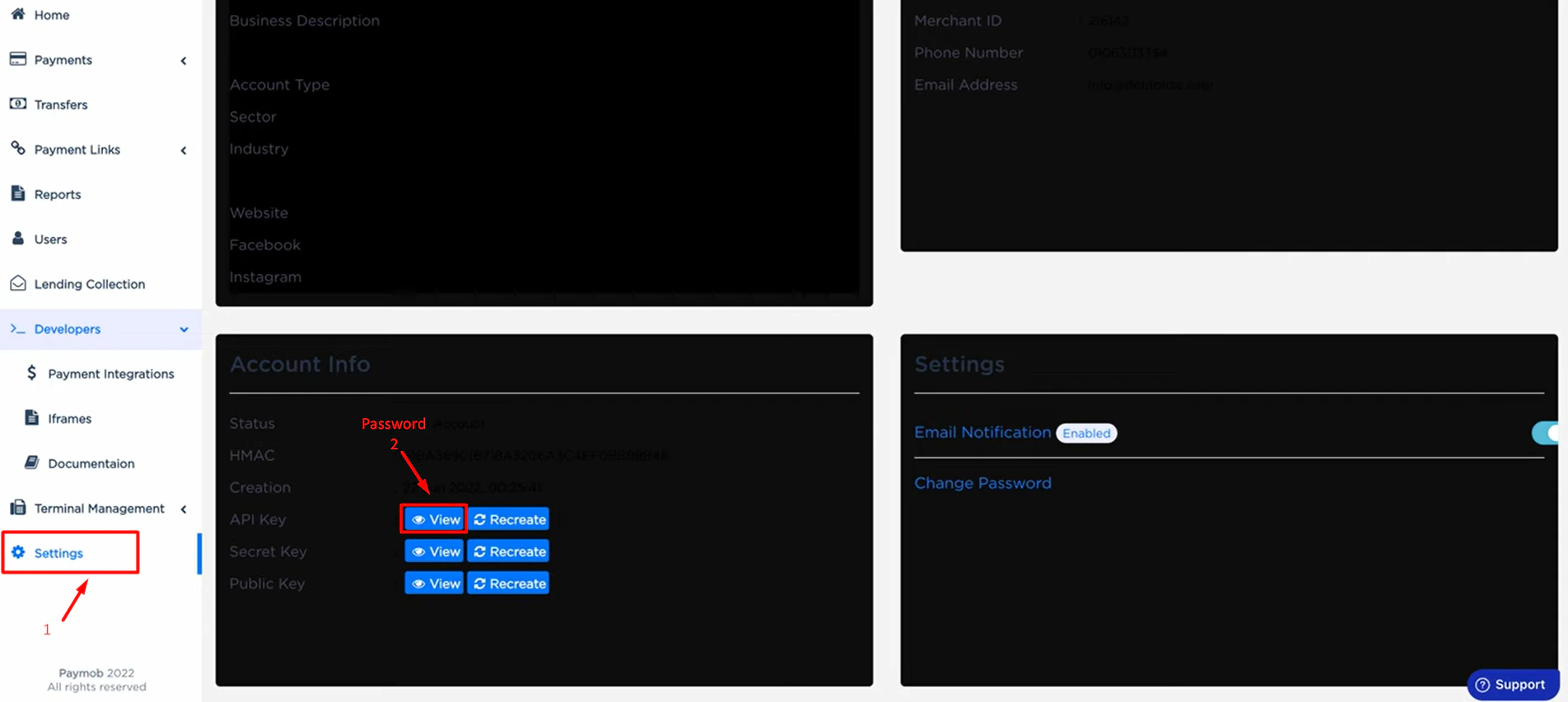
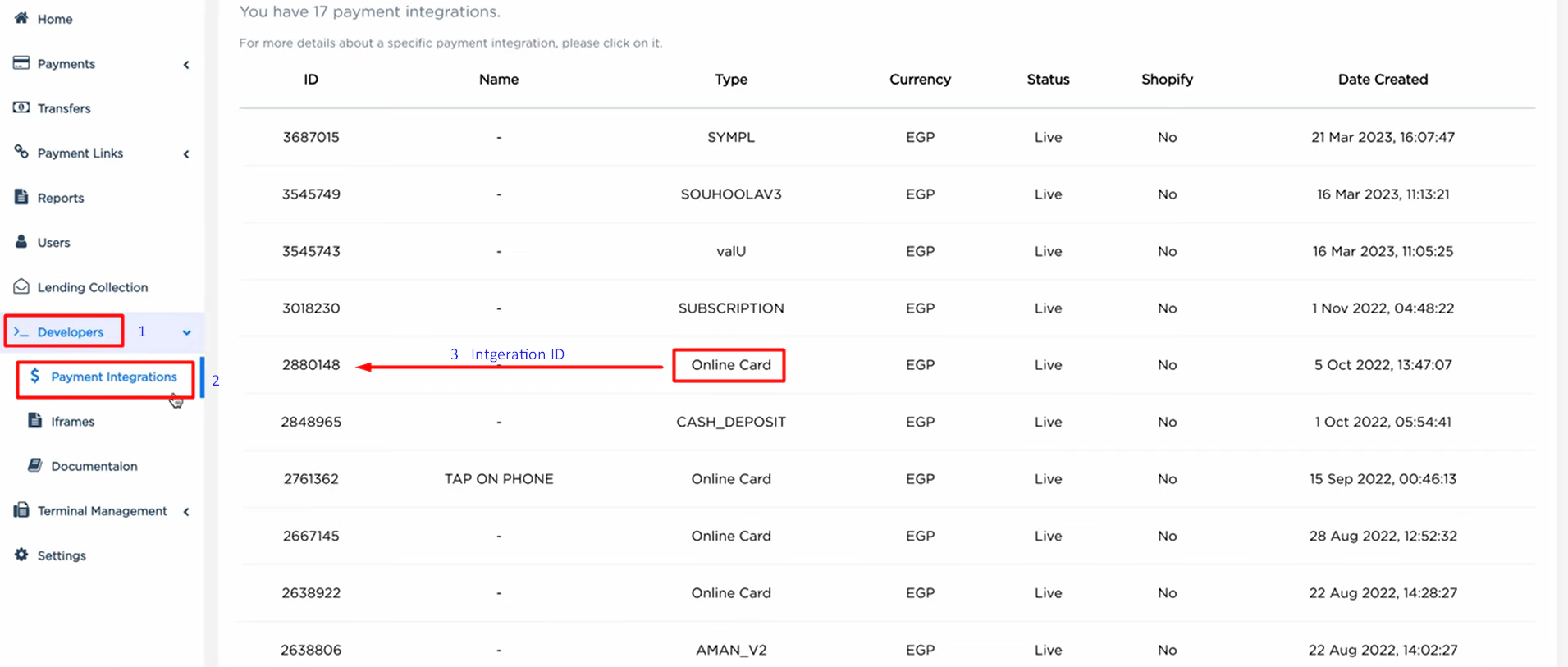
| **Paymob** | **Payment Integration IDs** (comma separated) and **Password** = API key | `https://api.dentolize.com/paymob/onlinePayment` |
| **MyFatoorah** | **Password** = API token | `https://api.dentolize.com/myFatoorah/onlinePayment` |
| **Stripe** | **Password** = Secret key, and the currency | `https://api.dentolize.com/stripe/onlinePayment` |
| **Fawry** | **Username** = merchant code, **Password** = security key | `https://api.dentolize.com/fawry/onlinePayment` |
For **Paymob in Saudi Arabia (SAR)**, enter the Password as `username__password` (two underscores). Geidea works only with EGP, SAR or AED. There's no test mode: use your live keys.
### Paymob
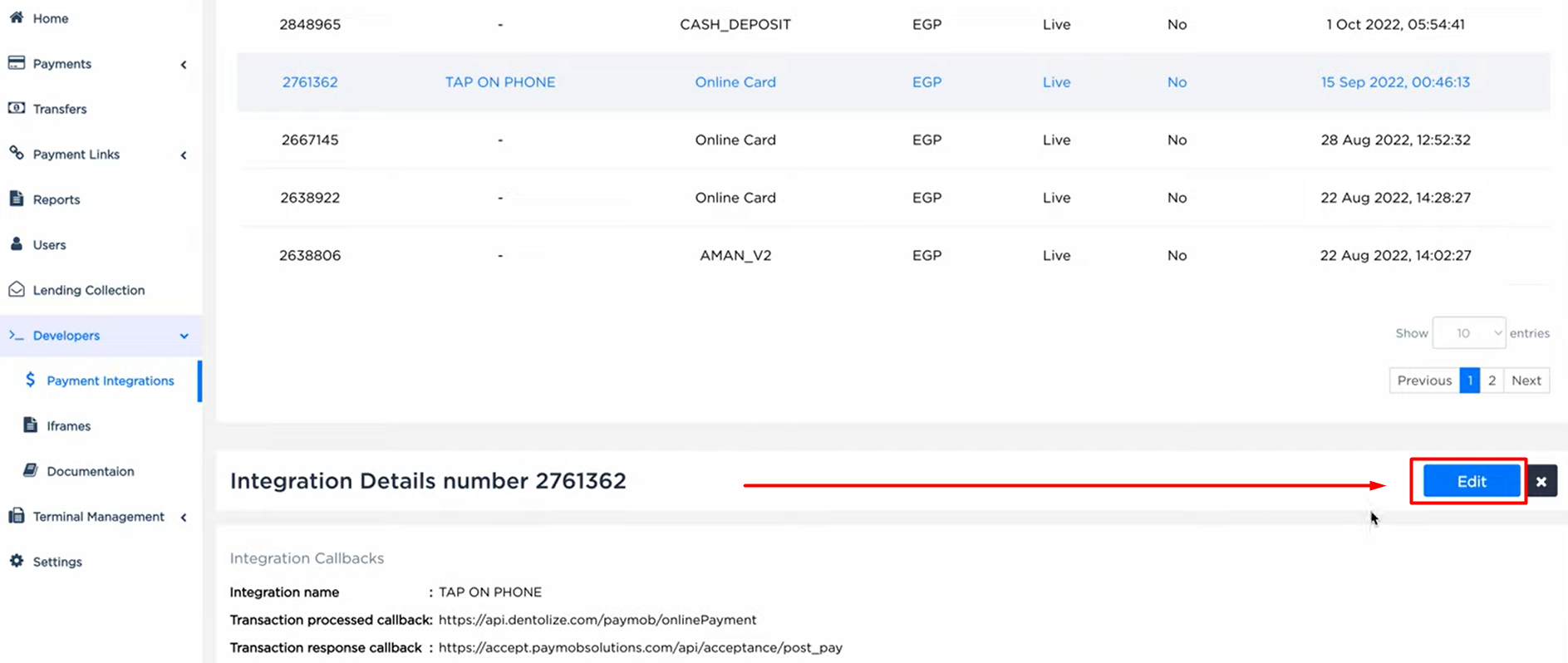
In Paymob, make sure you're in **Live** mode. Copy the password from the settings, and the integration ID from **Developers → Payment Integrations**. Edit the integration to add the callback URL, then save.
* **Name** and **Payment Provider.**
* The provider's credentials (see below).
* **Extra Fees:** a fixed amount or % added to what the patient pays.
* **Received Treasury:** where online payments are recorded.
* **Show On Online Bookings.**
Then choose the **Default Payment Provider** and click **Update**.
## 🔑 Credentials and callback URL for each provider
In the provider's dashboard, use your **live** account and set the **callback URL** so payments are updated automatically.
| Provider | In Dentolize | Callback URL |
| - | - | - |
| **Geidea** | **Username** = Merchant Public Key, **Password** = API Password | `https://api.dentolize.com/geidea/onlinePayment` |
| **Paymob** | **Payment Integration IDs** (comma separated) and **Password** = API key | `https://api.dentolize.com/paymob/onlinePayment` |
| **MyFatoorah** | **Password** = API token | `https://api.dentolize.com/myFatoorah/onlinePayment` |
| **Stripe** | **Password** = Secret key, and the currency | `https://api.dentolize.com/stripe/onlinePayment` |
| **Fawry** | **Username** = merchant code, **Password** = security key | `https://api.dentolize.com/fawry/onlinePayment` |
For **Paymob in Saudi Arabia (SAR)**, enter the Password as `username__password` (two underscores). Geidea works only with EGP, SAR or AED. There's no test mode: use your live keys.
### Paymob
In Paymob, make sure you're in **Live** mode. Copy the password from the settings, and the integration ID from **Developers → Payment Integrations**. Edit the integration to add the callback URL, then save.
 ### Geidea
In Geidea, make sure you're in **Live** mode. Copy **Configuration → Merchant Public Key** (Username) and **Configuration → Gateway API Password** (Password), and add the callback URL:
### Geidea
In Geidea, make sure you're in **Live** mode. Copy **Configuration → Merchant Public Key** (Username) and **Configuration → Gateway API Password** (Password), and add the callback URL:
 ## 💳 Send a payment link
On an invoice, click **Generate Payment Link**. Check the amount, provider, and the patient's phone or email, then click **Submit**. Share the link or QR code with the patient, for example by WhatsApp.
When the patient pays, the payment is added to the invoice automatically (as a card payment, without the extra fees), and an open appointment is marked confirmed. Online payments are listed in **Logs → Online Payments**.
Refunds must be made in the provider's dashboard. Refunding the payment in Dentolize only records it.
## 💳 Send a payment link
On an invoice, click **Generate Payment Link**. Check the amount, provider, and the patient's phone or email, then click **Submit**. Share the link or QR code with the patient, for example by WhatsApp.
When the patient pays, the payment is added to the invoice automatically (as a card payment, without the extra fees), and an open appointment is marked confirmed. Online payments are listed in **Logs → Online Payments**.
Refunds must be made in the provider's dashboard. Refunding the payment in Dentolize only records it.