> ## Documentation Index
> Fetch the complete documentation index at: https://docs.dentolize.com/llms.txt
> Use this file to discover all available pages before exploring further.
# Suppliers and Lab management
> Add the labs and suppliers you work with, their lab items and prices, and follow their orders and expenses.
Labs and suppliers are under **Associates** in the side menu.
## 🧪 Labs
Go to **Associates → Labs** and click **New Lab**:
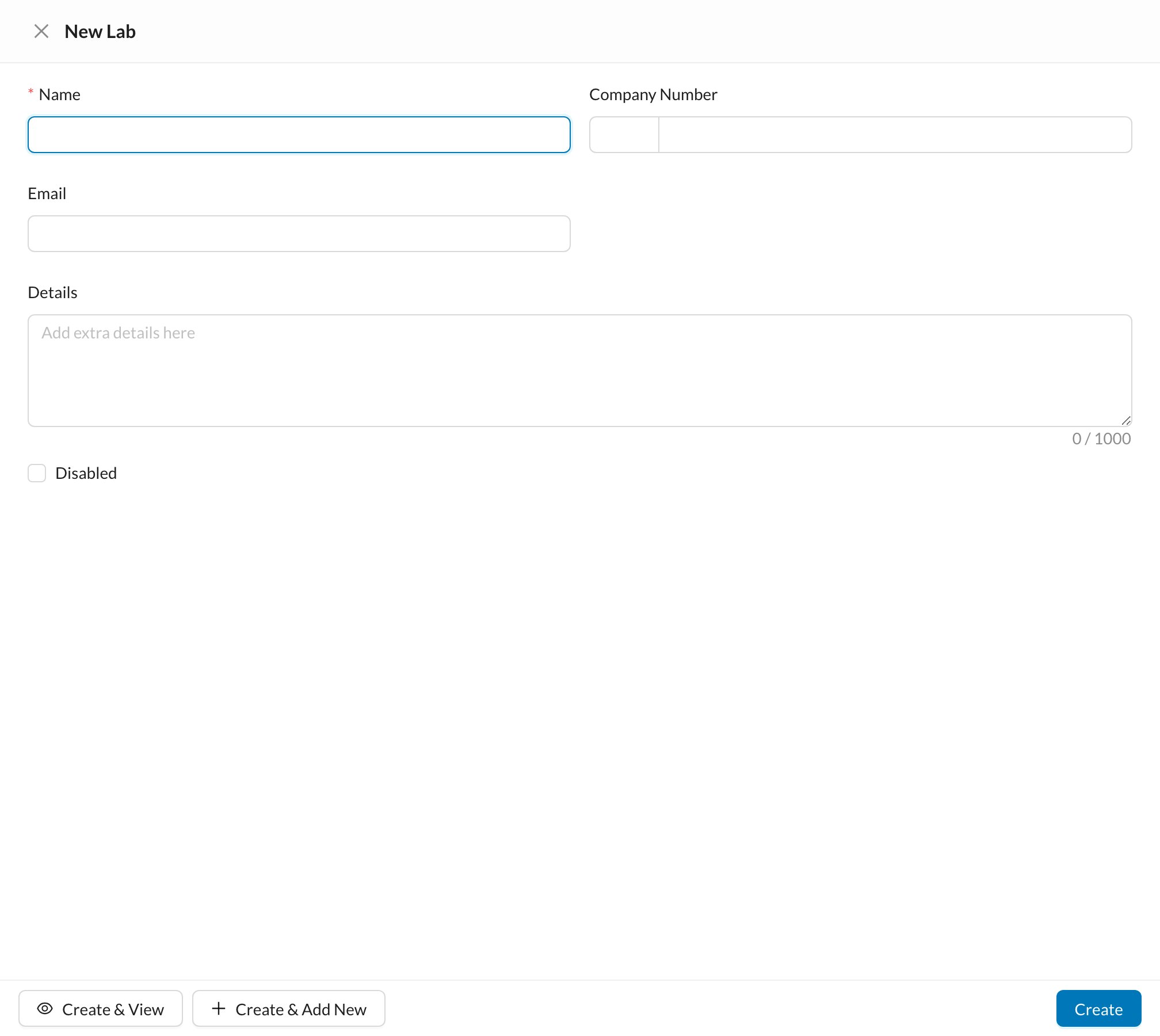 Enter the **Name**, **Company Number** (phone, used to send lab order messages), **Email** and **Details**. Open a lab to see its **Lab Orders**, **Lab Items**, **Expenses**, **Files** and **Communications**.
**Lab Items** are the lab's products with their prices, for example a zirconia crown. Choosing a lab item in a lab order fills in its name and price. See [Dental Lab Orders](/en/reception/lab-order).
## 🚚 Suppliers
Go to **Associates → Suppliers** and click **New Supplier**. The fields are the same. Open a supplier to see its **Expenses**, **Inventory Orders** and **Files**.
Choose the supplier on inventory **Purchase** orders and on expenses. What you owe a lab or supplier is tracked through their **Expenses**.
Mark a lab or supplier **Disabled** instead of deleting it. A lab with orders can't be deleted.
Enter the **Name**, **Company Number** (phone, used to send lab order messages), **Email** and **Details**. Open a lab to see its **Lab Orders**, **Lab Items**, **Expenses**, **Files** and **Communications**.
**Lab Items** are the lab's products with their prices, for example a zirconia crown. Choosing a lab item in a lab order fills in its name and price. See [Dental Lab Orders](/en/reception/lab-order).
## 🚚 Suppliers
Go to **Associates → Suppliers** and click **New Supplier**. The fields are the same. Open a supplier to see its **Expenses**, **Inventory Orders** and **Files**.
Choose the supplier on inventory **Purchase** orders and on expenses. What you owe a lab or supplier is tracked through their **Expenses**.
Mark a lab or supplier **Disabled** instead of deleting it. A lab with orders can't be deleted.