> ## Documentation Index
> Fetch the complete documentation index at: https://docs.dentolize.com/llms.txt
> Use this file to discover all available pages before exploring further.
# Procedure and pricing settings
> Set up your procedures and their prices: groups, codes, the doctor's share, automatic actions, steps, packages and price lists.
Go to **Settings → Procedures and Prices**.
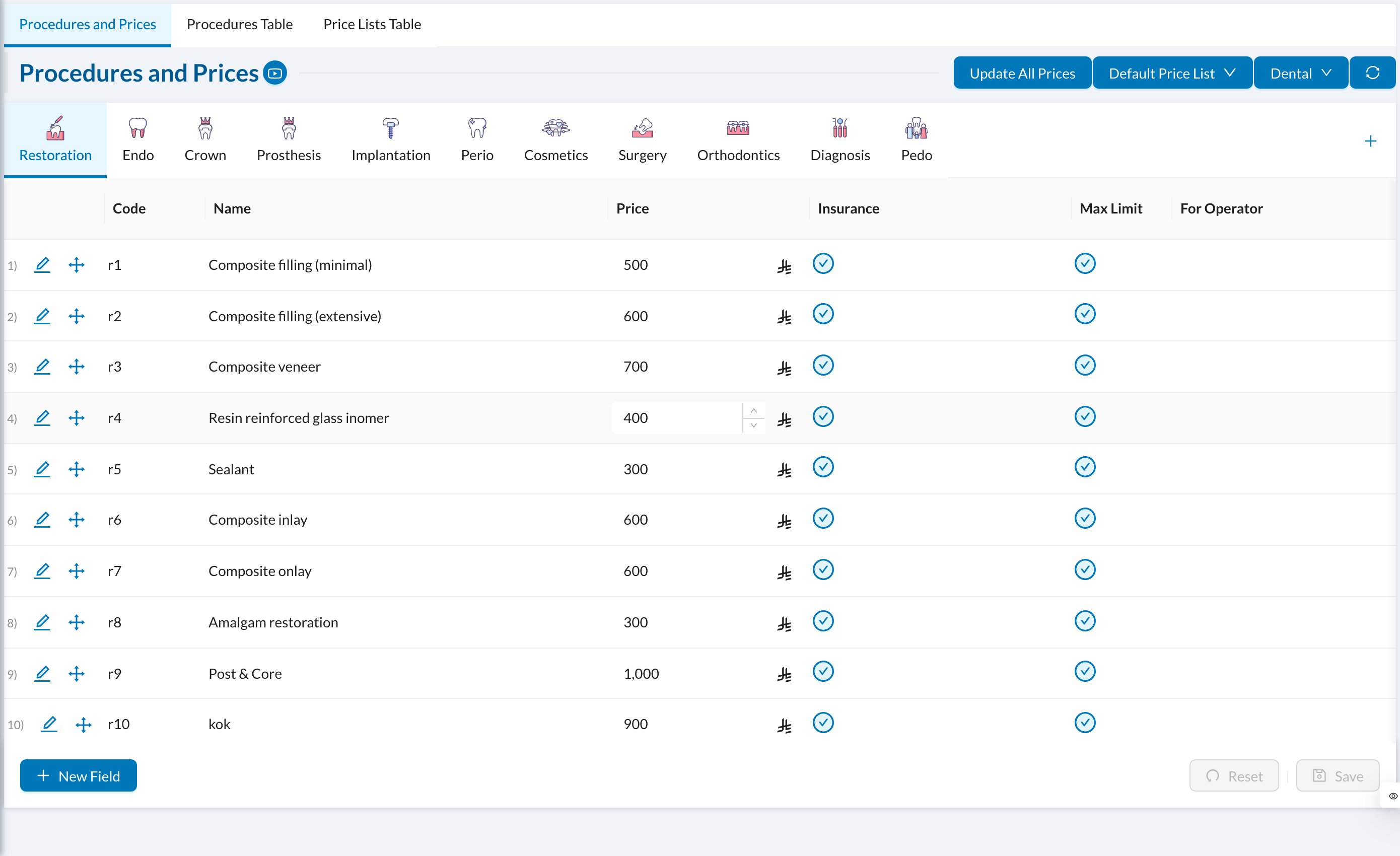 Procedures are organized in **groups** (the tabs: Restoration, Endo…). Use the **+** to add a group, and the pencil on a tab to edit it. If your clinic has several specialties, the specialty switch at the top shows each one's procedures.
## ➕ Add or edit a procedure
Click **New Field** at the bottom of a group, or the pencil on a procedure:
* **Name**, **Code** (filled in automatically if empty) and **Order**.
* **Effect:** how the procedure appears on the tooth chart, and **Permanent / Deciduous** for adult or child teeth.
* **Price** (required) and **Cost**.
* **For Operator:** the doctor's share, as an amount or %. **Deducted from Operator:** costs taken from the doctor's share, such as lab fees.
* **Is Subject To Insurance** and **Tax Applied**.
* **Create Automatic Lab Order**, **Create Automatic Prescription** and **Create Automatic Form:** created when the treatment is started or completed. **Open Lab After Procedure** opens a lab order form instead.
* **Pulses / Sessions:** for packages, such as laser sessions, with an optional **Require Counter** and expiry.
* **Active.**
After saving, you can add **Procedure Steps** (for treatments done over several visits), each with its percentage of the price (the steps must add up to 100%) and an optional follow-up appointment.
Change prices quickly in the **Procedures Table** tab: edit the prices in the table and click **Save**.
## 💲 Price lists
Use price lists for different prices, for example for an insurance company or a patient group. Open the **Default Price List** menu → **New Price List**:
* **Copy From** the default prices or another list, and **Override price with** a **Percentage** or a **Fixed Amount**.
* **Always keep in sync?:** keep following the list it was copied from.
* **Available in branches.**
Assign price lists to a patient (**Price List Group**), a branch, or an insurance company. **Update All Prices** changes every price of the selected list at once.
**Copy From** and **keep in sync** can't be changed after the list is created, and a synced list can't be edited. A group can only be deleted once it's empty.
You can also import procedures from Excel in **Settings → Clinic → Upload**.
Procedures are organized in **groups** (the tabs: Restoration, Endo…). Use the **+** to add a group, and the pencil on a tab to edit it. If your clinic has several specialties, the specialty switch at the top shows each one's procedures.
## ➕ Add or edit a procedure
Click **New Field** at the bottom of a group, or the pencil on a procedure:
* **Name**, **Code** (filled in automatically if empty) and **Order**.
* **Effect:** how the procedure appears on the tooth chart, and **Permanent / Deciduous** for adult or child teeth.
* **Price** (required) and **Cost**.
* **For Operator:** the doctor's share, as an amount or %. **Deducted from Operator:** costs taken from the doctor's share, such as lab fees.
* **Is Subject To Insurance** and **Tax Applied**.
* **Create Automatic Lab Order**, **Create Automatic Prescription** and **Create Automatic Form:** created when the treatment is started or completed. **Open Lab After Procedure** opens a lab order form instead.
* **Pulses / Sessions:** for packages, such as laser sessions, with an optional **Require Counter** and expiry.
* **Active.**
After saving, you can add **Procedure Steps** (for treatments done over several visits), each with its percentage of the price (the steps must add up to 100%) and an optional follow-up appointment.
Change prices quickly in the **Procedures Table** tab: edit the prices in the table and click **Save**.
## 💲 Price lists
Use price lists for different prices, for example for an insurance company or a patient group. Open the **Default Price List** menu → **New Price List**:
* **Copy From** the default prices or another list, and **Override price with** a **Percentage** or a **Fixed Amount**.
* **Always keep in sync?:** keep following the list it was copied from.
* **Available in branches.**
Assign price lists to a patient (**Price List Group**), a branch, or an insurance company. **Update All Prices** changes every price of the selected list at once.
**Copy From** and **keep in sync** can't be changed after the list is created, and a synced list can't be edited. A group can only be deleted once it's empty.
You can also import procedures from Excel in **Settings → Clinic → Upload**.