> ## Documentation Index
> Fetch the complete documentation index at: https://docs.dentolize.com/llms.txt
> Use this file to discover all available pages before exploring further.
# Adding laser counters
> Track the pulse counters of laser and other devices, recorded automatically with each session.
**Counters** track the reading of a device such as a laser machine. They're available for clinics with the dermatology specialty.
Go to **Settings → Processes → Counters** and click **New**:
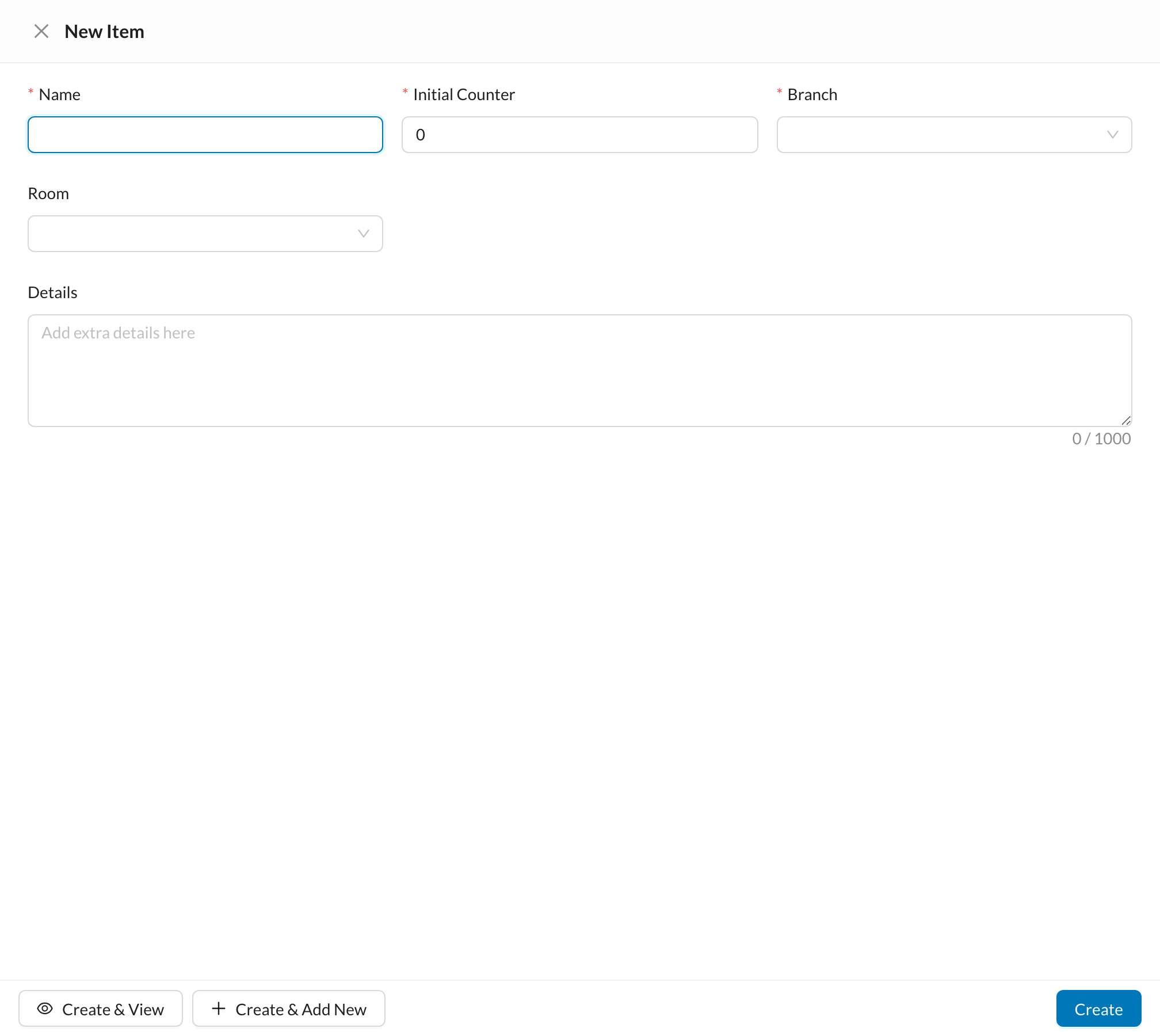 Enter the **Name**, the **Initial Counter** (the device's current reading), the **Branch** and the **Room** where the device is. The initial reading can't be changed later.
## 🔁 How readings are recorded
1. In **Settings → Procedures and Prices**, turn on **Pulses / Sessions** and **Require Counter** for the procedures that use the device.
2. When a session of that procedure is recorded, choose the **Counter** (filled in from the appointment's room) and confirm the **Final Counter**. The counter increases by the pulses used.
Open a counter to see its **Counter Logs**. Use **Edit** next to the reading to correct it; the correction is recorded as a manual entry.
Enter the **Name**, the **Initial Counter** (the device's current reading), the **Branch** and the **Room** where the device is. The initial reading can't be changed later.
## 🔁 How readings are recorded
1. In **Settings → Procedures and Prices**, turn on **Pulses / Sessions** and **Require Counter** for the procedures that use the device.
2. When a session of that procedure is recorded, choose the **Counter** (filled in from the appointment's room) and confirm the **Final Counter**. The counter increases by the pulses used.
Open a counter to see its **Counter Logs**. Use **Edit** next to the reading to correct it; the correction is recorded as a manual entry.