> ## Documentation Index
> Fetch the complete documentation index at: https://docs.dentolize.com/llms.txt
> Use this file to discover all available pages before exploring further.
# Adding and editing users
> Add your team as users, choose how they log in, their branches and permissions, and set up doctors' percentages and working hours.
Go to **Settings → Users** and click **New User**:
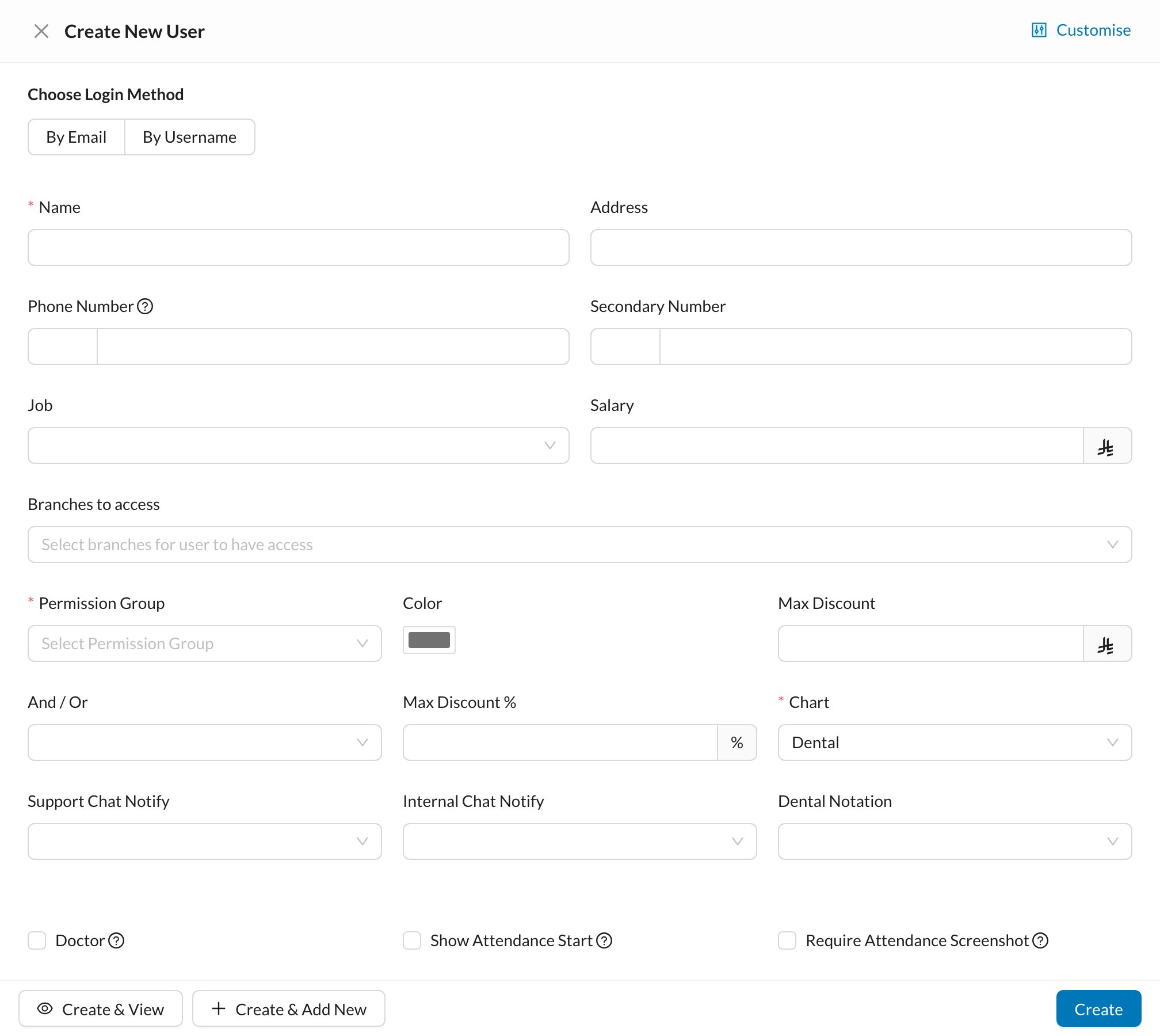 ## 🔐 Choose the login method
* **By Email:** enter the user's email. They receive an email to set their password (the link works for 5 days).
* **By Username:** enter a username and password. The user logs in with the clinic login name, the username and the password.
## 📝 Fill in the details
* **Name**, **Phone Number**, **Job** and **Salary**.
* **Branches to access** and **Permission Group** (required): what the user can see and do. See [User permissions](/en/setup-settings/users-permissions-settings).
* **Color:** the user's color on the calendar.
* **Max Discount** (amount and/or %): the most discount they can give.
* **Chart** and **Dental Notation.**
* **Doctor:** tick it for doctors, so they appear in the calendar. Then set the **Doctor percentage**, **Doctor fees from Diagnostic**, the lab orders deduction, and how their salary is calculated.
* **Show Attendance Start** and **Require Attendance Screenshot.** See [Attendance](/en/start/attendance).
Click **Create**.
## 👤 The user's page
Click a user to open their page:
## 🔐 Choose the login method
* **By Email:** enter the user's email. They receive an email to set their password (the link works for 5 days).
* **By Username:** enter a username and password. The user logs in with the clinic login name, the username and the password.
## 📝 Fill in the details
* **Name**, **Phone Number**, **Job** and **Salary**.
* **Branches to access** and **Permission Group** (required): what the user can see and do. See [User permissions](/en/setup-settings/users-permissions-settings).
* **Color:** the user's color on the calendar.
* **Max Discount** (amount and/or %): the most discount they can give.
* **Chart** and **Dental Notation.**
* **Doctor:** tick it for doctors, so they appear in the calendar. Then set the **Doctor percentage**, **Doctor fees from Diagnostic**, the lab orders deduction, and how their salary is calculated.
* **Show Attendance Start** and **Require Attendance Screenshot.** See [Attendance](/en/start/attendance).
Click **Create**.
## 👤 The user's page
Click a user to open their page:
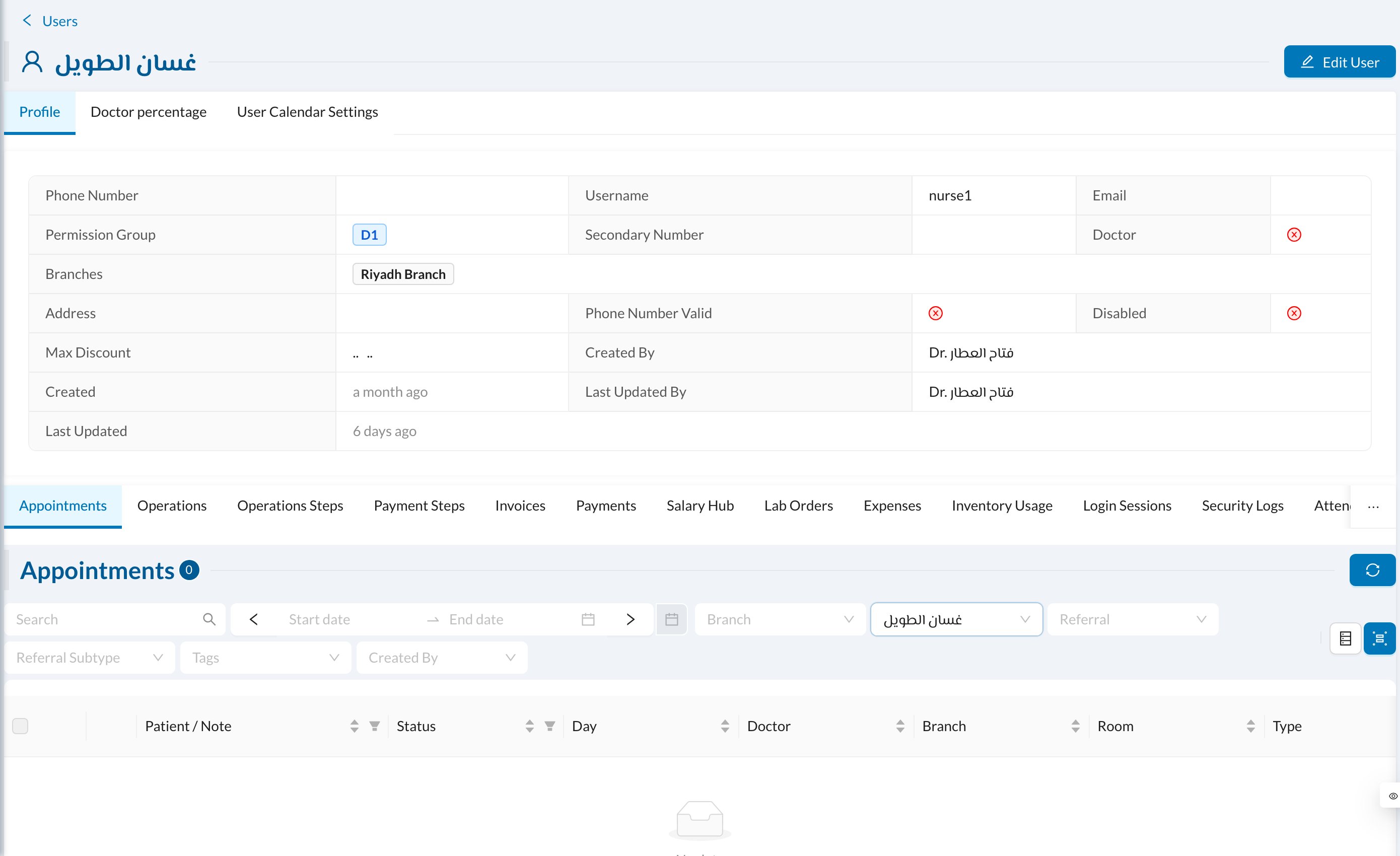 * **Doctor percentage:** a different percentage for specific procedures.
* **User Calendar Settings:** the doctor's own working days, hours, breaks, rooms and the branch they work in each day.
* Their attendance, login sessions and activity.
## ✏️ Edit, reset password or disable
Open the user and click **Edit**. To change their email, username or password, turn on **Update Login Method**. Click **Disable** to stop a user from logging in.
Editing a user logs them out. The number of active users is limited by your subscription; disabling a user frees a place.
* **Doctor percentage:** a different percentage for specific procedures.
* **User Calendar Settings:** the doctor's own working days, hours, breaks, rooms and the branch they work in each day.
* Their attendance, login sessions and activity.
## ✏️ Edit, reset password or disable
Open the user and click **Edit**. To change their email, username or password, turn on **Update Login Method**. Click **Disable** to stop a user from logging in.
Editing a user logs them out. The number of active users is limited by your subscription; disabling a user frees a place.