> ## Documentation Index
> Fetch the complete documentation index at: https://docs.dentolize.com/llms.txt
> Use this file to discover all available pages before exploring further.
# Working with labs
> Follow a lab's orders, keep its price list of lab items, and pay what you owe the lab.
Each lab has its own page with everything you do with it: its orders, its price list and what you owe it. To add a lab, see [Suppliers and Lab management](/en/setup-settings/labs-supp-sett).
## 🧪 A lab's page
Go to **Associates → Labs** and click a lab:
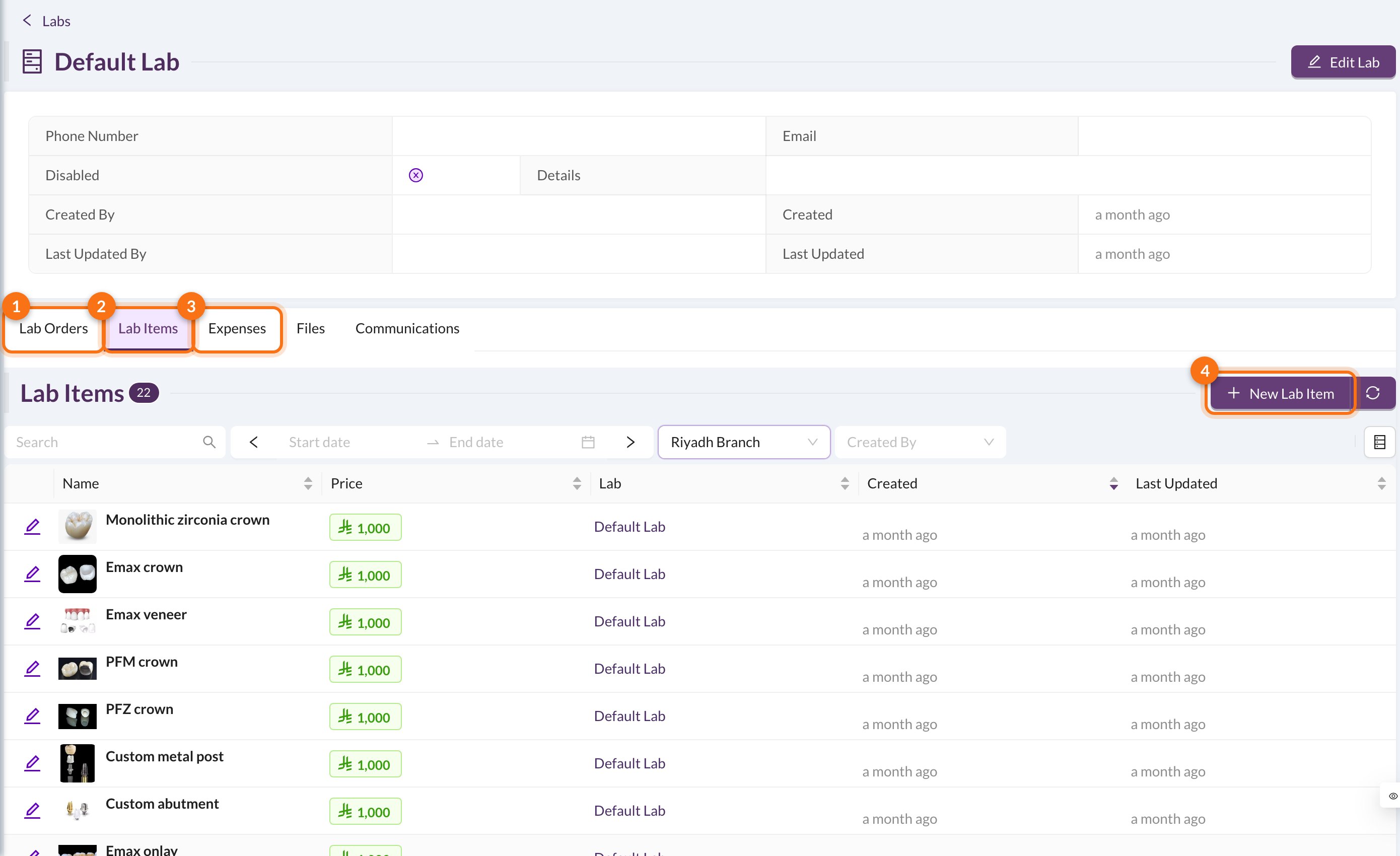 1. **Lab Orders:** every order sent to this lab.
2. **Lab Items:** the lab's price list.
3. **Expenses:** what the clinic owes the lab, and what's paid.
4. **New Lab Item.**
There are also **Files** and **Communications** tabs (the messages sent to the lab).
## 🏷️ Lab items (price list)
Click **New Lab Item** and enter the **Item Name** (for example, a zirconia crown), its **Price** and any details. When you choose a lab item in a lab order, its name, lab and price are filled in for you.
## 📦 Lab orders
Lab orders are created from the patient's page or the chart (see [Dental Lab Orders](/en/reception/lab-order)). On the **Lab Orders** tab you can follow them:
* **Mark Received** when the work comes back from the lab. The **Due Date** turns red when an order is late.
* **Mark Delivered** when it's fitted for the patient.
* **Mark All Received** / **Mark All Delivered** at the bottom update all the orders in the list.
When a lab order is created with a price and **Add to Expenses** ticked (the default), an expense is created for the lab automatically. After that, change the price from the expense, not the order.
## 💸 Pay the lab
Open the **Expenses** tab. Each unpaid expense has an **Add Payment** button, and **Add Bulk Payment** at the bottom pays all the unpaid expenses in the list, oldest first. See [Expenses](/en/finances/expenses).
When a lab order is created, the lab can get a message automatically (from your lab order message template). You can also share the order by QR code or print it.
1. **Lab Orders:** every order sent to this lab.
2. **Lab Items:** the lab's price list.
3. **Expenses:** what the clinic owes the lab, and what's paid.
4. **New Lab Item.**
There are also **Files** and **Communications** tabs (the messages sent to the lab).
## 🏷️ Lab items (price list)
Click **New Lab Item** and enter the **Item Name** (for example, a zirconia crown), its **Price** and any details. When you choose a lab item in a lab order, its name, lab and price are filled in for you.
## 📦 Lab orders
Lab orders are created from the patient's page or the chart (see [Dental Lab Orders](/en/reception/lab-order)). On the **Lab Orders** tab you can follow them:
* **Mark Received** when the work comes back from the lab. The **Due Date** turns red when an order is late.
* **Mark Delivered** when it's fitted for the patient.
* **Mark All Received** / **Mark All Delivered** at the bottom update all the orders in the list.
When a lab order is created with a price and **Add to Expenses** ticked (the default), an expense is created for the lab automatically. After that, change the price from the expense, not the order.
## 💸 Pay the lab
Open the **Expenses** tab. Each unpaid expense has an **Add Payment** button, and **Add Bulk Payment** at the bottom pays all the unpaid expenses in the list, oldest first. See [Expenses](/en/finances/expenses).
When a lab order is created, the lab can get a message automatically (from your lab order message template). You can also share the order by QR code or print it.