> ## Documentation Index
> Fetch the complete documentation index at: https://docs.dentolize.com/llms.txt
> Use this file to discover all available pages before exploring further.
# Steps to Activate WhatsApp Bot
> We will go through the steps to activate the WhatsApp Bot inside Dentolize, from logging in to linking your WhatsApp number with your Meta account. Please ensure all requirements are ready before starting to avoid any interruption during activation.
## 🧩 Basic Requirements Before Activation
Before starting, make sure you have:
* **Mobile number dedicated to the WhatsApp Bot**\
The number must be on a real phone, as a verification SMS will be sent during activation.
* **Active Meta Business Account**\
Login must be via a **Facebook account only** (Instagram login is **not supported**).
* **Clinic website or official Facebook page**
* **Payment method (optional)**\
Required only if you plan to enable **paid messages**.
***
## 1️⃣ Log in to Meta Business
Go to:\
[**business.facebook.com**](http://business.facebook.com)
Log in using the **Facebook account** that manages the clinic page.
**Note:** Instagram login does not support WhatsApp Bot linking.
***
## 2️⃣ Verify Your Business Portfolio
After logging in, all business portfolios linked to your account will appear.\
Select your clinic’s business portfolio.
If you don’t have a portfolio, create a new one by clicking:\
**Create a Business Portfolio**
.png?fit=max&auto=format&n=Kgmrwskx-GMAqMHx&q=85&s=d313bf6921854c402ef233e1ac79a98f "2(2) Pn") ***
## 3️⃣ Review Portfolio Information
Go to:\
**Settings → Business Info**
***
## 3️⃣ Review Portfolio Information
Go to:\
**Settings → Business Info**
.png?fit=max&auto=format&n=Kgmrwskx-GMAqMHx&q=85&s=96eb4cd536bbfd3b636107f533cdfac8 "2(3) Pn") Check the following information:
* Legal clinic name
* Address
* Clinic phone number
* Clinic website or Facebook page
> **If any information is incorrect:**\
> Click **Edit**, correct the details, then click **Save**
>
>
Check the following information:
* Legal clinic name
* Address
* Clinic phone number
* Clinic website or Facebook page
> **If any information is incorrect:**\
> Click **Edit**, correct the details, then click **Save**
>
> .png?fit=max&auto=format&n=nzBtDHk7oqXu-mSg&q=85&s=5417e13f30c0eb187a5f5980ef8f78ec "2(4xcvxv) Pn") ***
### ✅ Verify Email
Scroll down and make sure your email is **verified**.\
If not, complete the verification process before proceeding.
***
## 4️⃣ Start Linking from Dentolize
Go to **Dentolize** → **Settings** → **Integrations** → **WhatsApp Bot**.\
Click **Log in with Facebook**.
***
### ✅ Verify Email
Scroll down and make sure your email is **verified**.\
If not, complete the verification process before proceeding.
***
## 4️⃣ Start Linking from Dentolize
Go to **Dentolize** → **Settings** → **Integrations** → **WhatsApp Bot**.\
Click **Log in with Facebook**.
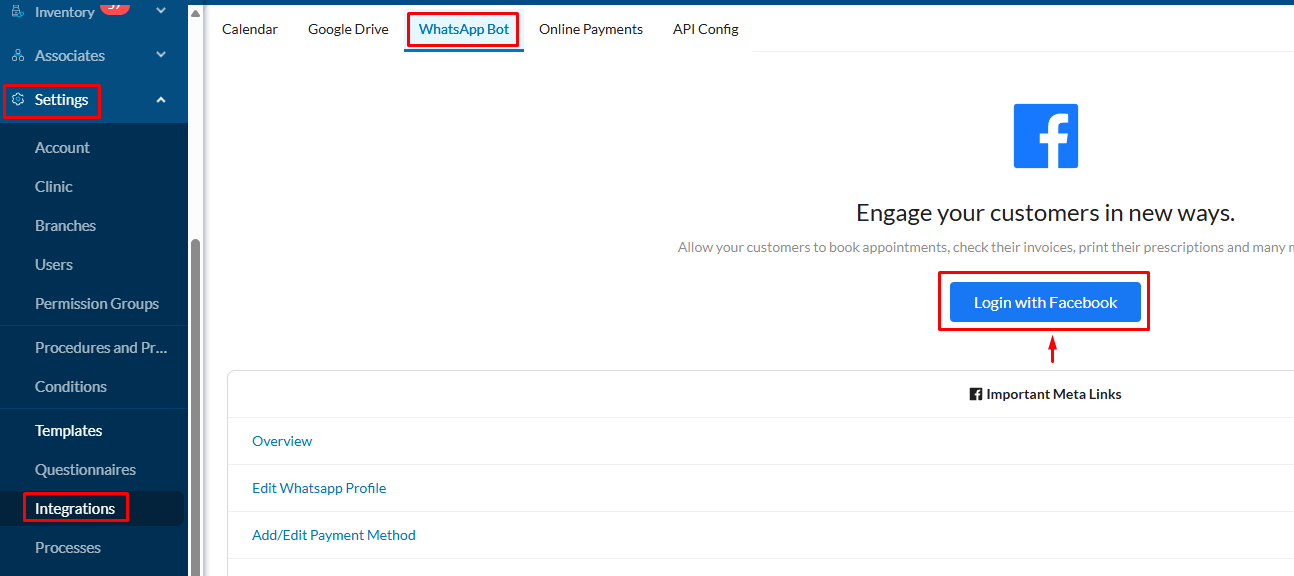 A window will appear to log in to your Meta account and start the linking process.\
Click **Get Started**.
A window will appear to log in to your Meta account and start the linking process.\
Click **Get Started**.
.png?fit=max&auto=format&n=Kgmrwskx-GMAqMHx&q=85&s=0e707fcf189e5a48d3bad22739bd8690 "2(5) Pn") ***
## 5️⃣ Select the Correct Business Portfolio
All business portfolios linked to your account will appear.\
Select your clinic’s portfolio.\
Check the website below the portfolio to confirm you chose the correct one.\
Then click **Next**.
***
## 5️⃣ Select the Correct Business Portfolio
All business portfolios linked to your account will appear.\
Select your clinic’s portfolio.\
Check the website below the portfolio to confirm you chose the correct one.\
Then click **Next**.
.png?fit=max&auto=format&n=Kgmrwskx-GMAqMHx&q=85&s=73bee7b72128a4d60c201c6cca72e326 "2(6) Pn") ***
## 6️⃣ Create a WhatsApp Business Account on Meta
Make sure the first option is set to:\
**Create a WhatsApp Business Account**
Click **Next**.
***
## 6️⃣ Create a WhatsApp Business Account on Meta
Make sure the first option is set to:\
**Create a WhatsApp Business Account**
Click **Next**.
.png?fit=max&auto=format&n=Kgmrwskx-GMAqMHx&q=85&s=0c14ecddd1b47b3940b15a05f933f6ae "2(7) Pn") You will be asked to enter:
* WhatsApp account name in Meta (e.g., **WhatsApp Bot**)
* Display Name for patients (**Capitalize the first letter if in English**)
* Choose category: **Medical & Health**
Click **Next**.
You will be asked to enter:
* WhatsApp account name in Meta (e.g., **WhatsApp Bot**)
* Display Name for patients (**Capitalize the first letter if in English**)
* Choose category: **Medical & Health**
Click **Next**.
.png?fit=max&auto=format&n=Kgmrwskx-GMAqMHx&q=85&s=2166897190fd7ed69645b32558453a24 "2(8) Pn") ***
## 7️⃣ Add Your WhatsApp Bot Number
Click **Add New Number**\
Select your country.\
Enter the phone number dedicated to the bot.\
Click **Next**.
***
## 7️⃣ Add Your WhatsApp Bot Number
Click **Add New Number**\
Select your country.\
Enter the phone number dedicated to the bot.\
Click **Next**.
.png?fit=max&auto=format&n=Kgmrwskx-GMAqMHx&q=85&s=b242cc00a05d578839e71a74ea6ba190 "2(9) Pn") A verification SMS with a code will be sent.
***
## 8️⃣ Receive Verification Code
It may take 1–2 minutes for the SMS to arrive.\
If it doesn’t arrive, choose **Call me** to get the code via voice call.\
Enter the code and click **Next**.
A verification SMS with a code will be sent.
***
## 8️⃣ Receive Verification Code
It may take 1–2 minutes for the SMS to arrive.\
If it doesn’t arrive, choose **Call me** to get the code via voice call.\
Enter the code and click **Next**.
.png?fit=max&auto=format&n=Kgmrwskx-GMAqMHx&q=85&s=5a6cb0702244b8bc6ceecaf2784e8ae0 "2(10) Pn") \
Verification completes within seconds.
***
## 9️⃣ Step 9: Complete Linking
After confirming your number, click **Finish**.
\
Verification completes within seconds.
***
## 9️⃣ Step 9: Complete Linking
After confirming your number, click **Finish**.
.png?fit=max&auto=format&n=Kgmrwskx-GMAqMHx&q=85&s=b3d8706827bca0f49aaa1366a807c42d "2(11) Pn") You will automatically return to Dentolize and notice a **successful login** — this means the WhatsApp Bot is now linked and activated.
You will automatically return to Dentolize and notice a **successful login** — this means the WhatsApp Bot is now linked and activated.
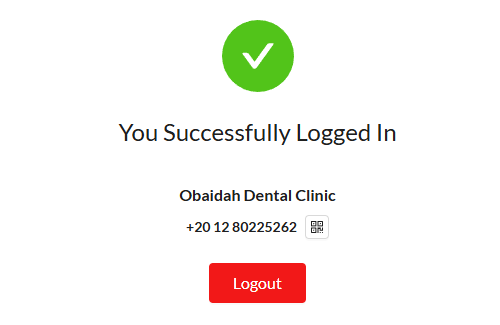 Do not click **Log Out** to avoid disconnecting the bot.
***
## ⚙️ After Activation
Next, we will configure:
* Detailed settings inside **Dentolize**
* Additional settings inside the **Meta platform**
to ensure the bot operates efficiently inside your clinic.
## ❓ **Frequently Asked Questions (FAQ)**
No. The number must not be linked to any existing WhatsApp account.\
If it is in use and you want to activate the bot with it, you must delete the WhatsApp account or use a new number.
No. All communication must be done via **Dentolize** web or mobile app.
Yes.\
When a patient contacts the WhatsApp Bot number, a **24-hour free messaging window** opens, which renews each time the patient starts a new conversation with the bot.\
There is a **daily limit of 250 conversations** if your account is new, which can be increased later by following Meta’s conditions.
No — only if you want to enable **paid messages**.
Account restrictions or blocks by Meta are **entirely your responsibility**.\
Dentolize is **not responsible** for any issues arising from your personal Meta account.\
You should contact **Meta support** to resolve or lift any restrictions.
Do not click **Log Out** to avoid disconnecting the bot.
***
## ⚙️ After Activation
Next, we will configure:
* Detailed settings inside **Dentolize**
* Additional settings inside the **Meta platform**
to ensure the bot operates efficiently inside your clinic.
## ❓ **Frequently Asked Questions (FAQ)**
No. The number must not be linked to any existing WhatsApp account.\
If it is in use and you want to activate the bot with it, you must delete the WhatsApp account or use a new number.
No. All communication must be done via **Dentolize** web or mobile app.
Yes.\
When a patient contacts the WhatsApp Bot number, a **24-hour free messaging window** opens, which renews each time the patient starts a new conversation with the bot.\
There is a **daily limit of 250 conversations** if your account is new, which can be increased later by following Meta’s conditions.
No — only if you want to enable **paid messages**.
Account restrictions or blocks by Meta are **entirely your responsibility**.\
Dentolize is **not responsible** for any issues arising from your personal Meta account.\
You should contact **Meta support** to resolve or lift any restrictions.