> ## Documentation Index
> Fetch the complete documentation index at: https://docs.dentolize.com/llms.txt
> Use this file to discover all available pages before exploring further.
# WhatsApp Bot Interface
> In this section, we will learn how to use the WhatsApp Bot interface inside the system, whether from a computer or the mobile app, including managing conversations, replying to patients, tracking support requests, and confirming appointments booked through the bot.
## 🔑 Accessing the WhatsApp Bot Interface
From the side menu, select **WhatsApp Bot**.
.png?fit=max&auto=format&n=27fR3FXPy1fTW4In&q=85&s=a4c422d05375971d61c49277c785c6b2 "2(xzc3) Pn") The interface will look very similar to **WhatsApp Web**, displaying:
* 👤 **Patient Name**
* 📞 **Phone Number**
* 👨💼 **Staff Assigned to the Conversation**
* ⏱️ **24-hour free messaging counter**
**Note:** Any conversation initiated by the patient is **free for 24 hours**, during which you can reply without restrictions, or you can send templates. \
After 24 hours, replies are only possible if the patient initiates contact again or via paid message templates.
***
## 💬 Managing Conversations and Replying to Patients
by clicking into any conversation, you can:
* 💬 View **automated bot messages**, staff replies, and patient responses.
* ✍️ Reply to the patient from the text box, including sending **voice notes, images, files, or videos**.
* Send **pre-saved templates or notes** for faster and easier replies.
The interface will look very similar to **WhatsApp Web**, displaying:
* 👤 **Patient Name**
* 📞 **Phone Number**
* 👨💼 **Staff Assigned to the Conversation**
* ⏱️ **24-hour free messaging counter**
**Note:** Any conversation initiated by the patient is **free for 24 hours**, during which you can reply without restrictions, or you can send templates. \
After 24 hours, replies are only possible if the patient initiates contact again or via paid message templates.
***
## 💬 Managing Conversations and Replying to Patients
by clicking into any conversation, you can:
* 💬 View **automated bot messages**, staff replies, and patient responses.
* ✍️ Reply to the patient from the text box, including sending **voice notes, images, files, or videos**.
* Send **pre-saved templates or notes** for faster and easier replies.
 A notification at the top of the chat indicates the status of the **24-hour messaging window**.
***
## 🧾 Patient Information and Linked Files
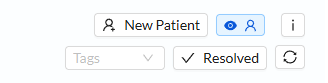
At the top-right of any conversation, you will find:
* **Patient Card:** Appears if the patient is registered in the system.
* **Duplicate Medical Files:** Shows if the patient has multiple files in Dentolize.
* **Assigned Staff:** Can be changed by an admin or manager.
* **Block Patient:** Disable communication with the patient.
* **Resolved:** Mark the issue as resolved when the patient's request is resolved.
A notification at the top of the chat indicates the status of the **24-hour messaging window**.
***
## 🧾 Patient Information and Linked Files
At the top-right of any conversation, you will find:
* **Patient Card:** Appears if the patient is registered in the system.
* **Duplicate Medical Files:** Shows if the patient has multiple files in Dentolize.
* **Assigned Staff:** Can be changed by an admin or manager.
* **Block Patient:** Disable communication with the patient.
* **Resolved:** Mark the issue as resolved when the patient's request is resolved.
 ***
## 🏷️ Patient Tags
You can add custom tags to the patient card in the WhatsApp Bot, such as "Interested in Aesthetics," "Complaint," or "Interested in Offers," etc.
* Tags appear under the patient’s name and can be used for **filtering and categorizing patients**.
Tags can be **added or modified** from **Settings → Clinic → Types**.
***
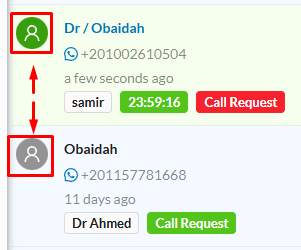
## ✅ Identifying Registered and Unregistered Patients in Dentolize
* **Gray Icon:** Patient is **unregistered** and has no medical file in the clinic.
* **Green Icon:** Patient is **registered** with a medical file available at the top-right of the conversation.
***
## 🏷️ Patient Tags
You can add custom tags to the patient card in the WhatsApp Bot, such as "Interested in Aesthetics," "Complaint," or "Interested in Offers," etc.
* Tags appear under the patient’s name and can be used for **filtering and categorizing patients**.
Tags can be **added or modified** from **Settings → Clinic → Types**.
***
## ✅ Identifying Registered and Unregistered Patients in Dentolize
* **Gray Icon:** Patient is **unregistered** and has no medical file in the clinic.
* **Green Icon:** Patient is **registered** with a medical file available at the top-right of the conversation.
 ***
## 🆘 Managing Support Requests
* Each conversation is treated as a **support request** in the WhatsApp Bot.
* You can mark the issue as **resolved** using the button at the top-right of the conversation.
* Track requests that the bot cannot handle.
* Reply directly to patients with questions or complaints.
Marking an issue as resolved closes the request and helps maintain workflow organization and service quality.
***
## 📄 Viewing All Patient Support Requests
Support requests include **appointment reschedules, general inquiries, or specific questions**.
* All requests appear under the **Requests tab**.
***
## 🆘 Managing Support Requests
* Each conversation is treated as a **support request** in the WhatsApp Bot.
* You can mark the issue as **resolved** using the button at the top-right of the conversation.
* Track requests that the bot cannot handle.
* Reply directly to patients with questions or complaints.
Marking an issue as resolved closes the request and helps maintain workflow organization and service quality.
***
## 📄 Viewing All Patient Support Requests
Support requests include **appointment reschedules, general inquiries, or specific questions**.
* All requests appear under the **Requests tab**.
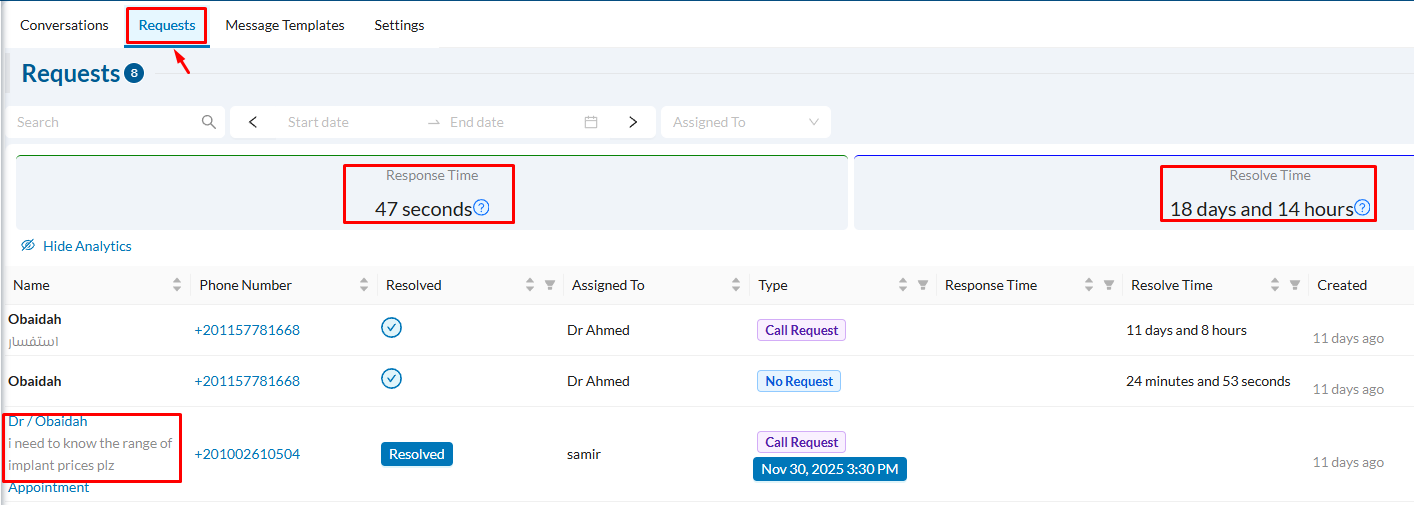 * Clicking on a request opens the patient conversation directly.
* Review the patient’s request and take the necessary action (e.g., reschedule, reply).
* Click **Issue Resolved** to close the request.
The WhatsApp Bot in Dentolize also provides analytics on:
* **Average response time**
* **Average resolution time**
These metrics help **monitor your service quality**.
***
## 📅 Appointments Booked via WhatsApp Bot
Appointments booked through the bot are **not automatically confirmed**.
### How to Confirm Appointments:
* On the **dashboard or calendar section**, unconfirmed appointments are marked as **Pending Confirmation**.
* Clicking on a request opens the patient conversation directly.
* Review the patient’s request and take the necessary action (e.g., reschedule, reply).
* Click **Issue Resolved** to close the request.
The WhatsApp Bot in Dentolize also provides analytics on:
* **Average response time**
* **Average resolution time**
These metrics help **monitor your service quality**.
***
## 📅 Appointments Booked via WhatsApp Bot
Appointments booked through the bot are **not automatically confirmed**.
### How to Confirm Appointments:
* On the **dashboard or calendar section**, unconfirmed appointments are marked as **Pending Confirmation**.
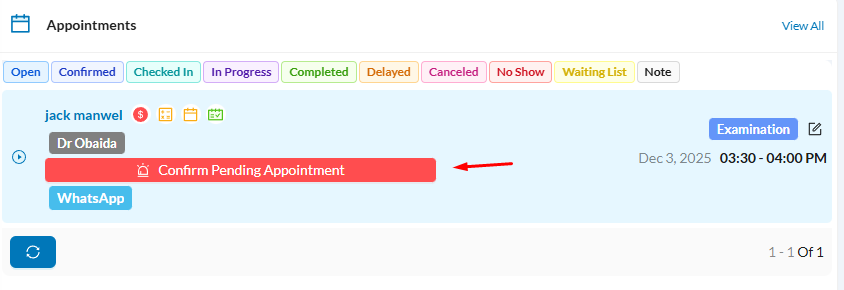 * Click **Confirm Appointment** to finalize the booking.
* The assigned doctor receives a notification on the mobile app.
### Tracking Future Appointments:
* Reception staff may need to review and confirm or reschedule future appointments.
* Access the **Summary** on the dashboard and click **Appointments Pending Confirmation** to view all unconfirmed appointments.
* Click **Confirm Appointment** to finalize the booking.
* The assigned doctor receives a notification on the mobile app.
### Tracking Future Appointments:
* Reception staff may need to review and confirm or reschedule future appointments.
* Access the **Summary** on the dashboard and click **Appointments Pending Confirmation** to view all unconfirmed appointments.
 * The same list can also be accessed via **Appointment logs → Notifications icon** at the top-right.
* You can edit appointments, change doctors, and notify patients of updates.
***
## 🏷️ Filters and Categories in the WhatsApp Interface
Use the **Filter** button to display conversations by:
* The same list can also be accessed via **Appointment logs → Notifications icon** at the top-right.
* You can edit appointments, change doctors, and notify patients of updates.
***
## 🏷️ Filters and Categories in the WhatsApp Interface
Use the **Filter** button to display conversations by:
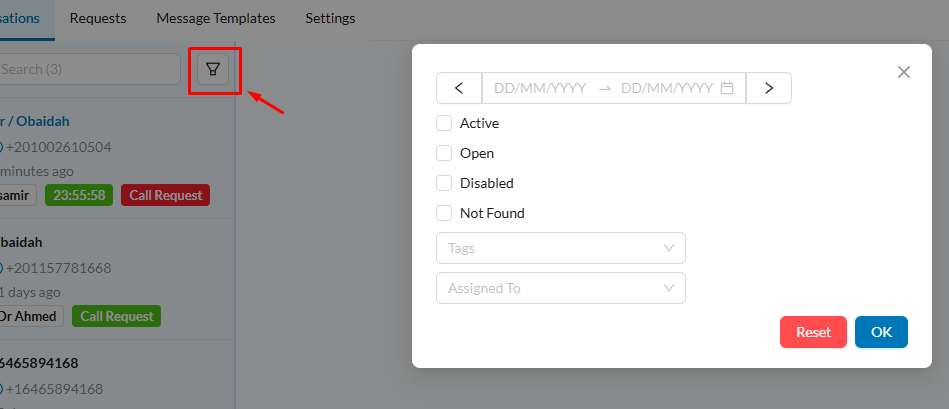 * Date or day
* Active: conversations (within the 24-hour free window)
* Open: Conversations with unresolved requests
* Disabled: Blocked conversations
* Not Found: Unregistered patients
* Specific tags
* Conversations assigned to a specific staff member
These filters help speed up search and organize follow-ups.
***
## 📱 Using the WhatsApp Bot on Mobile App
* Open the **Dentolize mobile app** and tap the **WhatsApp Bot icon** in the bottom menu.
* All conversations will appear.
* Date or day
* Active: conversations (within the 24-hour free window)
* Open: Conversations with unresolved requests
* Disabled: Blocked conversations
* Not Found: Unregistered patients
* Specific tags
* Conversations assigned to a specific staff member
These filters help speed up search and organize follow-ups.
***
## 📱 Using the WhatsApp Bot on Mobile App
* Open the **Dentolize mobile app** and tap the **WhatsApp Bot icon** in the bottom menu.
* All conversations will appear.
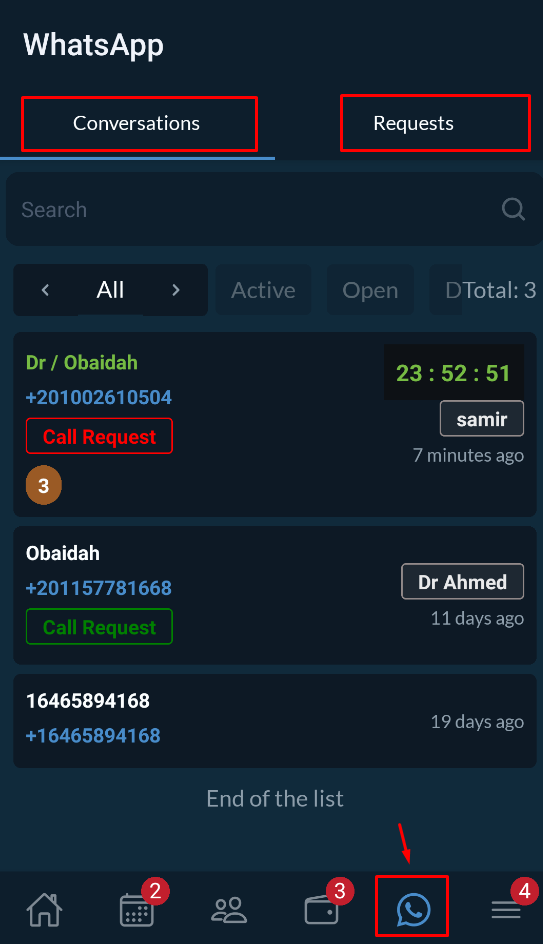 You can also:
* Reply to patients
* Open patient files
* Track support requests
* Mark **Issue Resolved**
* Reassign conversations to another staff member
**Note:** WhatsApp Bot settings cannot be modified via the mobile app; a browser must be used for that.
***
## 🔜 What’s Next?
In the next section, we will cover:
* Activating free and paid message templates
* Marketing messages
* Adding payment methods to the Meta account
***
## ❓ Frequently Asked Questions (FAQ)
A bar at the top of the chat shows the **remaining time** before the free window expires.
Yes, you can send **images, files, voice notes, and videos**.
Yes, this can be done by a **supervisor or manager**.
The **24-hour window has probably ended**. The patient must send a new message first.
Yes, through the Dentolize mobile app.
You can also:
* Reply to patients
* Open patient files
* Track support requests
* Mark **Issue Resolved**
* Reassign conversations to another staff member
**Note:** WhatsApp Bot settings cannot be modified via the mobile app; a browser must be used for that.
***
## 🔜 What’s Next?
In the next section, we will cover:
* Activating free and paid message templates
* Marketing messages
* Adding payment methods to the Meta account
***
## ❓ Frequently Asked Questions (FAQ)
A bar at the top of the chat shows the **remaining time** before the free window expires.
Yes, you can send **images, files, voice notes, and videos**.
Yes, this can be done by a **supervisor or manager**.
The **24-hour window has probably ended**. The patient must send a new message first.
Yes, through the Dentolize mobile app.