> ## Documentation Index
> Fetch the complete documentation index at: https://docs.dentolize.com/llms.txt
> Use this file to discover all available pages before exploring further.
# WhatsApp connection and pricing
> Connect your clinic's WhatsApp number to Dentolize with the WhatsApp Bot: where to find it, what each screen means, and what to watch out for.
The **WhatsApp Bot** connects your clinic's WhatsApp number to Dentolize through Meta's official WhatsApp Business Platform. Once it's connected, you can:
* Send reminders, confirmations and other automatic messages by WhatsApp instead of, or as well as, [SMS](/en/integrations/sms).
* Let patients book appointments, check invoices and more by chatting with the bot.
* Reply to patients from the **WhatsApp Bot** inbox in Dentolize.
## 📍 Where to find it
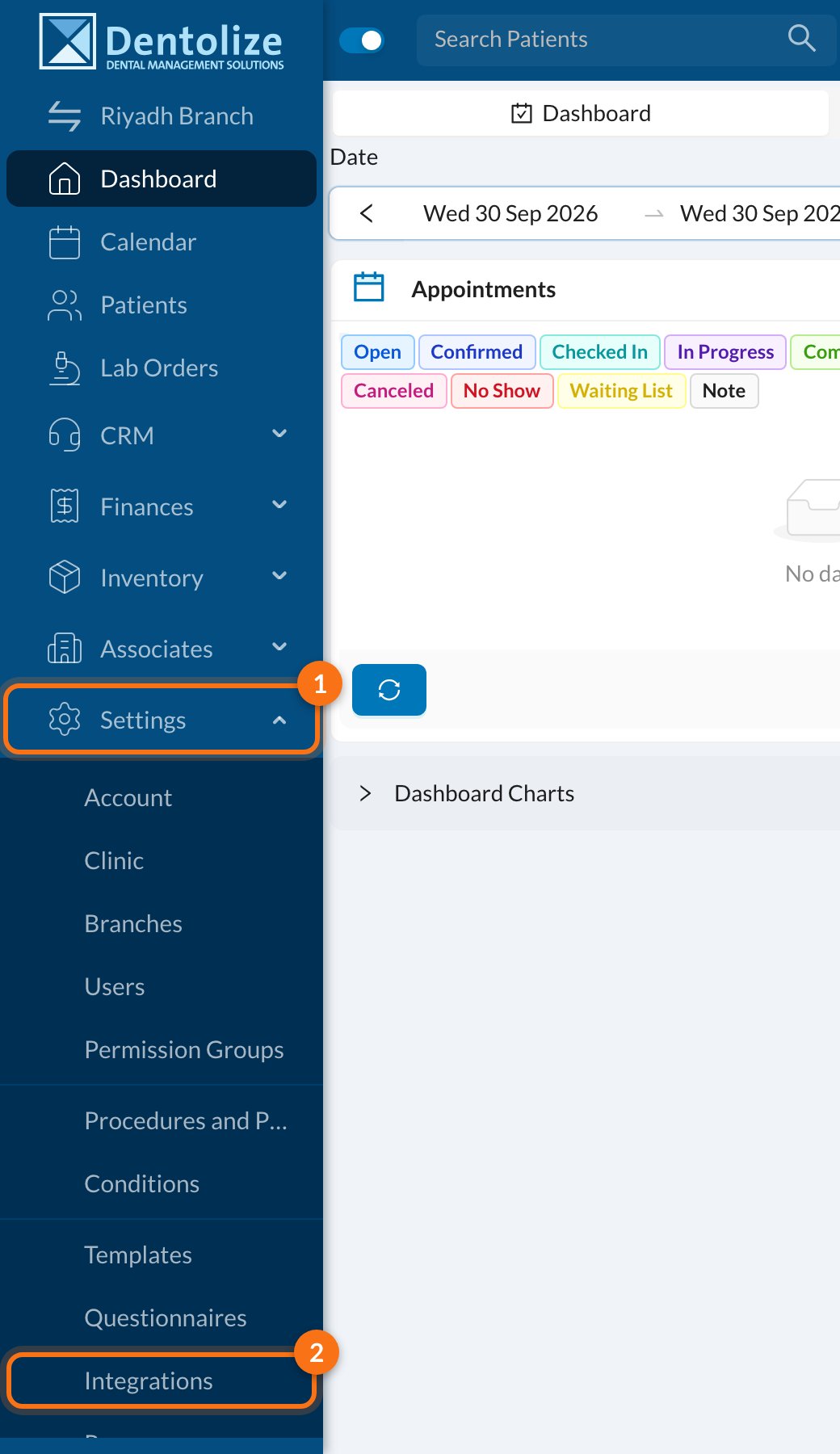
In the side menu, click **Settings** (1), then **Integrations** (2), and open the **WhatsApp Bot** tab. Only the clinic owner or an admin (users with full permissions) can see this tab.
 ## 🔒 If you see "Feature Disabled"
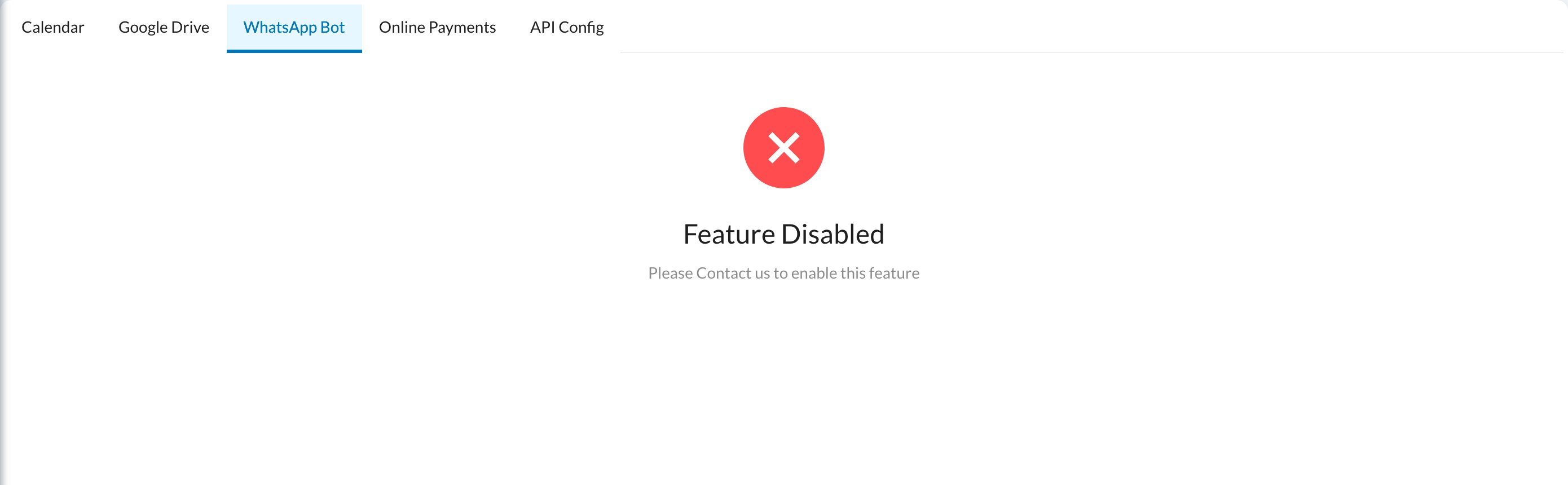
The WhatsApp Bot needs to be enabled for your clinic first. If the tab shows **Feature Disabled — Please Contact us to enable this feature**, contact Dentolize support.
## 🔒 If you see "Feature Disabled"
The WhatsApp Bot needs to be enabled for your clinic first. If the tab shows **Feature Disabled — Please Contact us to enable this feature**, contact Dentolize support.
 ## 🔗 Connect your number
When the feature is enabled, the tab shows a **Login with Facebook** button. Before you click it, read [Important warnings](/en/whatsapp-bot/bot-warnings), then follow [Steps to activate WhatsApp Bot](/en/whatsapp-bot/bot-activation) to link your number through Meta.
During Meta's sign-up, select or create **only the number dedicated to the bot**. Dentolize connects the first WhatsApp Business account and the first number you share. Once connected, the number can't be used in the regular WhatsApp app anymore.
## ✅ When it's connected
The tab shows **You Successfully Logged In**, with your WhatsApp business name and number.
## 🔗 Connect your number
When the feature is enabled, the tab shows a **Login with Facebook** button. Before you click it, read [Important warnings](/en/whatsapp-bot/bot-warnings), then follow [Steps to activate WhatsApp Bot](/en/whatsapp-bot/bot-activation) to link your number through Meta.
During Meta's sign-up, select or create **only the number dedicated to the bot**. Dentolize connects the first WhatsApp Business account and the first number you share. Once connected, the number can't be used in the regular WhatsApp app anymore.
## ✅ When it's connected
The tab shows **You Successfully Logged In**, with your WhatsApp business name and number.
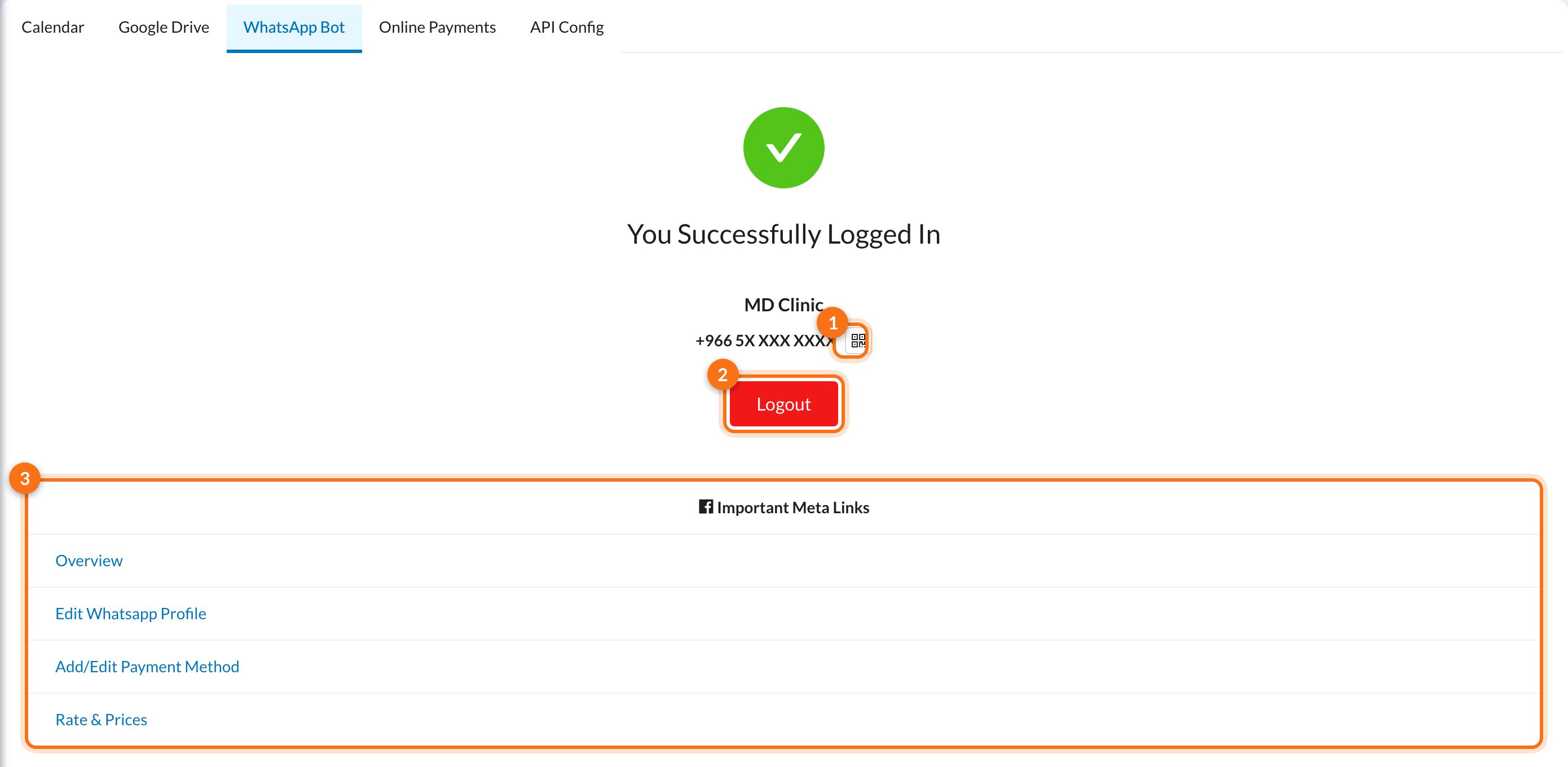 1. **QR code:** opens a QR code that starts a chat with your bot. Print it or share it so patients can reach you easily.
2. **Logout:** disconnects the number. See the warning below before using it.
3. **Important Meta Links:** shortcuts to your WhatsApp account in Meta: **Overview** (account status and quality), **Edit Whatsapp Profile**, **Add/Edit Payment Method** and **Rate & Prices**.
Below them are the bot's settings. See [WhatsApp Bot settings](/en/whatsapp-bot/bot-settings). After connecting, **WhatsApp Bot** also appears in the side menu with the conversations inbox and the same settings.
**Don't click Logout unless you want to stop using the bot.** Logging out disconnects the number, stops all automatic WhatsApp messages and **deletes your WhatsApp message templates from Dentolize**. To use the bot again, you have to go through Meta's sign-up again.
## 💬 Free and paid messages
* When a patient messages you, WhatsApp opens a **24-hour window** in which your replies are free.
* From **1 October 2026**, replies are free for the first **1,000 messages per number each month**. After that, Meta charges for them. The **WhatsApp Bot** page shows a counter of free messages used this month.
* Messages sent **outside** the window, such as reminders to patients who haven't written to you, need a Meta-approved template, **Allow Paid SMS Outside 24h Window** turned on in the bot settings, and a payment method in Meta. If any of these is missing, the message isn't sent.
For important reminders, tick both **SMS** and **WhatsApp Bot** in the template's **Message Channels**. Dentolize tries WhatsApp first and sends an SMS only if WhatsApp fails. See [SMS or WhatsApp](/en/integrations/sms).
## 📚 Next steps
Read before activating.
Link your number through Meta, step by step.
Replies, language, booking, menu and more.
Templates and reminders over WhatsApp.
## ❓ FAQ
Only users with full permissions (the owner or an admin) can see it. Ask your clinic's owner or admin.
Open **Overview** in **Important Meta Links**. Dentolize doesn't show the quality rating or messaging limit.
Check **Logs → Communications** for errors. Messages outside the 24-hour window need an approved template, **Allow Paid SMS Outside 24h Window** turned on, and a payment method in Meta. Also make sure the number is still connected on this tab.
Yes, manually: the WhatsApp icon on appointments and reminders opens the patient's chat in your own WhatsApp, with the message ready to send. Nothing is sent automatically.
This documentation is built and hosted on [Mintlify](https://mintlify.com), a developer documentation platform.
1. **QR code:** opens a QR code that starts a chat with your bot. Print it or share it so patients can reach you easily.
2. **Logout:** disconnects the number. See the warning below before using it.
3. **Important Meta Links:** shortcuts to your WhatsApp account in Meta: **Overview** (account status and quality), **Edit Whatsapp Profile**, **Add/Edit Payment Method** and **Rate & Prices**.
Below them are the bot's settings. See [WhatsApp Bot settings](/en/whatsapp-bot/bot-settings). After connecting, **WhatsApp Bot** also appears in the side menu with the conversations inbox and the same settings.
**Don't click Logout unless you want to stop using the bot.** Logging out disconnects the number, stops all automatic WhatsApp messages and **deletes your WhatsApp message templates from Dentolize**. To use the bot again, you have to go through Meta's sign-up again.
## 💬 Free and paid messages
* When a patient messages you, WhatsApp opens a **24-hour window** in which your replies are free.
* From **1 October 2026**, replies are free for the first **1,000 messages per number each month**. After that, Meta charges for them. The **WhatsApp Bot** page shows a counter of free messages used this month.
* Messages sent **outside** the window, such as reminders to patients who haven't written to you, need a Meta-approved template, **Allow Paid SMS Outside 24h Window** turned on in the bot settings, and a payment method in Meta. If any of these is missing, the message isn't sent.
For important reminders, tick both **SMS** and **WhatsApp Bot** in the template's **Message Channels**. Dentolize tries WhatsApp first and sends an SMS only if WhatsApp fails. See [SMS or WhatsApp](/en/integrations/sms).
## 📚 Next steps
Read before activating.
Link your number through Meta, step by step.
Replies, language, booking, menu and more.
Templates and reminders over WhatsApp.
## ❓ FAQ
Only users with full permissions (the owner or an admin) can see it. Ask your clinic's owner or admin.
Open **Overview** in **Important Meta Links**. Dentolize doesn't show the quality rating or messaging limit.
Check **Logs → Communications** for errors. Messages outside the 24-hour window need an approved template, **Allow Paid SMS Outside 24h Window** turned on, and a payment method in Meta. Also make sure the number is still connected on this tab.
Yes, manually: the WhatsApp icon on appointments and reminders opens the patient's chat in your own WhatsApp, with the message ready to send. Nothing is sent automatically.
This documentation is built and hosted on [Mintlify](https://mintlify.com), a developer documentation platform.