Open the patient and click the Chart tab. 1 Procedures or Conditions, 2 status, 3 Doctor, 4 procedure groups, 5 teeth, 6 Invoice
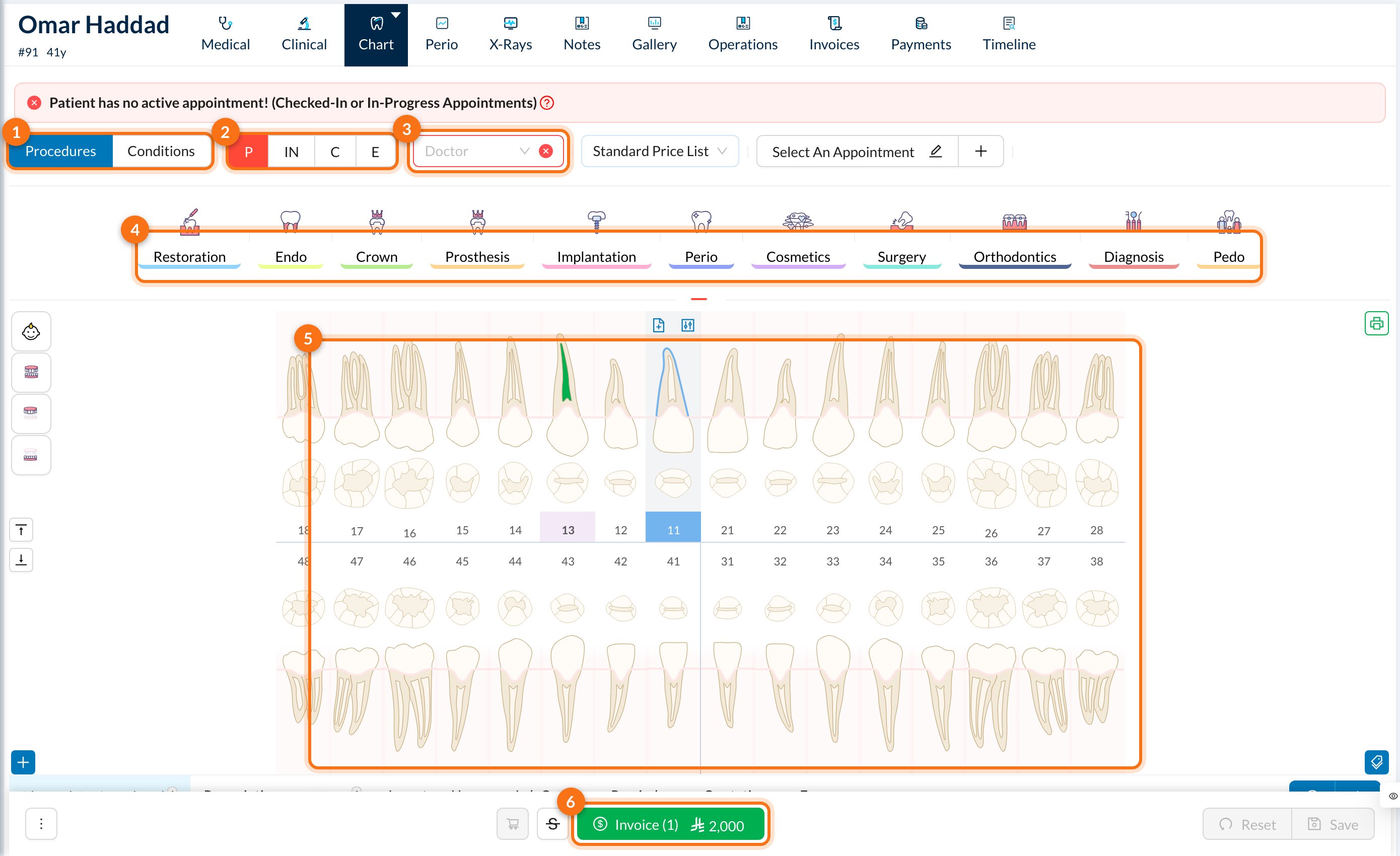
  1. Procedures or Conditions: add treatments, or record conditions (diagnoses) at no price.
  2. Status for new treatments: P Planned, IN In Progress, C Completed, E Existing (done before, elsewhere).
  3. Doctor: the doctor for the treatments. Next to it are the price list and the linked appointment.
  4. Procedure groups: Restoration, Endo, Crown and so on. Click a group to choose a procedure.
  5. Teeth: click a tooth, a surface or a root. Drag across teeth to select several, or use the buttons on the left for the full mouth, upper or lower arch, or child teeth.
  6. Invoice: invoice the selected treatments.

➕ Add a treatment

  1. Choose the status (Planned by default) and check the Doctor.
  2. Select the teeth, then pick the procedure from its group. The treatment is added straight away.
One click adds a treatment, without confirmation. If you choose the procedure first, every tooth you then click gets that treatment, until you click Clear Selection.
For more details (quantity, price, notes, or several treatments at once), click + → Add Operations.

🔄 Change a treatment’s status

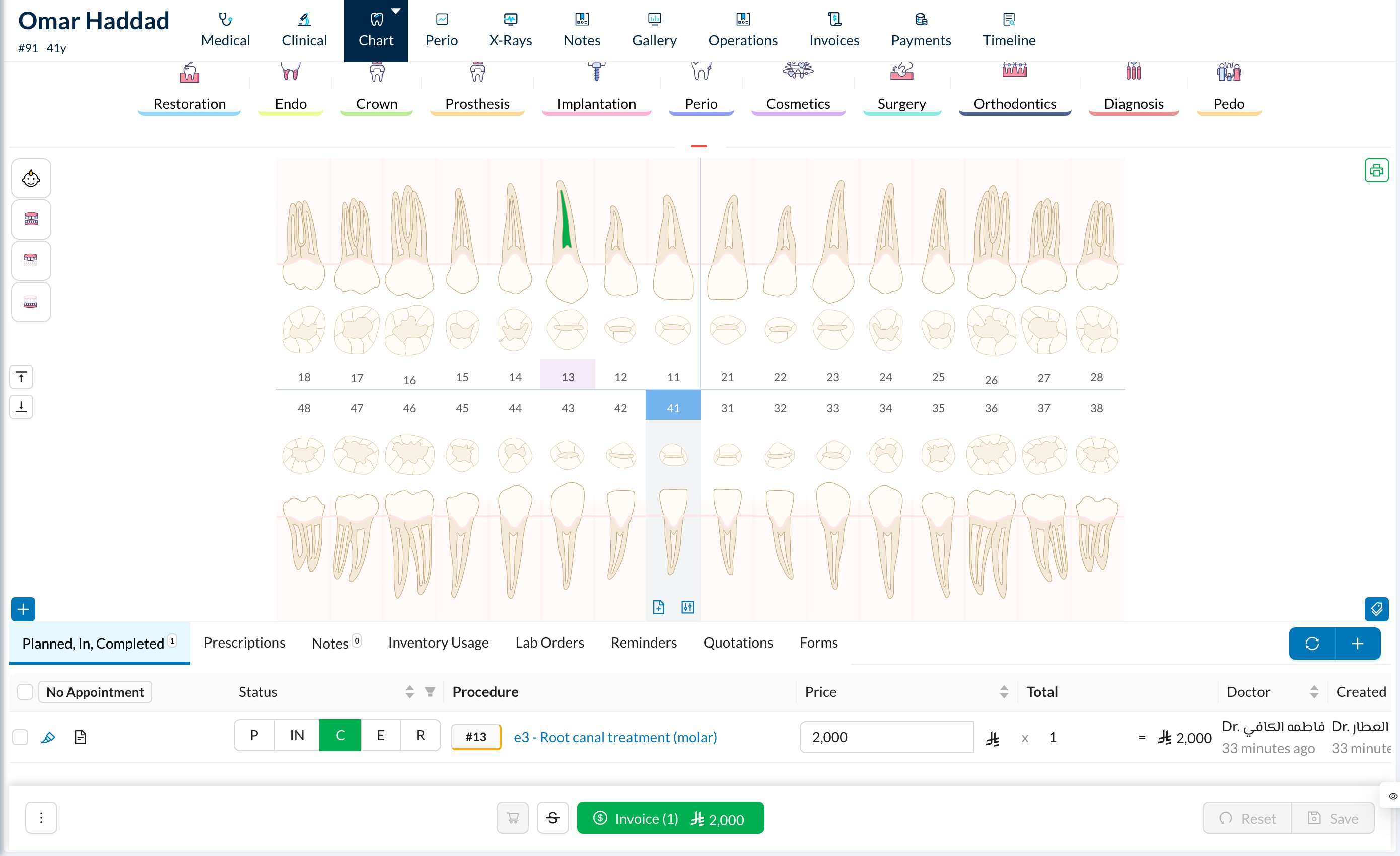
The treatments are listed under the chart. Click P, IN, C, E or R (Rejected) on a treatment to change its status. Treatments list under the chart When a treatment becomes In Progress or Completed, Dentolize can automatically create its prescriptions, consent forms and lab orders. When it’s Completed, it also calculates the doctor’s share, creates the patient’s follow-up reminders, and may open the Usage form for the materials used.
A procedure with a consent form that needs a signature can’t be completed until the form is signed. Set it to In Progress, sign the form, then set it to Completed.
Moving a treatment back from Completed deletes its reminders and the doctor’s share, but not the inventory usage. An invoiced treatment’s status can’t be changed back.

💵 Invoice

Tick the treatments to invoice, or none to invoice all ready ones, and click Invoice at the bottom. See Collecting fees. If you edited prices in the list, click Save and Invoice. The tabs under the chart also list the patient’s Prescriptions, Notes, Inventory Usage, Lab Orders, Reminders, Quotations and Forms.