

🩺 Diagnostic (consultation) fees
- When booking: choose Collected in the Diagnostic Fees section of the appointment form. See Add patient appointments.
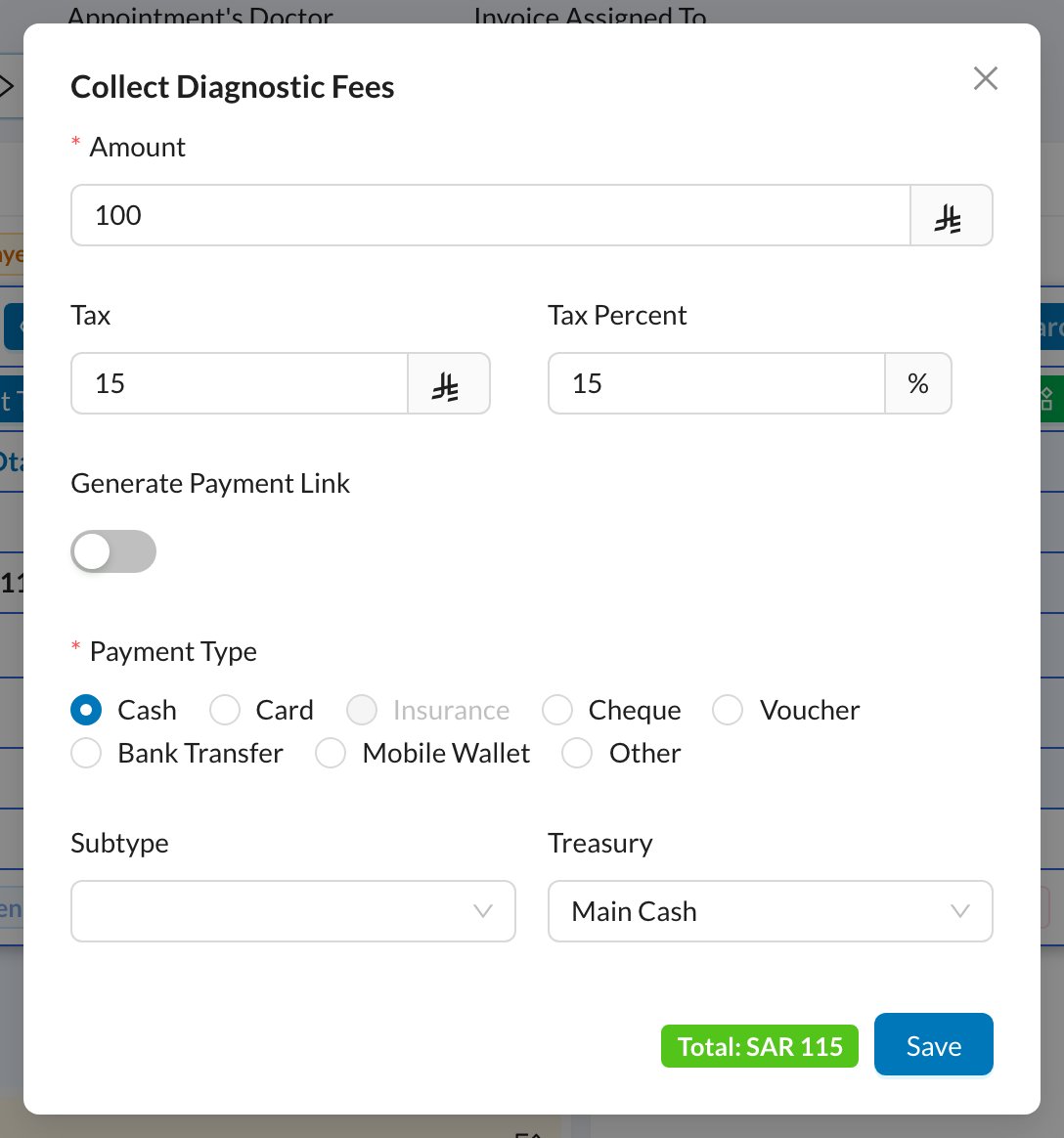
- Later: click the appointment, then Collect Diagnostic Fees. Enter the amount (tax is added automatically), the payment method and the treasury, then click Save.
⚡ Quick Invoice
Quick Invoice adds the treatments, creates the invoice and takes the payment in 4 steps. Open it from the patient’s profile, from an appointment’s Patient Actions, or from the + menu.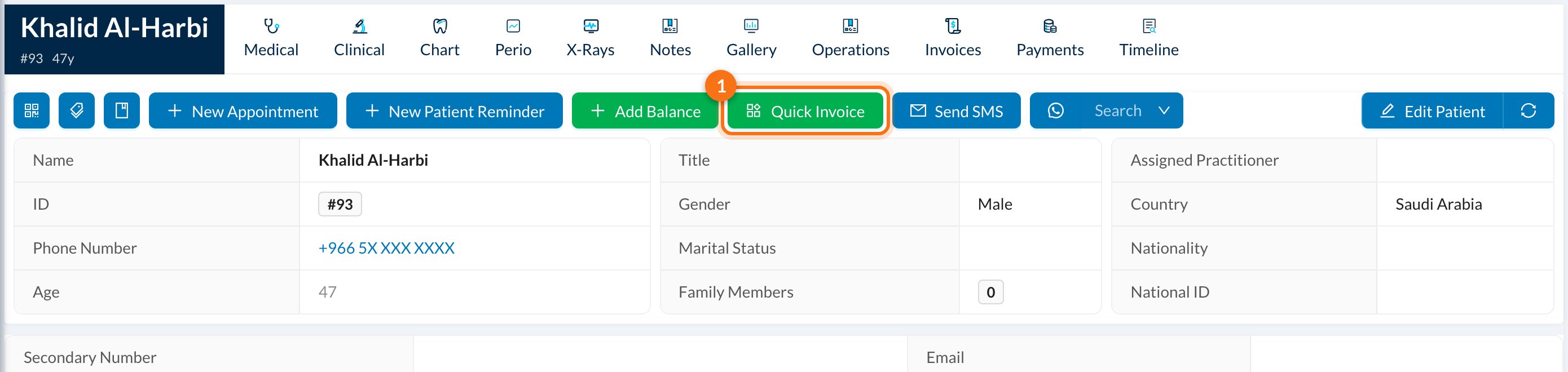
1
Add Operations
Choose the Doctor (1), the Procedure (2) and the Tooth (3). Add more lines for more treatments, then click Next (4).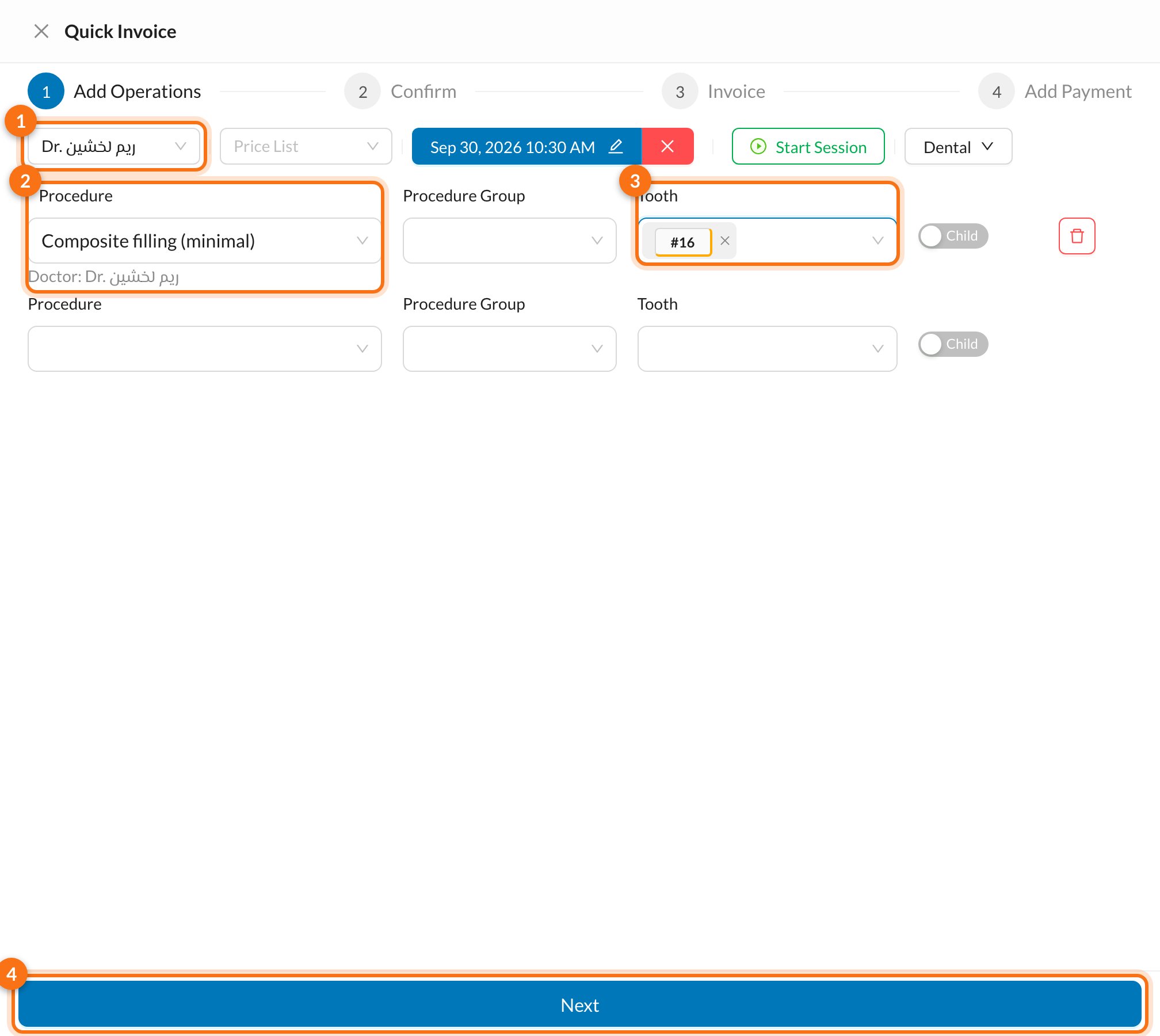
2
Confirm
Check the treatments and prices, then click Next.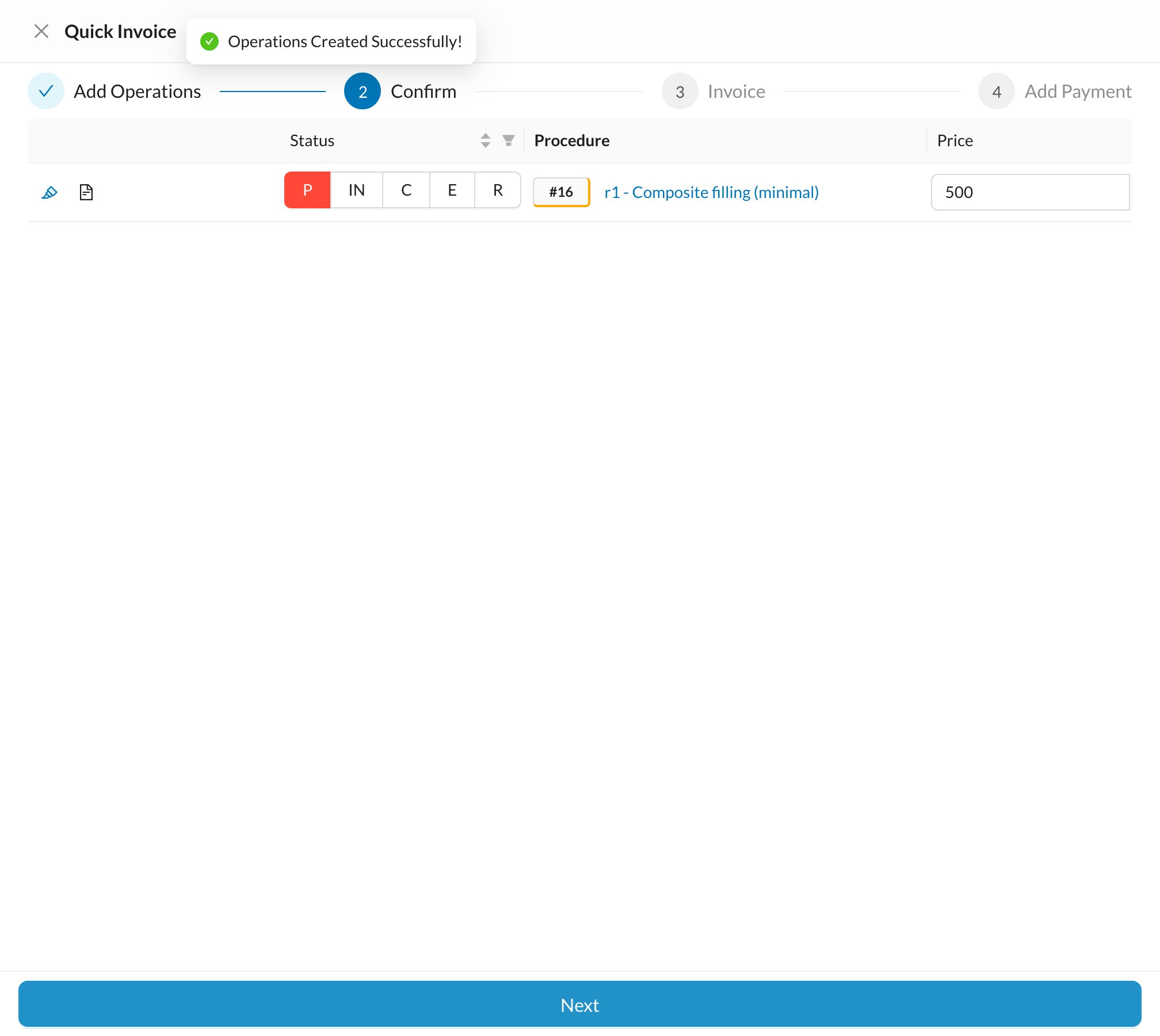
3
Invoice
Check the invoice: Assign Invoice To, Discount, Tax, Insurance and Required To Pay (how much the patient must pay now). Click Next to create the invoice.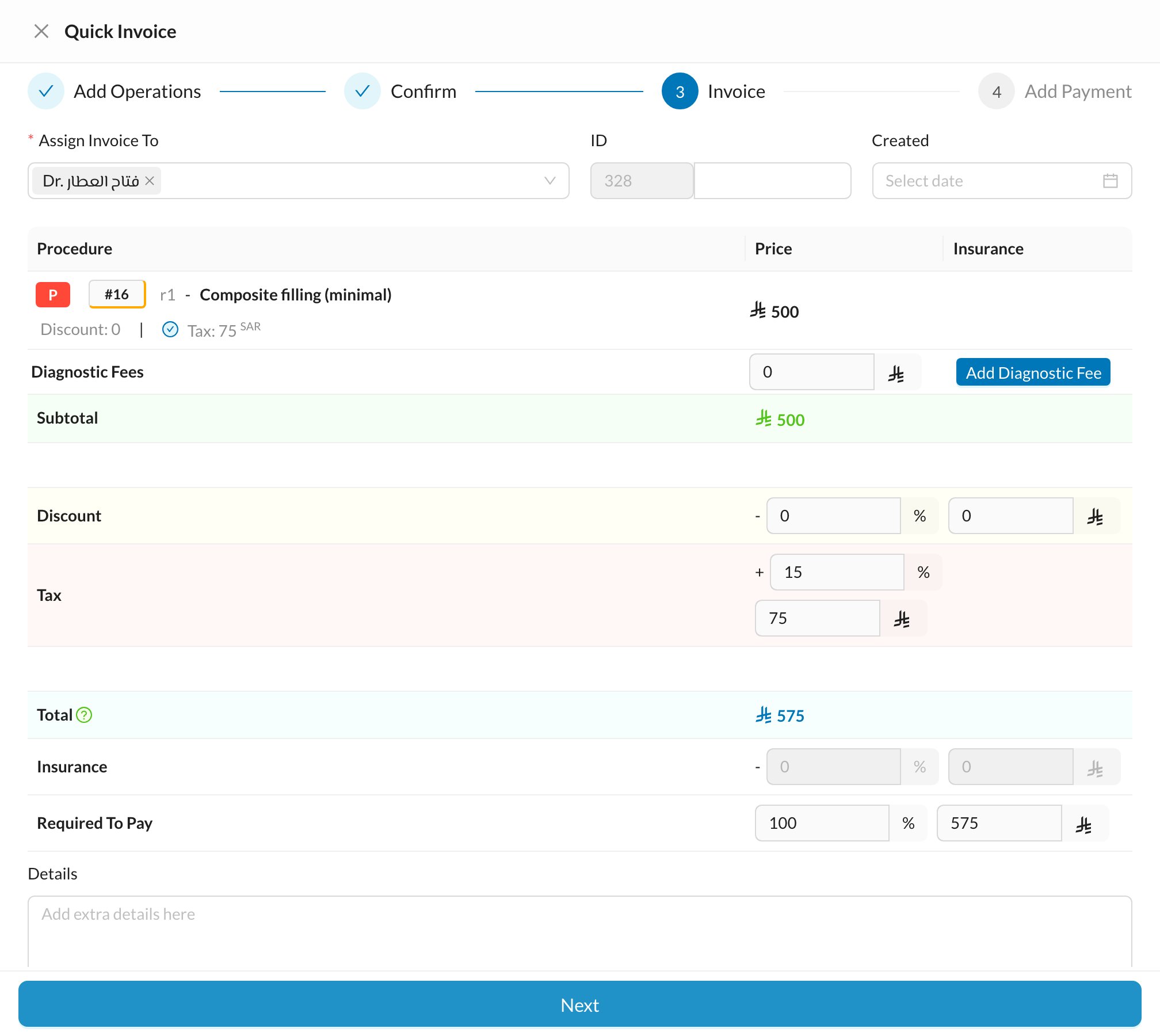
4
Add Payment
Enter the Amount, choose the Payment Type (Cash, Card…) and the Treasury, then click Save.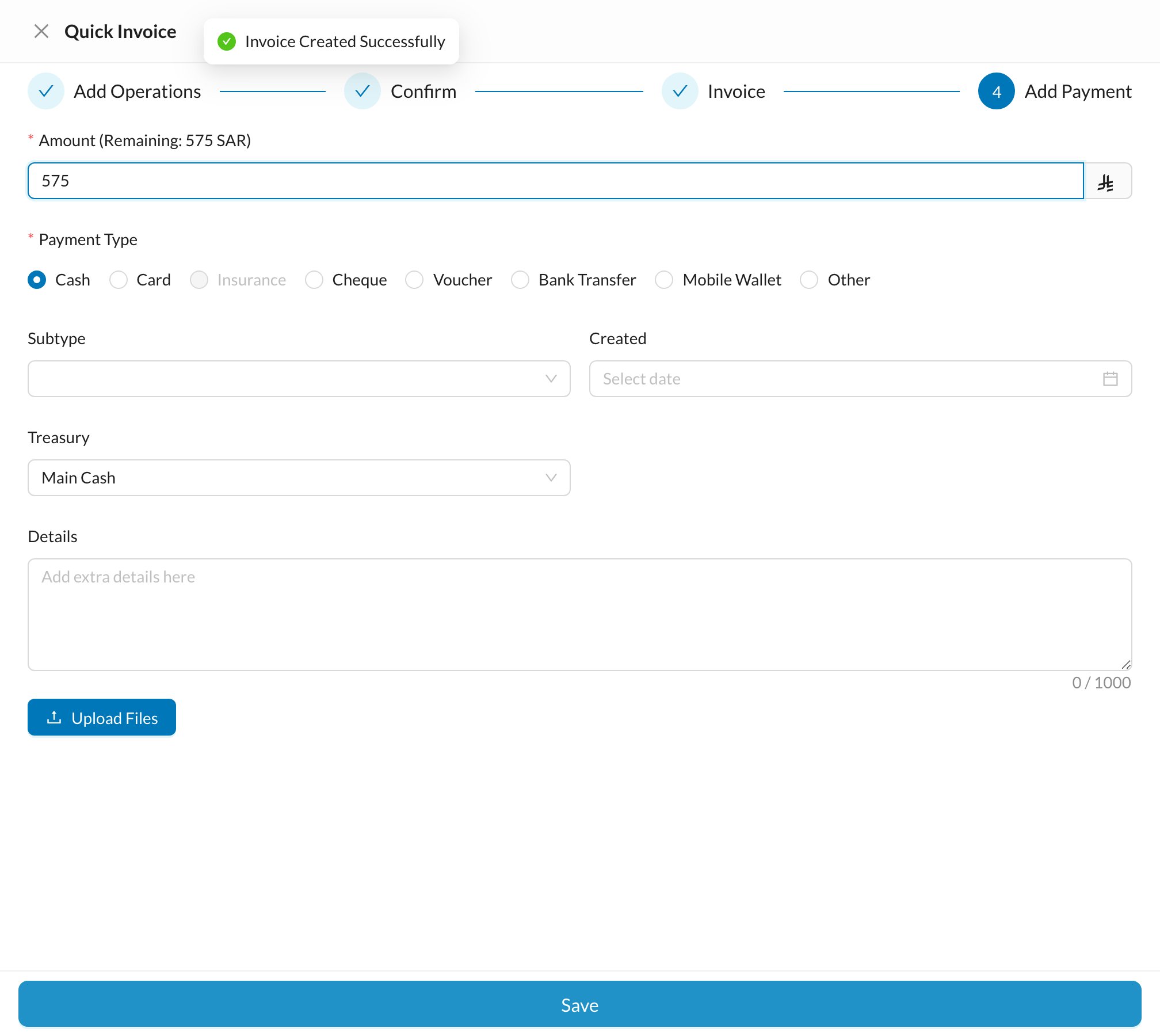
💳 Add a payment to an invoice
Open the invoice (from the Dashboard, Finances → Invoices, or the patient’s Invoices tab) and click Add Payment (1):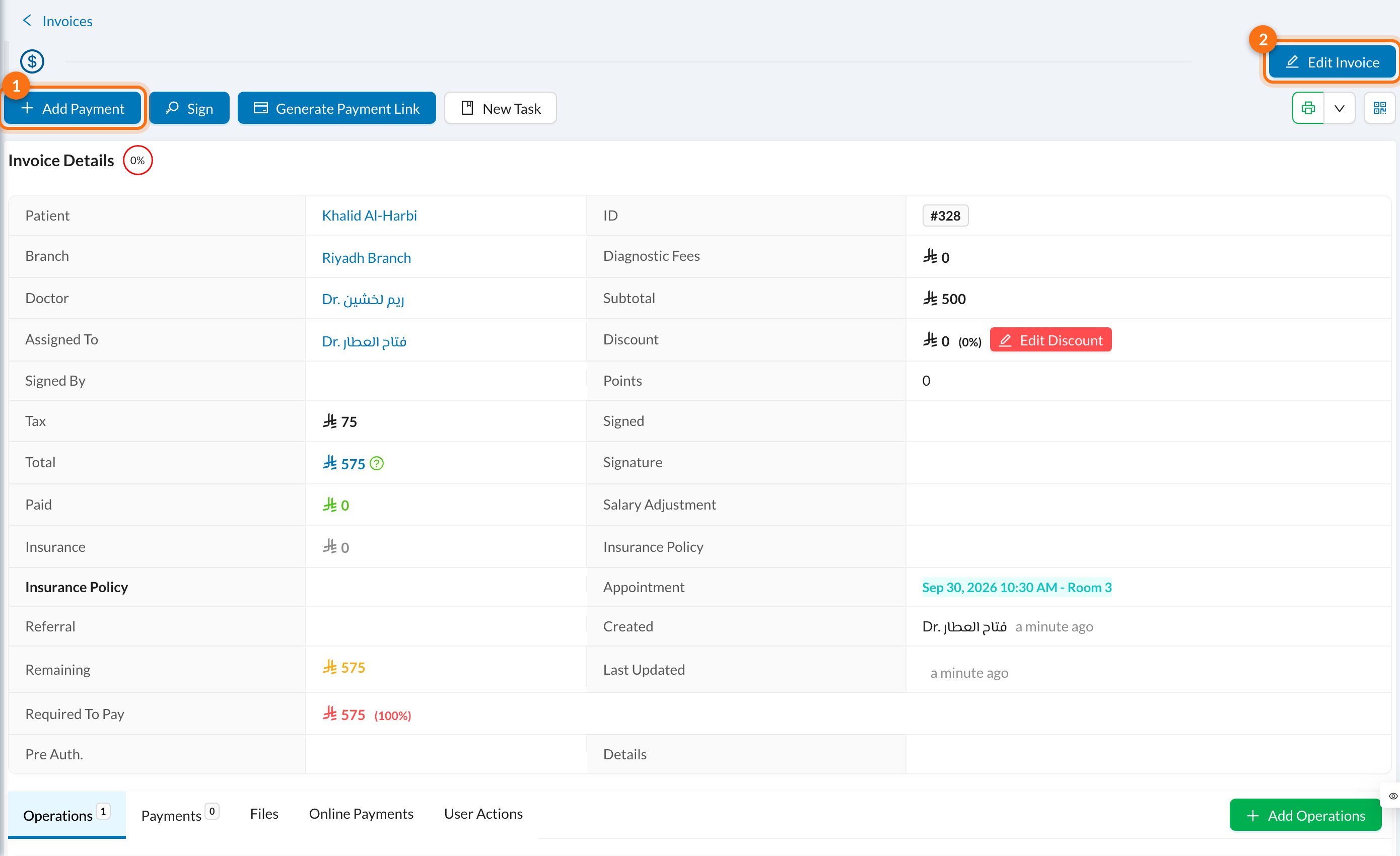
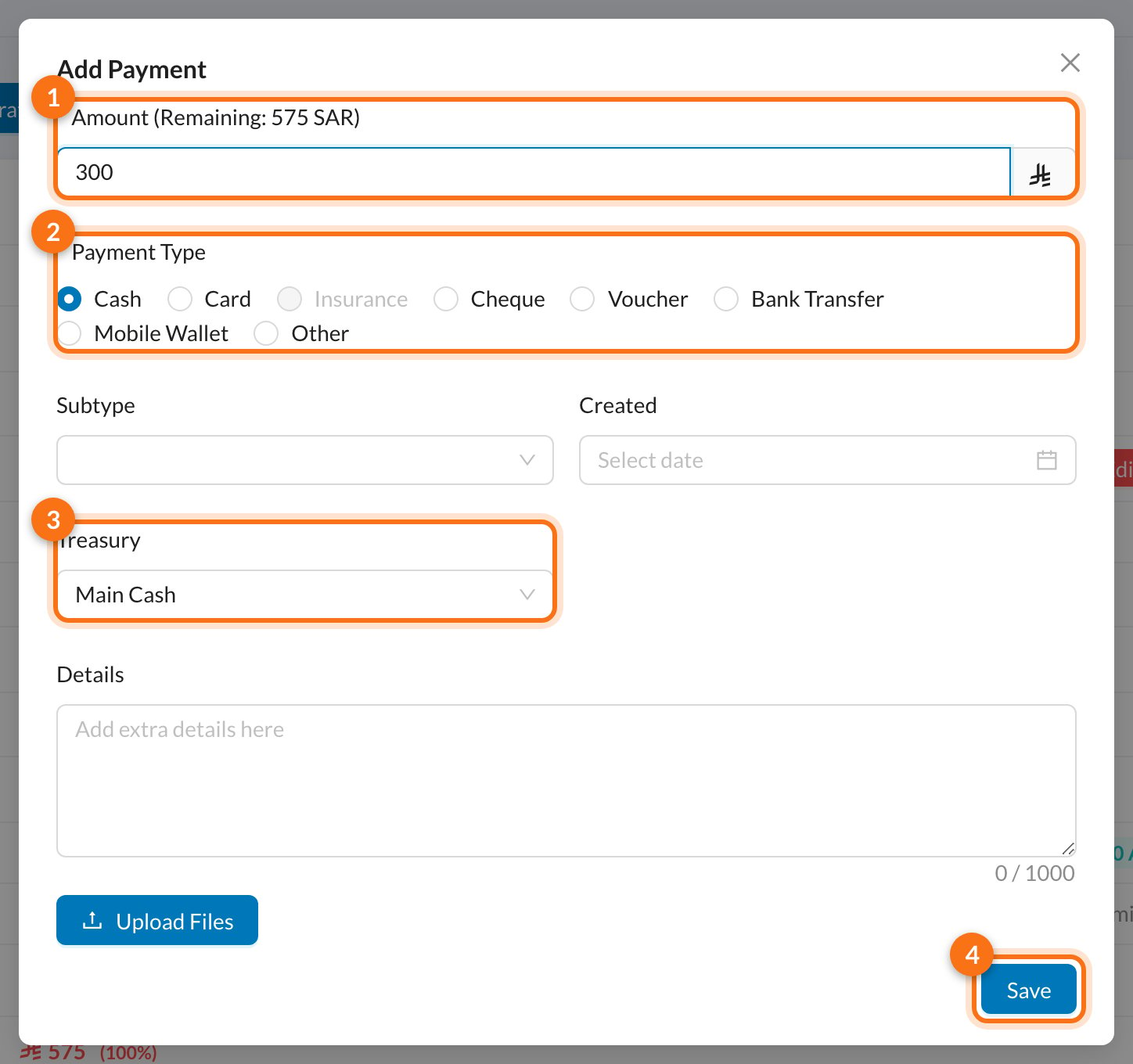
- Amount: the remaining amount is shown. Enter less for a partial payment.
- Payment Type: Cash, Card, Insurance, Cheque, Voucher, Bank Transfer, Mobile Wallet or Other.
- Treasury: where the money goes, for example the cash box or card machine.
- Click Save.
If the amount is more than what’s left on the invoice, Dentolize asks whether to add the extra to the patient’s balance.