

1
Open Reports
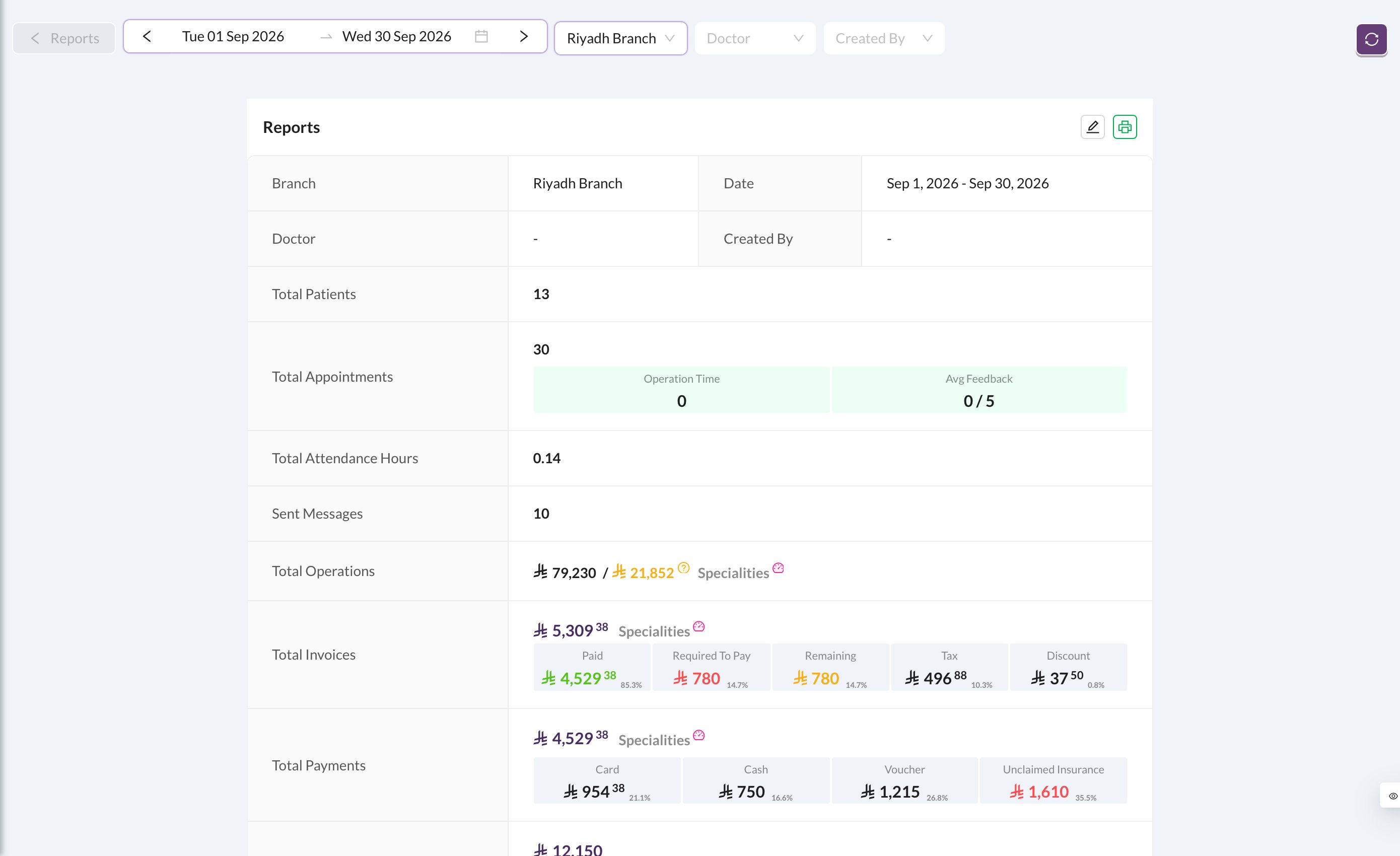
Go to Analytics in the side menu and click Reports.
2
Choose the month and branch
Set the Date range to the month (use the arrows to move back a month). Choose the Branch, or leave it empty for all branches.
3
Read the profit
The page sums up payments (with refunds and insurance), income, expenses, bank fees and the final profit. Click the print icon to print it.
4
Need the full profit and loss?
Open Analytics → Income Statement with the same dates: it shows Revenue, Cost of Revenue, Gross Profit, Operating Expenses and the Net Profit.
Don’t see these cards? The user needs the Reports and Income Statement permissions on the Analytics tab of their permission group. Analytics is switched on for your clinic by Dentolize.
Still stuck?
Send us a message in System Chat inside Dentolize with a screenshot, and tell us which step didn’t work. Tip: next time, search this site first. Most answers take less than a minute.