📋 Open the leads
Open CRM → Leads. You see your journeys; click one to open its board. All Leads opens the leads table.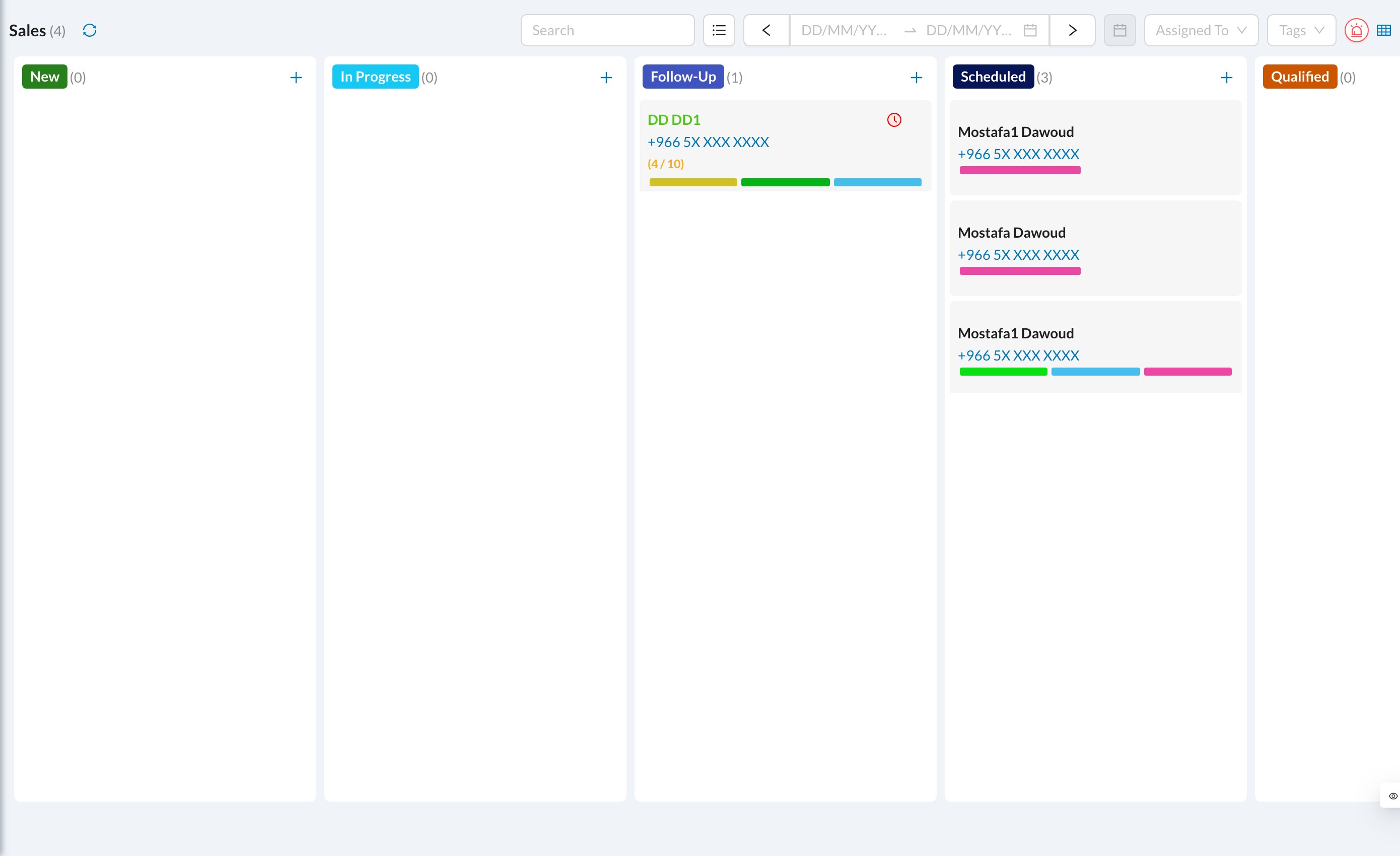
➕ Add a lead
Click + on a stage column, or New Item in the table. Fill in the First Name, Phone Number (required), Branch and Stage, and any of: Assigned To (leave empty to assign automatically), Deal Size, Score, Due Date, tags, referral source (“How Did You Hear About Us?”) and details. Click Create.If the phone number already exists, a Duplicate Patients warning appears. It doesn’t stop you saving, so check before creating a duplicate.
🔀 Move a lead
- Drag the card to another stage. This works only with the default sort order.
- Or open the card and click Stage to choose any stage, in any journey, and optionally reassign it.
💬 Follow up
Click a card to open it:- Notes: write a note and tag colleagues. Adding a note updates the lead’s Last Interaction.
- Timeline: every stage move, who made it and how long the lead stayed.
- New Message or WhatsApp to contact the lead.
- Edit the Deal Size, Score and Due Date directly.
✅ Convert to patient
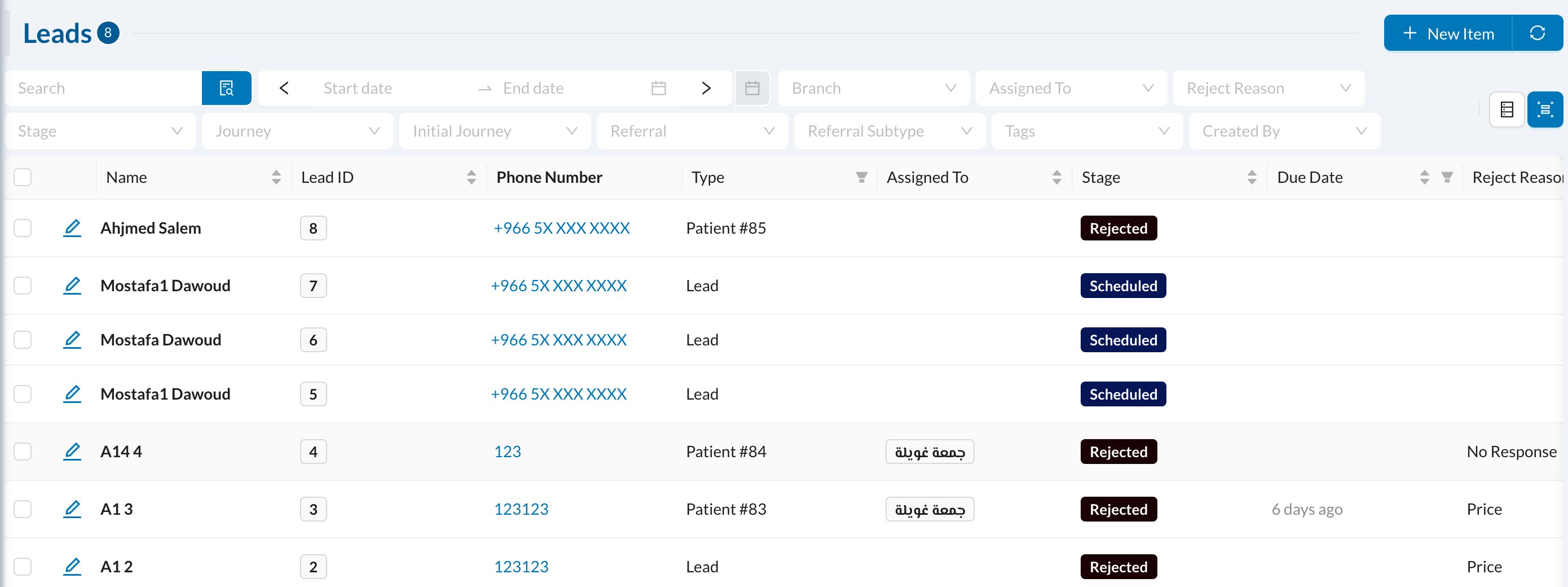
When the lead books, click Convert To Patient. The same file becomes a patient with a file number. If some required patient fields are missing, the patient form opens so you can complete them.📊 The leads table
All Leads shows every lead with filters (stage, journey, assigned user, referral, tags…) and Group By. Select leads to Send Message To Selected.