Insurance is set up in three levels. Each level can override the one above it:

🏢 Add an insurance company

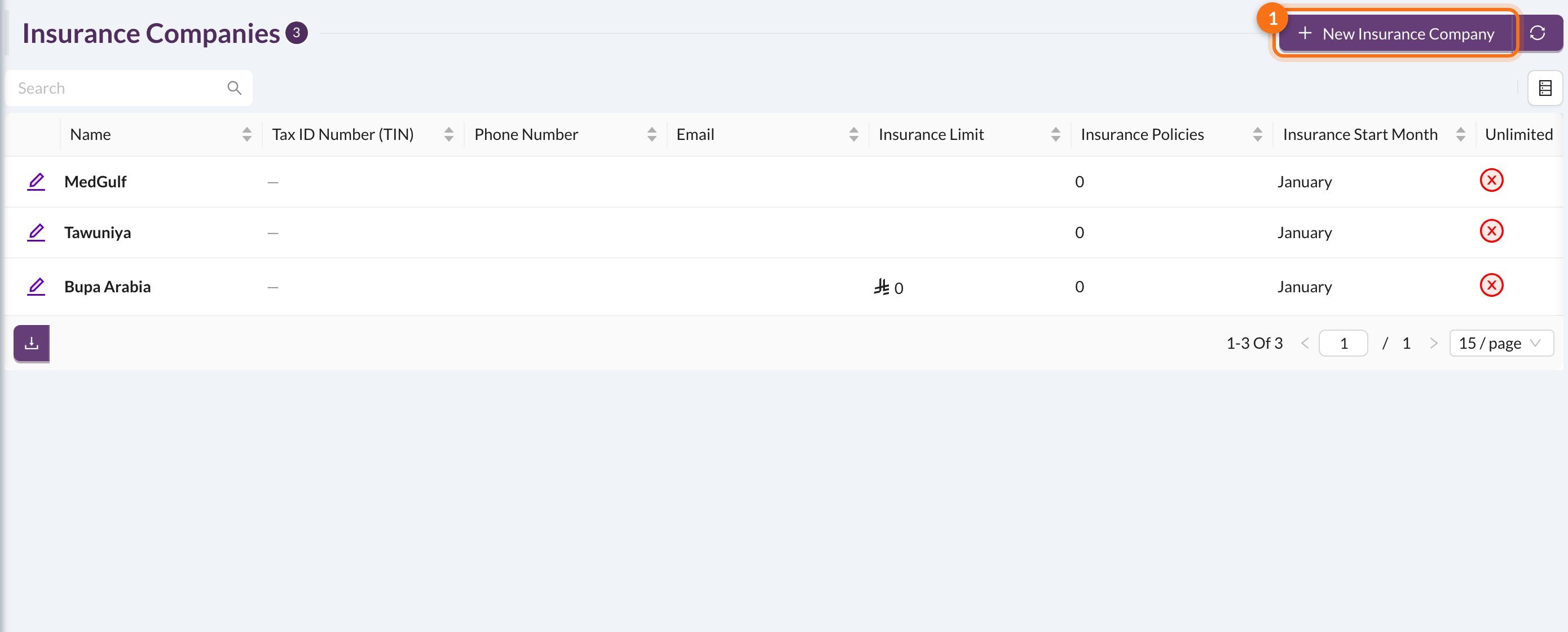
Go to Associates → Insurance Companies and click New Insurance Company: Insurance companies New Insurance Company
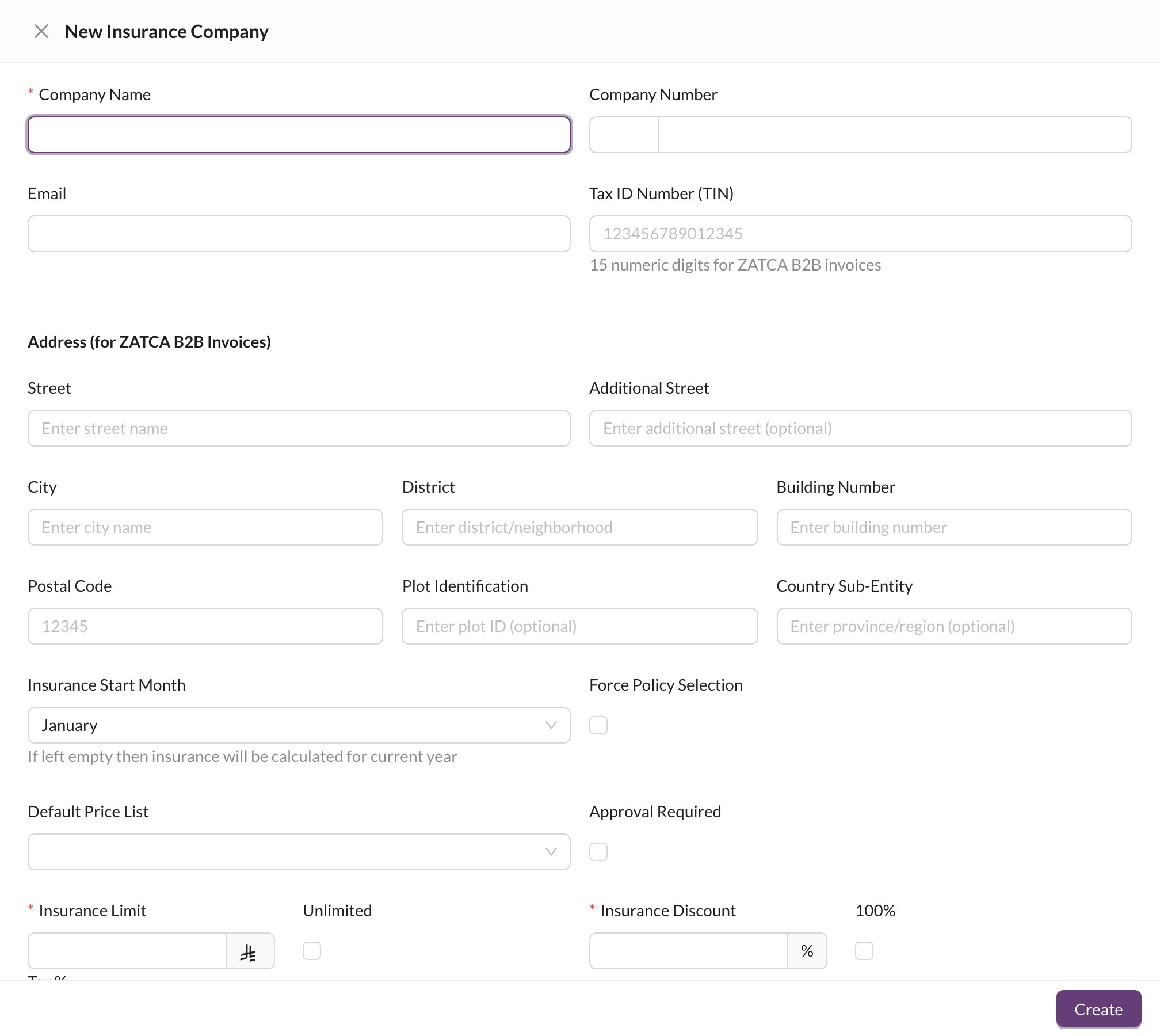
  • Company Name (required), Company Number and Email.
  • Tax ID Number (TIN) (15 digits) and the Address, used for ZATCA B2B e-invoices.
  • Insurance Start Month: when the yearly limit starts again. Leave it empty to use the calendar year.
  • Default Price List: the prices used for this company’s patients.
  • Approval Required: procedures need the insurance company’s approval before they’re covered.
  • Insurance Limit (or Unlimited): how much the company pays per patient per year.
  • Insurance Discount (or 100%): the share of each covered procedure the company pays.
  • Tax %: VAT on the insurance company’s share.
Tick Force Policy Selection when coverage depends on the patient’s policy and class. The coverage and limit are then taken from the class, and every insured patient must have a policy and class.

📄 Policies and classes

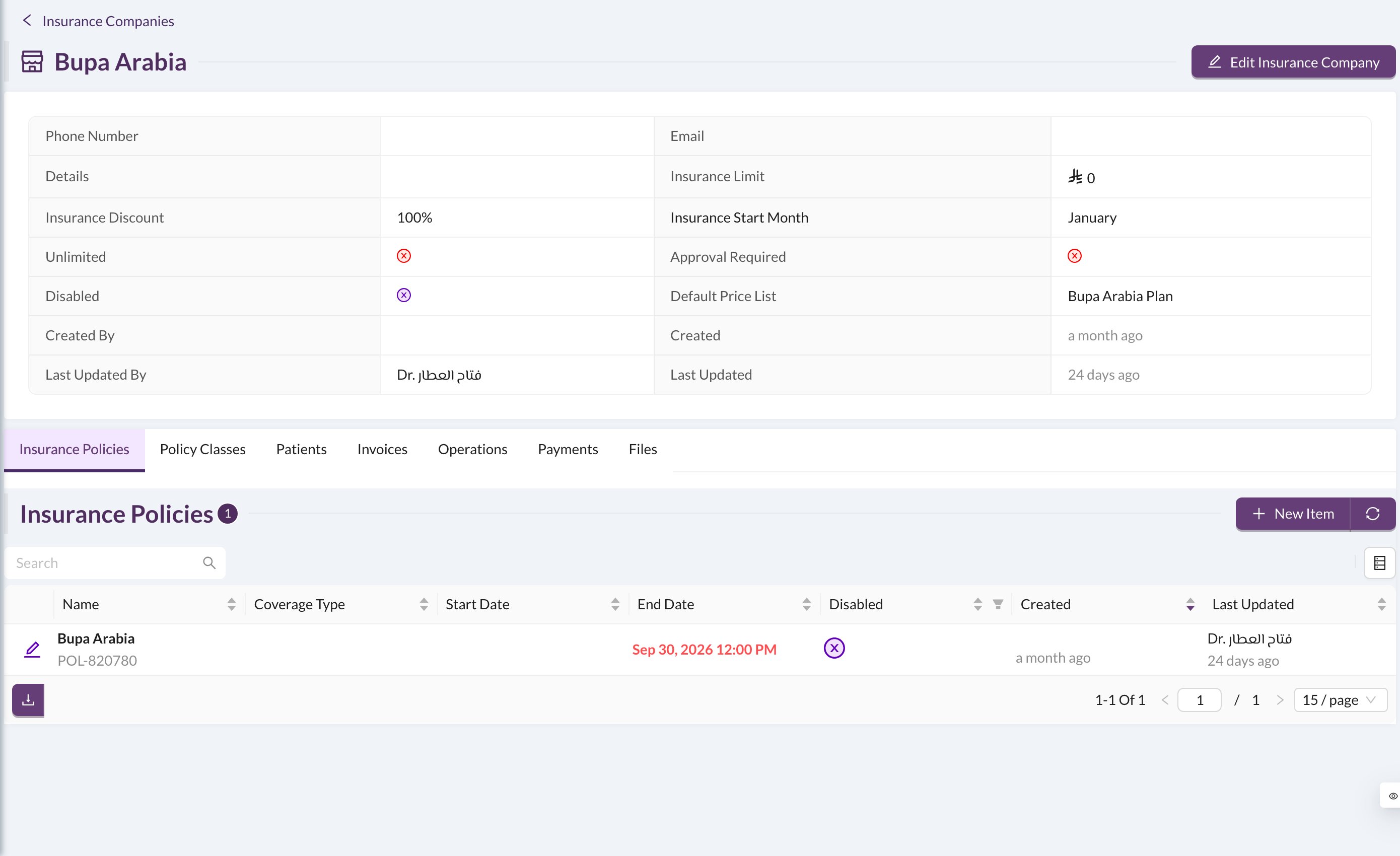
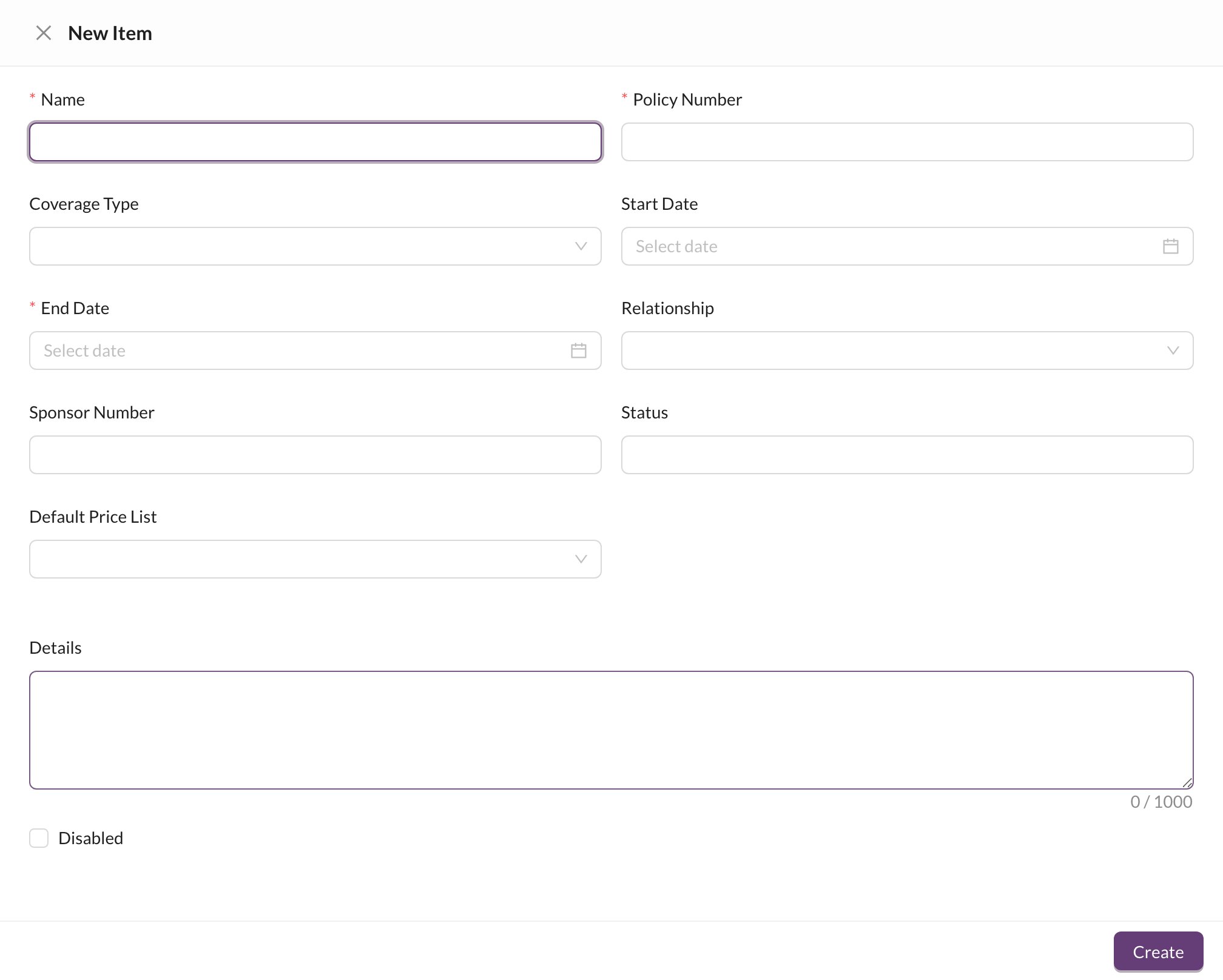
Click an insurance company to open its page: Insurance company page On the Insurance Policies tab, click New Item to add a policy: New policy Enter the Name, Policy Number and End Date (required), and optionally the coverage type, start date and a price list. Then add its classes on the Policy Classes tab: each class has its own Insurance Discount, Insurance Limit, Approval Required and Max Limit (the most the patient pays per day; anything above it is paid by insurance).
When you edit a policy, tick Update all patients in this policy to apply the changes to its patients too.
The other tabs list the company’s Patients, Invoices, Operations, Payments and Files. See Insurance claims for following up its payments.