

🪪 Add insurance to a patient
Open the patient, click Edit Patient, and fill in Insurance Details: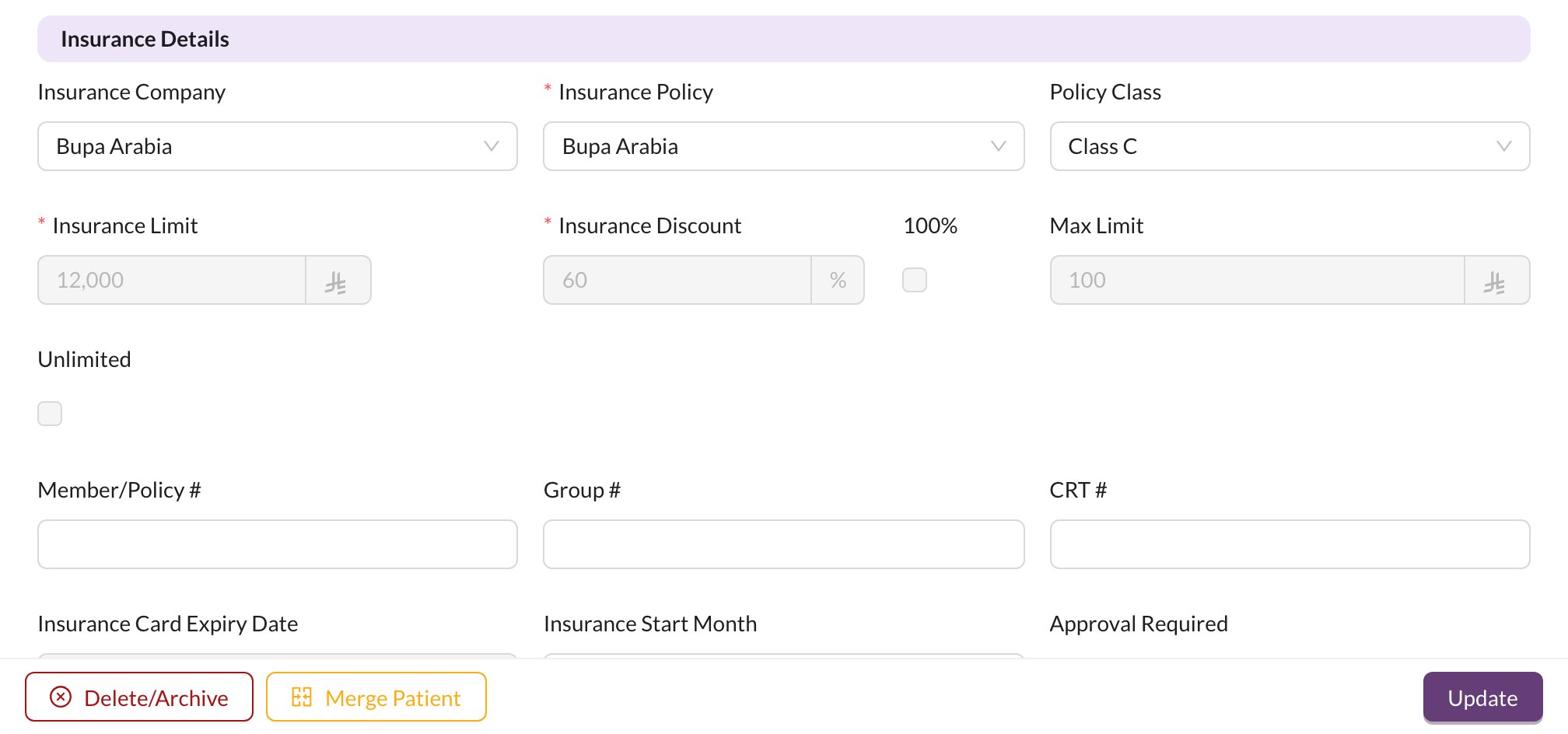
- Choose the Insurance Company, then the Insurance Policy and Policy Class. The coverage and limits are filled in from them.
- Enter the card details: Member/Policy #, Group # and CRT #.
- Check the Insurance Card Expiry Date.
- Click Update.
If the company or policy has its own price list, the patient’s price list changes to it (“Price List Updated”).
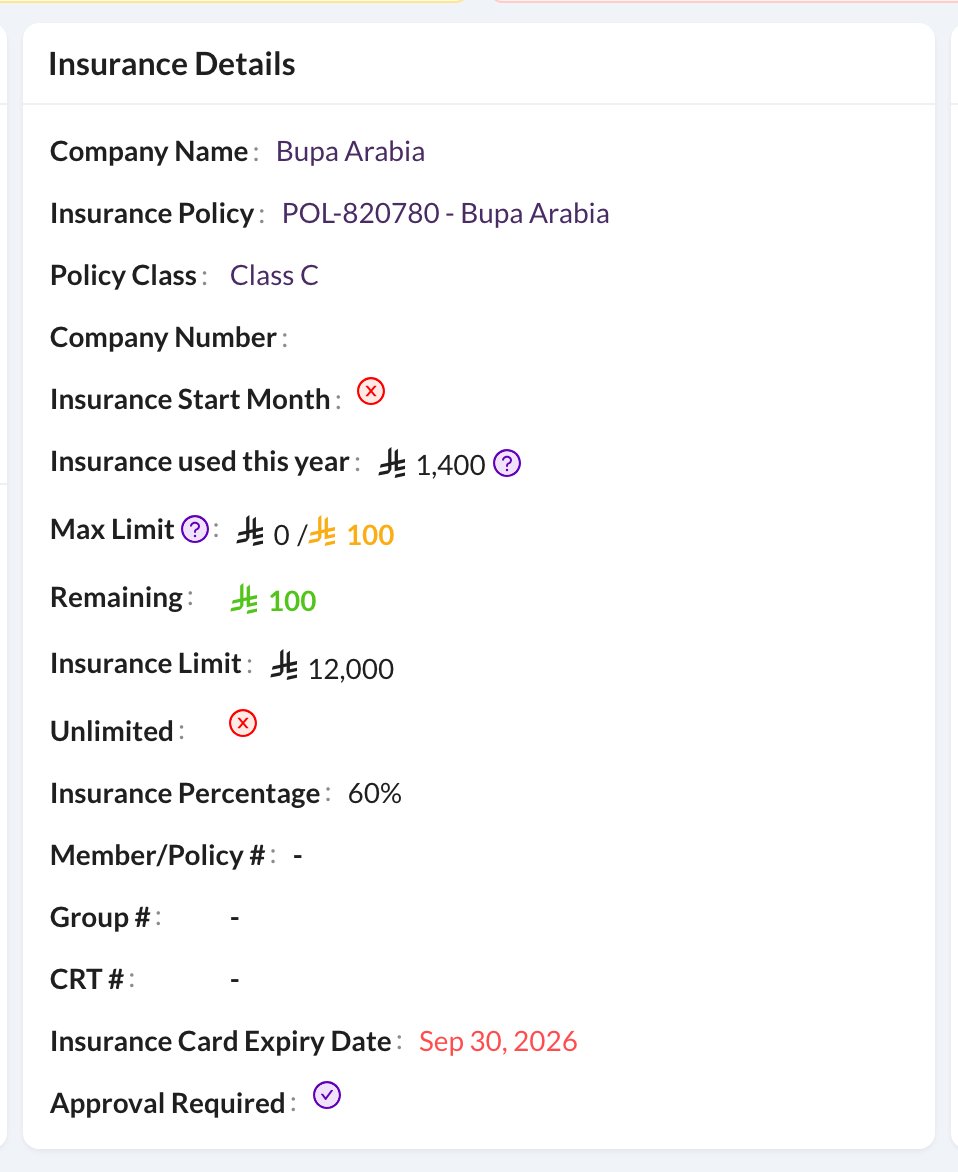
✅ Approvals
When Approval Required is on, procedures added to the chart show a red warning icon until the insurance company approves them. Hover over the icon and click:- Mark Approved, and enter the Pre Auth. number and the Approved Amount, or
- Mark NOT Approved.
🧾 Insurance on the invoice
When you create the invoice, each covered procedure shows the insurance share. The invoice shows:- Insurance: what the insurance company pays. An Insurance payment is added for it automatically, marked as not yet claimed.
- Required To Pay: what the patient pays.
- A warning with how much of the yearly limit is left, and Card expired on… if the card has expired.
- Pre Auth.: the approval number, required in some clinics.