

1
Create the template
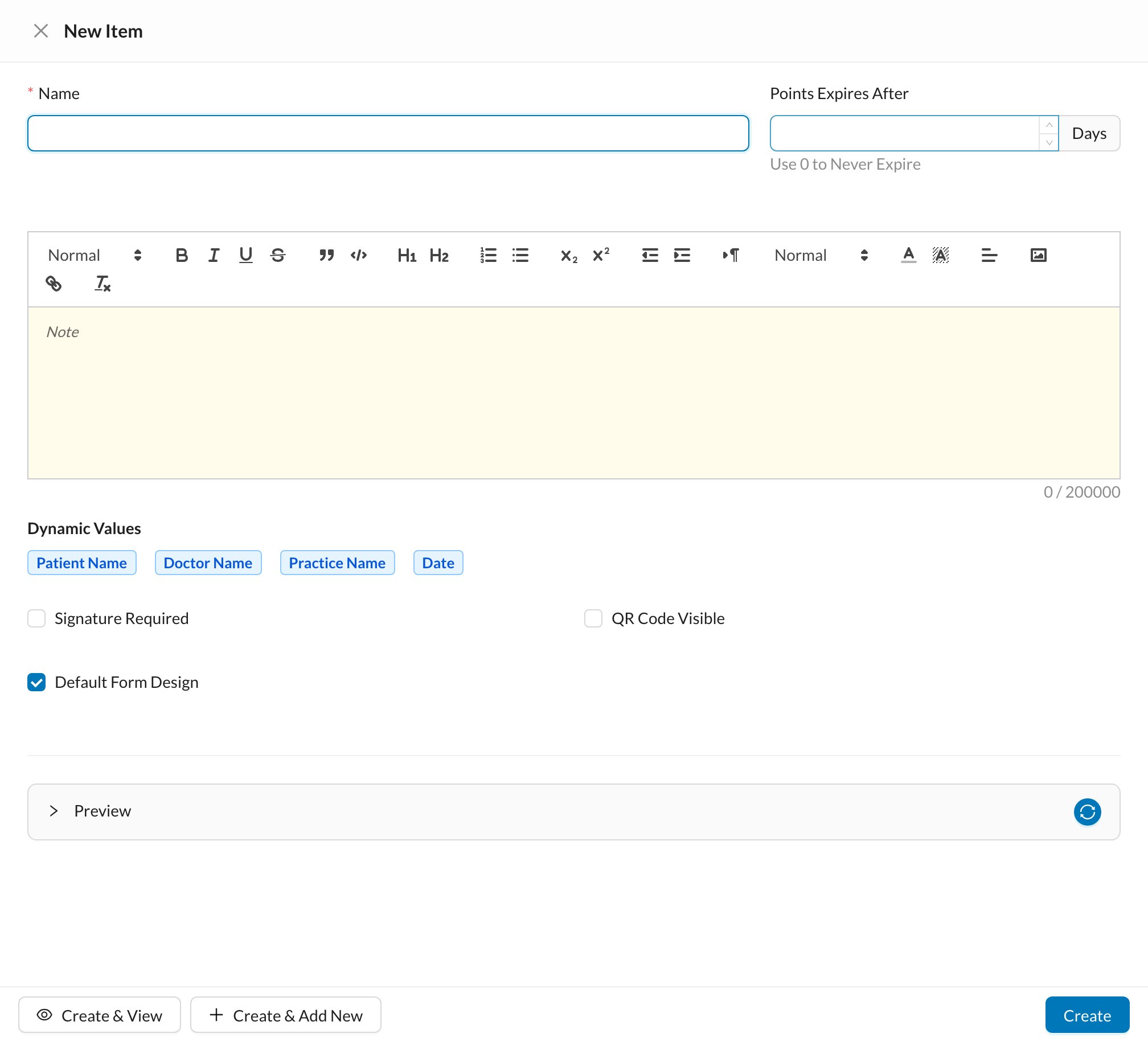
Go to Settings → Templates → Free Forms and click New. Give it a Name and write the text.
2
Add patient details and options
Use Dynamic Values to insert details filled in for each patient, such as Patient Name and Date. Tick Signature Required if the patient must sign, and QR Code Visible to let them sign on their phone. Save the template.
3
Use it for a patient
In the patient’s Chart, click + → Patient Form and choose your form in Free Forms.
4
Create and sign
Click Create, or Create & View to sign it now with Sign.
Still stuck?
Send us a message in System Chat inside Dentolize with a screenshot, and tell us which step didn’t work. Tip: next time, search this site first. Most answers take less than a minute.