

1
Add the doctor as a user
Go to Settings → Users, click New User and tick Doctor so he shows in the calendar. Choosing doctor as the Job ticks it for you. See Add a new user.
2
Choose his branches and percentage
Pick his Branches to access and set Doctor percentage, then click Create.
3
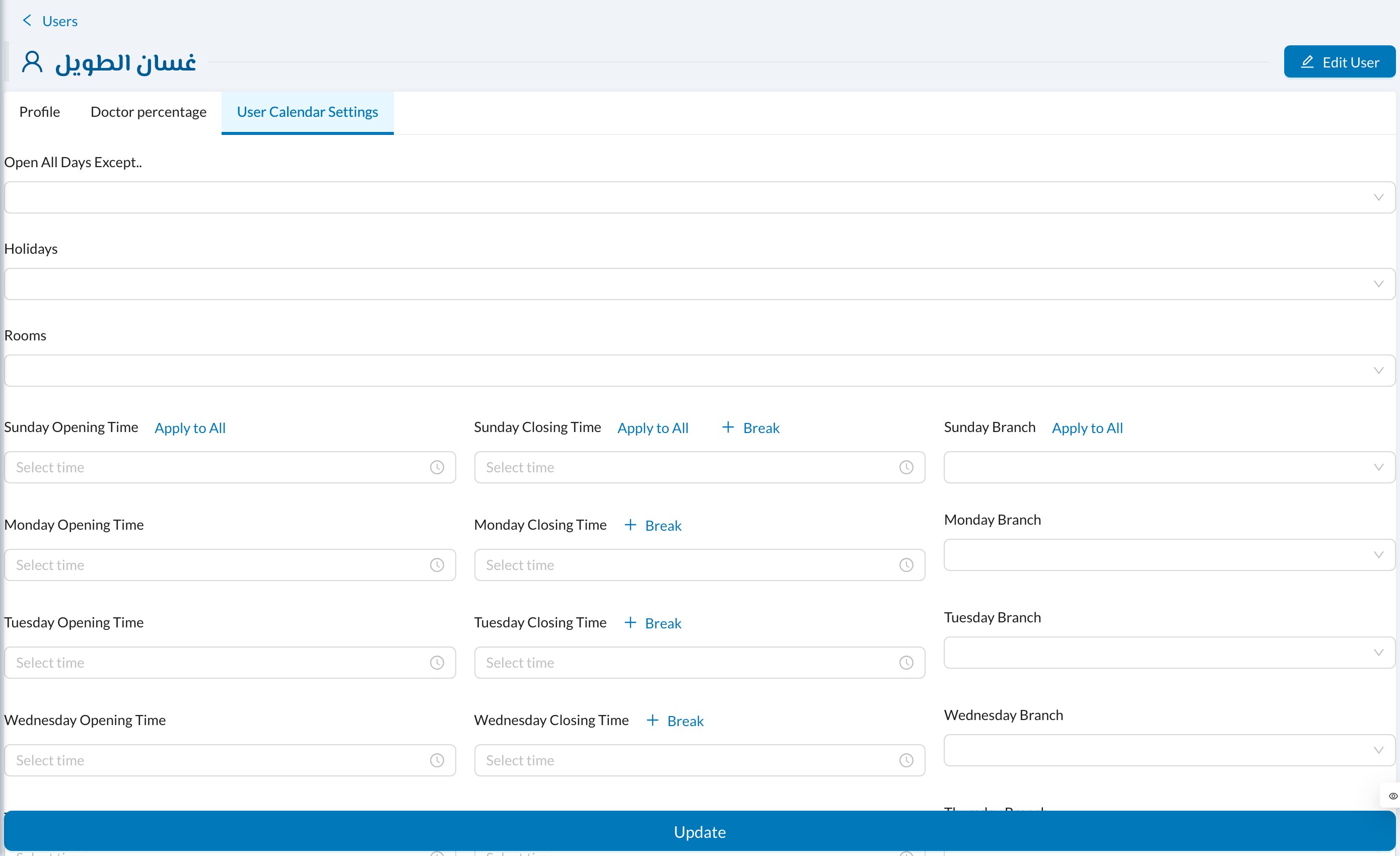
Open User Calendar Settings
In Settings → Users, click the doctor to open his page, then open User Calendar Settings.
4
Set his days and hours
Set his days off, holidays, rooms, opening and closing time for each day, breaks, and which branch he works in on each day. Save.
5
Check the calendar
In Calendar, click By Doctor to see one column per doctor. His off-hours are shaded.
Doctor shown in red when booking? His hours don’t cover that time. Check his User Calendar Settings and the branch opening hours.
Still stuck?
Send us a message in System Chat inside Dentolize with a screenshot, and tell us which step didn’t work. Tip: next time, search this site first. Most answers take less than a minute.