

1
Click New User
Go to Settings → Users and click New User.
2
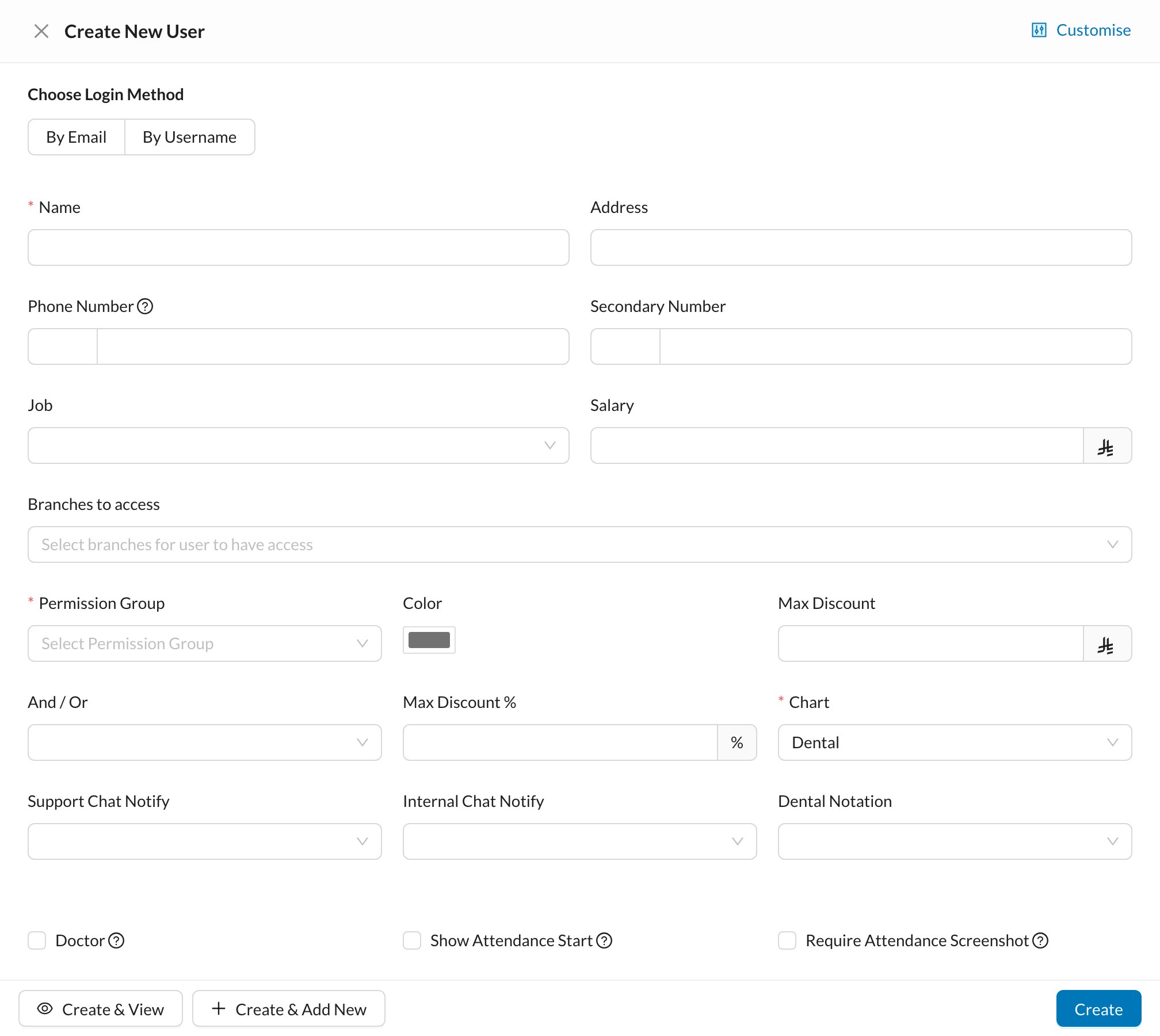
Choose the login method
By Email: they get an email to set their own password (the link works for 5 days). By Username: you type a Username and Password for them.
3
Fill in the details
Enter the Name and Job, pick the Branches to access, and choose a Permission Group (required), for example Reception or Doctors.
4
Doctor? Tick Doctor
Tick Doctor and set Doctor percentage. See Set a doctor’s working hours.
5
Click Create and share the login
Username users log in with the Clinic Login Name (in Settings → Clinic → Main), their username and password.
The number of active users is limited by your subscription. Need more? Ask the Dentolize team in System Chat and tell them how many users you need.
Still stuck?
Send us a message in System Chat inside Dentolize with a screenshot, and tell us which step didn’t work. Tip: next time, search this site first. Most answers take less than a minute.