

1
Open Procedures and Prices
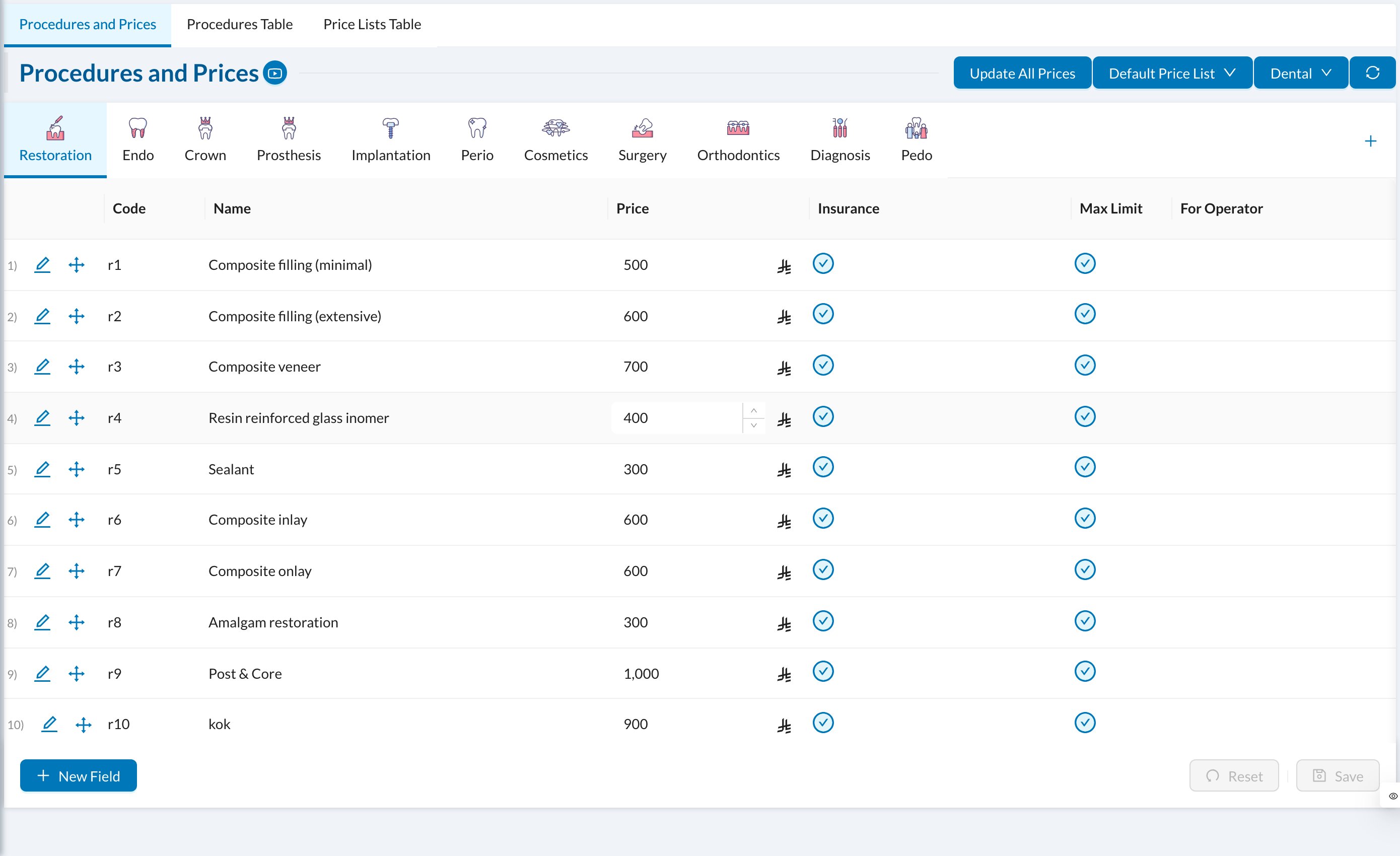
Go to Settings → Procedures and Prices. Check the price list at the top: Default Price List is your standard prices.
2
Find the procedure
Click its group tab (Restoration, Endo…), or use the Procedures Table tab to search all procedures.
3
Change the price
Type the new price in the table and click Save. Or click the pencil on the procedure, change Price and save.
4
Changing many prices? Use Update All Prices
Click Update All Prices and choose Percentage (120 = +20%) or Fixed Amount (100 = +100). Check the example in red and click Save.
The user needs Procedures and Prices → Edit (and Price Lists for bulk changes) on the Practice Settings tab of their permission group. Owners have it.
Still stuck?
Send us a message in System Chat inside Dentolize with a screenshot, and tell us which step didn’t work. Tip: next time, search this site first. Most answers take less than a minute.