

1
Log in as the owner
Only the Owners group can open the Advanced tab.
2
Open the advanced settings
Go to Settings → Clinic → Advanced and find the Patients section.
3
Choose the required fields
In Required Fields for Patient Form, add a field (for example National ID) to make it required, or remove it to make it optional.
4
Click Update
The change applies to you right away, and to other users when their page reloads.
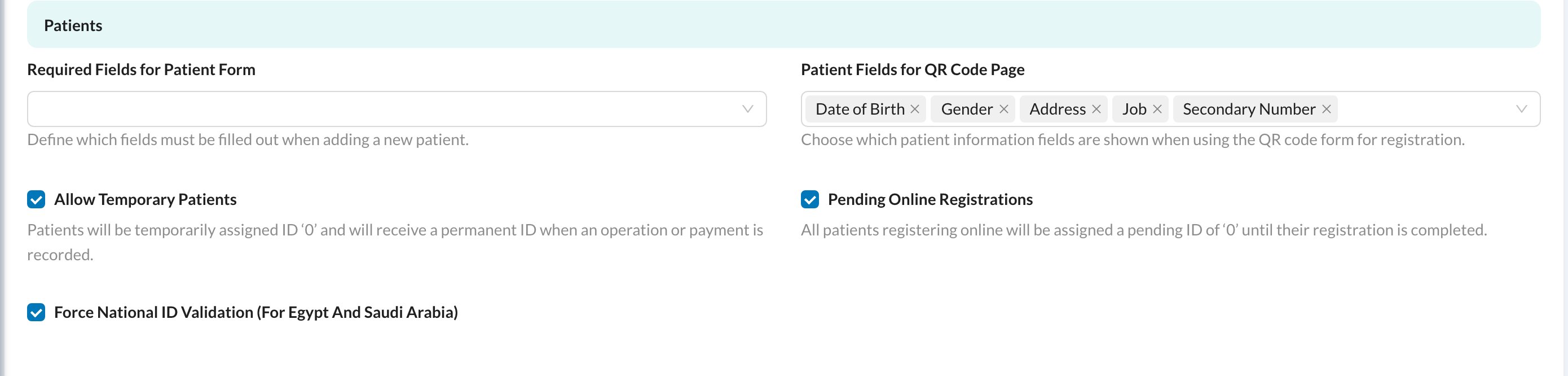
First Name, Last Name and Phone Number are always required. Required fields also apply on the patient’s QR self-registration page.
Still stuck?
Send us a message in System Chat inside Dentolize with a screenshot, and tell us which step didn’t work. Tip: next time, search this site first. Most answers take less than a minute.