

🧩 Before you start
- You need a Google account (Gmail or Google Workspace).
- Connect from the web app (my.dentolize.com). The mobile app doesn’t have this screen.
- Every user connects separately. A doctor who wants their appointments in Google must log in with their own Dentolize user and connect.
🔗 Connect Google Calendar
1
Open the Integrations settings
In the side menu, click Settings (1), then Integrations (2).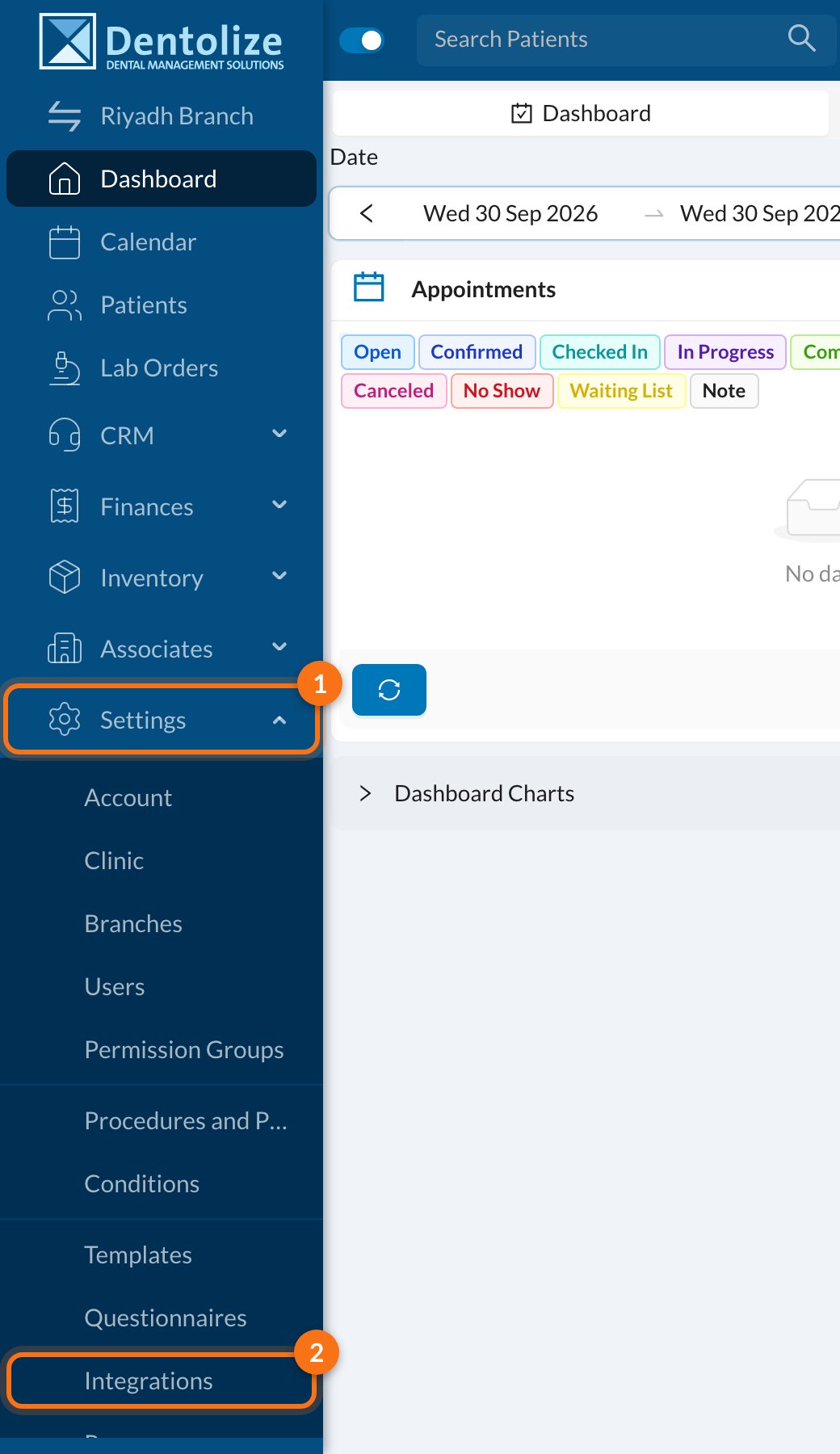
2
Click Connect Google Calendar
On the Calendar tab, click Connect Google Calendar.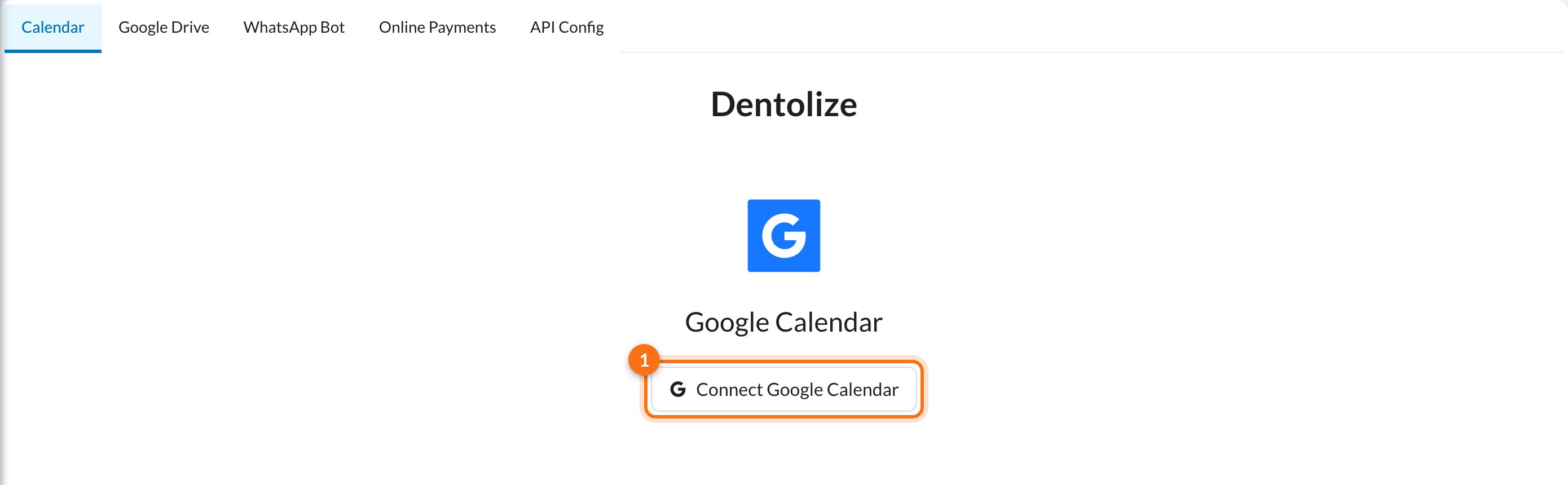
3
Allow access in Google
Google opens. Choose your Google account and click Allow to let Dentolize add and edit events in your calendar.
4
Click Sync Google Calendar
You return to Dentolize with the message You are almost done! Click Sync Google Calendar to finish.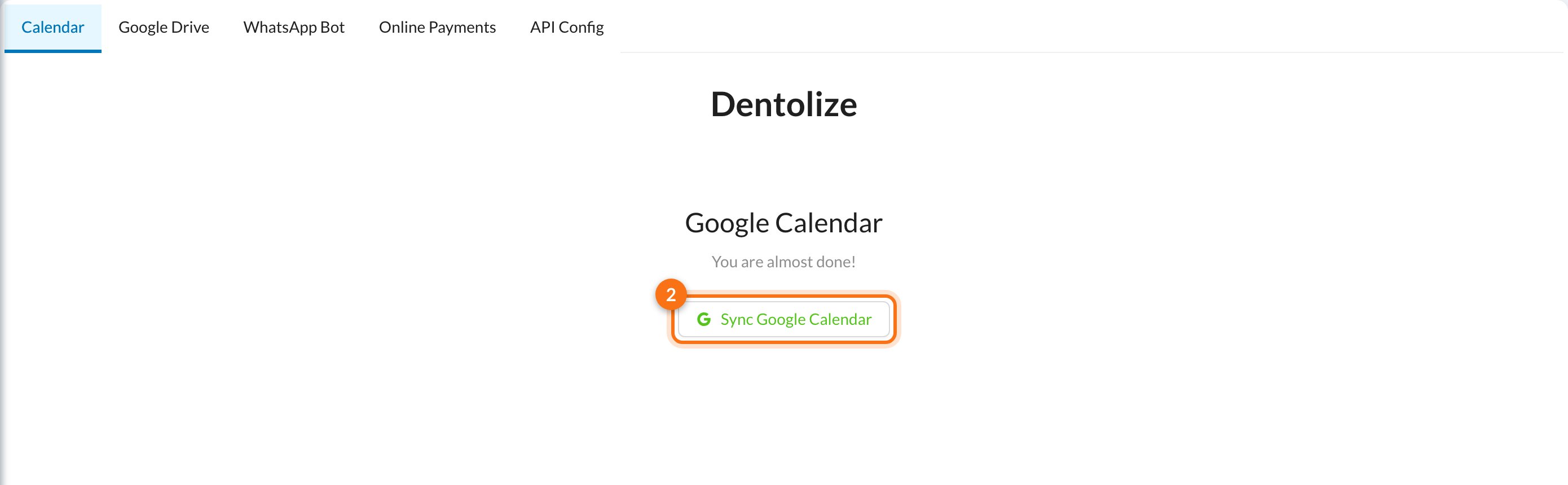
📅 What gets added to Google Calendar
- One-way: changes you make in Dentolize go to Google. Changes you make in Google don’t come back to Dentolize.
- New changes only: appointments created or changed after you connect are added. Older appointments aren’t copied.
- Status: Canceled and No Show appointments are removed from Google. Open, Delayed and Waiting List appointments show as tentative.
- Appointments booked by patients from the patient app aren’t added.
The event title contains the patient’s name. Only connect a Google account that is private to you.
⛔ Disconnect
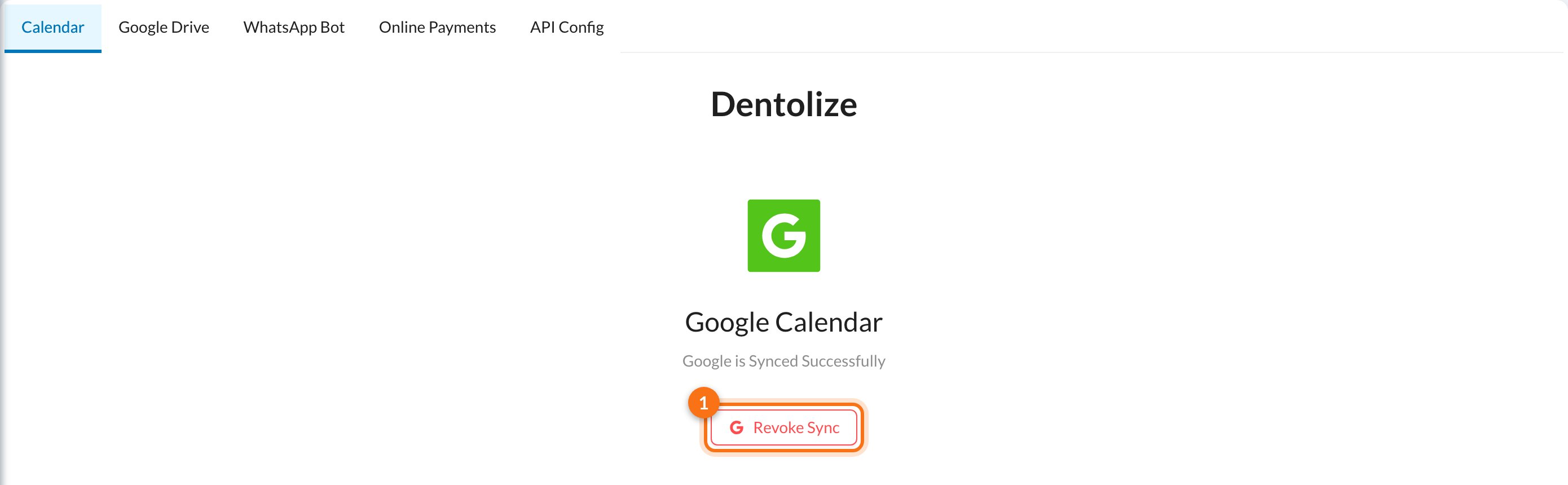
Click Revoke Sync (1), then Yes to confirm. New appointments stop going to Google. Events already in your Google Calendar stay there; you can delete them from Google.❓ FAQ
I connected, but I don't see my appointments in Google
I connected, but I don't see my appointments in Google
Check that:
- You clicked Sync Google Calendar after allowing access, and the page shows Google is Synced Successfully.
- You are the doctor on the appointments. Appointments go to the assigned doctor’s calendar, not to the calendar of whoever booked them.
- The appointment was created or changed after you connected.
Can the receptionist see all the doctors' appointments in their Google Calendar?
Can the receptionist see all the doctors' appointments in their Google Calendar?
No. Each user only gets the appointments where they are the doctor. To see everyone’s schedule, use the Calendar in Dentolize.
I changed the appointment's doctor and it still shows on the old doctor's calendar
I changed the appointment's doctor and it still shows on the old doctor's calendar
When the doctor changes, the event stays in the previous doctor’s Google Calendar. Delete it from Google manually.
Does this connection do anything else?
Does this connection do anything else?
Yes. It is also used to create Google Meet links from Dentolize.