

With online payments, you send the patient a link to pay an invoice or diagnostic fee by card. The payment is recorded in Dentolize automatically.
Online payments are enabled for your clinic by Dentolize. If the tab shows Feature Disabled, contact support. Only the owner or an admin can set it up.
⚙️ Set up
Go to Settings → Integrations → Online Payments, turn on Active, and click New Item to add a payment option: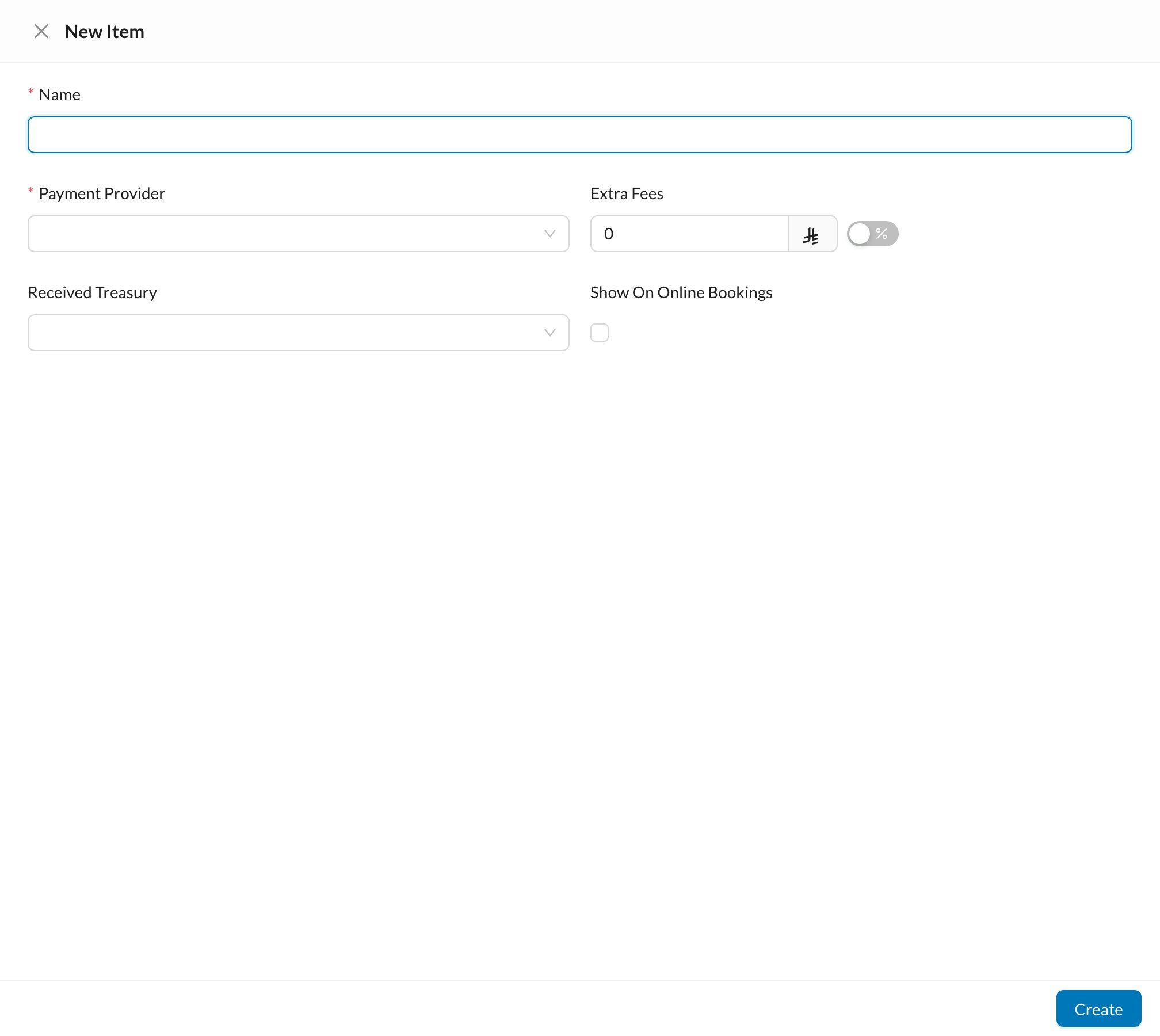
- Name and Payment Provider.
- The provider’s credentials (see below).
- Extra Fees: a fixed amount or % added to what the patient pays.
- Received Treasury: where online payments are recorded.
- Show On Online Bookings.
🔑 Credentials and callback URL for each provider
In the provider’s dashboard, use your live account and set the callback URL so payments are updated automatically.Paymob
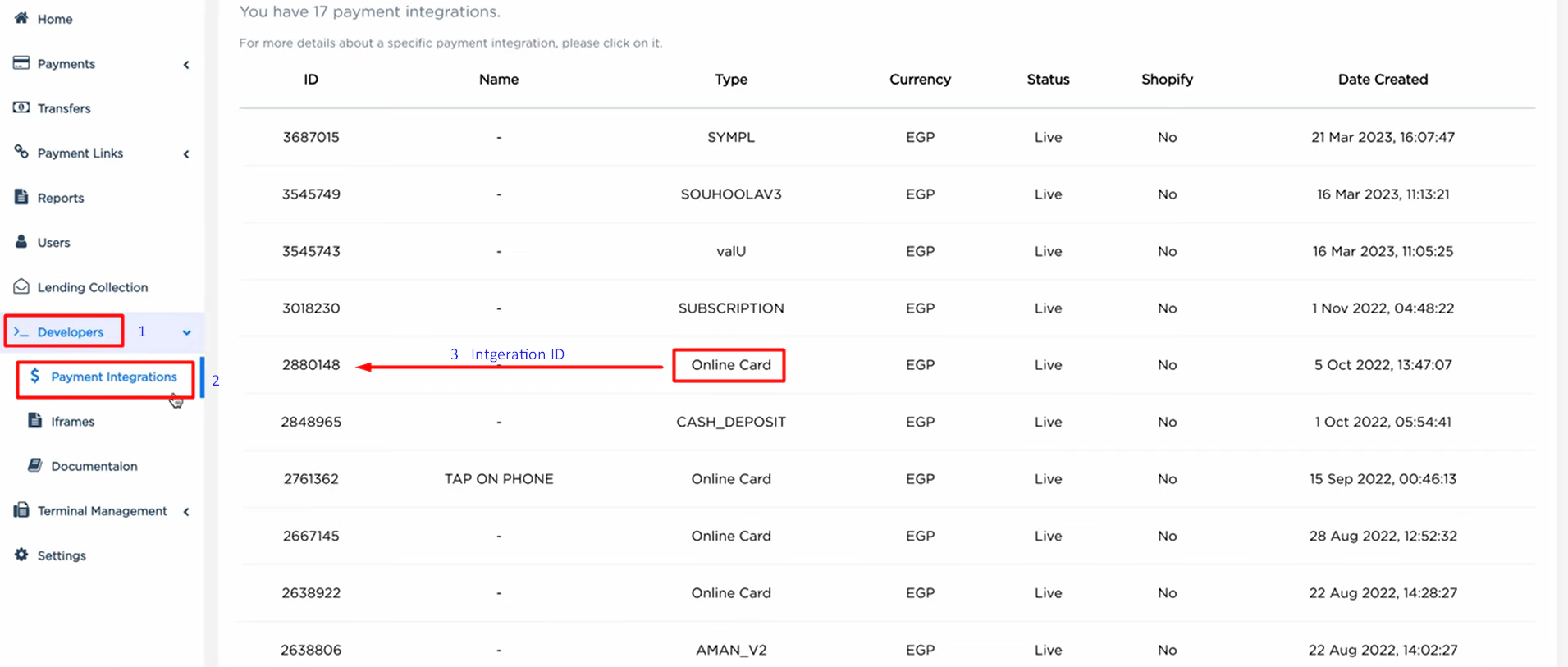
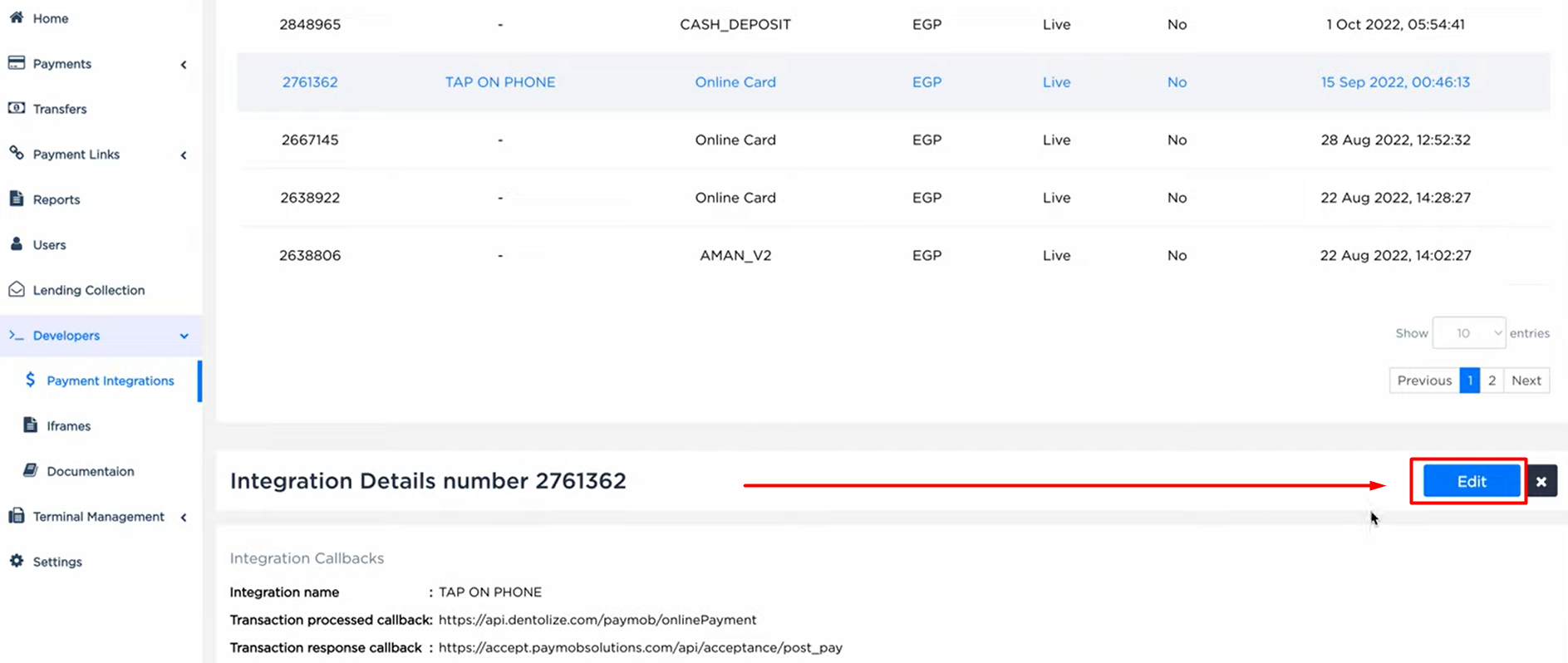
In Paymob, make sure you’re in Live mode. Copy the password from the settings, and the integration ID from Developers → Payment Integrations. Edit the integration to add the callback URL, then save.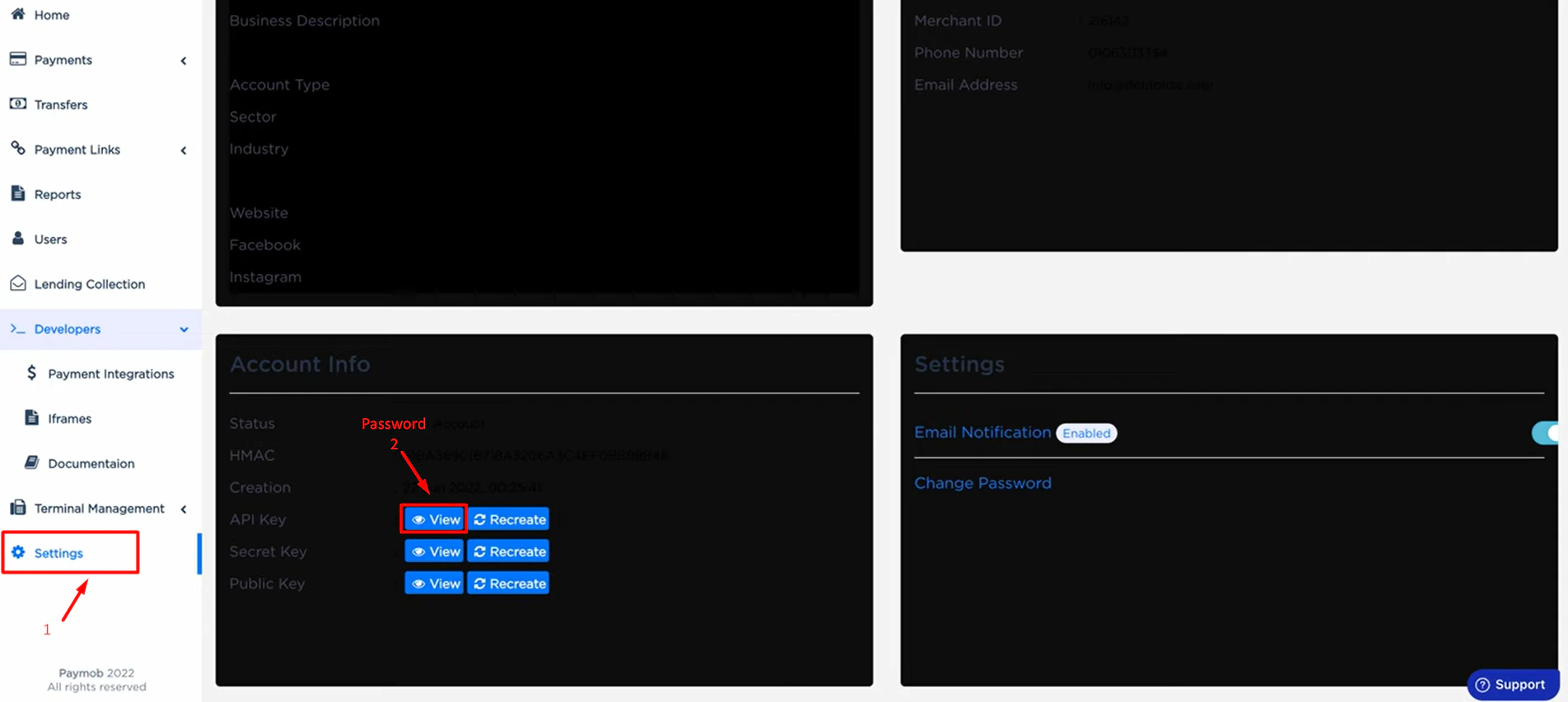
Geidea
In Geidea, make sure you’re in Live mode. Copy Configuration → Merchant Public Key (Username) and Configuration → Gateway API Password (Password), and add the callback URL: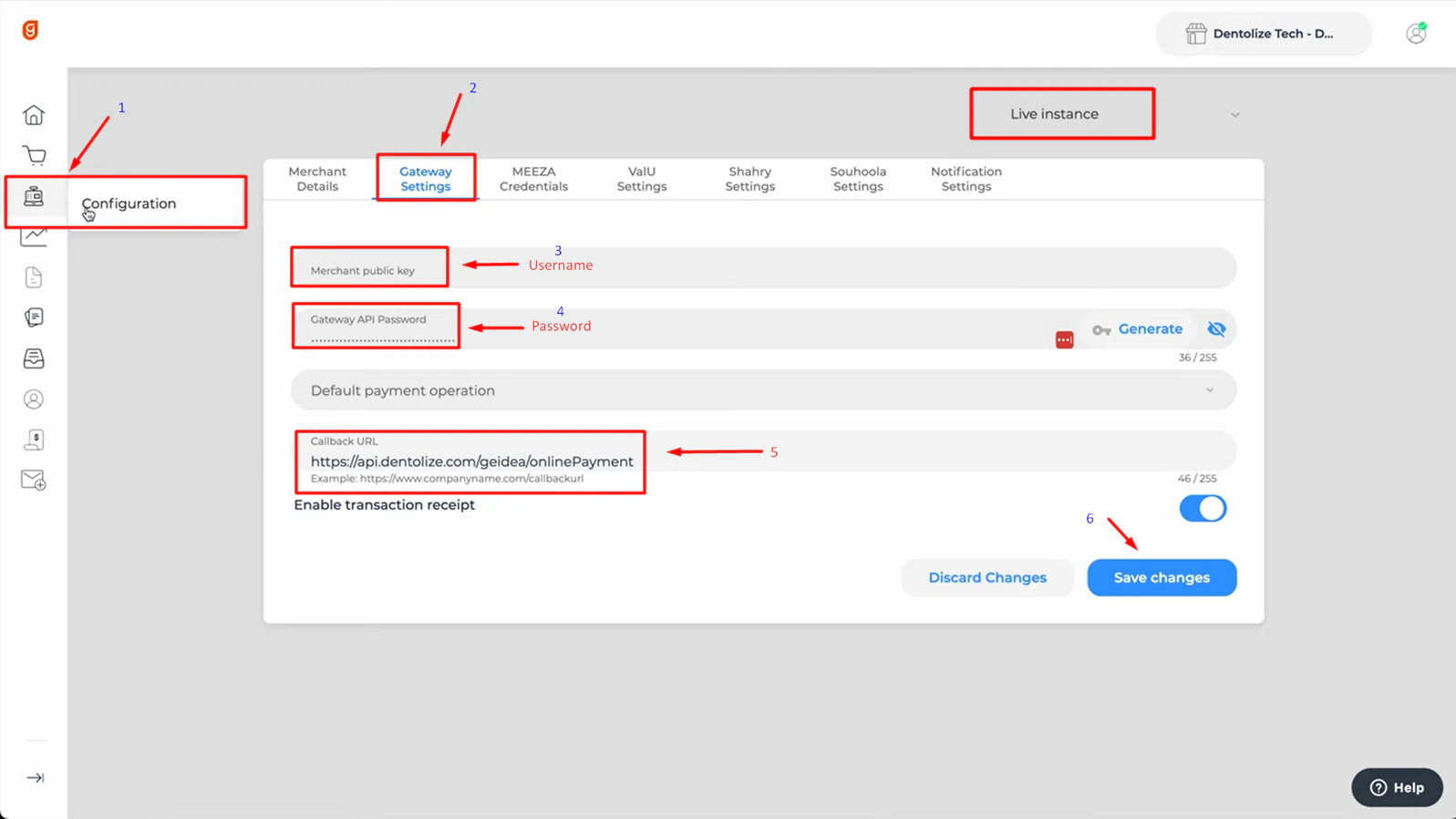
💳 Send a payment link
On an invoice, click Generate Payment Link. Check the amount, provider, and the patient’s phone or email, then click Submit. Share the link or QR code with the patient, for example by WhatsApp. When the patient pays, the payment is added to the invoice automatically (as a card payment, without the extra fees), and an open appointment is marked confirmed. Online payments are listed in Logs → Online Payments.Refunds must be made in the provider’s dashboard. Refunding the payment in Dentolize only records it.