

🧩 How SMS is set up
- Dentolize sets up SMS for your clinic. The SMS provider and the sender name patients see are configured by Dentolize support. To use your clinic’s name as the sender, contact support.
- Your subscription includes a number of messages. To get more, contact Dentolize support.
- You choose what gets sent by creating message templates (see Automatic messages below).
📊 Check your message balance
Go to Settings → Clinic → Main. The Available Messages card shows how many messages are left out of your plan.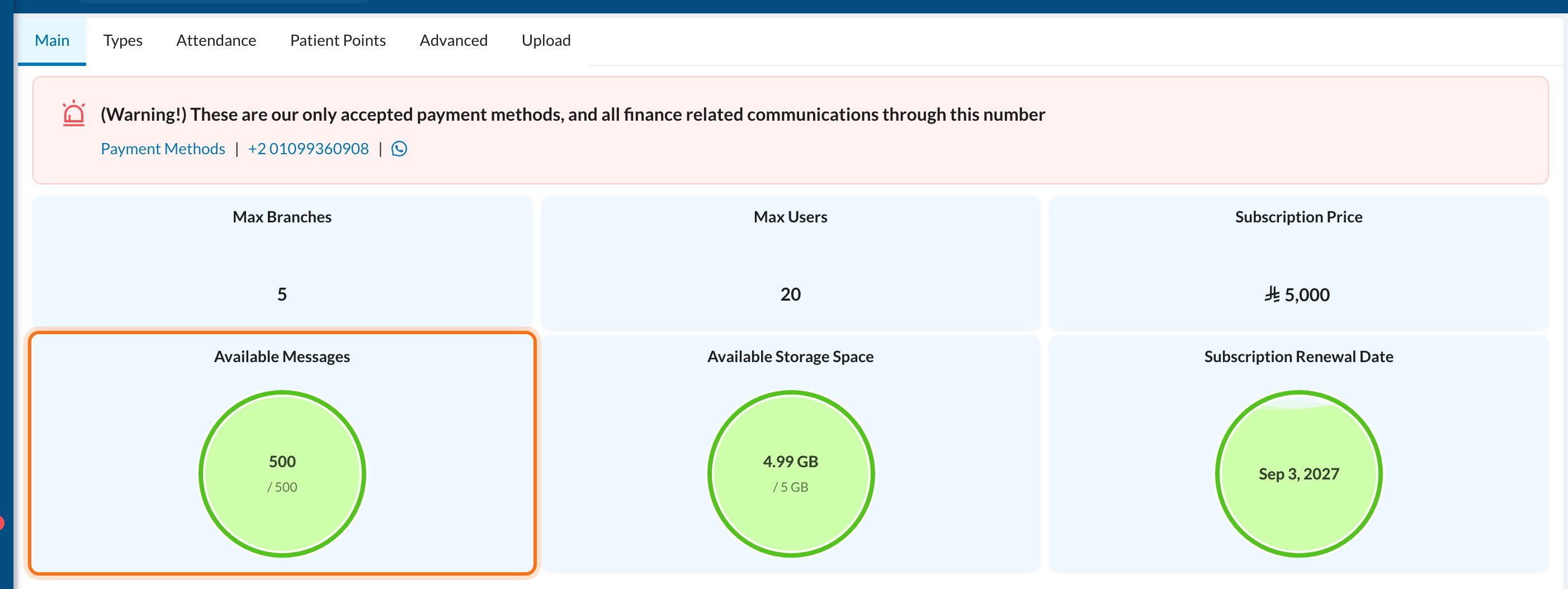
How messages are counted
One SMS holds 153 English characters or 67 Arabic characters. Longer texts are sent as several messages and use more of your balance, up to 5 messages per SMS. The template editor shows the characters remaining and how many messages the text will use.🤖 Automatic messages
Automatic messages are set up as templates in Settings → Templates → SMS. Click New SMS (1). The Message Channels column (2) shows whether each template goes by SMS or WhatsApp.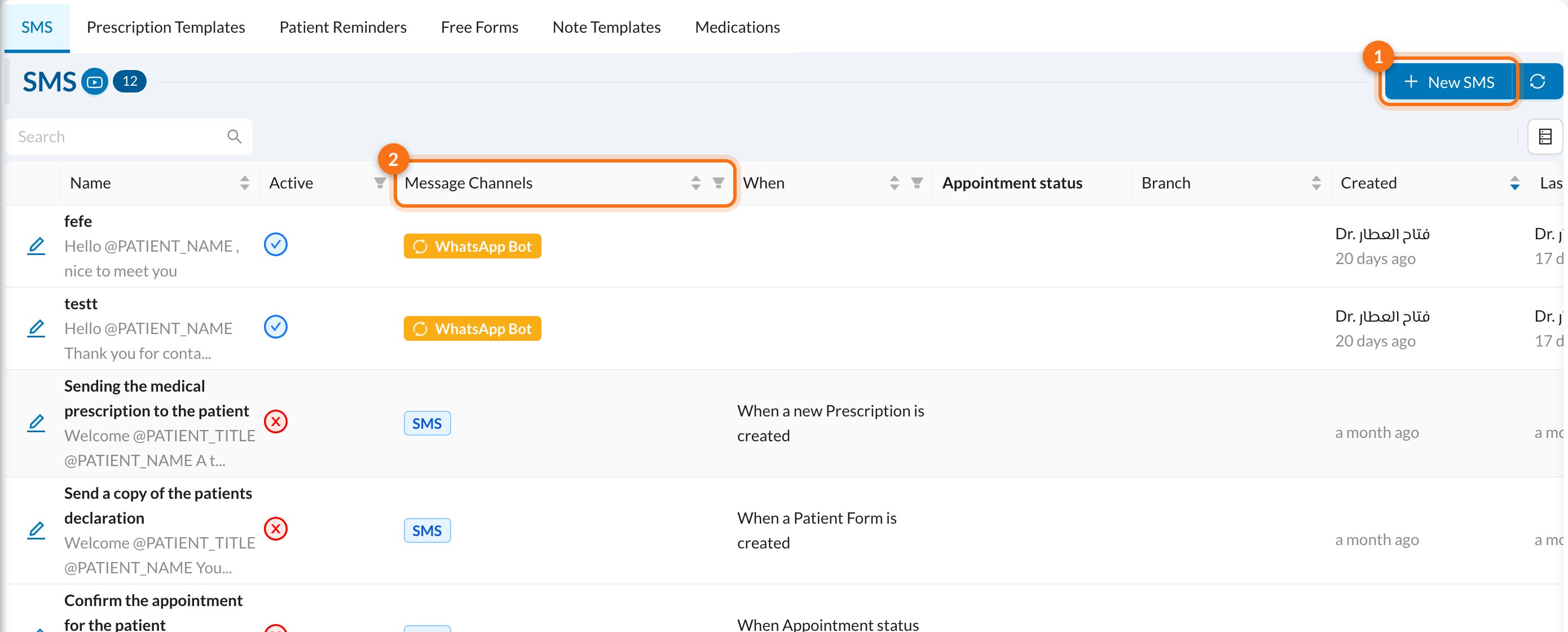
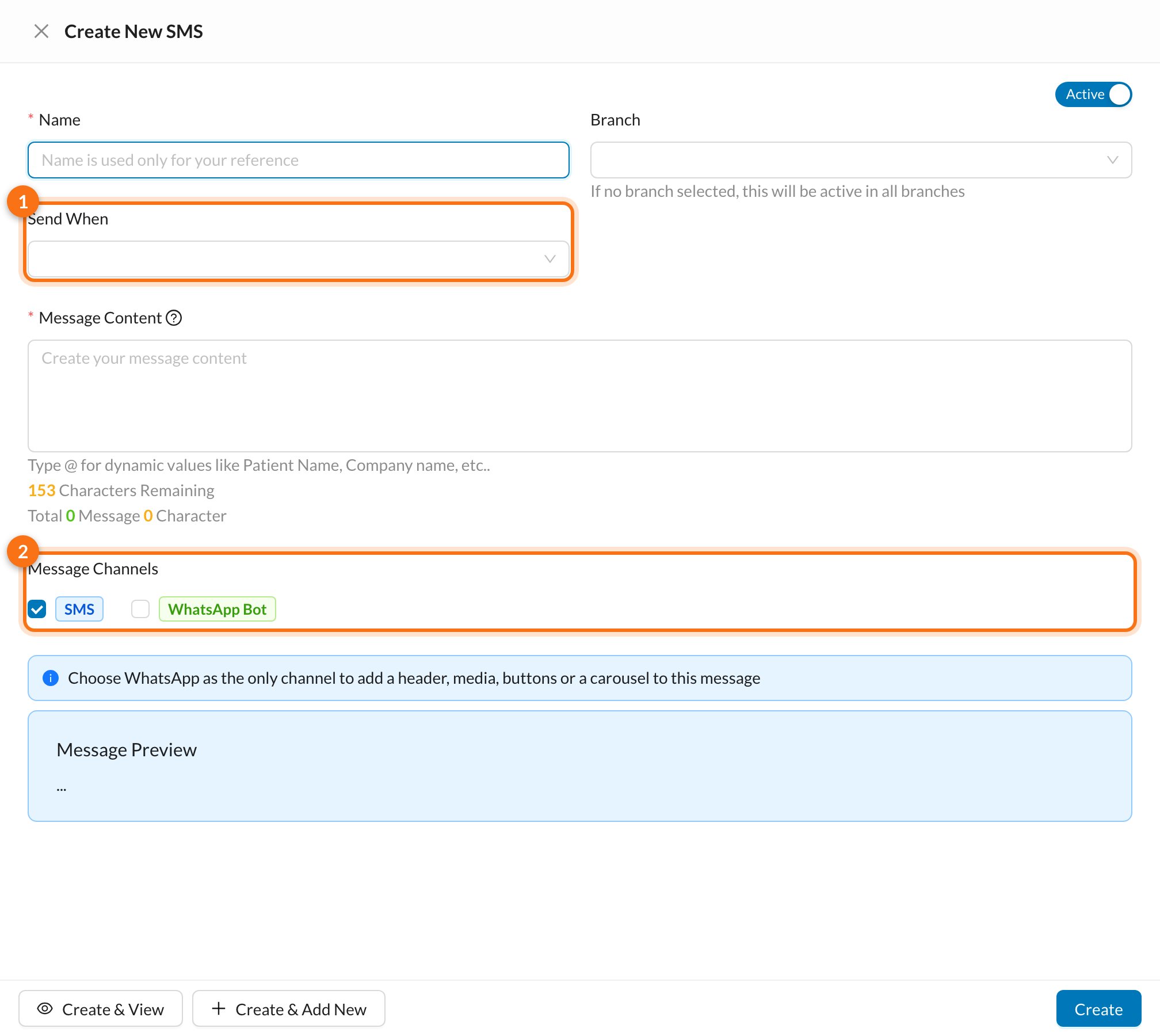
- When something happens: a new patient, new appointment, appointment time change, appointment status change (Confirmed, Checked In, Completed, Cancelled, No Show, Delayed, Waiting List, In Progress), or a new invoice, payment, quotation, prescription, patient form, encounter or lab order.
- At a scheduled time:
- Reminder For Appointments at: a set time each day. It reminds all appointments in the next 24 hours, so if you pick 8 PM, patients with appointments tomorrow get the reminder tonight.
- Remind Before Appointments in: a number of hours before each appointment.
- Birthday, holidays (a specific day each year), and before a treatment package expires.
Note reminders are sent to the doctor, and lab order messages are sent to the lab, not to the patient. Birthday and holiday messages go to all your patients, so they can use a lot of your balance.
✉️ Send a message manually
Click Send SMS from the + menu at the top of the page, from an appointment in the Calendar, or from the patient’s chart. Choose who to send to (A Patient, All Patients, a Price List Group or A User), pick a saved template or write the message, then click Send. To message many patients at once, select them in the Patients, Appointments or Invoices table and click Send Message To Selected.📱 SMS or WhatsApp
If your clinic has the WhatsApp Bot, each template and message can use SMS, WhatsApp Bot, or both:
WhatsApp messages don’t use your SMS balance.
✅ Ask before sending
In Settings → Clinic → Advanced (1), turn on Confirm before sending SMS (2). Staff will then be asked “Would you like the automatic SMS to be sent to the user?” before an automatic message is sent, for example when changing an appointment or creating an invoice. Answer No to skip it.
🧾 Check what was sent
Go to Logs → Communications to see every message. Check the Message Channels (1), the SMS Length (2), which is the number of messages used or an error code if it failed, and whether it was Sent (3).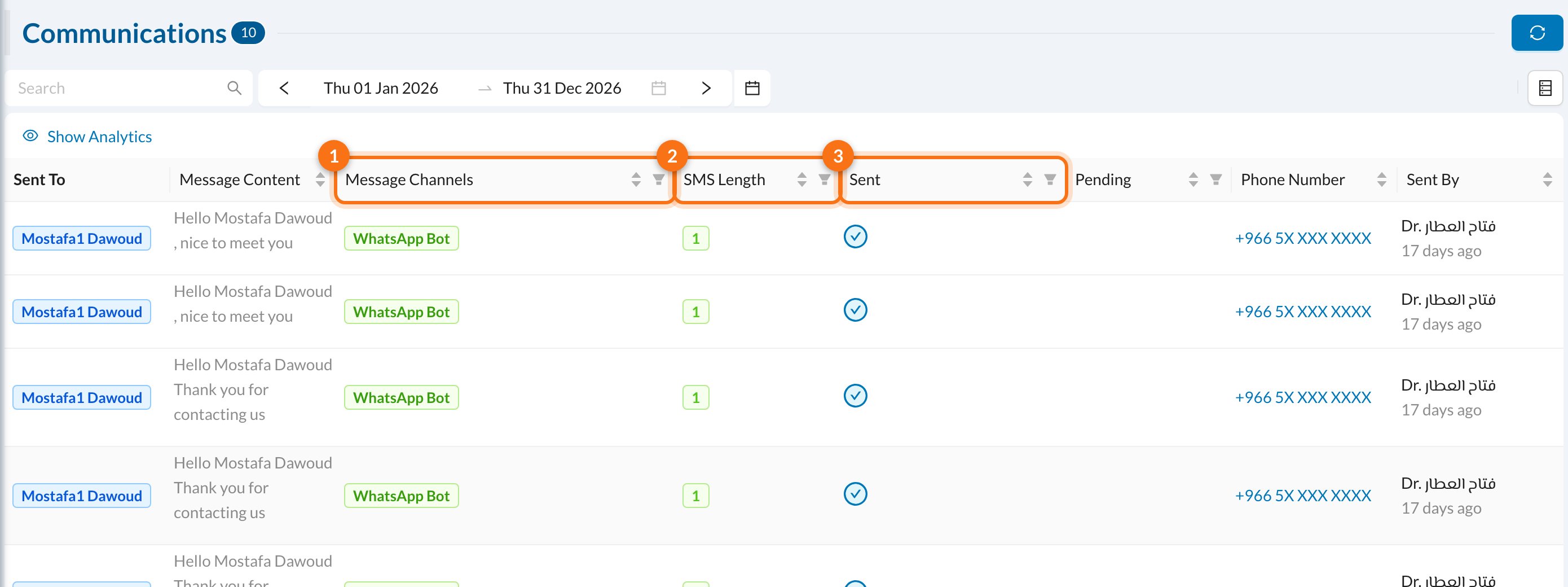
❓ FAQ
Patients see "Dentolize" as the sender. Can I use my clinic's name?
Patients see "Dentolize" as the sender. Can I use my clinic's name?
Yes. Contact Dentolize support to register your clinic’s name as the sender. Registering a sender name can take some time, depending on your country’s rules.
A patient didn't receive the message
A patient didn't receive the message
Check Logs → Communications: if the message failed, the SMS Length column shows the error. Check that the patient’s phone number is correct and includes the country code, and that your message balance isn’t 0.
Why did one message use 3 of my balance?
Why did one message use 3 of my balance?
Long messages are split into parts: 153 characters each in English, 67 in Arabic. Each part counts as one message.
Can I send the same message by SMS and WhatsApp?
Can I send the same message by SMS and WhatsApp?
Ticking both sends one message: by WhatsApp if possible, otherwise by SMS.