

Google Drive is an early-access feature. If you don’t see the Google Drive tab in Settings → Integrations, contact Dentolize support to enable it for your clinic.
🧩 Before you start
- Only the clinic owner or an admin (users with full permissions) can connect it.
- There is one Google account for the whole clinic. Once it’s connected, every user’s uploads go to that Drive, on the web and on the mobile app.
- Use a Google account that belongs to the clinic, not a personal one, and make sure it has enough free space.
🔗 Connect Google Drive
1
Open the Integrations settings
In the side menu, click Settings (1), then Integrations (2).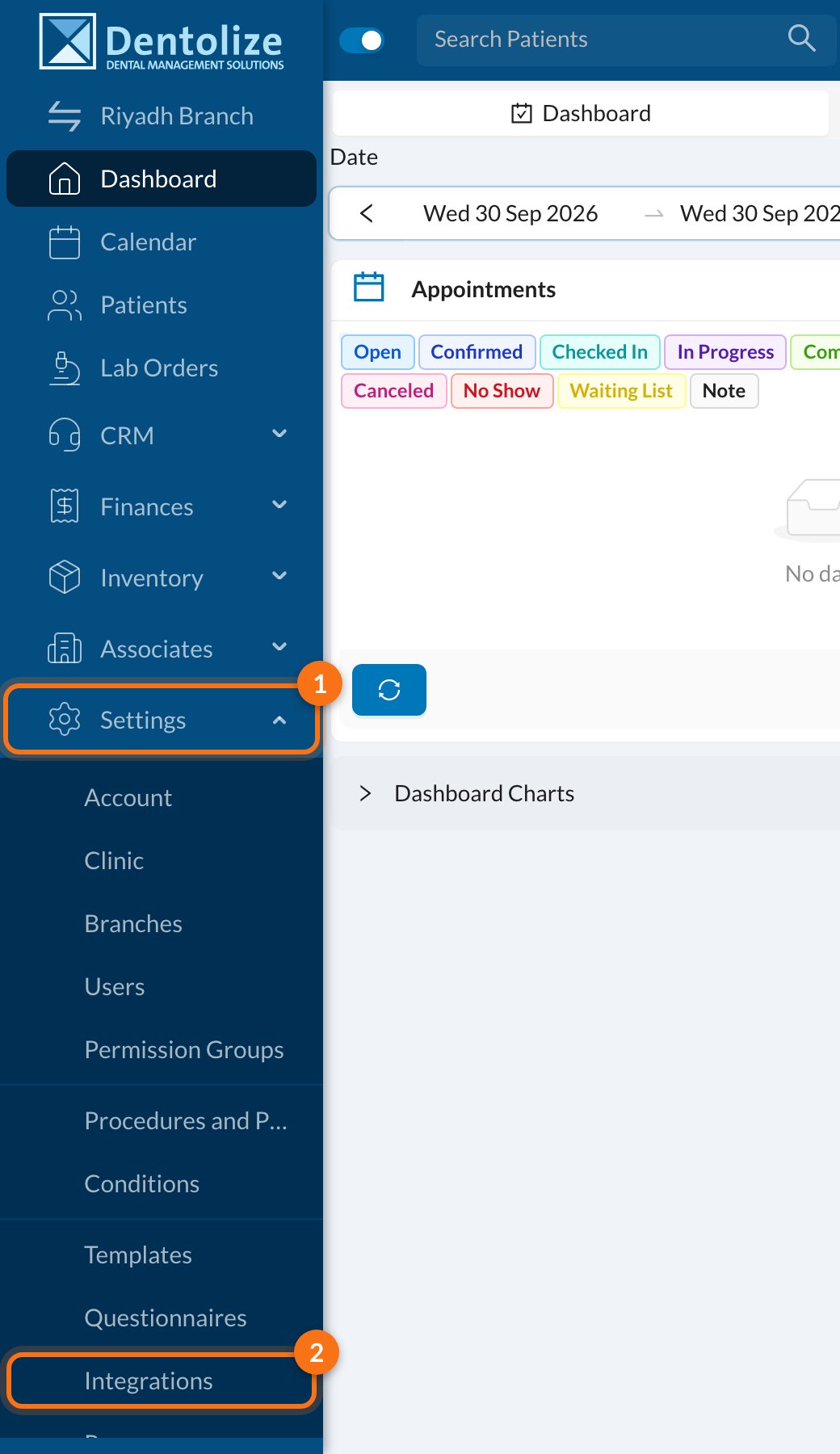
2
Click Connect Google Drive
Open the Google Drive tab and click Connect Google Drive.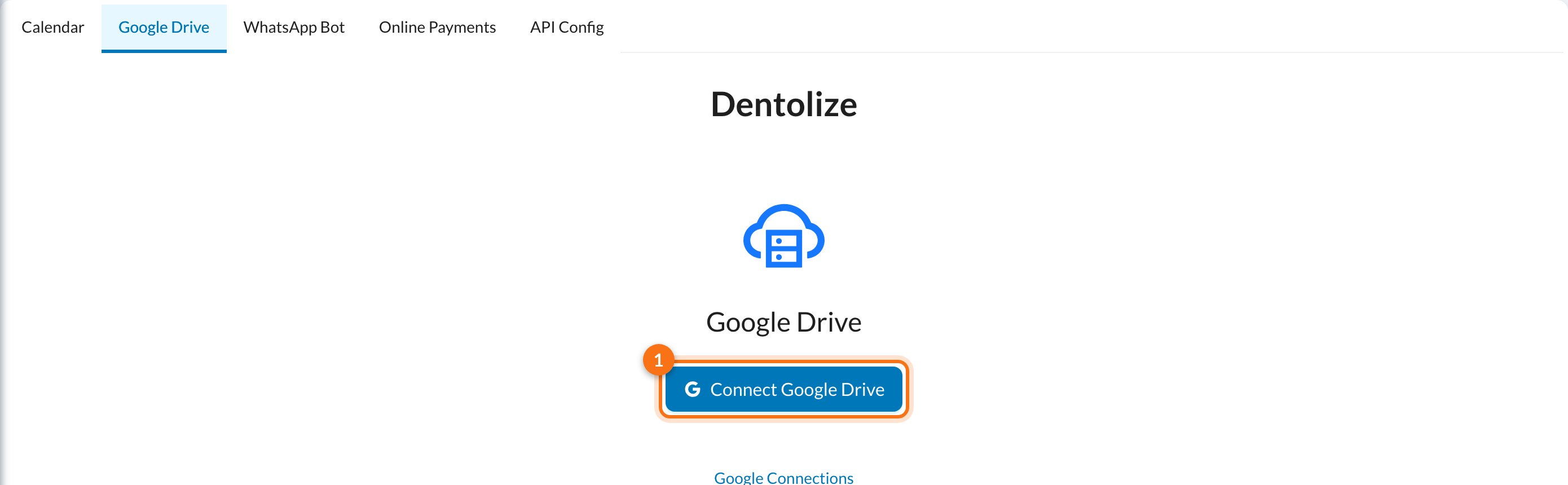
3
Allow access in Google
Google opens. Choose the clinic’s Google account and click Allow. Dentolize can only see the files and folders it creates, not the rest of your Drive.
4
Click Sync Google Drive
You return to Dentolize with the message You are almost done! Click Sync Google Drive to finish.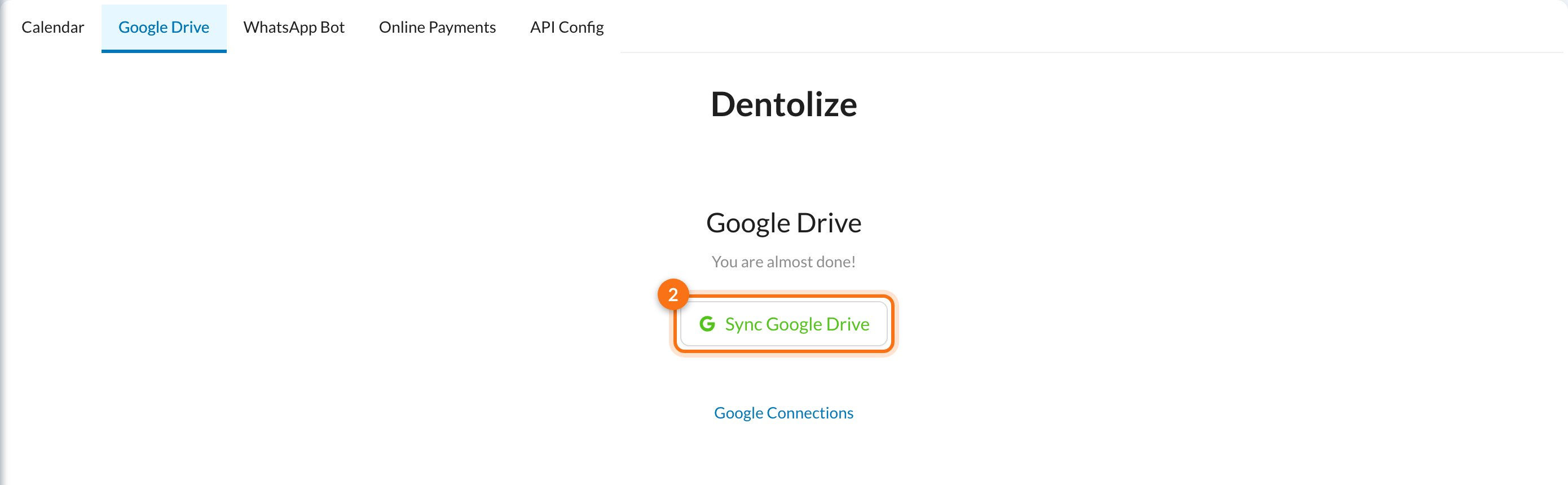
📁 How your files are saved
- New uploads only. Files uploaded before connecting stay in Dentolize storage and aren’t moved.
- Saved in Drive, not in Dentolize. Uploads go to Google Drive instead of Dentolize storage, so they don’t use your Available Storage Space.
- Folders: Dentolize creates one folder per patient, named
#<file number> <patient name>, plus folders such as Invoices, Expenses, Labs, Suppliers and Attendance for other attachments. - What goes to Drive: patient files, X-rays, images and voice notes in medical notes, signed forms, attendance photos, and attachments on invoices, expenses, labs, suppliers, insurance companies, inventory and treasuries.
- What stays in Dentolize: the clinic logo, WhatsApp media, support chats and forms signed by QR code.
- Deleting a file in Dentolize also deletes it from Google Drive.
⛔ Disconnect
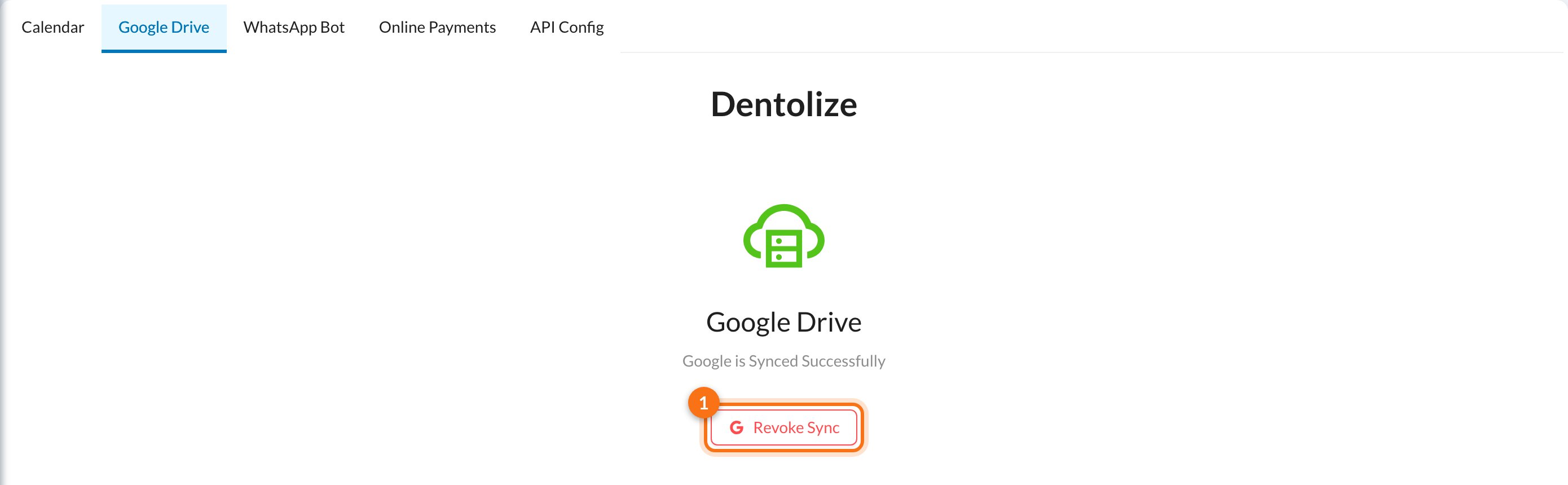
Click Revoke Sync (1), then Yes to confirm.- New uploads go back to Dentolize storage and count towards your storage space again.
- Files already in Google Drive stay there and still open from Dentolize.
- After disconnecting, deleting one of those files in Dentolize doesn’t delete it from Drive.
❓ FAQ
I see "Please remove Dentolize from your Google Account and try again"
I see "Please remove Dentolize from your Google Account and try again"
The Google account was connected before. Open myaccount.google.com/connections, remove Dentolize, then connect again.
Uploads fail after connecting
Uploads fail after connecting
Check that the Google account has free space in Drive and that Dentolize still appears in the account’s third-party connections. If you see an error asking you to remove Dentolize from your Google account, follow the steps above to reconnect.
Can I choose which Drive folder Dentolize uses?
Can I choose which Drive folder Dentolize uses?
No. Dentolize creates its folders at the top level of My Drive. You can’t point it to an existing folder.
Can I connect a different Google account?
Can I connect a different Google account?
Yes: revoke, remove Dentolize from the old account, then connect the new account. Files already saved in the old account’s Drive stay there, and Dentolize can’t delete them from the new account.