

The Summary tab gives managers a quick view of one day at the clinic. Open it from the Dashboard → Summary tab.
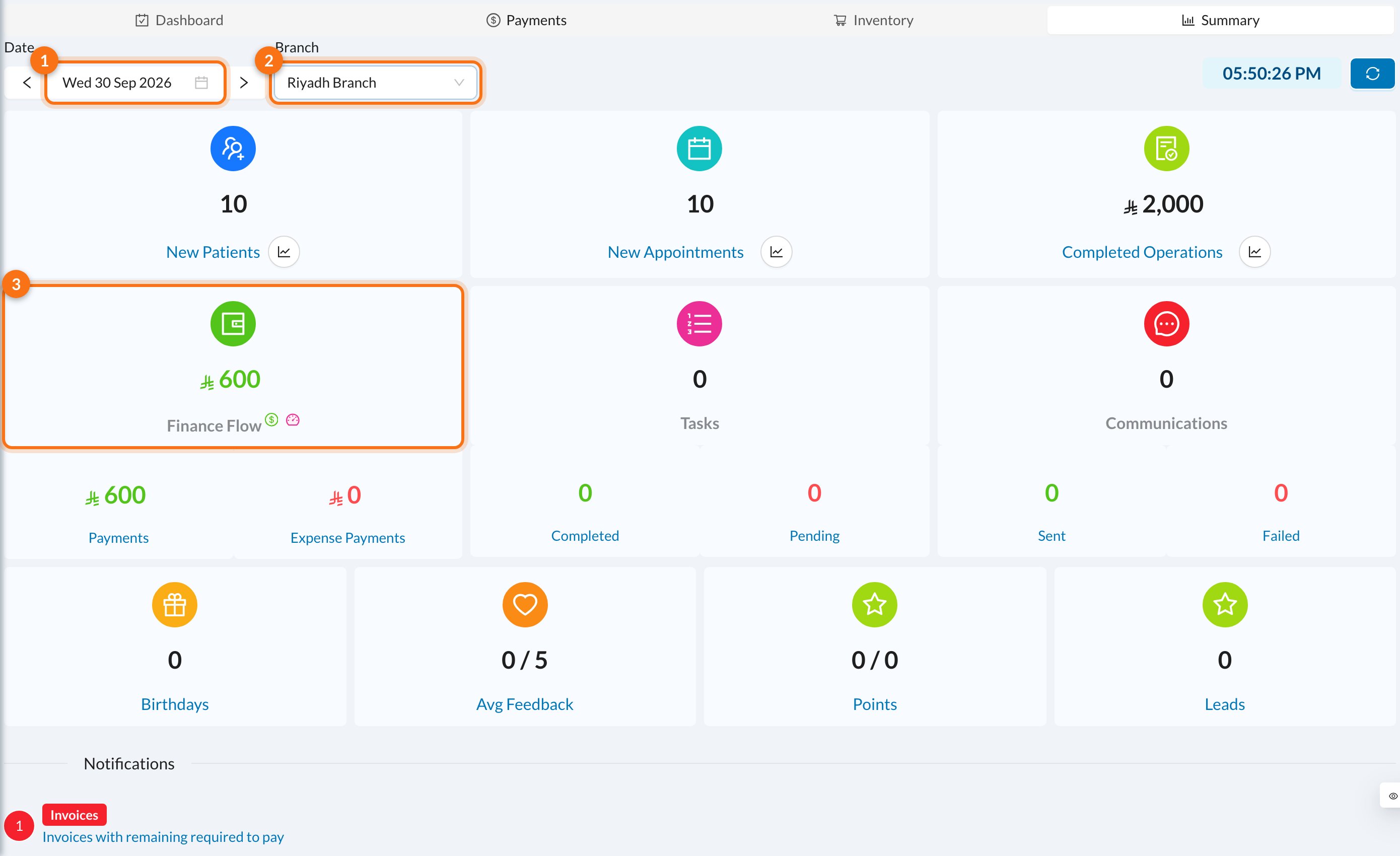
- Date: the day to show, today by default. Use the arrows to move a day.
- Branch: one branch, or leave it empty for the whole clinic.
- Finance Flow: the money received minus the money paid out that day (see below).
📊 What each card shows
Click the chart icon next to New Patients, New Appointments or Completed Operations to see that number for each day of the month.
About Finance Flow
- Payments includes all payment methods received that day (cash, card, insurance, bank transfer…), except payments taken from a patient’s balance.
- Expense Payments includes everything paid out that day: supplies, salaries, lab bills and patient refunds.
- Click the $ icon to see Cash only: cash payments, cash expenses and Remaining Cash, which is what should be in the drawer.
Finance Flow isn’t the balance of a treasury. For treasury balances and detailed reports, use Finances and Analytics.
Notifications
At the bottom, Notifications lists things waiting for action, such as invoices to collect, low inventory, lab orders due and appointments pending confirmation. It shows what’s pending now, whatever date you select.📱 Daily summary on your phone
Dentolize can send a Daily Summary notification to the mobile app at 11:30 PM clinic time. It covers the day’s invoices, patient payments and completed appointments for the whole clinic. Doctors can also get a Daily Appointments Summary with their completed appointments and tomorrow’s first appointment. To turn them on or off, go to Settings → Account → Main → Show Notifications For and tick Daily Summary and/or Daily Appointments Summary. See My user settings.You need to be logged in on the Dentolize mobile app to receive it. The Daily Summary also needs permission to view all branches and the invoices and payments analytics.
❓ FAQ
I don't see the Summary tab
I don't see the Summary tab
Your permission group needs at least one of the Summary Dashboard permissions. Ask the owner to add them in Settings → Permission Groups. Each card also needs its own permission, so you may see only some cards.
The payments here don't match the payments report
The payments here don't match the payments report
The summary counts payments on the day they were created, including payments that were later refunded. The refund appears in Expense Payments on the day of the refund. Reports may exclude refunded payments.
Can I print or export the summary?
Can I print or export the summary?
No. To export numbers, use Finances or Analytics.