

Every user can change their own settings. These only affect you, not other users.
👤 Open your settings
Click the user icon at the top right of the page: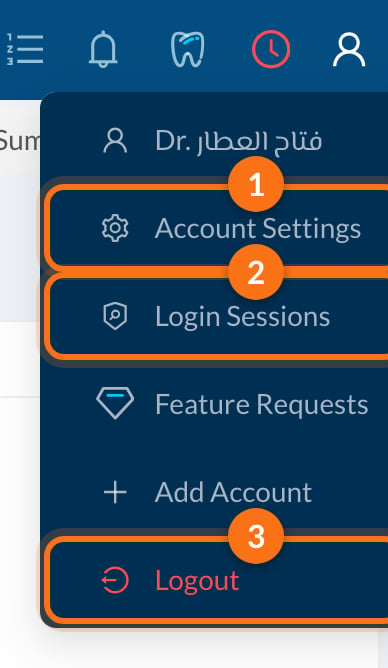
- Account Settings: your settings (this page).
- Login Sessions: the devices where you’re logged in. You can log out any of them.
- Logout.
⚙️ Main
The Main tab has your personal details and preferences.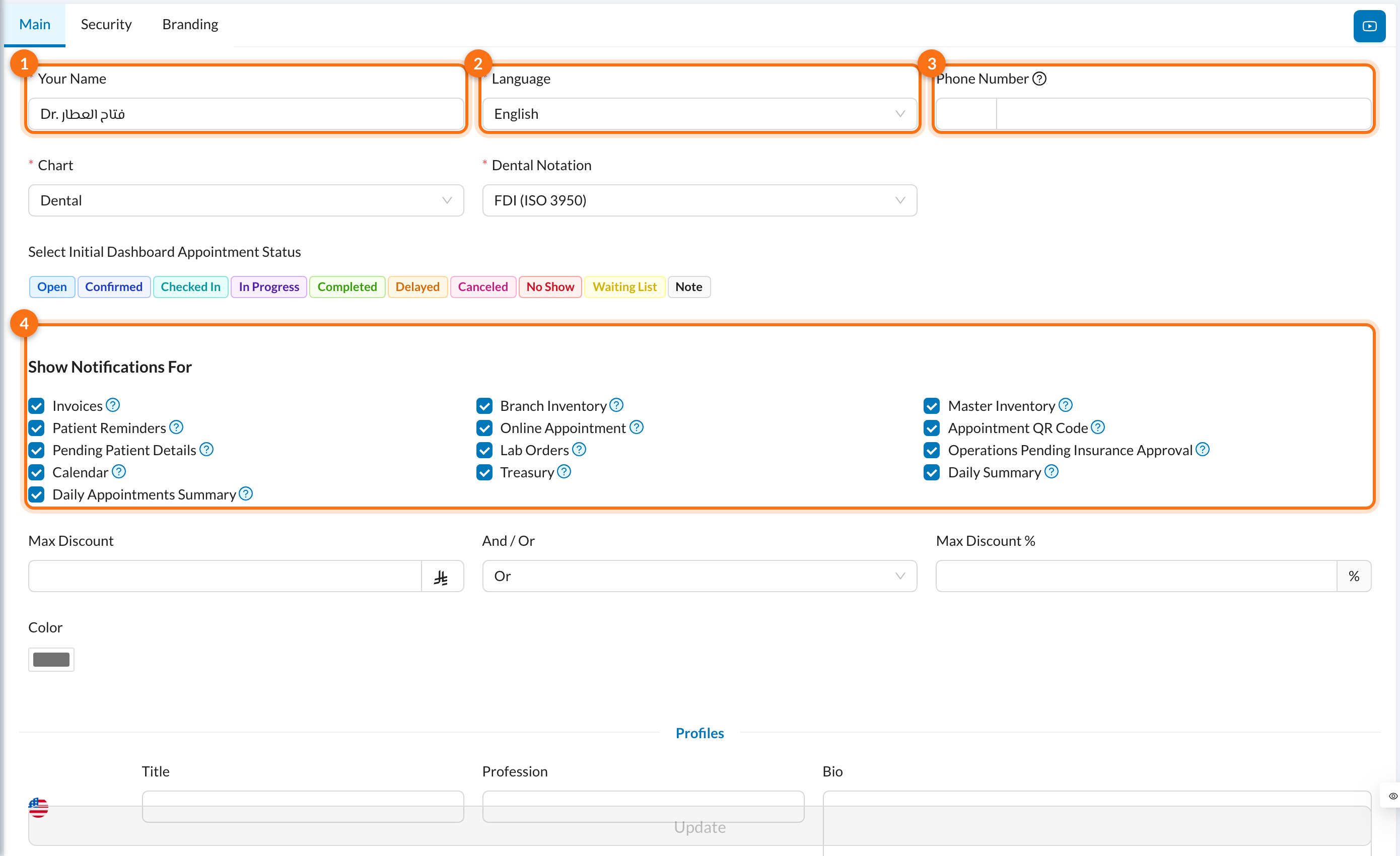
- Your Name: as shown to other users and on documents.
- Language: the language of Dentolize for you. It also becomes the language of the login page on this computer.
- Phone Number: with the country code, so you can receive SMS and WhatsApp messages.
- Show Notifications For: choose which alerts you get, for example your assigned Invoices, low Inventory, Patient Reminders, Online Appointment bookings, due Lab Orders, the Daily Summary and the Daily Appointments Summary. Hover over the ? next to each one for details.
- Select Initial Dashboard Appointment Status: the statuses shown by default in the Dashboard’s appointments list.
- Initial Dashboard Show Overdue: whether past appointments show by default on the Dashboard.
- Image: your profile picture (JPG, PNG or SVG, under 20 MB).
Some options, such as Doctor, attendance and discount limits, appear here only for the clinic owner. For other users, the owner or an admin sets them in Settings → Users.
🔒 Security
The Security tab is for your email, username and password, and two-factor authentication.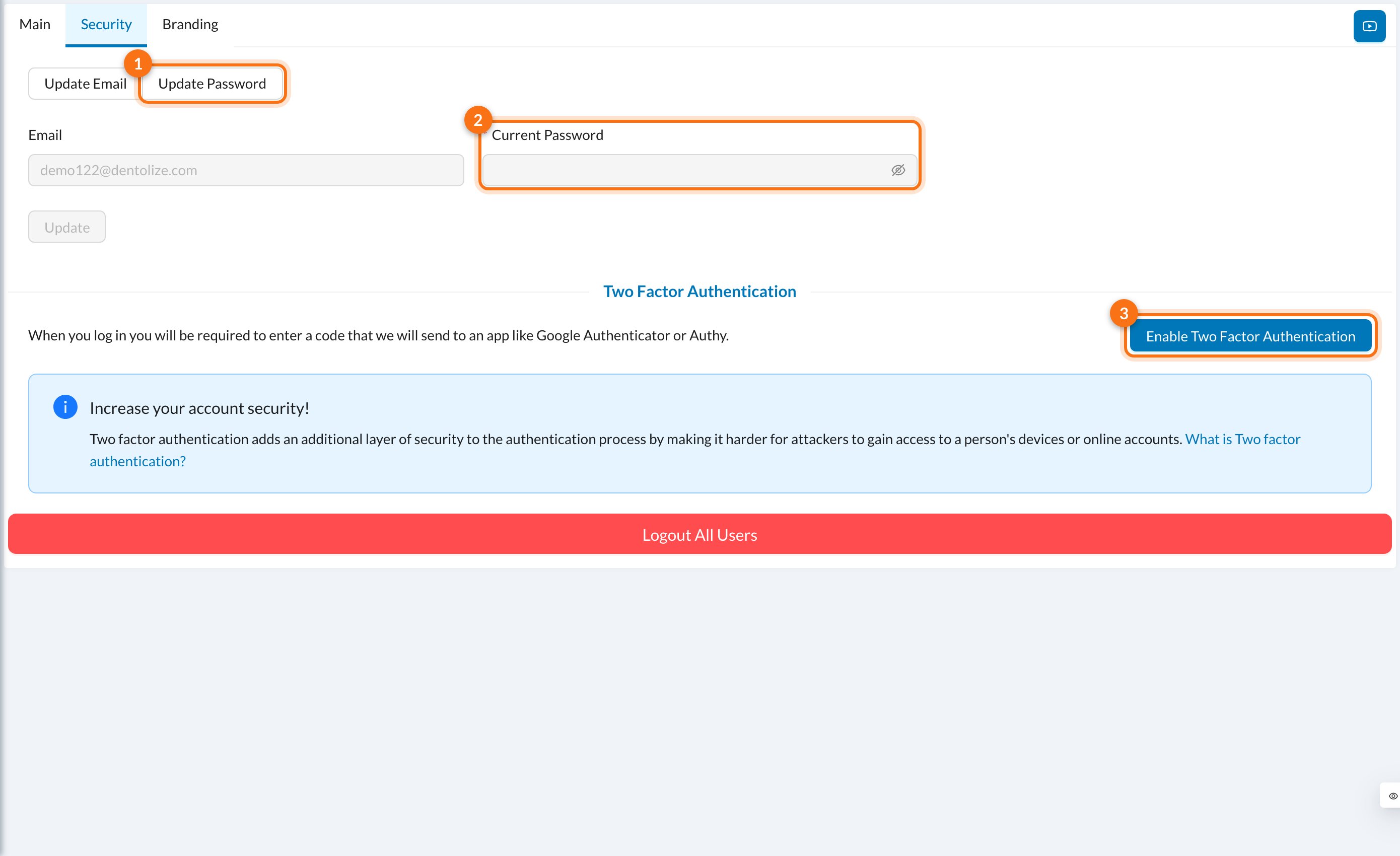
Change your password
- Click Update Password (1).
- Enter your Current Password (2) and the New Password. The new password needs at least 8 characters, with an uppercase letter, a lowercase letter, a number and a special character.
- Click Update.
Change your email or username
Click Update Email (or Update Username, if you log in with a username), enter the new one and your Current Password, then click Update.Turn on two-factor authentication
Two-factor authentication asks for a 6-digit code from an app on your phone every time you log in, in addition to your password.1
Install an authenticator app
Install Google Authenticator or Authy on your phone.
2
Click Enable Two Factor Authentication
Click Enable Two Factor Authentication (3), enter your Current Password and click Enable.
3
Scan the QR code
Open the authenticator app and scan the QR code, or type the key shown under it. Enter the 6-digit code from the app and click Enable.
4
Save your backup codes
Click Generate Backup Codes. Copy the 7 codes and keep them somewhere safe, such as a password manager. Then click Done.
Logout All Users
Owners and admins see a red Logout All Users button. It logs out every user in the clinic on every device, including you. Use it if a password may have been shared or a device was lost.🎨 Branding
The Branding tab sets the clinic’s colors, about text, social links and services for your patient app and website. It applies to the whole clinic, not just to you.❓ FAQ
I see "Wrong Password!"
I see "Wrong Password!"
The Current Password isn’t correct. Enter the password you use to log in now, not the new one.
I lost my phone and can't get the two-factor code
I lost my phone and can't get the two-factor code
On the login page, click Use backup code instead and enter one of your backup codes. Then turn two-factor off and on again with your new phone. If you have no backup codes, contact your clinic’s owner or Dentolize support.
Where do I change the settings of other users?
Where do I change the settings of other users?
In Settings → Users, if you have permission. This page only changes your own settings.