

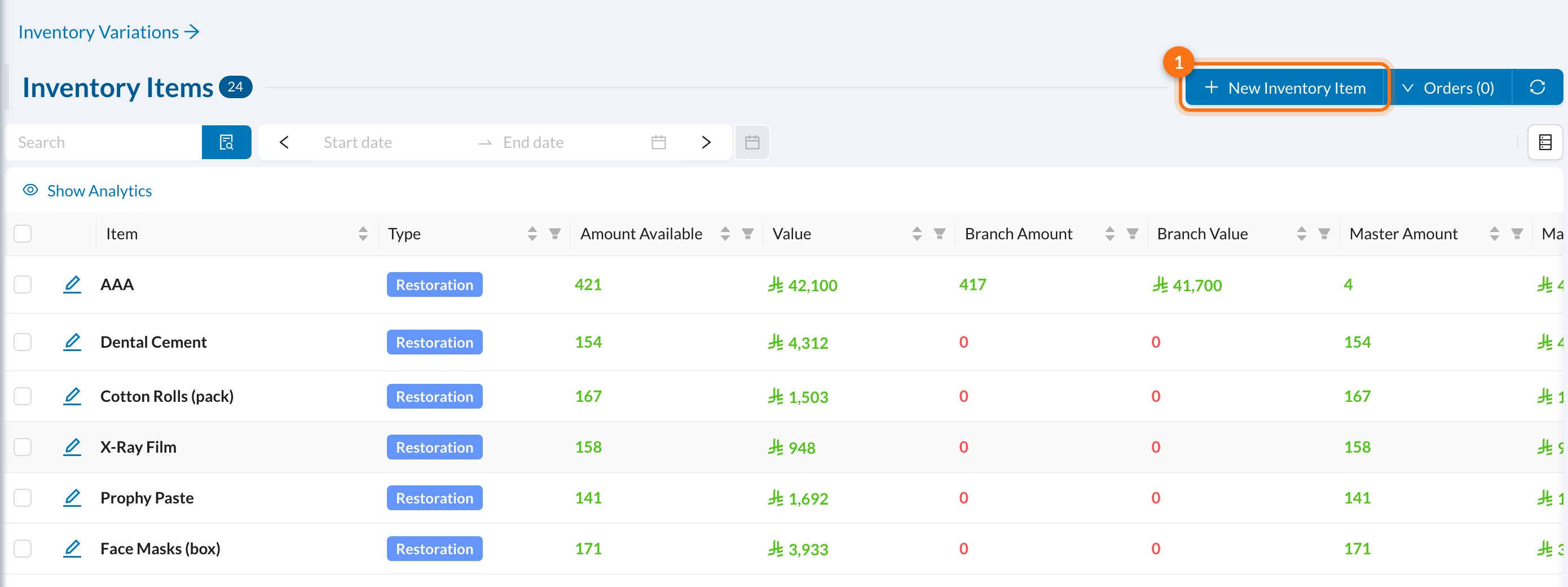
Go to Inventory → Items and click New Inventory Item (1).
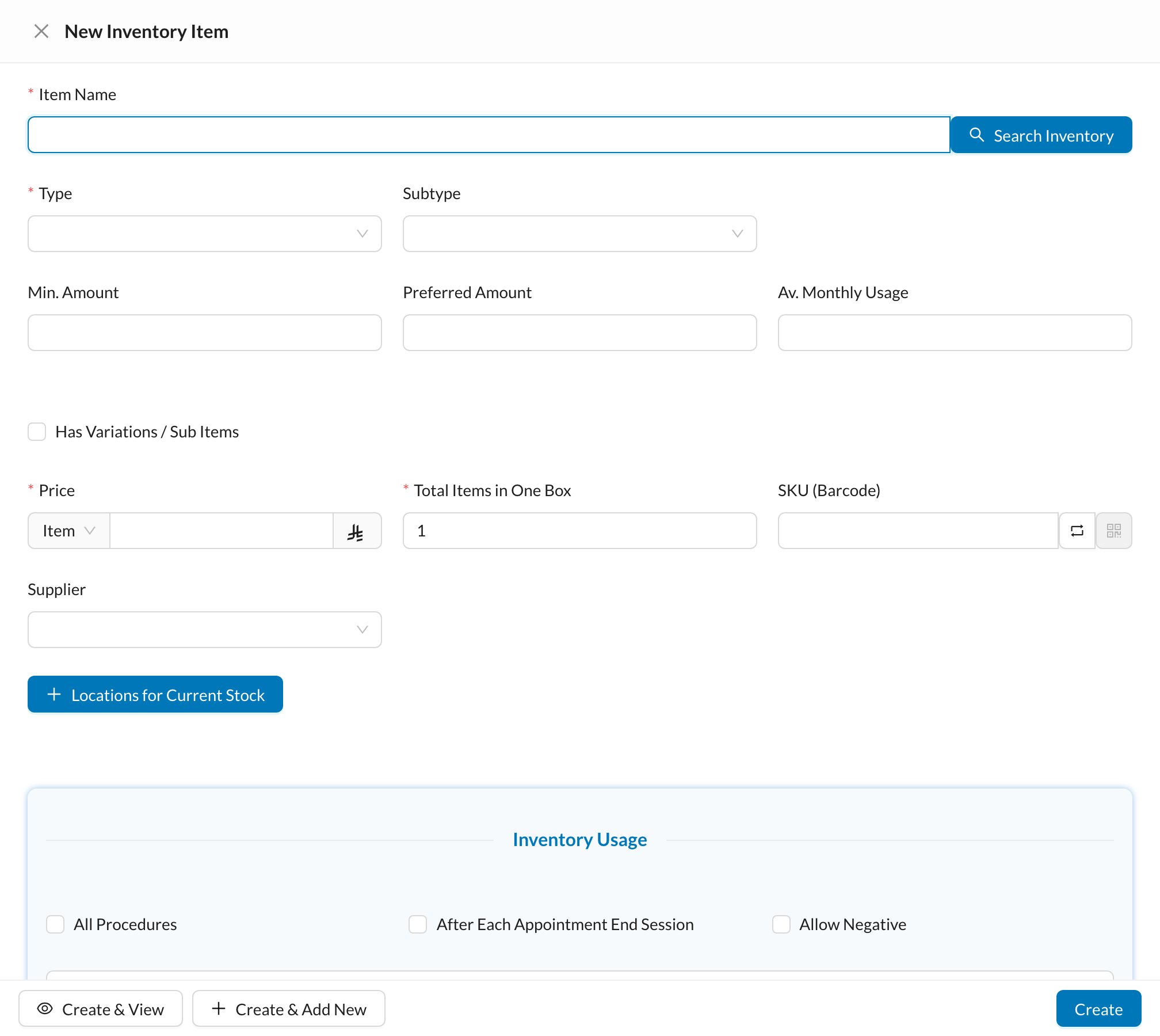
- Item Name (required). Search Inventory fills in the name, price and barcode from a ready-made catalogue.
- Type and Subtype: the item’s category, such as Restoration or Endo.
- Min. Amount: below this, the item is marked Low. Preferred Amount: above this, it’s Overstock. Av. Monthly Usage: used to estimate when it will run out.
- Price per Item or per Box, and Total Items in One Box.
- SKU (Barcode) and Supplier.
- Has Variations / Sub Items: for items in several sizes or shades, each with its own price and barcode.
- Locations for Current Stock: the opening stock in each storage, with its expiry date.