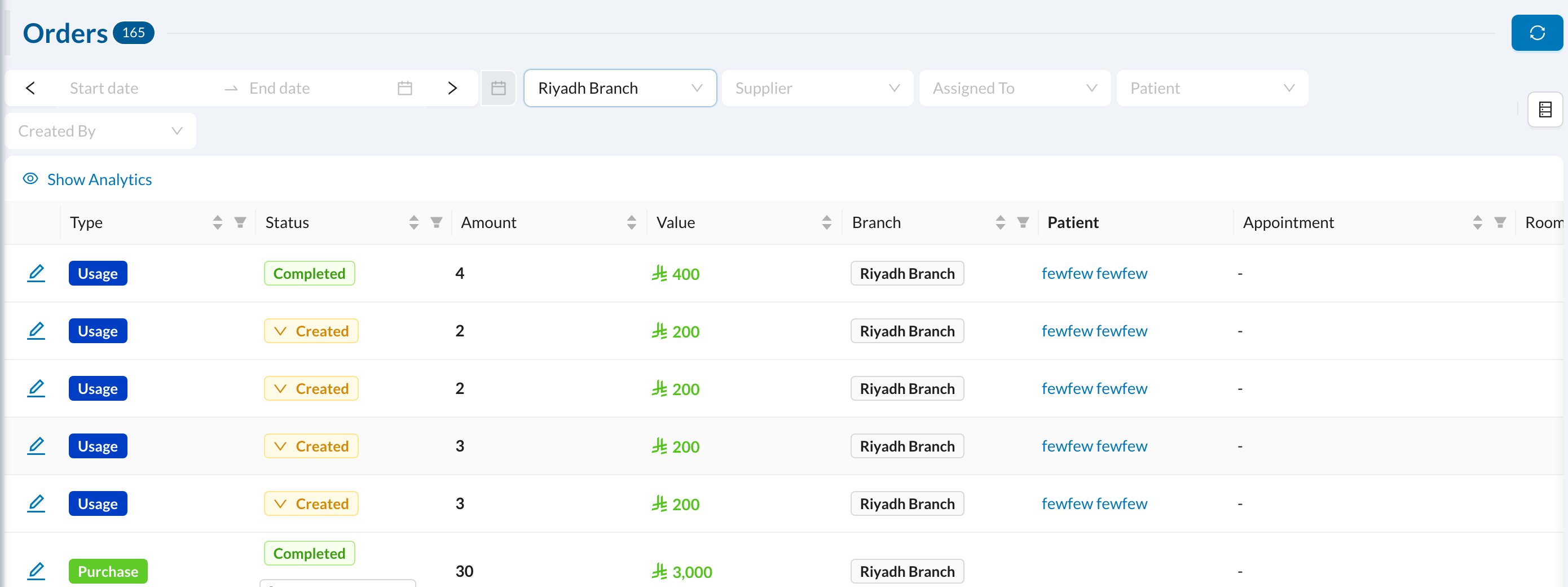
Every stock movement is an order. Create one from the Orders button on the Items, Stock or Transactions page (select items first to add them to the order):
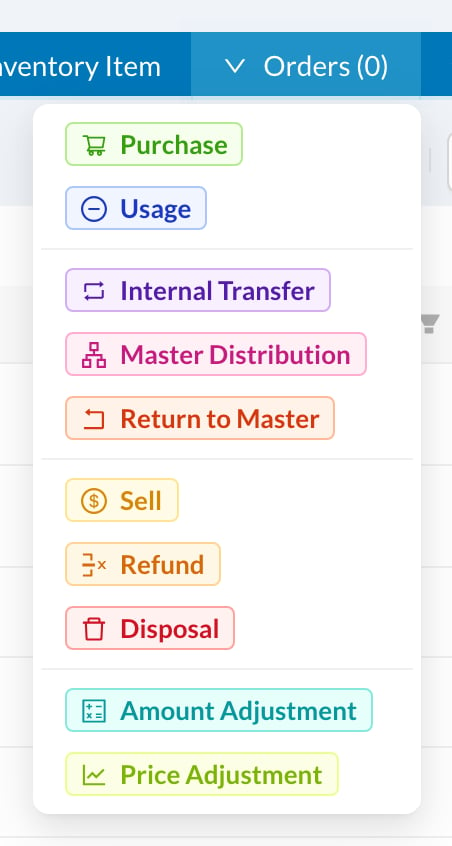
📝 Fill in an order
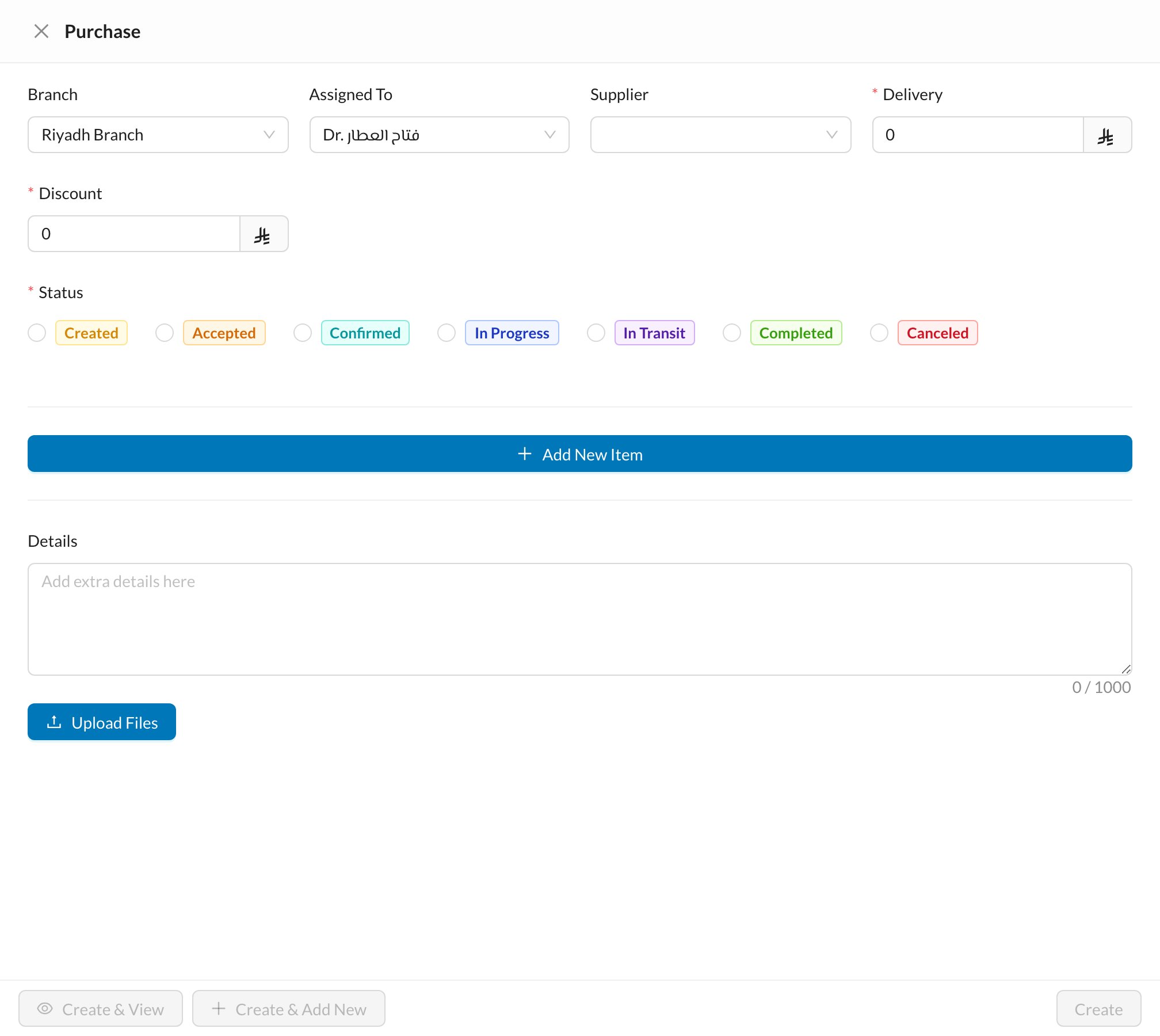
- Check the Branch and Assigned To. For a purchase, choose the Supplier, and add any Delivery cost or Discount.
- Choose the Status (see below).
- Click Add New Item and fill in each row: Amount (per item or box), the storage, the price and, for purchases, the Expiration Date.
- Click Create. After a purchase, the expense form opens so you can record the payment.
🔄 Follow up orders
Inventory → Orders lists every order. Click an order’s status to change it, for example to Completed when a delivery arrives. Show Analytics shows the number and value of orders in each status.Stock is taken from the batch that expires first. To use a specific batch, click the clock icon next to the storage.