

📍 Open the new appointment form
- From the calendar: click an empty time in a room. The form opens with that room and time.
- From anywhere: click + in the top bar → New Appointment.
- For a patient: click New Appointment on the patient’s profile, or in an appointment’s Patient Actions. The patient is filled in for you.
📝 Fill in the form
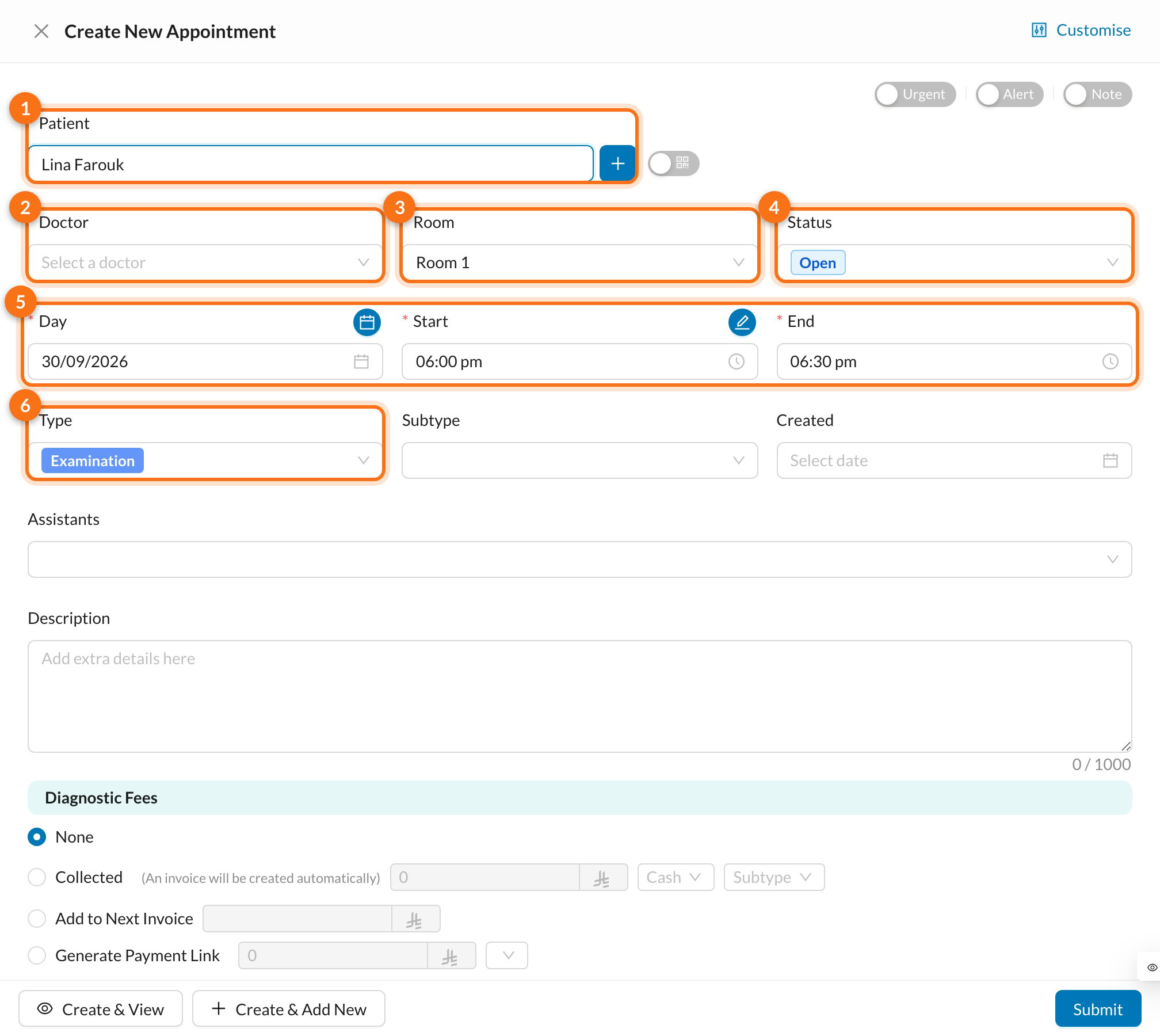
- Patient: search by name or phone number. To add a new patient, click + next to the field (see Patients). The patient’s assigned doctor is selected automatically.
- Doctor: doctors who aren’t working at that time are shown in red.
- Room: rooms already booked at that time are shown in red.
- Status: usually Open (booked) or Confirmed.
- Day, Start and End: the length of the appointment is the time between Start and End. Click the calendar icon next to Day to see the available slots for the month, or the pencil next to Start to pick a free time.
- Type: such as Examination or Follow-up. Types and their colors are set by your clinic.
- Urgent: marks the appointment as urgent.
- Alert: adds a warning text that appears on the appointment, for example an allergy.
- Note: books a note on the calendar for staff (for example a meeting) instead of a patient visit.
- QR code (next to the patient field): book without a patient. After saving, a QR code or link lets the patient fill in their own details.
💵 Diagnostic fees and saving
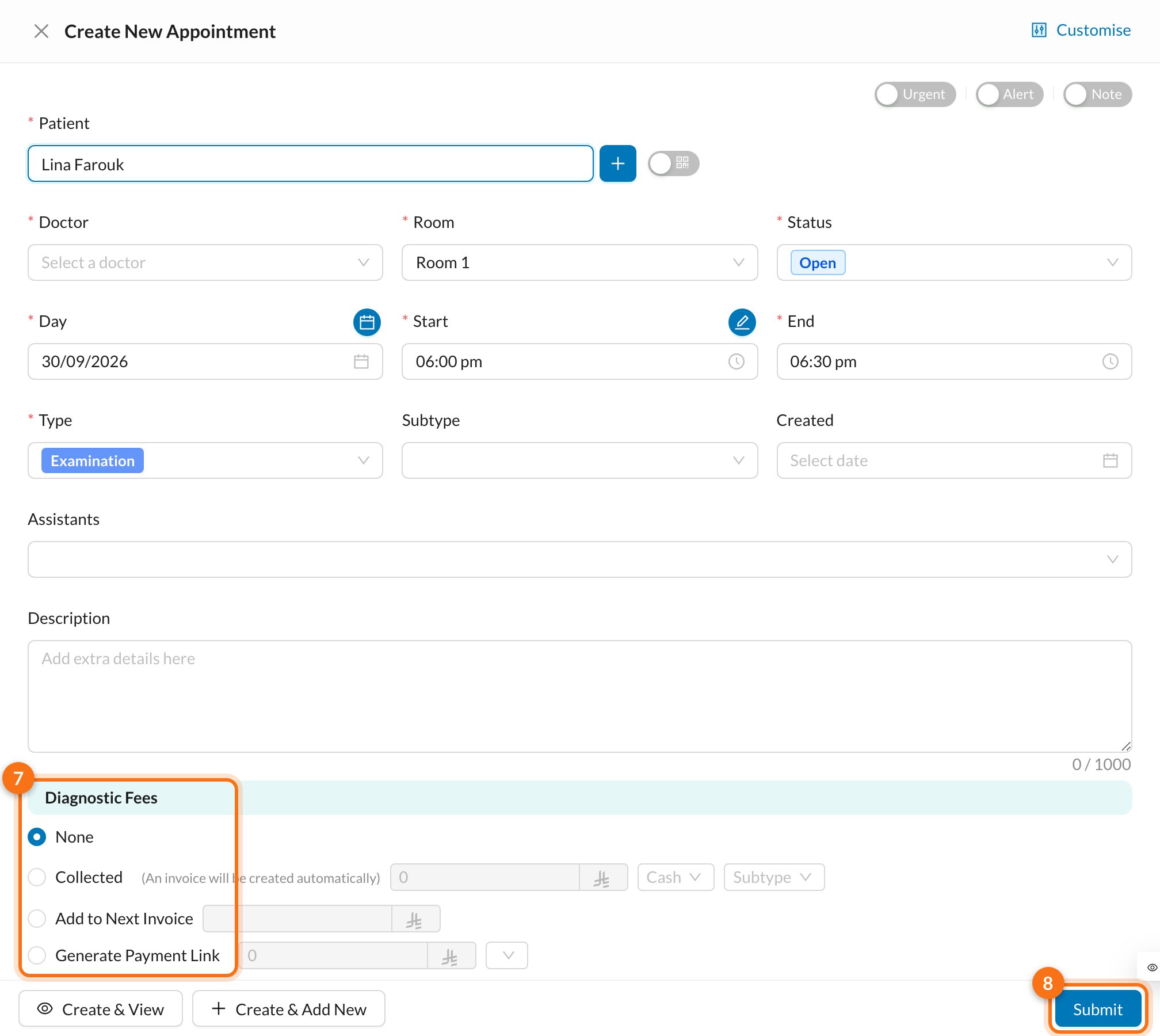
- Diagnostic Fees:
- None: no fee now.
- Collected: the patient pays now. Enter the amount and payment method. An invoice and payment are created automatically.
- Add to Next Invoice: the fee is added to the patient’s next invoice.
- Generate Payment Link: send the patient an online payment link (only if online payments are set up).
- Click Submit, or Create & View to open the appointment, or Create & Add New to book another one.
Diagnostic fees can only be set when creating the appointment. Later, use Collect Diagnostic Fees in the appointment menu. See Collecting fees.
🔁 Repeat an appointment
For a series of visits, open Repeat, set Times to Repeat (this includes the first appointment, so 4 means 4 visits) and the days of the week, or pick the exact dates. Click Available Slots to check that each date is free.⚠️ Warnings when saving
Dentolize warns you, and lets you confirm anyway, when:- Doctor has another appointment at the same time, or This Room has another appointment at the same time.
- Doctor is not available at this time.
- Branch is closed at the specified time!