

1
Click Add Balance
On the patient’s profile, or in the appointment’s Patient Actions.
2
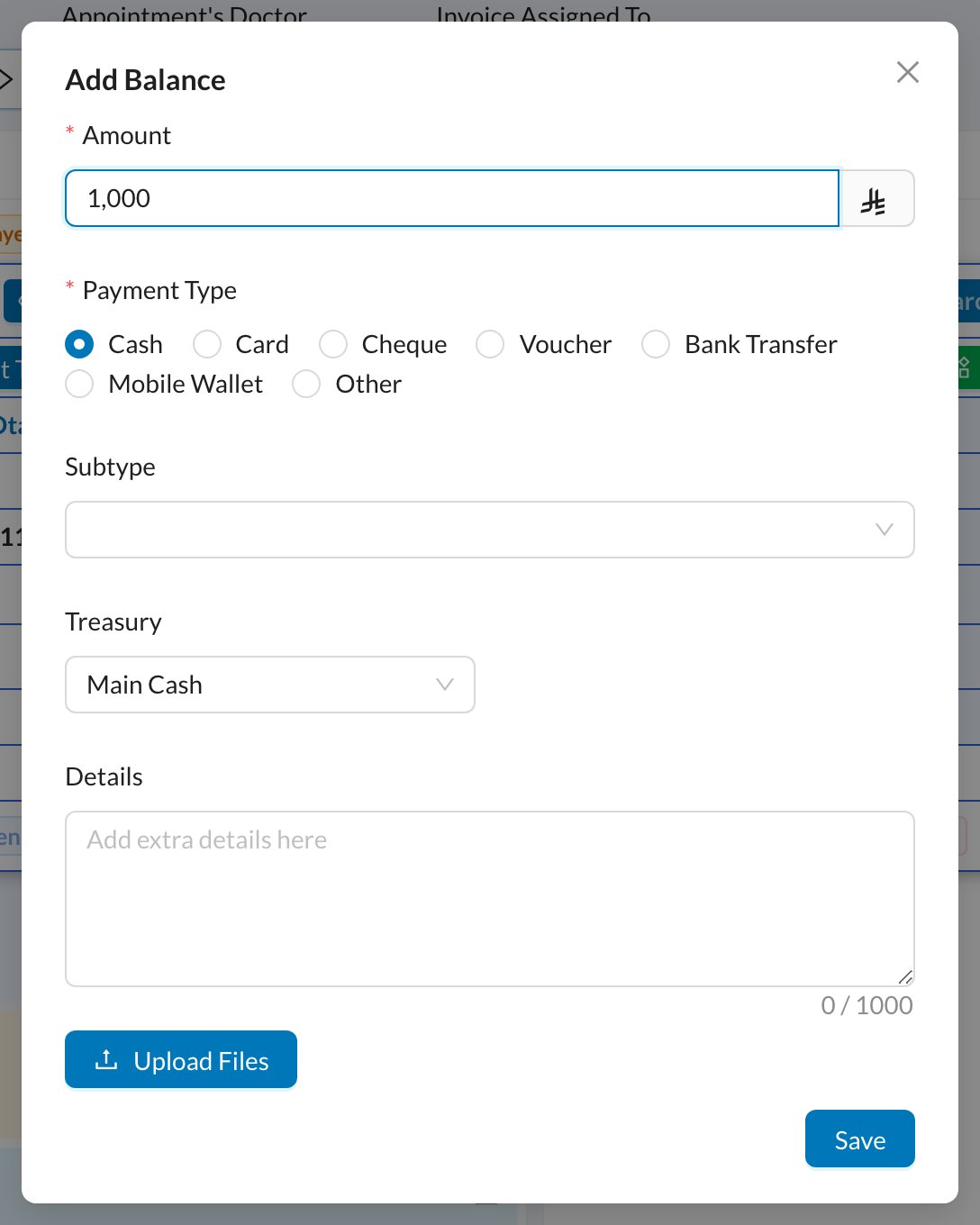
Enter the deposit
Enter the Amount, choose the Payment Type and Treasury, and click Save. The balance shows on the patient’s profile.
3
Use it on an invoice
Open the invoice and click Add Payment.
4
Pay from the balance
Tick Deduct paid amount from Patient Balance and click Save. If the balance isn’t enough, the rest is paid with the payment type you chose.
The deposit counts as money received on the day you add it. When the patient later pays an invoice from the balance, the money isn’t counted again.
Still stuck?
Send us a message in System Chat inside Dentolize with a screenshot, and tell us which step didn’t work. Tip: next time, search this site first. Most answers take less than a minute.