

1
Open Expenses
Go to Finances → Expenses and click New Expense (or use the + menu).
2
Describe the expense
Enter a Name (for example “Dental supplies”), the Total and the Type. You can also link a User, Lab or Supplier.
3
Pay now (optional)
Tick Paid, then choose the Payment Type and the Treasury the money comes from. Leave it unticked to pay later with Add Payment.
4
Click Create
The expense is saved for the branch selected in the side menu.
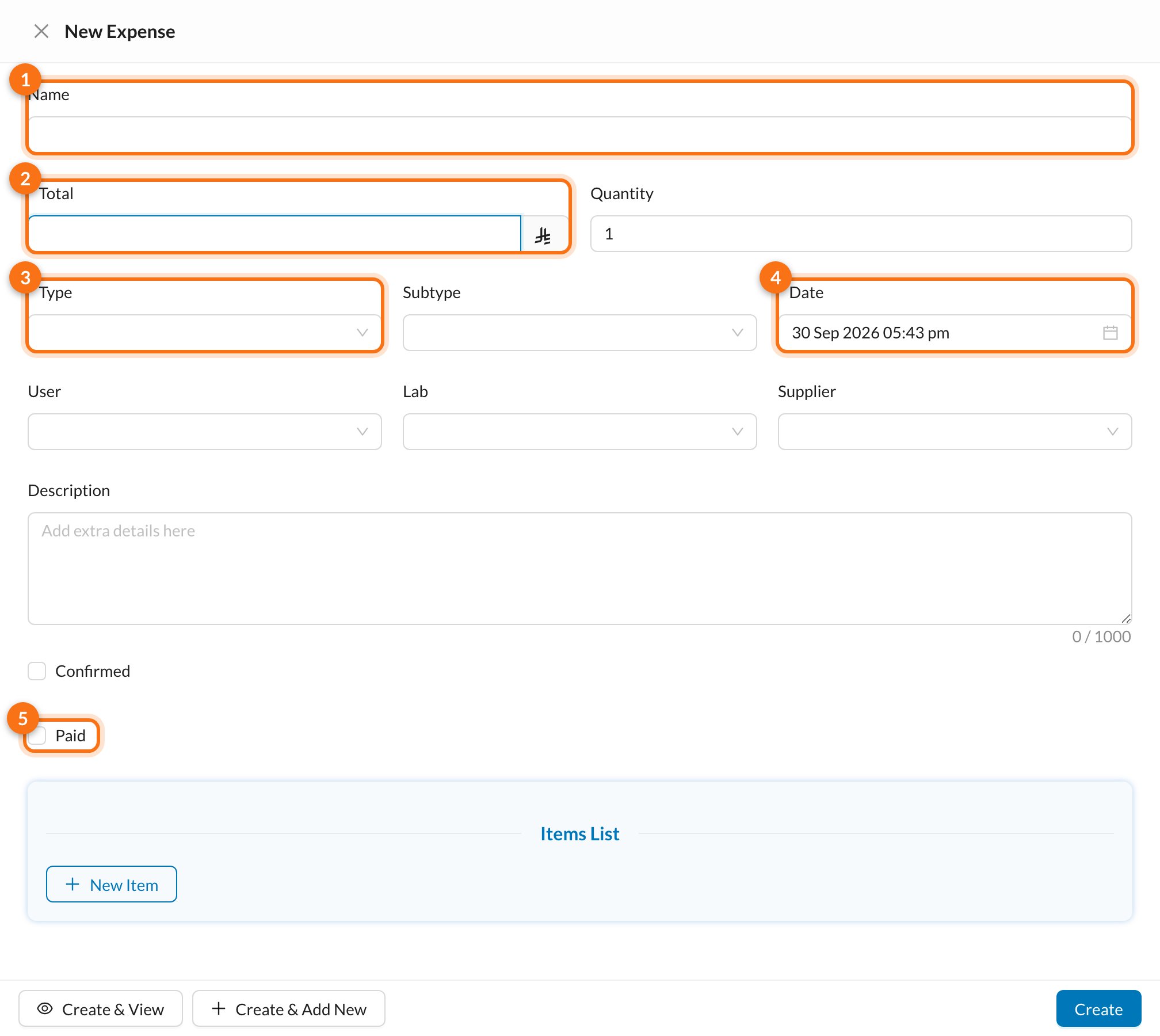
The Date is today by default and can’t be in the future. Only users with permission can change it.
Still stuck?
Send us a message in System Chat inside Dentolize with a screenshot, and tell us which step didn’t work. Tip: next time, search this site first. Most answers take less than a minute.