📋 The expenses list
Go to Finances → Expenses: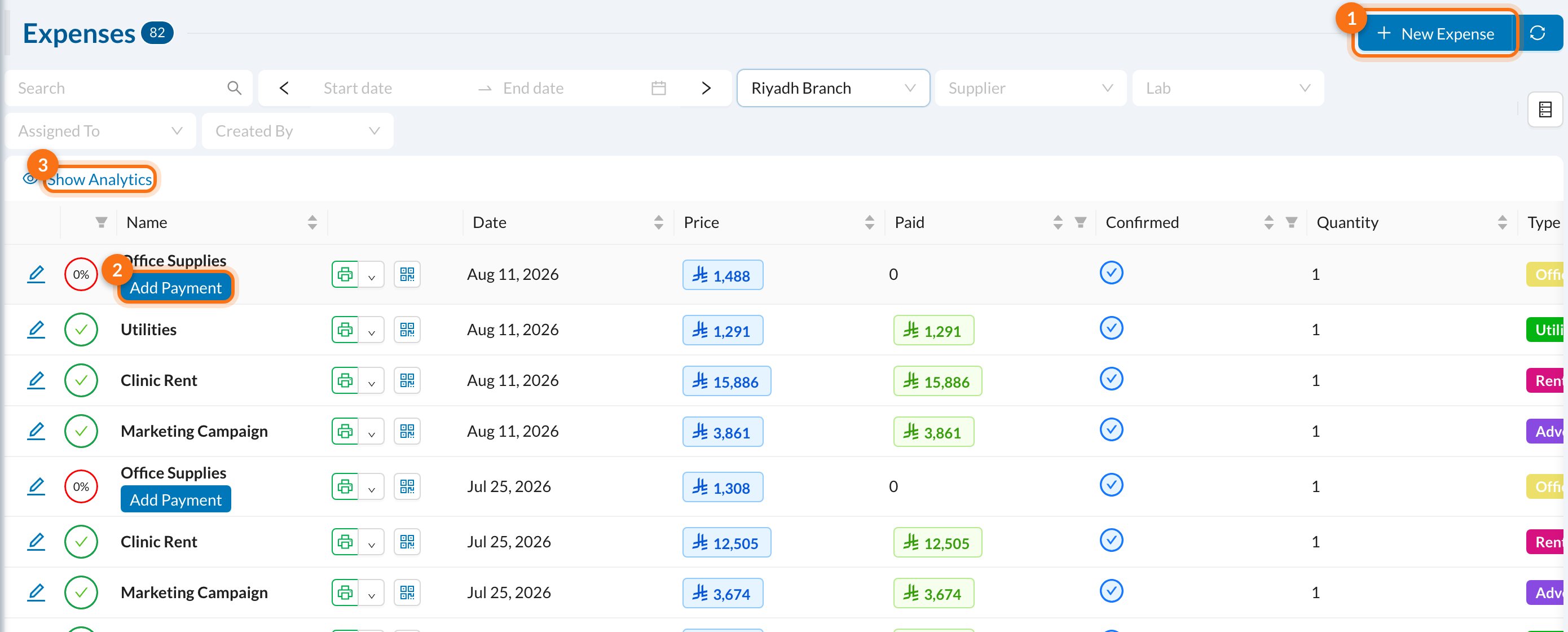
- New Expense.
- Add Payment: shown on expenses that aren’t fully paid. The ring shows how much is paid.
- Show Analytics: the total, paid and remaining amounts for each expense type.
➕ Add an expense
Click New Expense: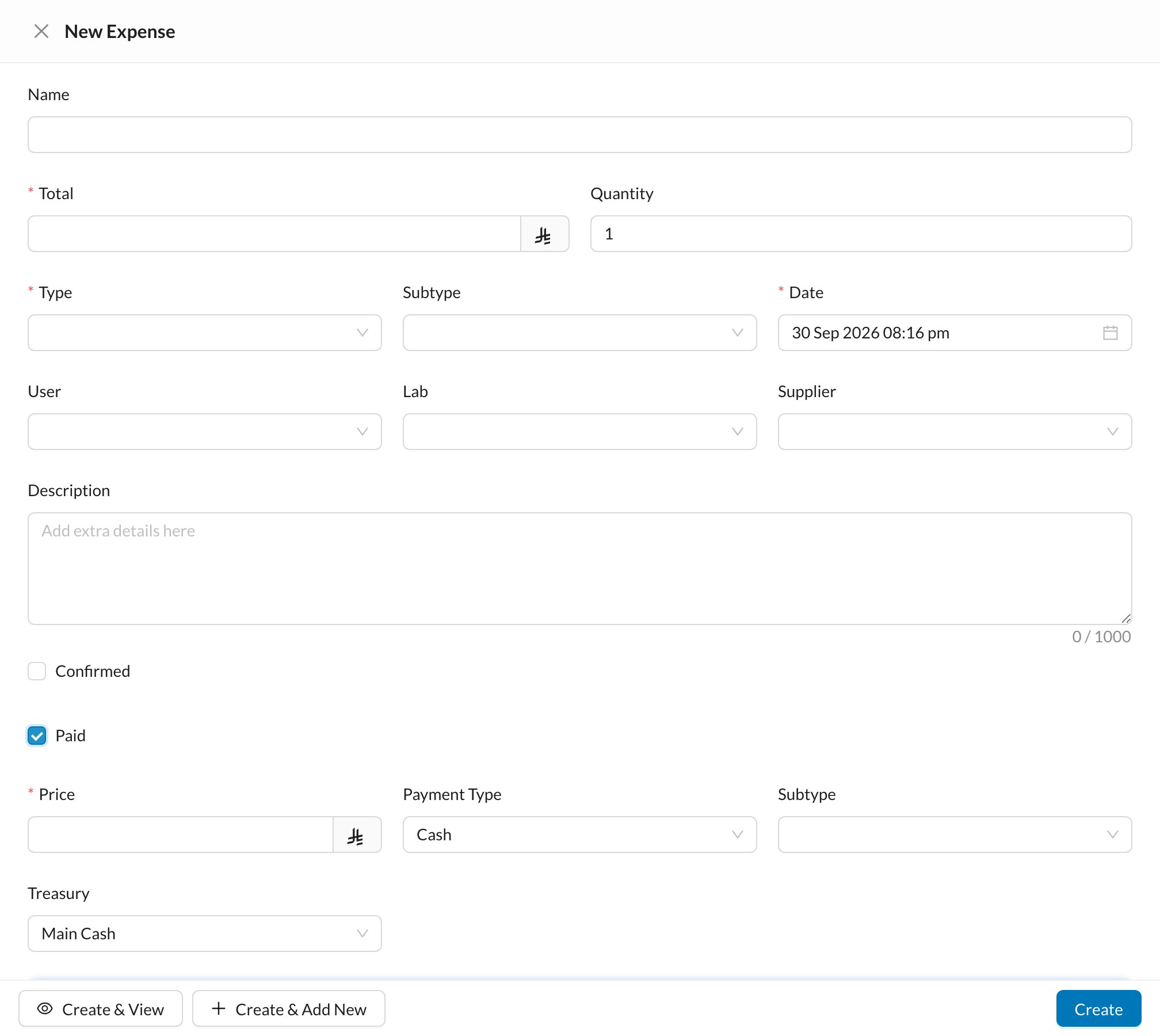
1
Describe the expense
Enter a Name, the Total and the Quantity, and choose the Type (the types are set in Clinic → Types). The Date can’t be in the future.
2
Link it (optional)
Link the expense to a User (for example, for salaries), a Lab or a Supplier, so it shows on their accounts.
3
Record the payment now (optional)
Tick Paid if you’re paying now. Enter the amount paid (Price), the Payment Type and the Treasury the money comes out of.
4
Create
Click Create. Create & View opens the expense afterwards, and Create & Add New clears the form for the next one.
For a salary expense you can tick Deduct From Next Automatic Salary: the amount is taken off the user’s next automatic salary (for example, an advance). Recurring expenses like rent can be created every month automatically, see Monthly expenses.
💸 Pay an expense
Click Add Payment on an unpaid expense: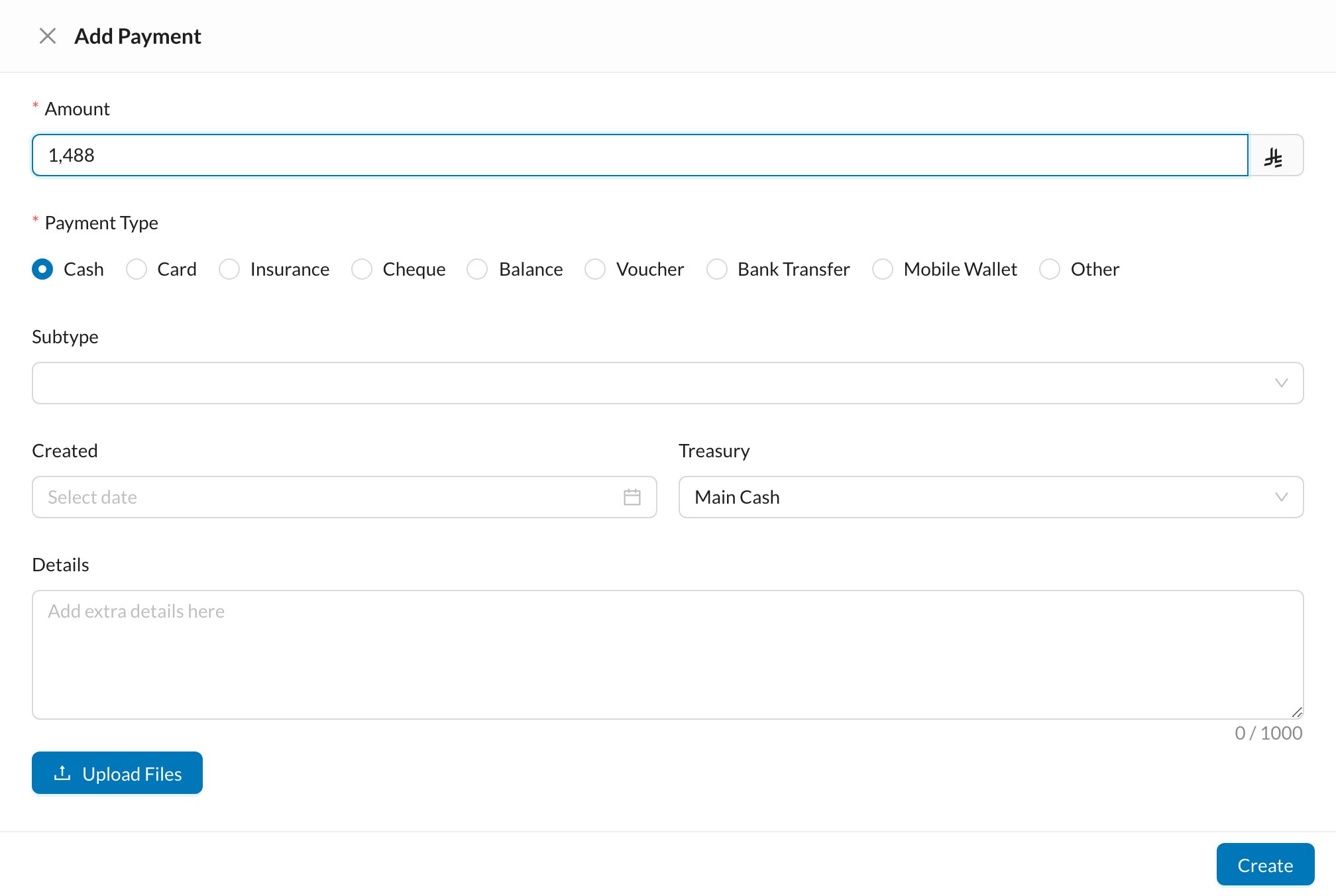
🧾 Expense payments
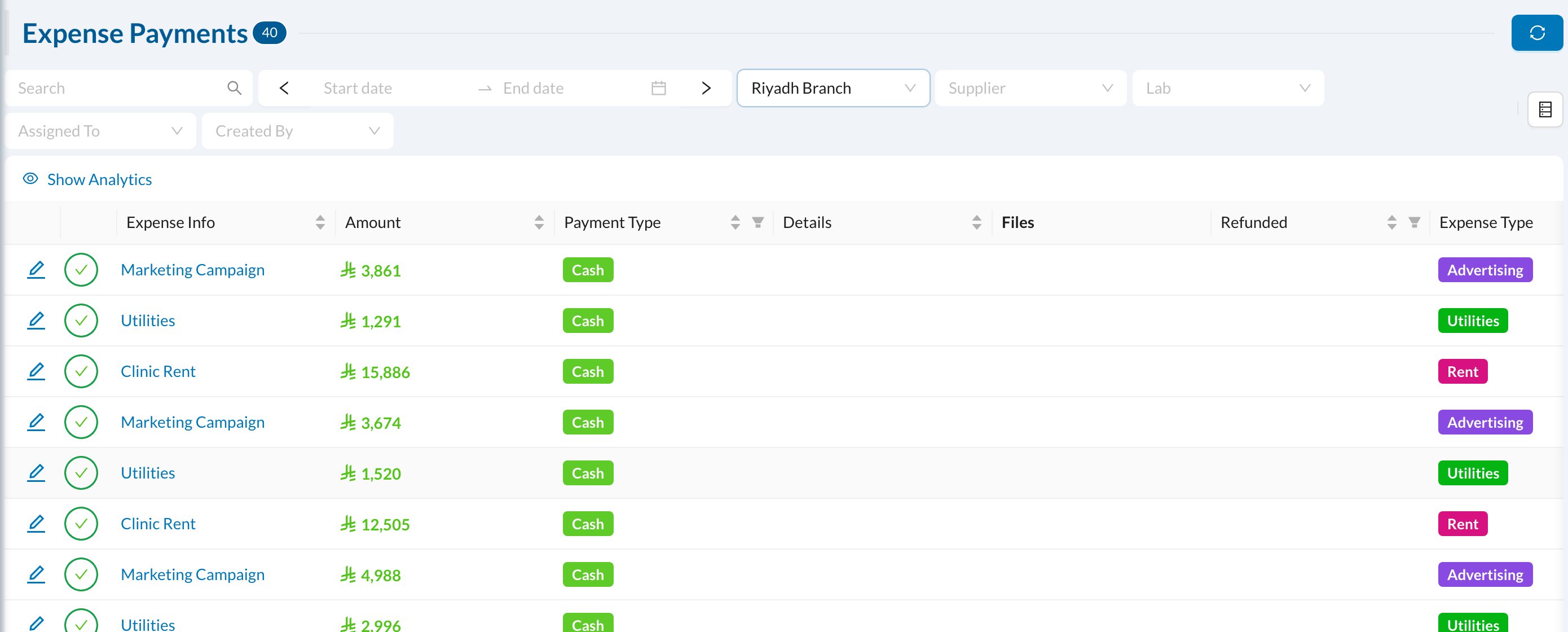
Finances → Expense Payments lists every payment made for expenses: