
➕ Add an expense

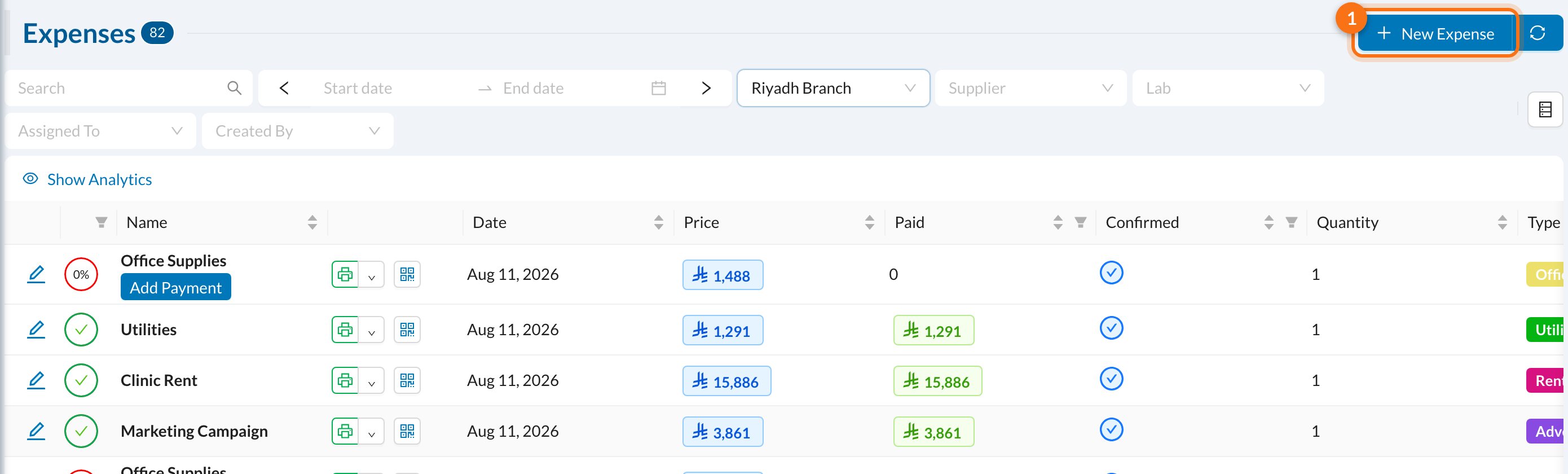
Go to Finances → Expenses and click New Expense (1), or use the + menu: 1 New Expense 1 Name, 2 Total, 3 Type, 4 Date, 5 Paid
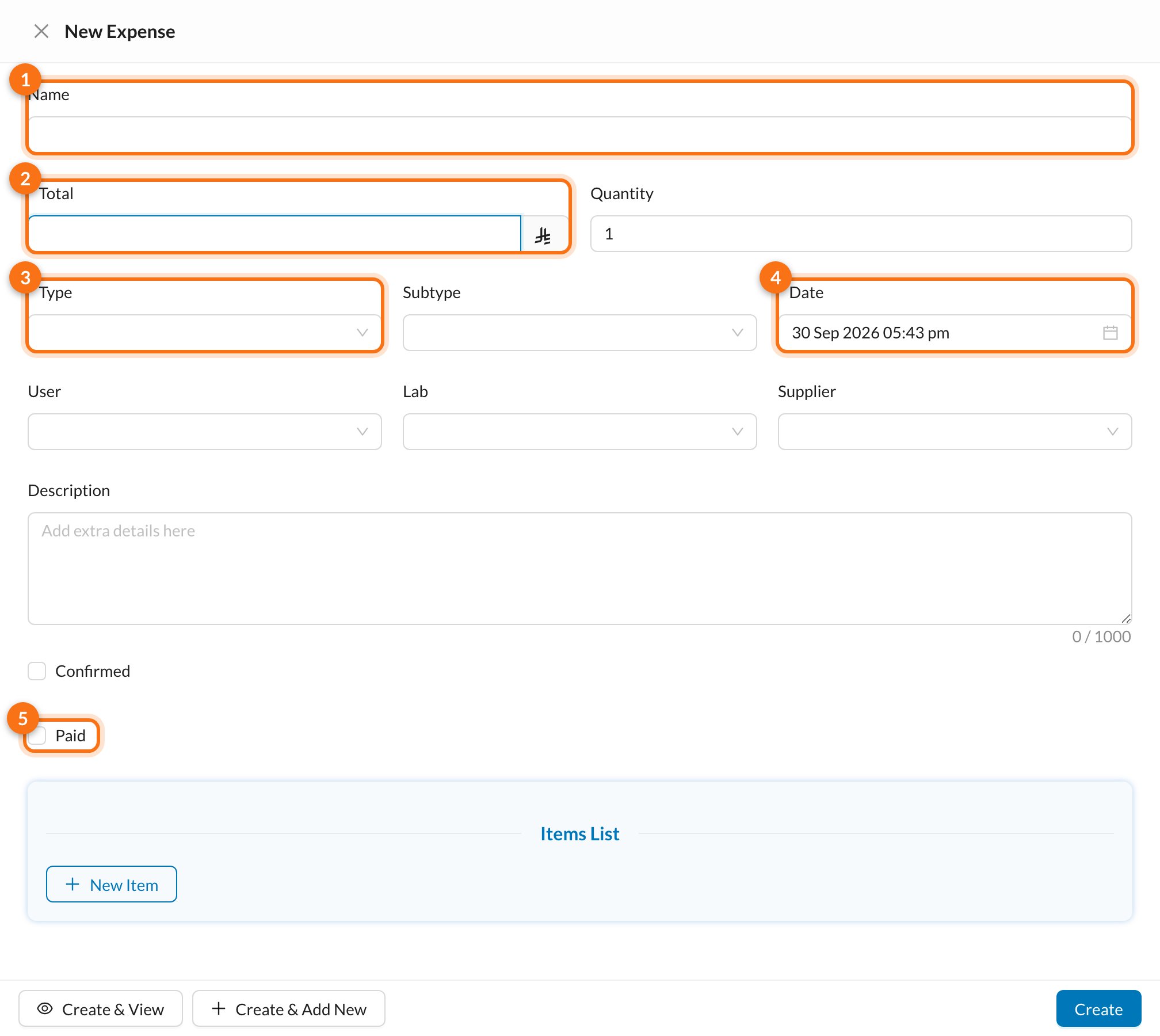
  1. Name: what it’s for, for example “Dental supplies”.
  2. Total: the amount.
  3. Type: the expense category (Salaries, Rent, Supplies…). Types are set in your clinic’s settings.
  4. Date: today by default. Only users with permission can change it.
  5. Paid: tick it if you’re paying now, then choose the Payment Type and Treasury the money comes from.
You can also link a User, Lab or Supplier, add a Description, and list items with quantities in the Items List (the items’ total replaces the Total). Click Create.
The expense is recorded for the branch selected in the side menu.

💳 Pay an expense later

In Finances → Expenses, click Add Payment on the expense, or go to Finances → Expense Payments. Enter the amount, payment type and treasury. You can pay several expenses at once; the payment is split starting from the oldest.
An expense with payments can’t be deleted. Delete its payments first.

🔁 Monthly expenses

For fixed monthly costs such as rent, set them up once in Settings → Processes → Monthly Expenses, then use Generate Expenses to create them for a period.
Lab orders and patient refunds create expenses automatically.
For the full expenses list, bulk payments and expense payments, see Expenses.