

Pricing update from 1 October 2026: replies inside the 24-hour window are free for the first 1,000 messages per WhatsApp number each month. After that, Meta charges for them. The WhatsApp Bot page shows a counter of the free messages used this month. See WhatsApp.
🔑 Accessing the WhatsApp Bot Interface
From the side menu, select WhatsApp Bot..png?fit=max&auto=format&n=27fR3FXPy1fTW4In&q=85&s=a4c422d05375971d61c49277c785c6b2 "2(xzc3) Pn")
- 👤 Patient Name
- 📞 Phone Number
- 👨💼 Staff Assigned to the Conversation
- ⏱️ 24-hour free messaging counter
Note: Any conversation initiated by the patient is free for 24 hours, during which you can reply without restrictions, or you can send templates.
After 24 hours, replies are only possible if the patient initiates contact again or via paid message templates.
After 24 hours, replies are only possible if the patient initiates contact again or via paid message templates.
💬 Managing Conversations and Replying to Patients
by clicking into any conversation, you can:- 💬 View automated bot messages, staff replies, and patient responses.
- ✍️ Reply to the patient from the text box, including sending voice notes, images, files, or videos.
- Send pre-saved templates or notes for faster and easier replies.

A notification at the top of the chat indicates the status of the 24-hour messaging window.
🧾 Patient Information and Linked Files
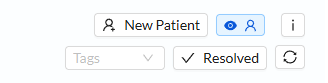
At the top-right of any conversation, you will find:- Patient Card: Appears if the patient is registered in the system.
- Duplicate Medical Files: Shows if the patient has multiple files in Dentolize.
- Assigned Staff: Can be changed by an admin or manager.
- Block Patient: Disable communication with the patient.
-
Resolved: Mark the issue as resolved when the patient’s request is resolved.
🏷️ Patient Tags
You can add custom tags to the patient card in the WhatsApp Bot, such as “Interested in Aesthetics,” “Complaint,” or “Interested in Offers,” etc.- Tags appear under the patient’s name and can be used for filtering and categorizing patients.
Tags can be added or modified from Settings → Clinic → Types.
✅ Identifying Registered and Unregistered Patients in Dentolize
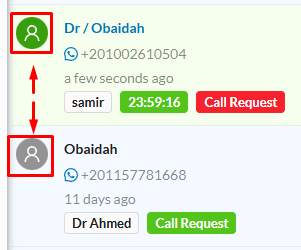
- Gray Icon: Patient is unregistered and has no medical file in the clinic.
- Green Icon: Patient is registered with a medical file available at the top-right of the conversation.
🆘 Managing Support Requests
- Each conversation is treated as a support request in the WhatsApp Bot.
- You can mark the issue as resolved using the button at the top-right of the conversation.
- Track requests that the bot cannot handle.
- Reply directly to patients with questions or complaints.
Marking an issue as resolved closes the request and helps maintain workflow organization and service quality.
📄 Viewing All Patient Support Requests
Support requests include appointment reschedules, general inquiries, or specific questions.-
All requests appear under the Requests tab.
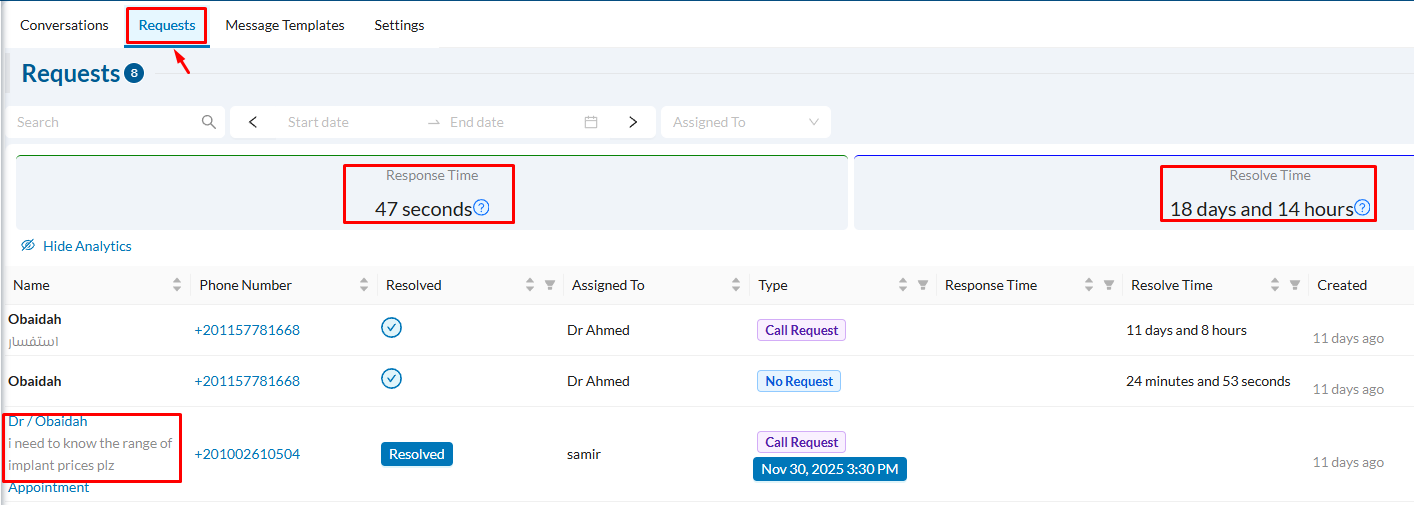
- Clicking on a request opens the patient conversation directly.
- Review the patient’s request and take the necessary action (e.g., reschedule, reply).
- Click Issue Resolved to close the request.
- Average response time
- Average resolution time
📅 Appointments Booked via WhatsApp Bot
Appointments booked through the bot are not automatically confirmed.How to Confirm Appointments:
-
On the dashboard or calendar section, unconfirmed appointments are marked as Pending Confirmation.
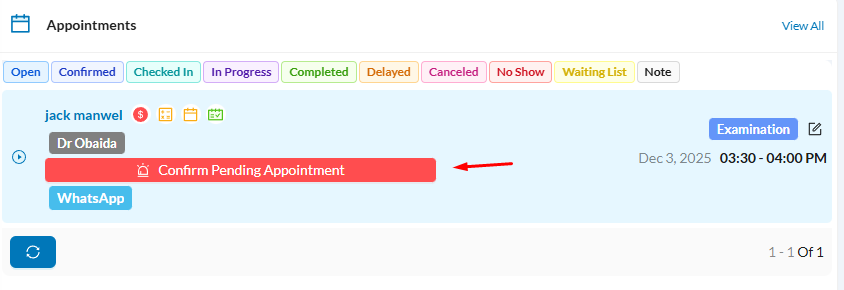
- Click Confirm Appointment to finalize the booking.
- The assigned doctor receives a notification on the mobile app.
Tracking Future Appointments:
- Reception staff may need to review and confirm or reschedule future appointments.
-
Access the Summary on the dashboard and click Appointments Pending Confirmation to view all unconfirmed appointments.

- The same list can also be accessed via Appointment logs → Notifications icon at the top-right.
- You can edit appointments, change doctors, and notify patients of updates.
🏷️ Filters and Categories in the WhatsApp Interface
Use the Filter button to display conversations by: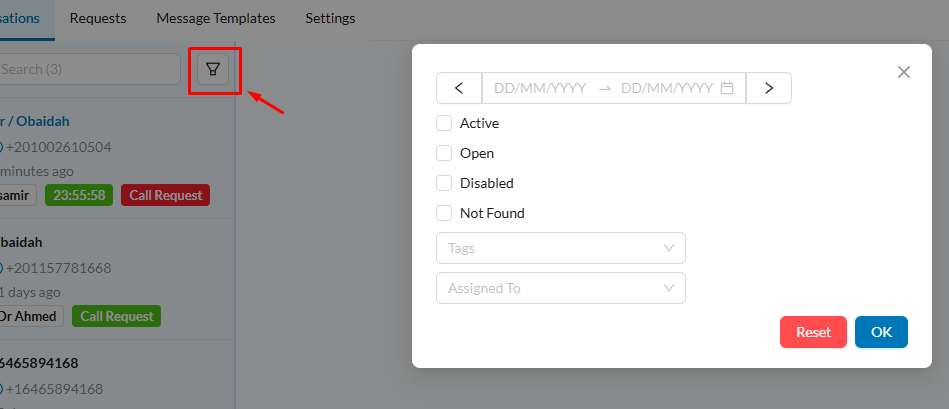
- Date or day
- Active: conversations (within the 24-hour free window)
- Open: Conversations with unresolved requests
- Disabled: Blocked conversations
- Not Found: Unregistered patients
- Specific tags
- Conversations assigned to a specific staff member
These filters help speed up search and organize follow-ups.
📱 Using the WhatsApp Bot on Mobile App
- Open the Dentolize mobile app and tap the WhatsApp Bot icon in the bottom menu.
-
All conversations will appear.
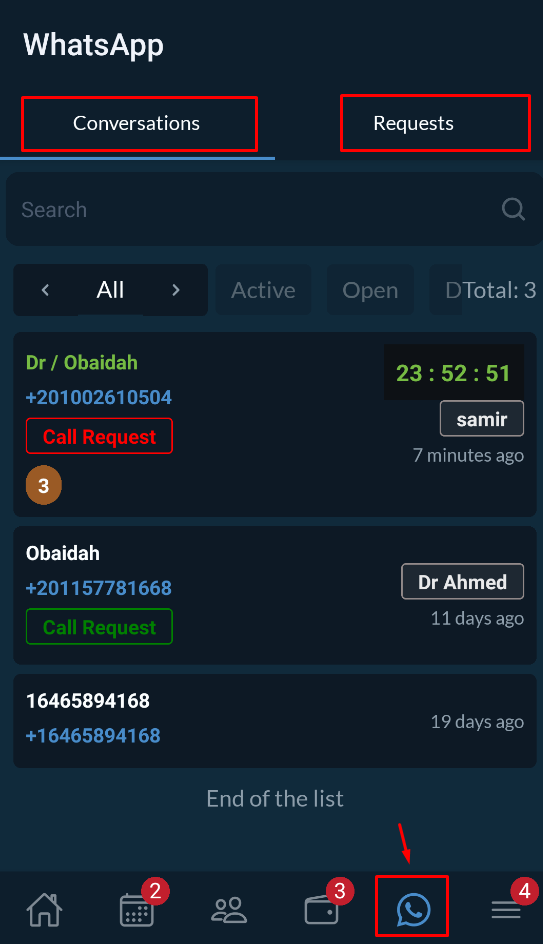
- Reply to patients
- Open patient files
- Track support requests
- Mark Issue Resolved
- Reassign conversations to another staff member
Note: WhatsApp Bot settings cannot be modified via the mobile app; a browser must be used for that.
🔜 What’s Next?
In the next section, we will cover:- Activating free and paid message templates
- Marketing messages
- Adding payment methods to the Meta account
❓ Frequently Asked Questions (FAQ)
How do I know if a patient conversation is still within the 24-hour window?
How do I know if a patient conversation is still within the 24-hour window?
A bar at the top of the chat shows the remaining time before the free window expires.
Can I send images and files through the bot?
Can I send images and files through the bot?
Yes, you can send images, files, voice notes, and videos.
Can staff change the person responsible for a conversation?
Can staff change the person responsible for a conversation?
Yes, this can be done by a supervisor or manager.
Why can’t I reply to a patient?
Why can’t I reply to a patient?
The 24-hour window has probably ended. The patient must send a new message first.
Can the bot be managed from mobile?
Can the bot be managed from mobile?
Yes, through the Dentolize mobile app.