

Types of Messages
Utility Messages:Used for sending appointment confirmations, invoices, or prescriptions, etc.
✅ The goal is to serve the patient after any clinic procedure.
❌ Does not include marketing offers. Marketing Messages:
Used to send promotions, discounts, or occasion greetings.
Requires a separate classification and approval from Meta.
The cost of marketing messages is higher than utility messages.
💰 Paid messages vary in price depending on the country and whether the message is utility or marketing.
Checking Message Prices
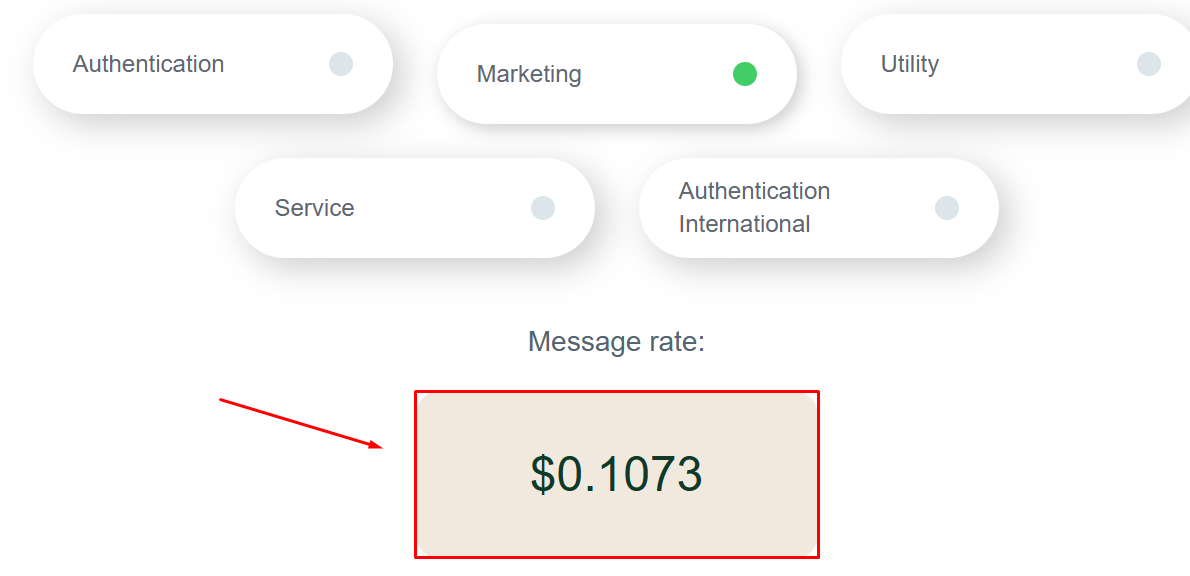
You can check the pricing for your country via this link :- Select the country (e.g., Egypt) and currency (e.g., USD).
- The price per message will appear based on type:
- Utility
-
Marketing
Adding a Payment Method in Your Meta Account
- From the WhatsApp Bot settings page, click Add/Edit Payment Method.
- Make sure you are inside the business portfolio linked to the WhatsApp Bot.
-
Select the WhatsApp Business Account before adding the card.

- Click Add Payment Method next to the WhatsApp Bot account.
Daily Message Limit
✅ Yes, there is a daily message limit: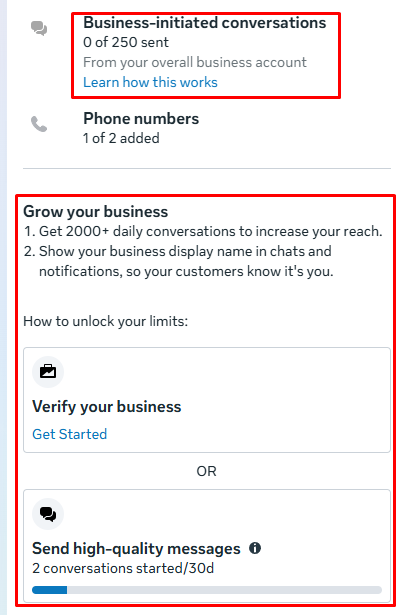
- New meta WhatsApp account: 250 messages/day
- After account growth and quality improvement, it can increase to 1,000 or even 100,000/day
Creating or Editing Message Templates & Getting Meta Approval
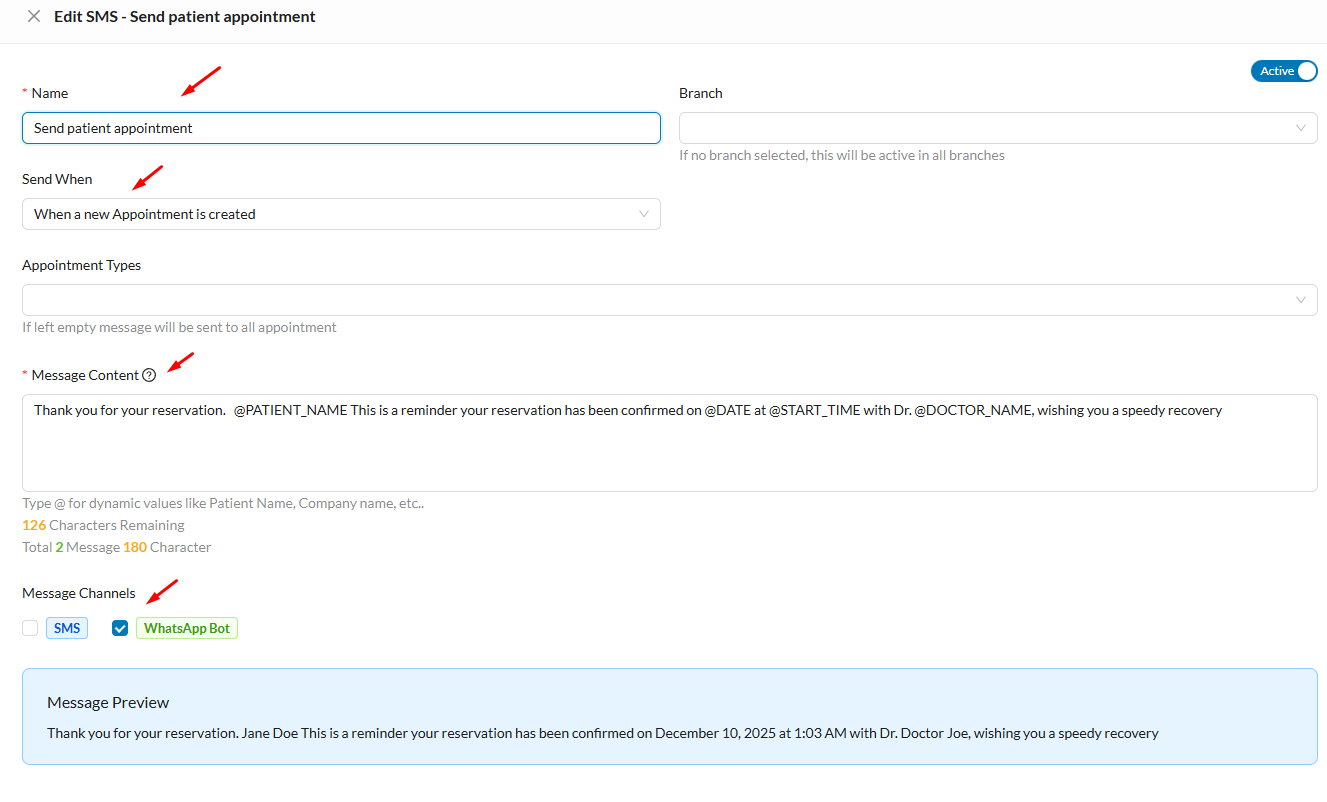
- Go to Settings → Templates → SMS.
- You can use our default templates, edit them, or create a new template by clicking New SMS +.
- Message Name: Must be in English for Meta approval.
- Branch: Assign the branch if the message is branch-specific; leave empty for all branches.
- Send When: Select the event after which the message will be sent automatically (e.g., after creating an appointment or issuing an invoice).
- Message Content: Write the text to be sent to the patient. Use dynamic values by typing
@to insert patient-specific data.
- Message Channels: Select WhatsApp Bot and turn off SMS to send via WhatsApp.
- Preview: See a preview of the message without dynamic values.
-
Activate or deactivate automatic sending using the toggle at the top of the template.

- An orange warning icon appears next to the template → Click it → Click Submit.
-
Select Utility or Marketing, and the language (Arabic or English).
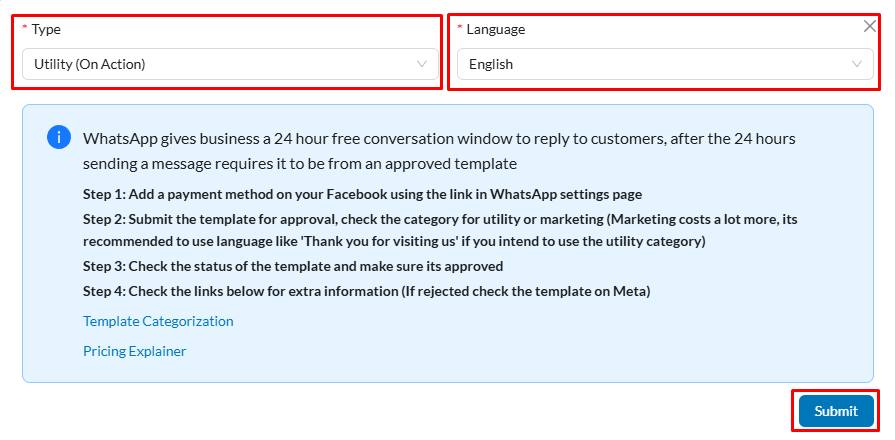
- Approval may take 1–24 hours; you’ll be notified via email.
-
You need to click refresh to check the template status.
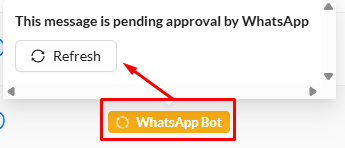
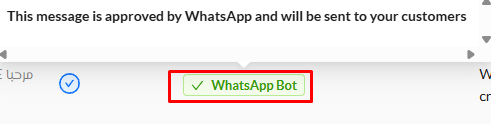
- ✅ Green icon: template approved and ready to send
- ❌ Red icon: template rejected by Meta, must edit or create a new one
Marketing Messages
- Same process as above, but select Marketing type when getting template approval from Meta.
-
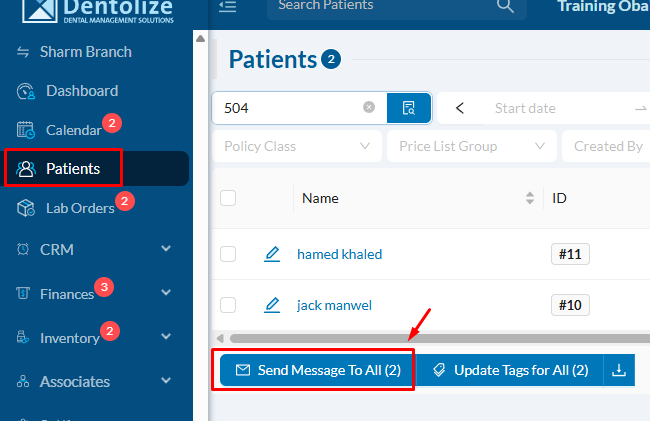
After approval, send to all patients or a specific segment based on branch or category from the Patients section.
Patient Reminders
- Send automated patient reminders using WhatsApp Bot:
Settings → Templates → Patient Reminders - Edit the reminder content, activate Send automatic SMS, and select WhatsApp Bot as the channel.
- Send the template to Meta for approval as explained above.
Monitoring Templates and Messages
Review the approved or modified templates inside your Meta account through Manage Templates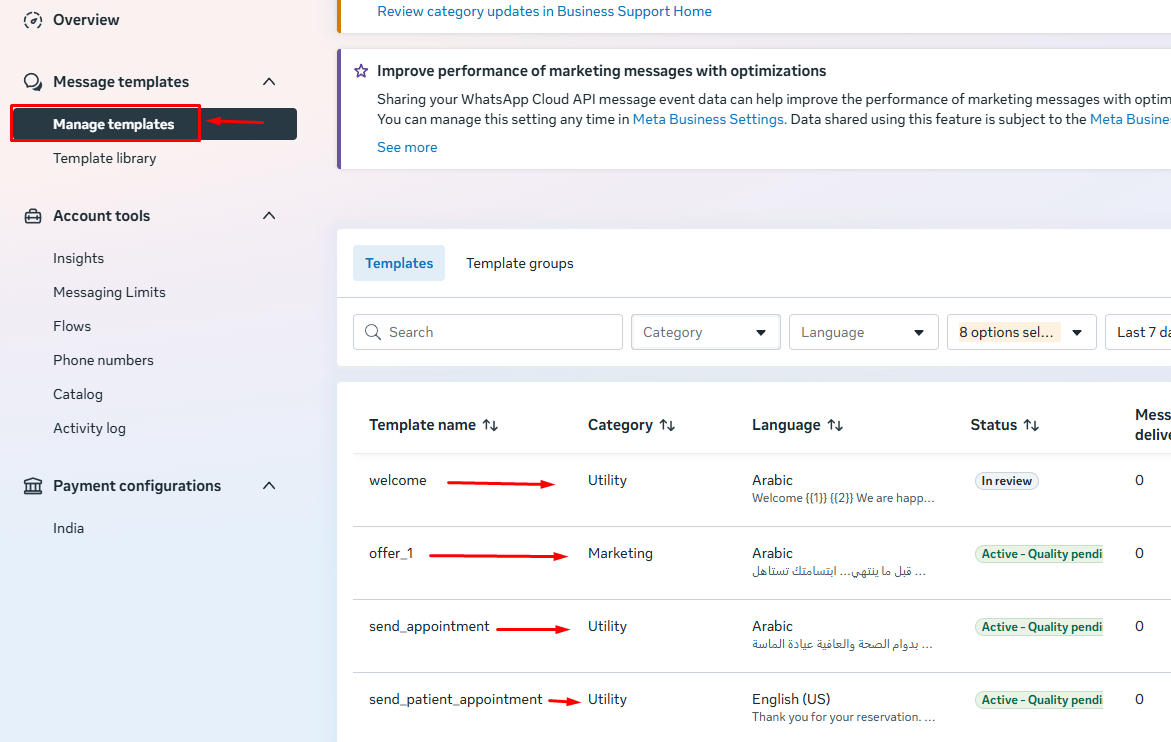
Important Tips
- Ensure template names are in English.
- Always confirm Meta approval before sending.
- Without a payment method, paid messages cannot be sent even if approved.
- Track daily message limits to avoid sending issues.
- Watch your email for notifications from Meta regarding reclassification.
❓ Frequently Asked Questions (FAQ)
Why does Meta reject my template?
Why does Meta reject my template?
Text is unclear, contains promotion in a utility message, or starts with a dynamic value.
Can I edit a template after approval?
Can I edit a template after approval?
Yes, but approval will be withdrawn and must be re-reviewed.
Why does Meta change the message type automatically?
Why does Meta change the message type automatically?
The content may contain promotional elements.
Why is the daily sending limit 250 only?
Why is the daily sending limit 250 only?
This is the initial limit; it increases with good usage.
Do I need a website to link WhatsApp?
Do I need a website to link WhatsApp?
Yes, Meta requires a website or official page.