

🖼️ First: Edit WhatsApp Profile Picture
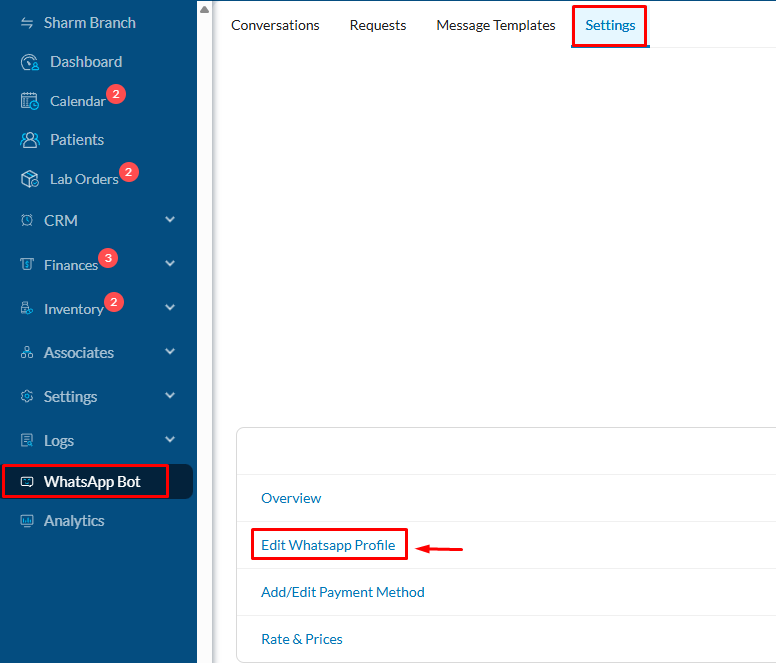
After activating the WhatsApp Bot:- Click WhatsApp Bot in the side menu.
- Select the Settings tab.
-
On the settings page, click Edit WhatsApp Profile.
- Your Meta account will open automatically. Make sure it is the same account used during activation.
-
Select the activated WhatsApp Bot number and click Profile.
.png?fit=max&auto=format&n=5OxjjKdnRCMvxM-j&q=85&s=46e5e769f875bf015a58a8a7a3fe5a25 "2(e1) Pn")
- 🖼️ Profile Picture that appears to patients
- 🏥 Clinic Name (may take up to 24 hours for review)
- 📝 Description – Address – Email
Let’s return to the WhatsApp Bot settings inside Dentolize to continue configuring the rest of the options.
⚙️ General Settings
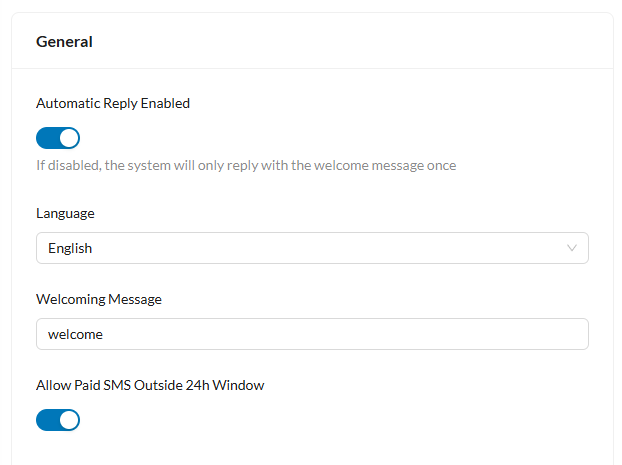
1️⃣ Enable Auto Reply
- When enabled: The bot sends the available options to the patient with every new message.
- When disabled: Options appear only once at the start of the first conversation.
2️⃣ WhatsApp Bot Language
Select the default language the bot will reply in.Patients can change the language later from the bot options.
3️⃣ Welcome Message
You can edit the welcome message that appears to patients at the start of the chat.4️⃣ Allow Paid SMS Outside the 24-Hour Window
- Enabling this option allows you to send paid message templates to patients who haven’t contacted the bot in the last 24 hours.
- Don’t forget to approve the message templates in Meta and add a payment card — this step will be explained in the upcoming sections.
- Messages sent to patients who contacted the bot in the last 24 hours are free of charge.
5️⃣ Ask for the patient’s phone number
Some WhatsApp users hide their number. Turn on Always Ask for Phone Number to ask them to share it on every message until they do, or Ask for Phone Number Before Booking to ask only when they book an appointment.🧾 Patient History Settings
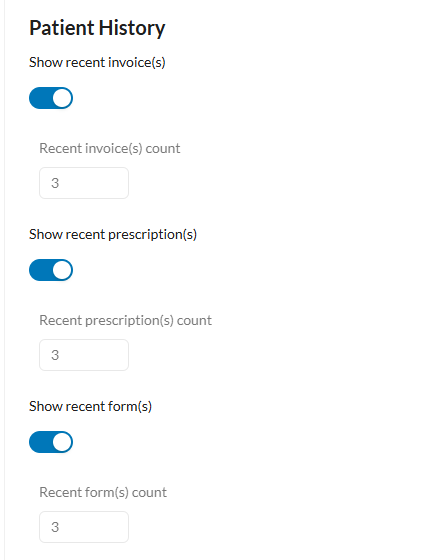
You can control the visibility of the following options in the WhatsApp Bot:- Recent invoices
- Prescriptions
- Forms and consents
- Payments
- Quotations
- Points and rewards
Patient Signature: This feature allows patients to sign their medical consents and payments via their phone through the WhatsApp Bot.
📅 Appointment Settings
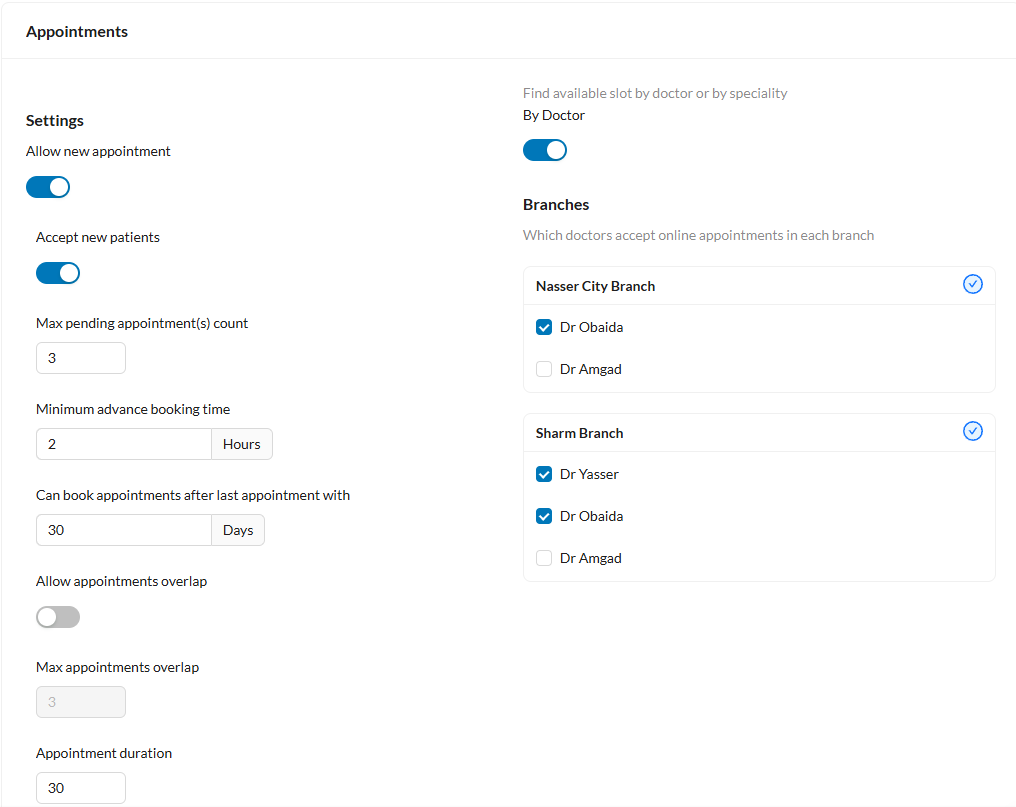
1️⃣ Allow New Appointment
Enable patients to book new appointments directly via WhatsApp.2️⃣ Accept New Patients
Allow new patients to create an appointment and generate a medical file via QR Code.3️⃣ Maximum Pending Appointments
Set the number of appointments waiting for staff approval before the bot stops accepting new unconfirmed bookings.4️⃣ Minimum Advance Booking Time
The minimum time between booking and the scheduled appointment (e.g., 2 hours).- If set to 0 → Instant booking is allowed if the calendar is available.
5️⃣ Booking After Last Appointment
The number of days a patient must wait before booking a new appointment if an existing appointment is scheduled.6️⃣ Allow Overlapping Appointments
Allow the WhatsApp bot to book multiple appointments at the same time with the same doctor. A maximum overlap limit can be set.7️⃣ Appointment Duration
Default duration of appointments booked via WhatsApp (in minutes).8️⃣ Allow Cash Payments
- If cash is disabled → Online payment feature must be enabled to confirm the patient’s booking.
- When enabled, the patient can choose between paying cash at the clinic or online payment.
9️⃣ Allow Reschedule Requests
Enable patients to request appointment rescheduling, which requires staff approval to confirm.👨⚕️ Display Doctors and Branches
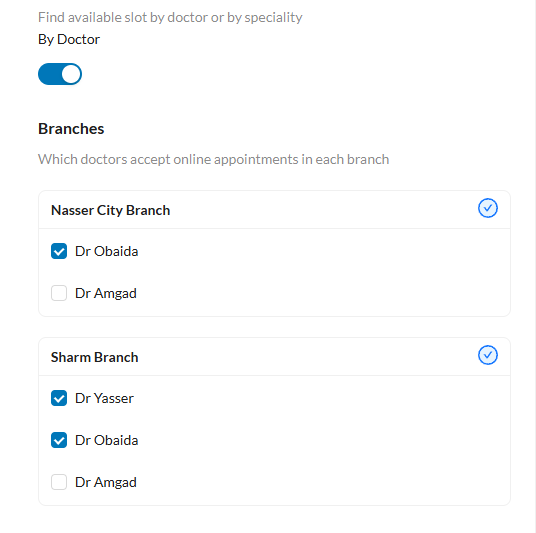
- Select which doctors appear in the booking options by branch.
- You can hide specific doctors or branches.
-
You can disable By Doctor Feature so the bot automatically shows appointment types instead of doctors’ names.
🏷️ Specialties and Appointment Types in the System
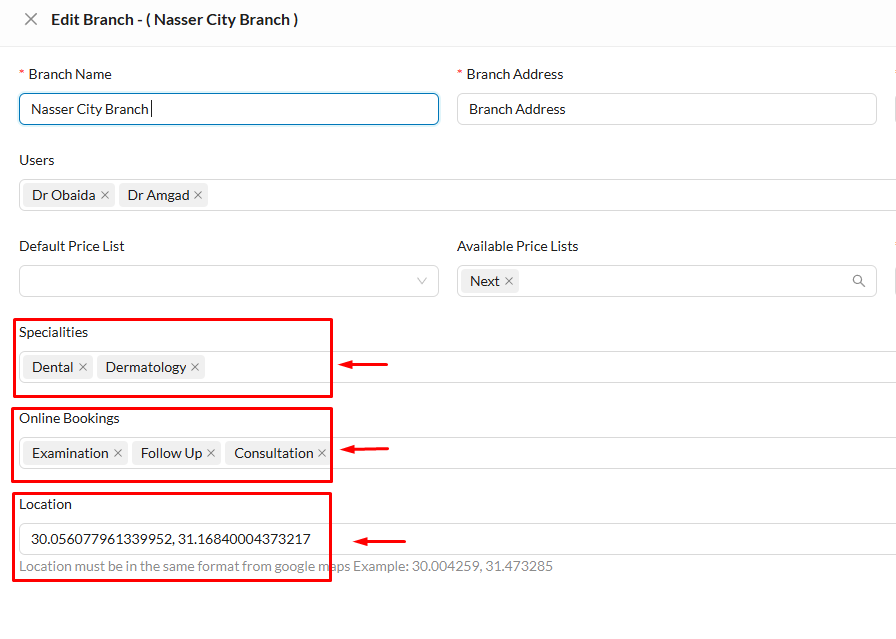
1️⃣ Enable Specialties Within Branches
Ensure specialties are activated in branch settings so they appear to patients in bot options. Steps:Settings → Branches → Edit Branch → Select available specialties and online appointment types.
Add branch location so the bot can automatically send it to patients after booking.
2️⃣ Enable Appointment Types Instead of Doctor Selection
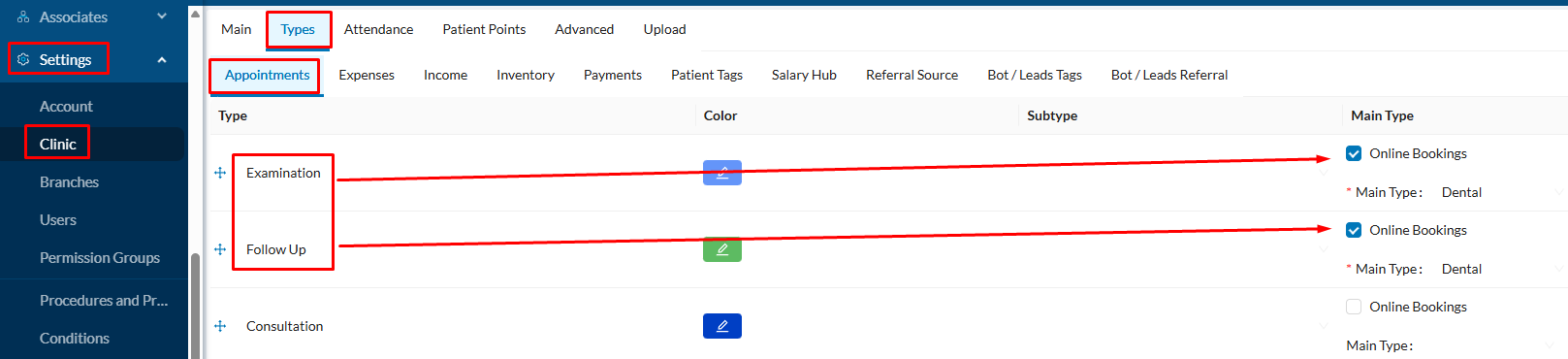
If patients can book by appointment type rather than choosing a doctor, make sure online booking is activated for each appointment type:Settings → Clinic → Types → Appointments
Activate online booking for each type (Check-up – Follow-up – Consultation).
Select the appropriate specialty for each type.
🆘 Support Settings
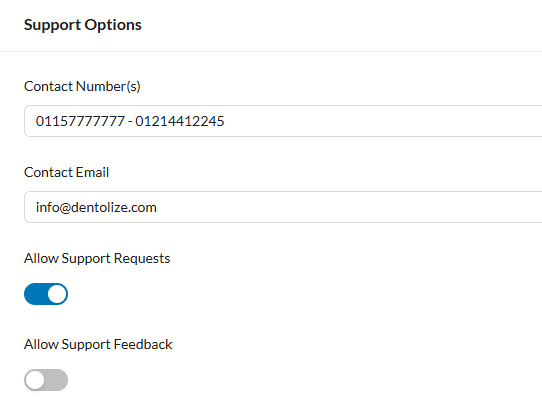
Enter contact information that appears to patients in the Contact Us options:- Phone numbers
- Enable support requests: Allows patients to submit support requests, which are sent to staff immediately.
- Social pages: Facebook – TikTok – YouTube – Instagram
- Allow form links: Add free templates as Useful Links for patients to access anytime from WhatsApp bot
- Link order in menu: Choose the position of Useful Links in the bot menu.
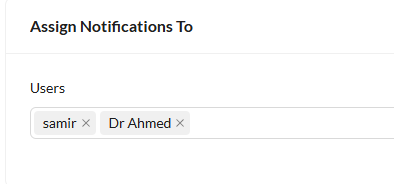
👨⚕️ Notifications Assignment
- Choose users who will receive notifications when patients contact the bot or submit support requests or appointment rescheduling requests.
- Enable Assign All Conversations to a User to have the bot assign each patient conversation to a specific staff member automatically.
🏷️ Leads
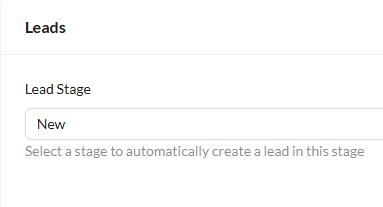
If the Leads (CRM) feature is included in your Dentolize package:- The WhatsApp Bot can automatically add any patient who contacts the bot but is not registered in the leads list.
- You can also choose the stage in which new patients are registered from this option.
❓ Frequently Asked Questions (FAQ)
Can I easily change the clinic name on WhatsApp?
Can I easily change the clinic name on WhatsApp?
Yes, but Meta may take up to 24 hours to approve the new name.
Why doesn’t the WhatsApp profile picture appear after changing it?
Why doesn’t the WhatsApp profile picture appear after changing it?
Meta may need a short time to update the picture — usually just a few minutes.
Can I hide prescriptions or invoices from the patient?
Can I hide prescriptions or invoices from the patient?
Yes, you can do this from Patient History Settings inside the WhatsApp Bot settings.
Can an appointment be booked without creating a patient file?
Can an appointment be booked without creating a patient file?
No — a patient file must be created via the QR Code sent by the bot during the booking process.
Is online payment mandatory?
Is online payment mandatory?
Only if cash payment is disabled.