
➕ Create a prescription

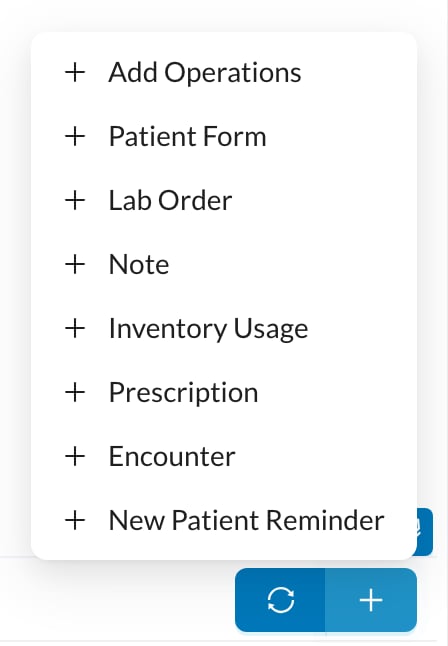
In the patient’s Chart, click + (next to the tabs under the chart) → Prescription: Chart + menu You can also use + in the top bar → New Prescription, or the Prescriptions tab. New Prescription
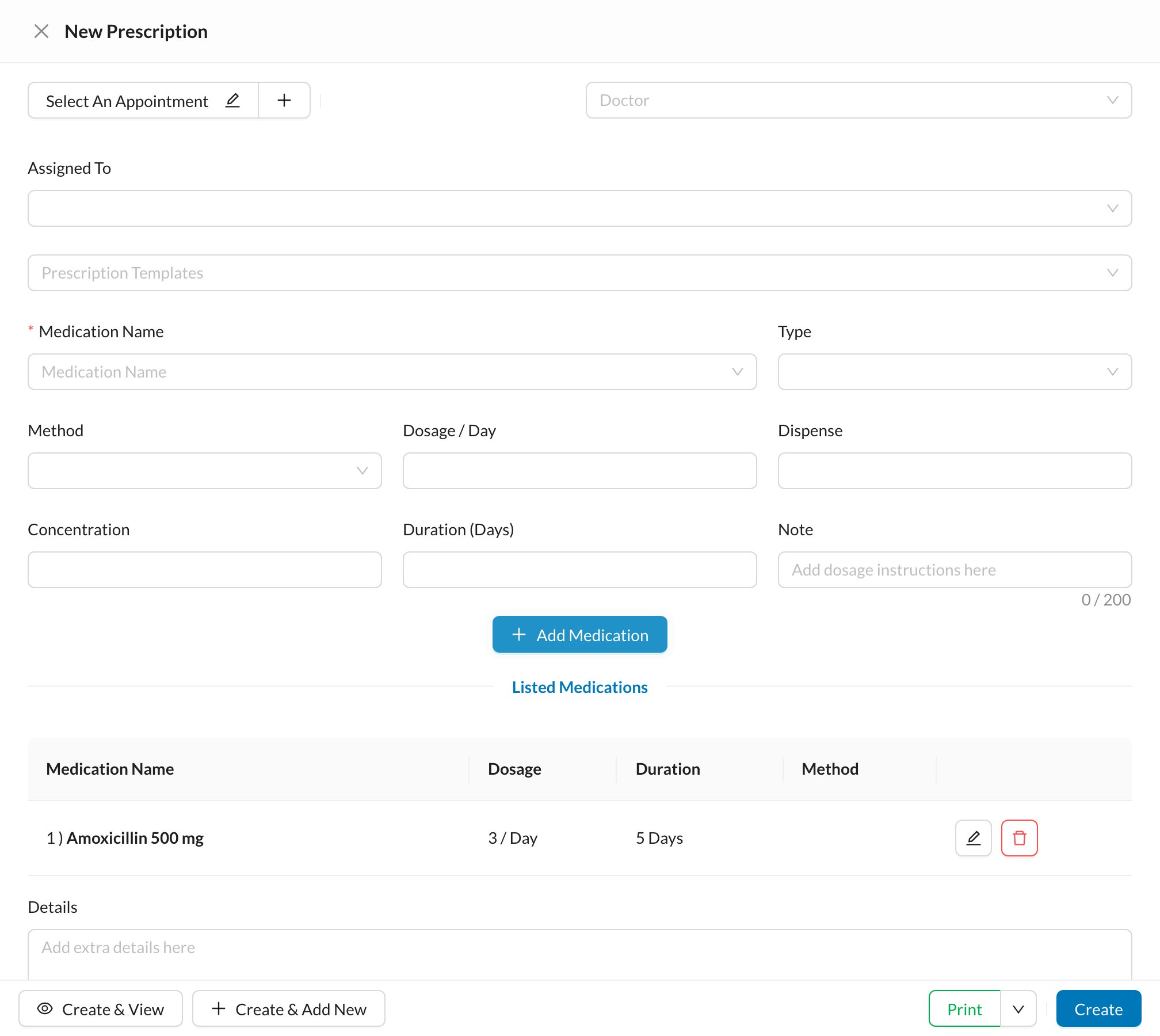
  1. Check the Doctor and, if needed, choose staff in Assigned To.
  2. To start from a template, choose it in Prescription Templates. Its medications are added to the list.
  3. For each medication, type the Medication Name (or pick one from your list), then the Type, Method, Dosage / Day, Duration (Days) and a Note such as “after meals”. Click Add Medication.
  4. Add Details if needed, then click Create, or Print.
Click Add Medication for each medicine. Anything typed but not added isn’t saved. Create stays disabled until at least one medicine is listed.
Dosage and duration take whole numbers. Write more complex directions in the Note.

🖨️ Print and share

Print from the form, the prescriptions list or the prescription page. The layout is set in Settings → Print → Prescription Form. If your clinic turned on the prescription QR code, the QR button shows a link you can send to the patient by WhatsApp.
Save medicines you use often in Settings → Templates → Medications, and common prescriptions in Prescription Templates. Procedures can also create a prescription automatically when they’re started or completed (Settings → Procedures and Prices).