
➕ Create a quotation

In the patient’s Chart, add the planned treatments, tick them, then click the quotation button at the bottom (1): 1 Create Quotation button Create Quotation Check Assign Invoice To, add a Name and Diagnosis if needed, and review the prices, Discount, Tax and Insurance. Use Order to split the treatments into treatment plans 1, 2, 3… Tick Hide Prices to print without prices. Click Create Quotation.

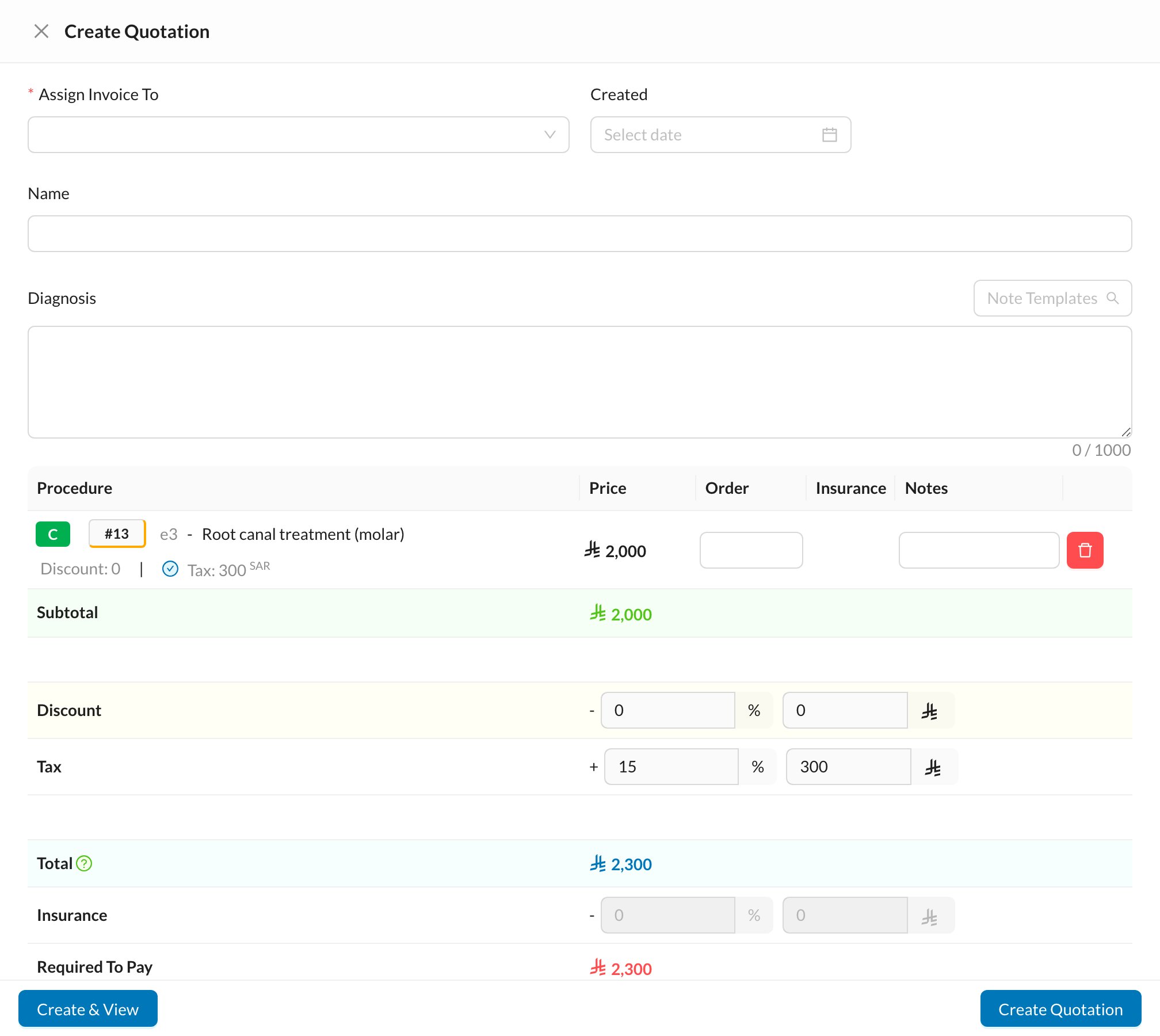
With no treatments ticked, the quotation includes all the patient’s planned treatments that aren’t invoiced yet.

✍️ Sign and print

Open the quotation (from the chart’s Quotations tab) to Print it or have the patient Sign it on the screen.

💵 Turn it into an invoice

On the quotation page, click Invoice. The invoice form opens with the quotation’s treatments and discounts. You can invoice part of the quotation now and the rest later.
A quotation has no expiry date. Invoicing it doesn’t change the treatments’ status; mark them In Progress or Completed on the chart when done.