

Open Calendar from the side menu. It shows the appointments of the branch selected at the top of the side menu, with one column per room.
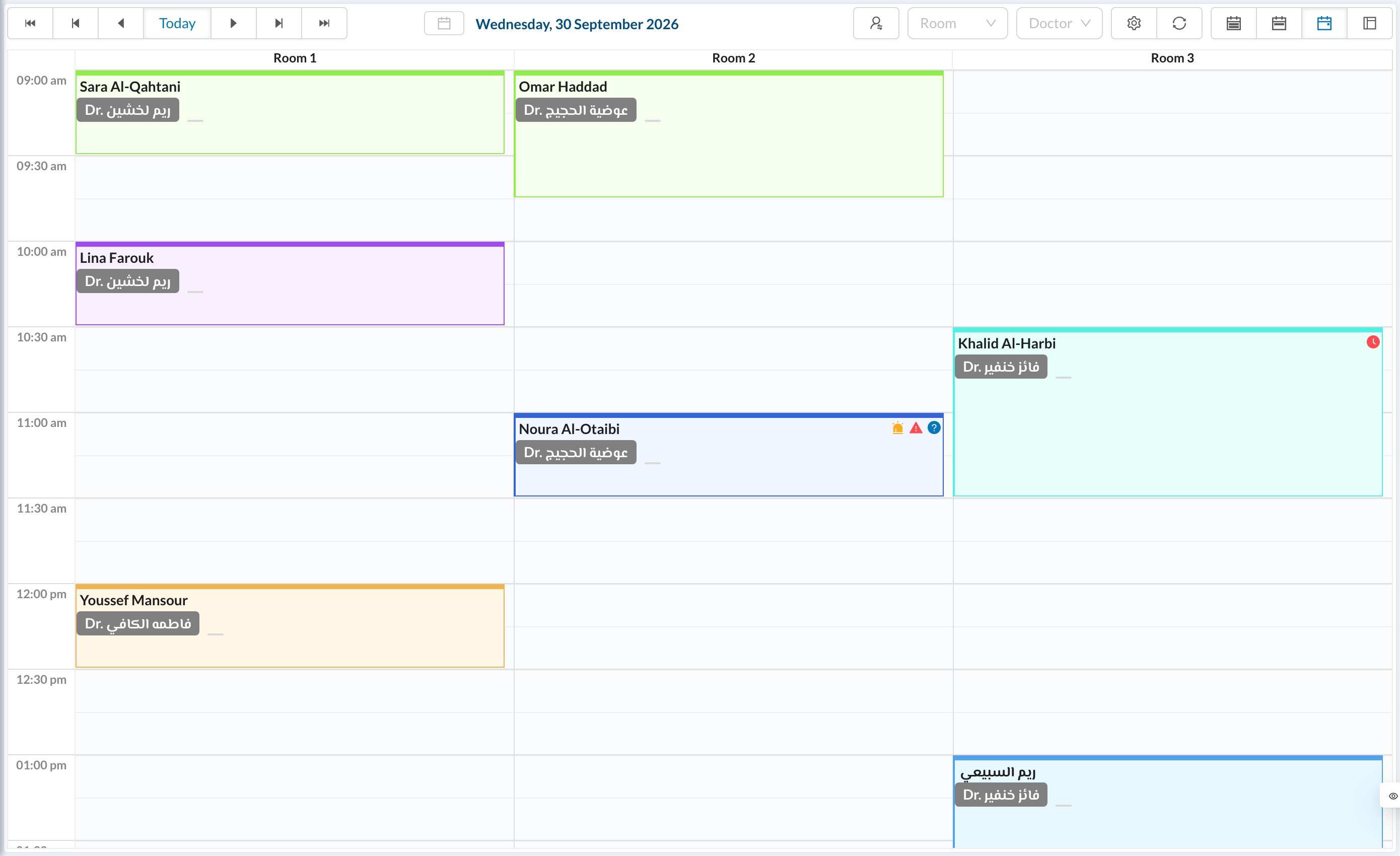
🧭 The toolbar
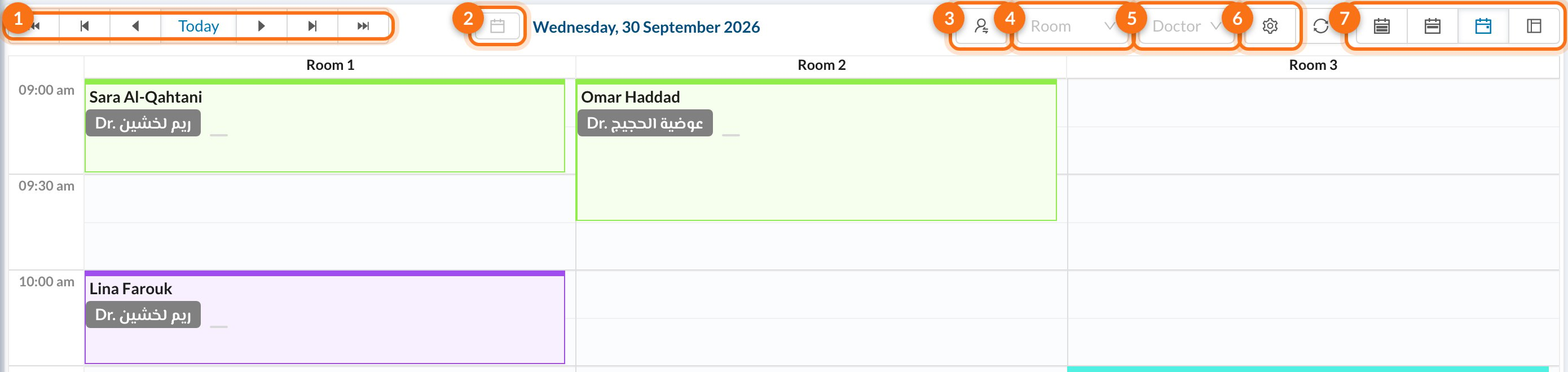
- Navigation: the arrows move one day, week or month depending on the view. Today goes back to today. In Day and Agenda views, the double arrows jump a week or a month.
- Date picker: jump to any date. Picking a date opens it in Day view.
- By Doctor: show one column per doctor instead of per room. Each doctor’s off-hours are shaded.
- Room: show only some rooms.
- Doctor: show only one doctor’s appointments, including the ones where they are an assistant.
- Calendar settings: the branch’s working days, hours, breaks, holidays and rooms (see below). Only visible with permission to edit branches.
- Views: Month, Week, Day and Agenda. Agenda lists one day’s appointments with the patient’s phone number. The refresh button next to them reloads the calendar.
🖱️ Working in the calendar
- Book an appointment: click an empty time in a room. One click books 15 minutes; click and drag down to select a longer time. The new appointment form opens with that room and time. See Add patient appointments.
- Open an appointment: click it to see its details and actions, and to change its status.
- Move or resize: drag an appointment to another time or room, or drag its bottom edge to change its length. A message at the bottom lets you Undo. Dragging isn’t available on phones and tablets.
⚙️ Calendar settings (branch working hours)
Click the gear to set, for the current branch:- First Day of Week.
- Open All Days Except..: choose the days the branch is closed.
- Opening Time and Closing Time for each day. Apply to All copies the first day’s hours to the others.
- Break: add breaks in whole hours.
- Holidays: closed days or months. They repeat every year.
- Rooms: rename, reorder or add rooms. When you delete a room, choose which room its appointments move to.
- Show all-day hours on calendar?: show the hours when the branch is closed too.
These settings apply to the whole branch, for everyone. The Room Width at the bottom of the calendar only changes your view, on this computer.