

🔎 Find a patient
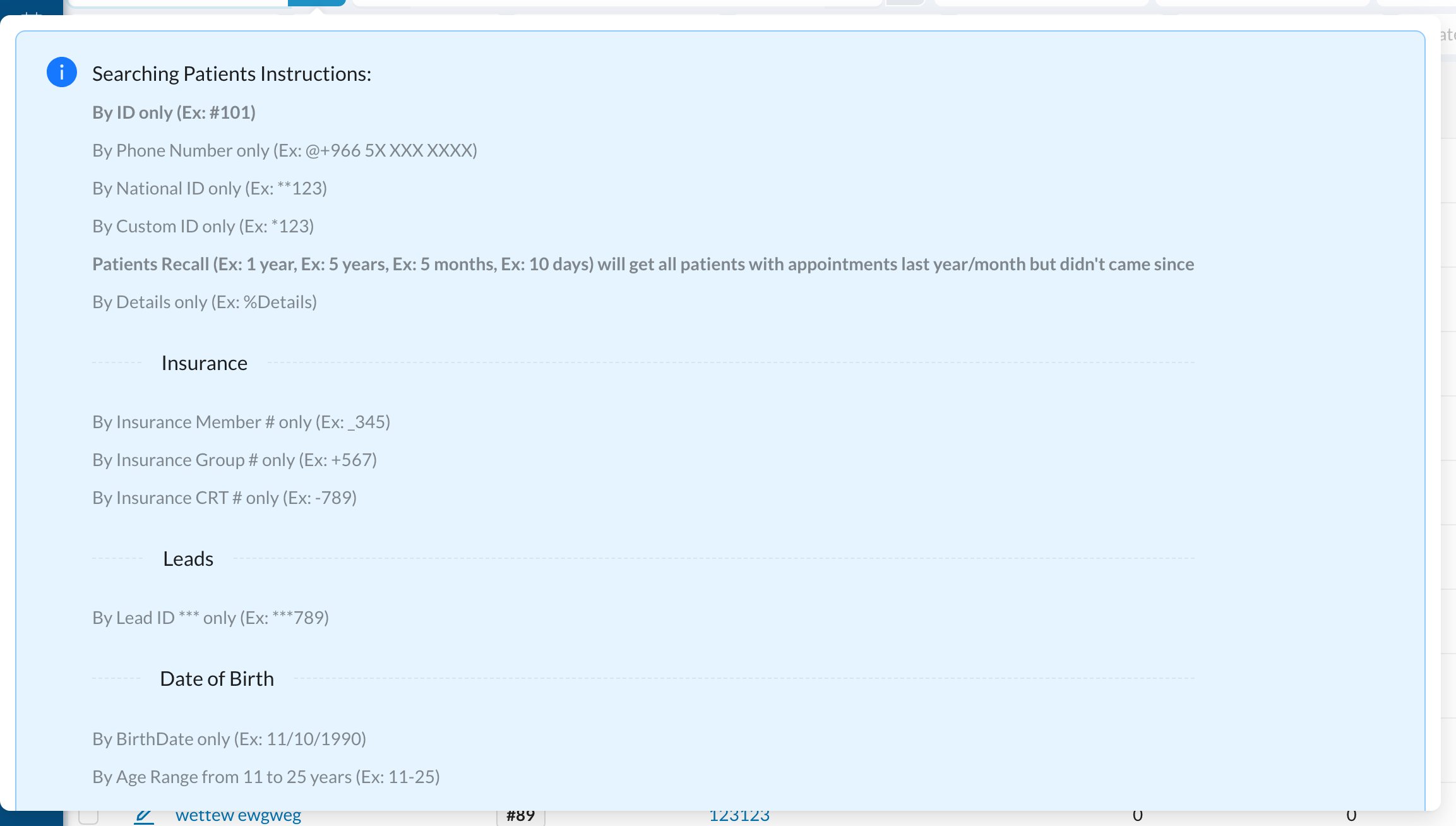
Type in Search Patients at the top of any page: a name or a phone number. Click the patient to open their profile. To search by other details, start your search with a symbol:
The full list of symbols is in the help popup of the search box on the Patients page:
📋 The patients list
Open Patients from the side menu.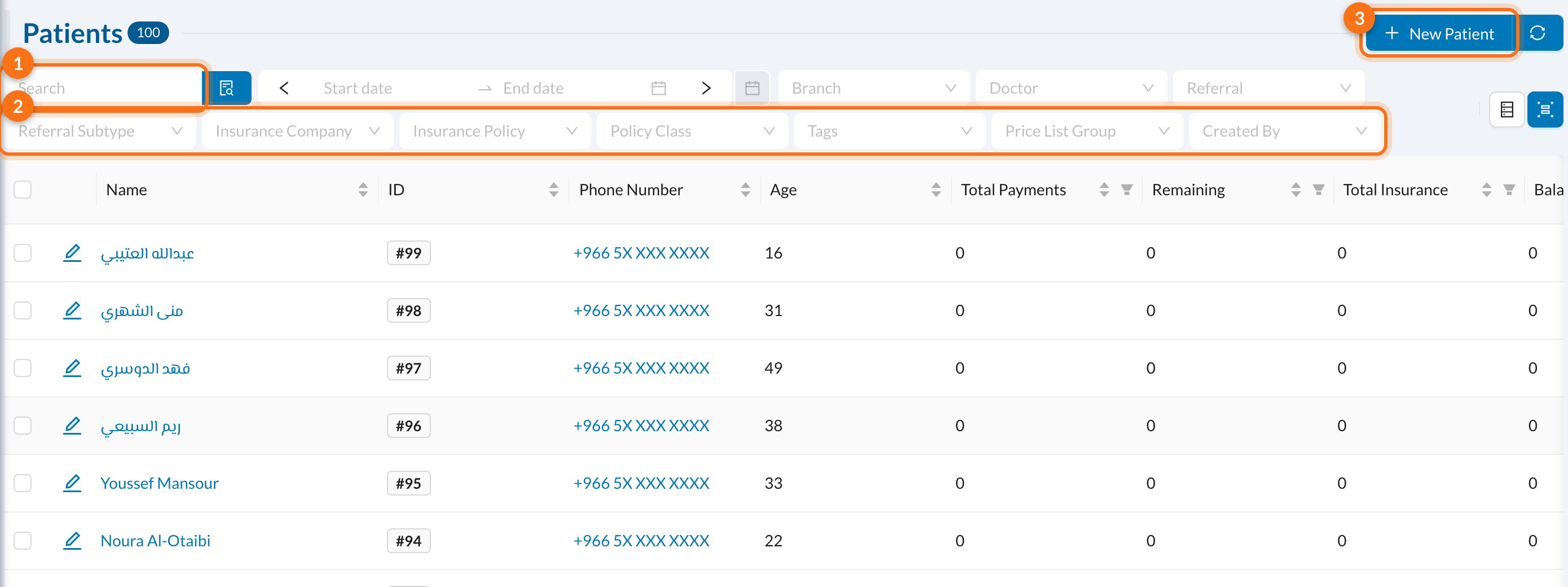
- Search, with the same symbols as above.
- Filters: dates, branch, doctor, referral, insurance, tags, price list group and who created the patient.
- New Patient.
Add New Tags for All with nothing selected adds the tags to every patient matching the filters. It only adds tags; it never removes them.
➕ Add a new patient
Click New Patient (on the Patients page, in the + menu, or with + next to the patient field in the appointment form).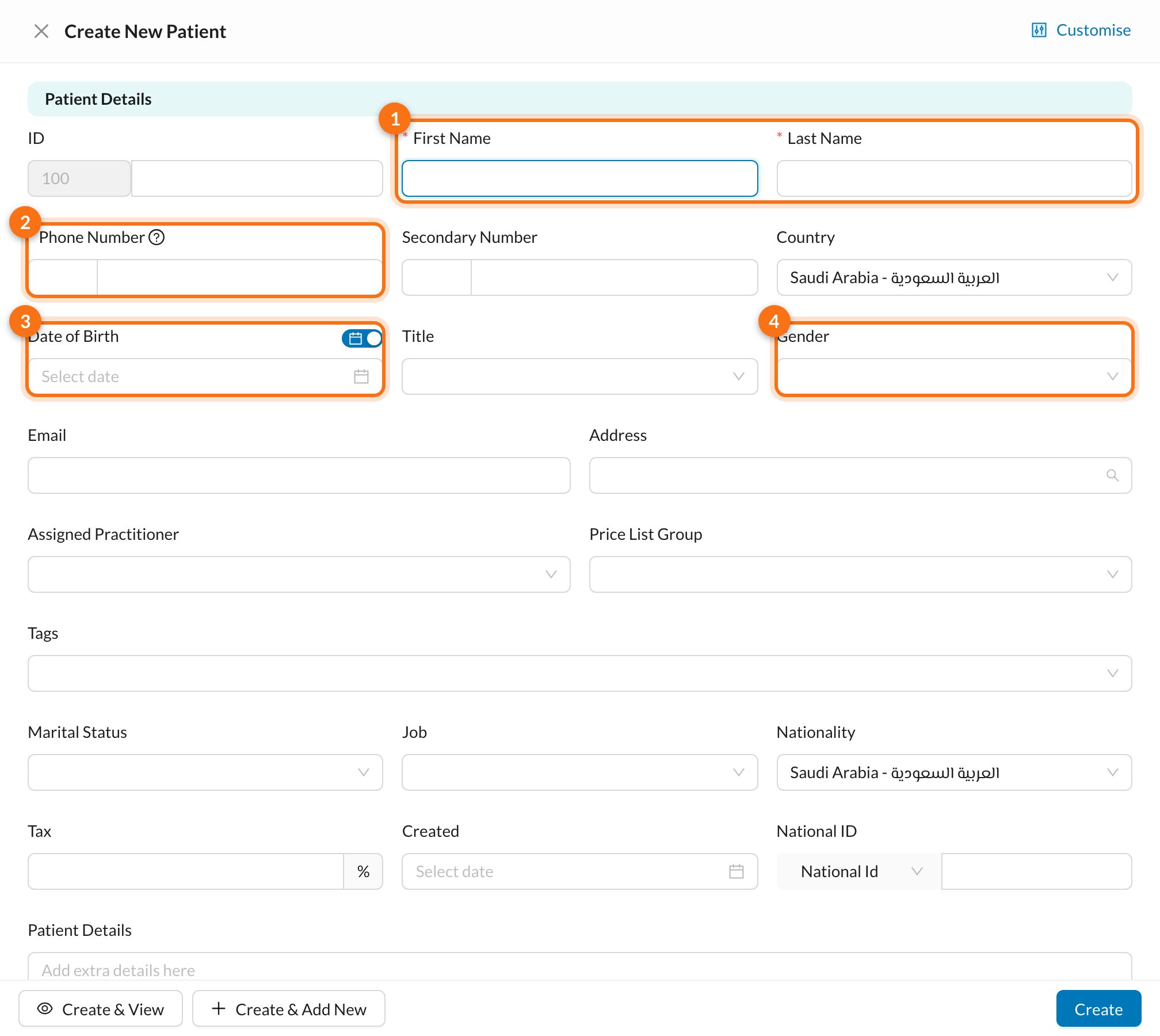
- First Name and Last Name (required).
- Phone Number with the country code (required), so the patient can receive SMS and WhatsApp.
- Date of Birth. Use the switch to enter the Age instead; note that birthday messages then won’t be accurate.
- Gender, and any other details: email, address, assigned doctor, tags, national ID, referral (“How did you hear about us?”), insurance and emergency contact.
If another patient has the same phone number or ID, Dentolize shows a Duplicate Patients warning with links to them. It doesn’t stop you saving, so check before creating a duplicate.
👤 The patient profile
✏️ Edit, archive or merge
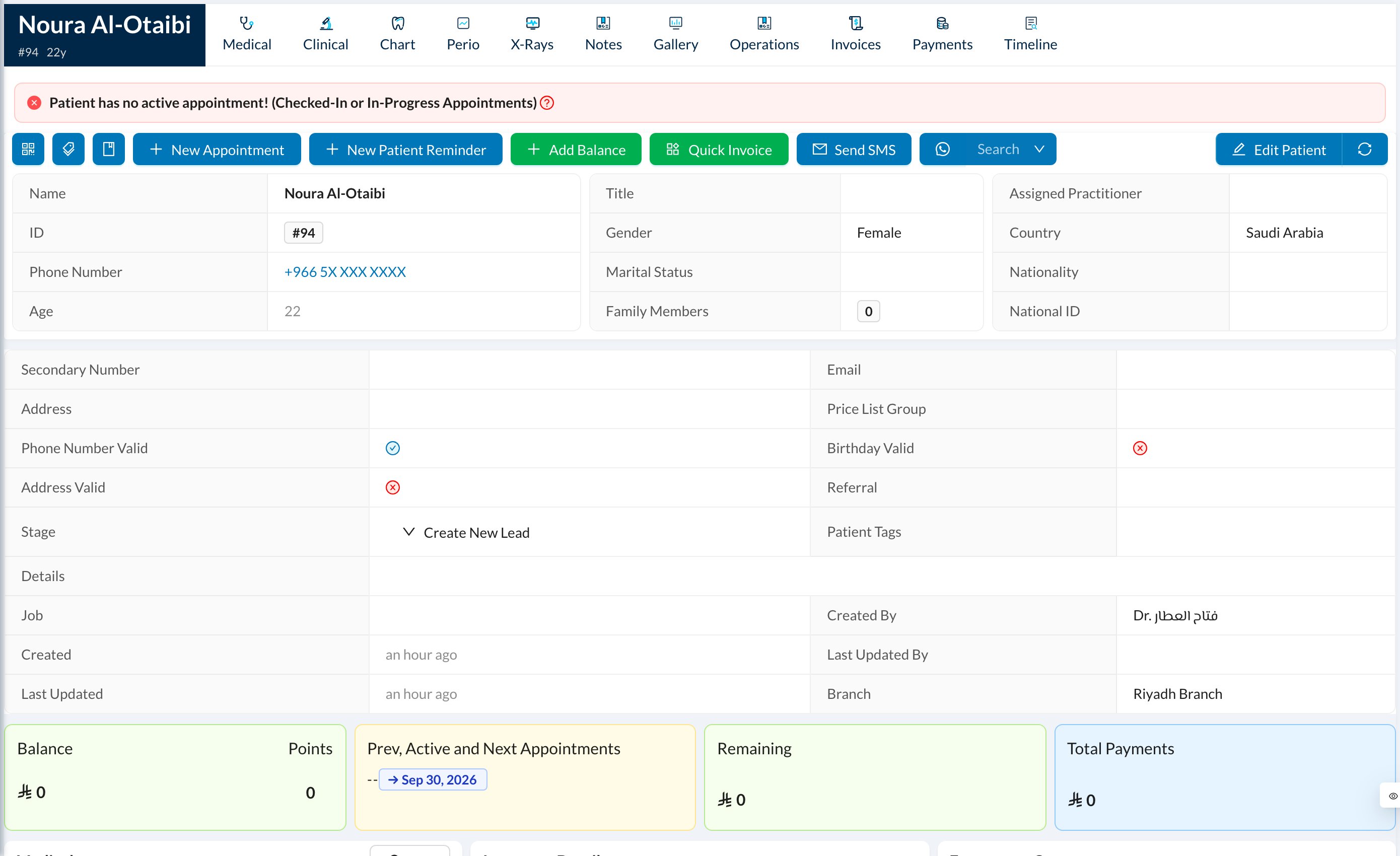
Click Edit Patient on the profile (or the pencil in the list), change the details and click Update.- Delete/Archive: a patient with no records (no appointments, invoices, files…) is deleted permanently. Otherwise they’re archived and appear only in Logs → Archived Patients, where you can Enable them again.
- Merge Patient: moves all of this patient’s records (appointments, treatments, invoices, payments…) to another patient, then deletes this one. This can’t be undone.