

📋 The lab orders list
Open Lab Orders from the side menu: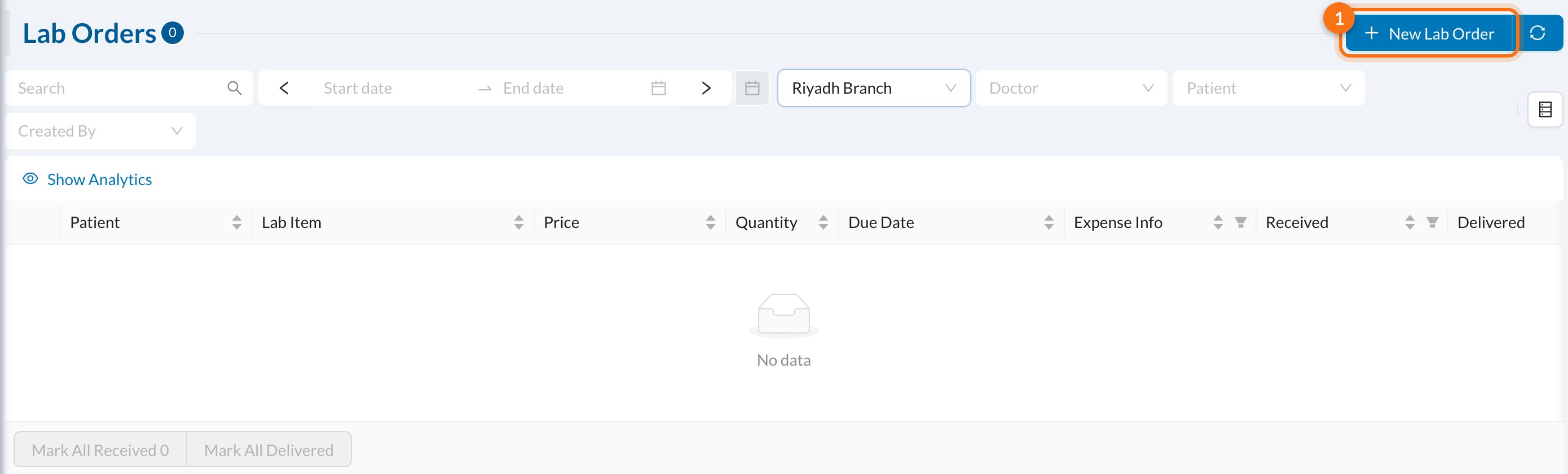
➕ Create a lab order
Click New Lab Order (1), use the + menu, or add it from the patient’s Chart (the patient is then filled in).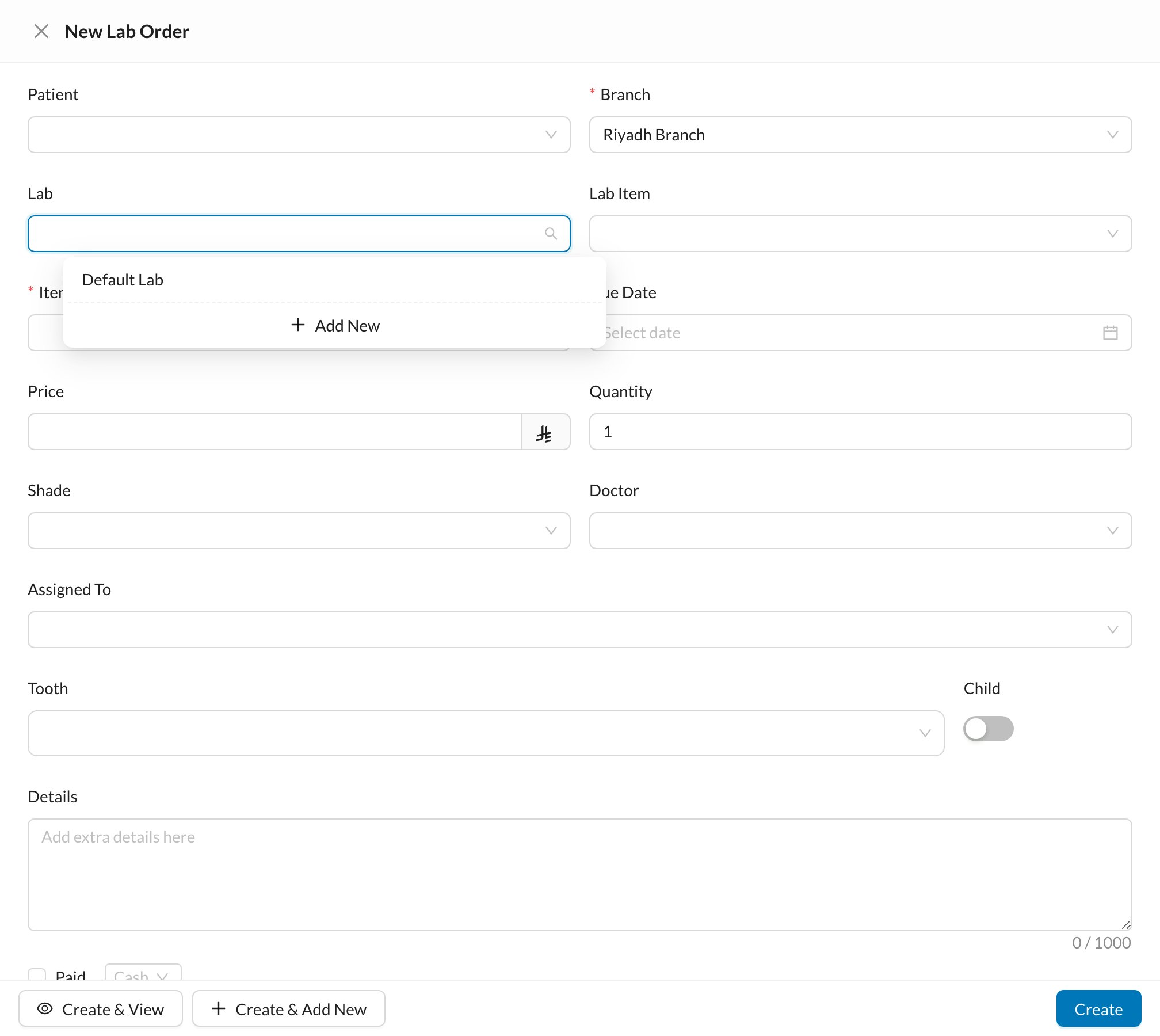
- Patient, Branch and Lab.
- Lab Item: choosing an item fills in its name and price. Or type an Item Name.
- Due Date, Price and Quantity.
- Shade and Tooth (for dental clinics), Doctor and Assigned To.
- Details and files.
- Add to Expenses: ticked by default, so the lab cost is recorded as an expense. Tick Paid if you’re paying the lab now.
The lab receives a message about the new order only if a Lab is chosen and your clinic has a lab order message template.
🔄 Track the order
Open the order and tick Received when it comes back from the lab, and Delivered to Patient when it’s fitted. Overdue orders that haven’t been received appear in the notifications.- To pay the lab later, click Add Payment in the Expense Info column.
- Once the expense exists, change the price from the expense, not from the order.
- An order whose expense has payments can’t be deleted until those payments are deleted.