

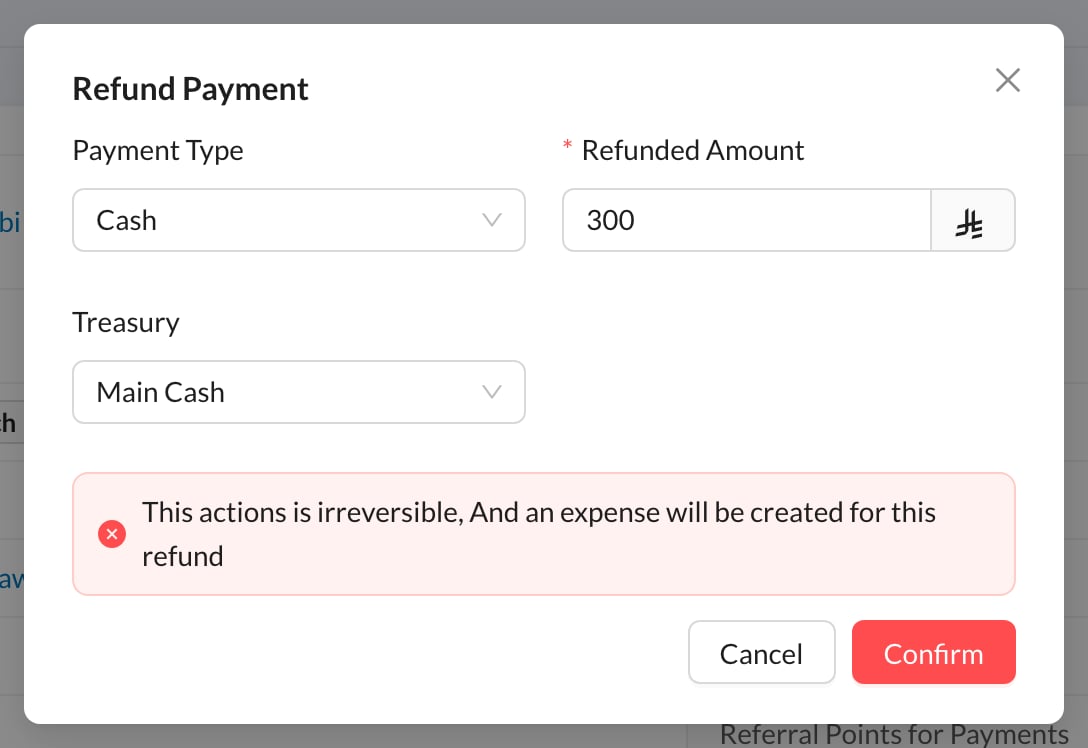
↩️ Refund a payment
Open the payment (from Finances → Payments or the invoice’s Payments tab) and click Refund Payment (1):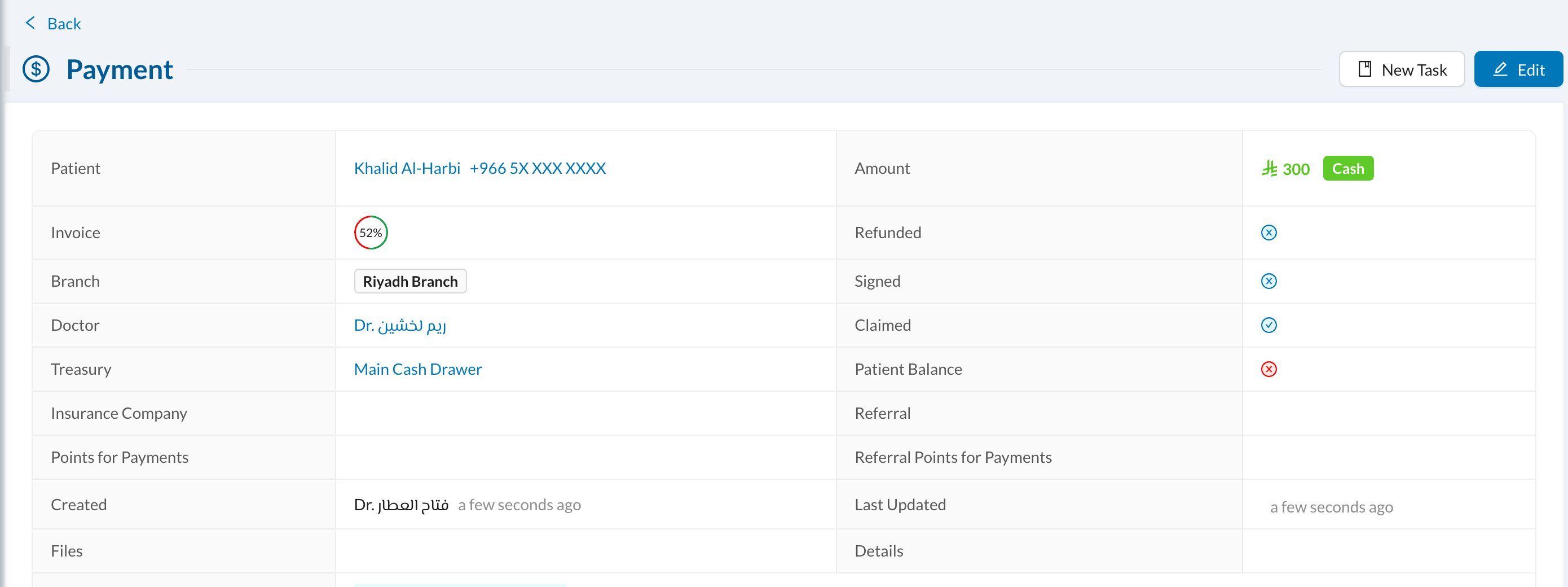
✏️ Edit an invoice
Open the invoice and click Edit Invoice.- Before any payment: you can change everything: treatments, prices, discount, tax, insurance and required to pay.
- After a payment: only the assigned users, date, ID, details, pre-authorization, branch and doctor can change. On the invoice you can still use Edit Discount, Add Operations and Remove from Invoice, as long as the total doesn’t go below what’s already paid.
🧹 Release or cancel an invoice
In the edit form:- Release: writes off the unpaid amount. The invoice total becomes what was paid, and it’s marked as paid in full.
- Cancel invoice: cancels the whole invoice, with a reason. Its treatments can be invoiced again, and if the patient paid you choose to refund the money or keep it as their balance. Invoices can no longer be deleted. See Cancel an invoice.